
Inbound Email Stage
The Inbound Email stage allows messages to be ingested from the attachments of a Microsoft 365 email account.
Stage Overview
The Inbound Email stage allows messages to be ingested into the Integration Hub service via an email attachment. This stage requires a Microsoft 365 email account - other email account types are not supported.
As Logic Apps only support connecting to a Microsoft 365 email account, the credentials required for connecting to the account will need to be those of the email account - the use of a Service Principal App Registration to connect to the email account is not supported. MFA and Conditional Access Policies may need to be configured with appropriate exemptions to allow ongoing use of the account.
Stage Definition File Location
All Inbound Email stages are defined by creating an appropriately formatted JSON definition file in the following location:
Stage JSON Definition File Format
The JSON definition file for an Inbound Email stage is as follows:
{
  "name": "stage-name",
  "displayName": "Brief Stage Title",
  "description": "Brief description of the stage.",
  "enabled": "$env:STATUS_<INTEGRATION_NAME>",
  "emailAccount": {
    "apiConnectionName": "$env:EMAIL_ACCOUNT_CONNECTION",
    "folderPath": "$env:EMAIL_FOLDER_PATH"
  },
  "filter": {
    "fileName": "contains-filter-for-filename",
    "fileSize": 0,
    "fileExtension": "file-extension-filter"
  },
  "deduplicate": {
    "timeWindow": "HH:MM:SS",
    "schemaMessageId": "schemas/path/to/transform.liquid",
    "fileType": "json|xml|csv",
    "hasHeader": "true|false"
  },
  "lineEnding": "windows|unix",
  "preLogTransformSchemaFileName": "schemas/path/to/schema/schema-name.liquid",
  "preLogTransformSchemaType": "liquid|javascript",
  "preLogTransformFormat": "json|xml|csv"
}| Property | Description | |
|---|---|---|
name | The name of the stage. | |
displayName | Optional (but highly recommended). A short (3 or 4 word) "display name" for the stage, used as a "title" of the stage in the Integration Hub Portal service's self-documentation capability. | |
description | Optional (but highly recommended). A brief (10 to 15 word) description of the stage, used as a brief description of the stage's purpose in the Integration Hub Portal service's self-documentation capability. For a more detailed explanation (when needed), use the stage markdown feature. | |
enabled | Optional boolean flag (true or false). Default is true.Generally set via a DevOps variable. Controls if the stage is deployed enabled or not. | |
concurrency | Optional number of concurrent runs permitted for the stage. Default is 10. | |
emailAccount | Object that contains the apiConnectionName and the folderPath attributes required for connectivity to the email account to be monitored for incoming emails with appropriate attachments. | |
apiConnectionName | A unique Azure resource name that will be used to create an "API Connection" resource, that will actually be the connection to the Microsoft 365 email account. Generally set via a DevOps variable. | |
folderPath | The email account "folder" to monitor for emails with relevant attachments - for example, "Inbox". Generally set via a DevOps variable. | |
filter | Object that contains the fileName, fileSize, and fileExtension attributes that are used to create a filter condition in the workflow that collects desirable attachments from emails. | |
fileName | If set, only ingest email attachments that commence with the literal string segment provided. Does not support wildcards. The file name prefix matching is case insensitive. | |
fileSize | If set, do not ingest files of zero bytes. Only supports a value of zero. Recommended that this be set to zero, so that zero-byte attachments are ignored. | |
fileExtension | If set, only ingest email attachments that have the specified file name extension. The file extension matching is case insensitive. | |
deduplicate | Inbound message de-duplication options, to allow incoming duplicate messages to be discarded. | |
timeWindow | The time window in which any duplicate payloads detected should be discarded. (Hours, minutes, and seconds.) | |
schemaMessageId | A filename that defines a Liquid transform, which will transform the received payload into a text string, which defines a unique ID for each message, allowing any duplicates of this unique ID received within the timeWindow to be discarded. | |
fileType | One of json, xml, or csv, defining the type of inbound file, so that the Liquid transform above can correctly handle the file transformation to the unique ID string. Only JSON, XML, and CSV files can be de-duplicated. | |
hasHeader | Required if fileType is csv. Set to either true or false to indicate if the CSV file has a header row or not. | |
lineEnding | Required when using the deduplicate feature, and when the fileType is set to csv. Set to either windows or unix.Defines if the Liquid transformation set by the deduplicate.schemaMessageId field (to transform the file into a unique ID value for the payload) should expect the CSV file being received to have Windows (\r\n) or Unix (\n) line endings. |
Pre-Logging Transformation
This stage supports the optional pre-logging transformation feature using the following fields:
preLogTransformSchemaFileNamepreLogTransformSchemaTypepreLogTransformFormat
See the Pre-Logging Transformation for details.
Email Connection Setup
Upon deployment of an Inbound Email stage, an API Connection resource will automatically be deployed, based on the provided value for the apiConnectionName.
Although this resource is automatically created, it is not possible for a Microsoft 365 email account connection to be automatically authenticated, and the Inbound Email stage requires that the API Connection resource be manually updated after initial deployment. This is a one-time action, and does not need to be repeated after subsequent deployments (unless the email account credentials are updated).
To authenticate the email account, navigate to the Integration Hub resource group and look for the created API Connection resource. The name will follow the convention of {environmentCode}{regionCode}-{owner}-{customer}-{apiConnectionName}-lga-con.
The API connection resources will initially look similar to this:
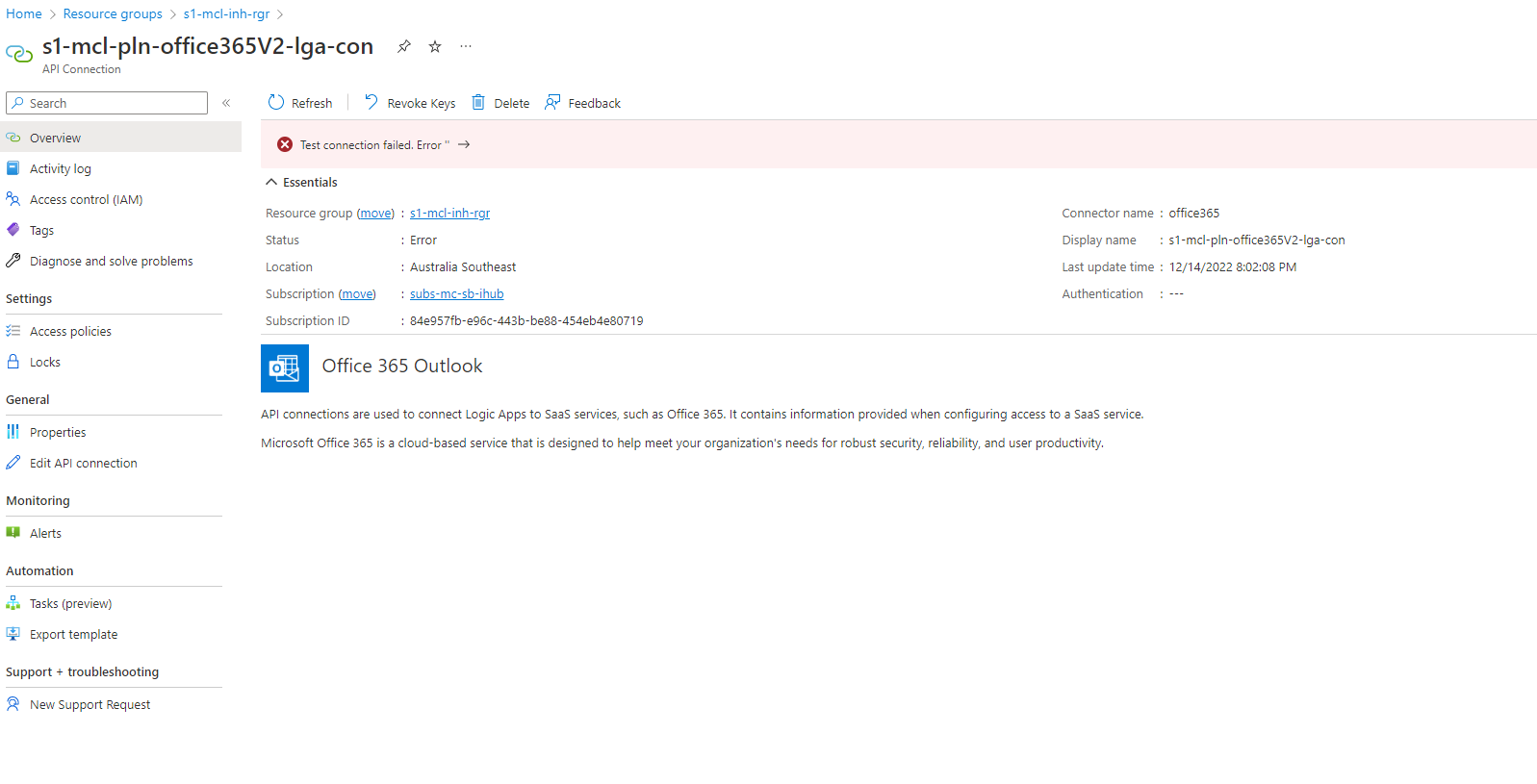
Select the "Edit API connection" option from the left navigation menu, and you will be taken to the following page:
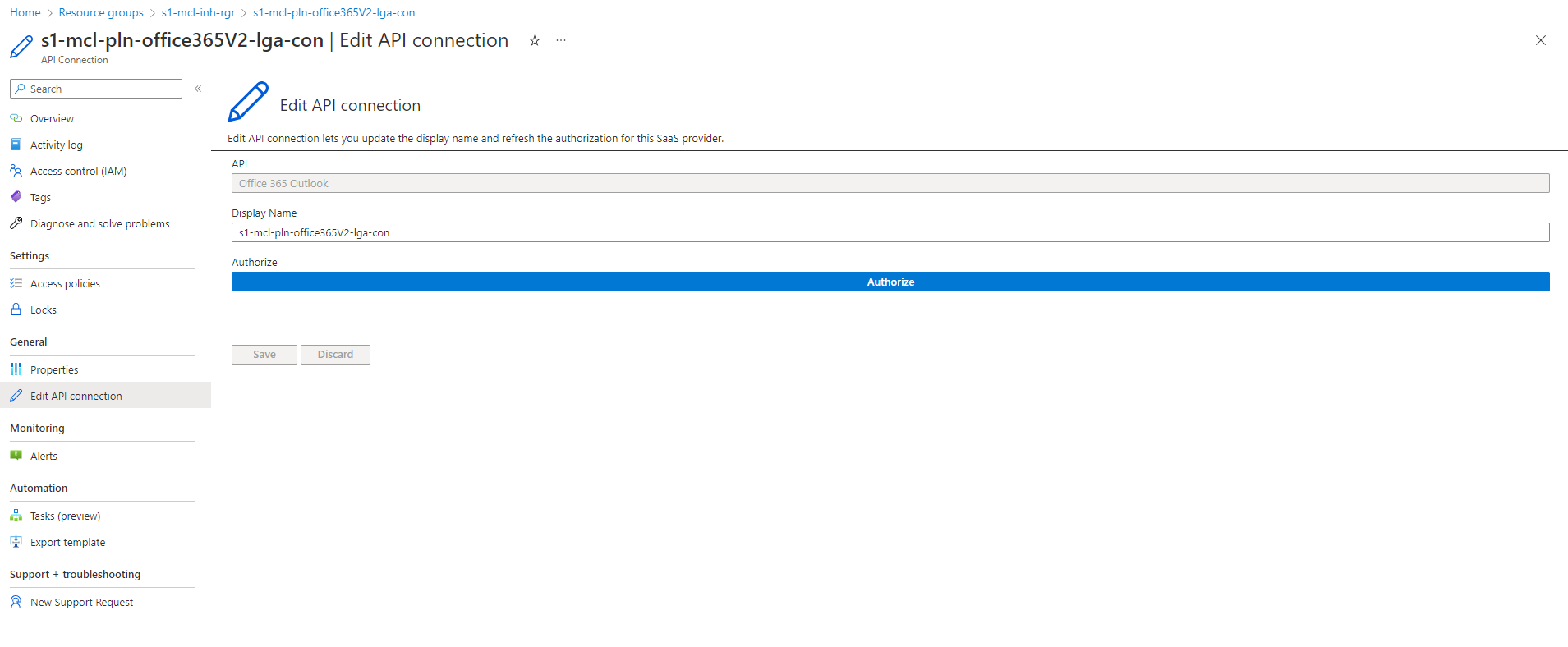
Click the "Authorize" button and you will be prompted to log in to your Microsoft 365 email account.
Log in with the credentials for the email account that you will be using for receiving emails containing attachments for Integration Hub.
Once you enter the credentials correctly, you will get a notification that the authorisation process was successful. Click Save to complete the setup process.
After receiving the notification that the API Connection editing was successful, navigate back to the API Connection overview page. The status should now show 'Connected':
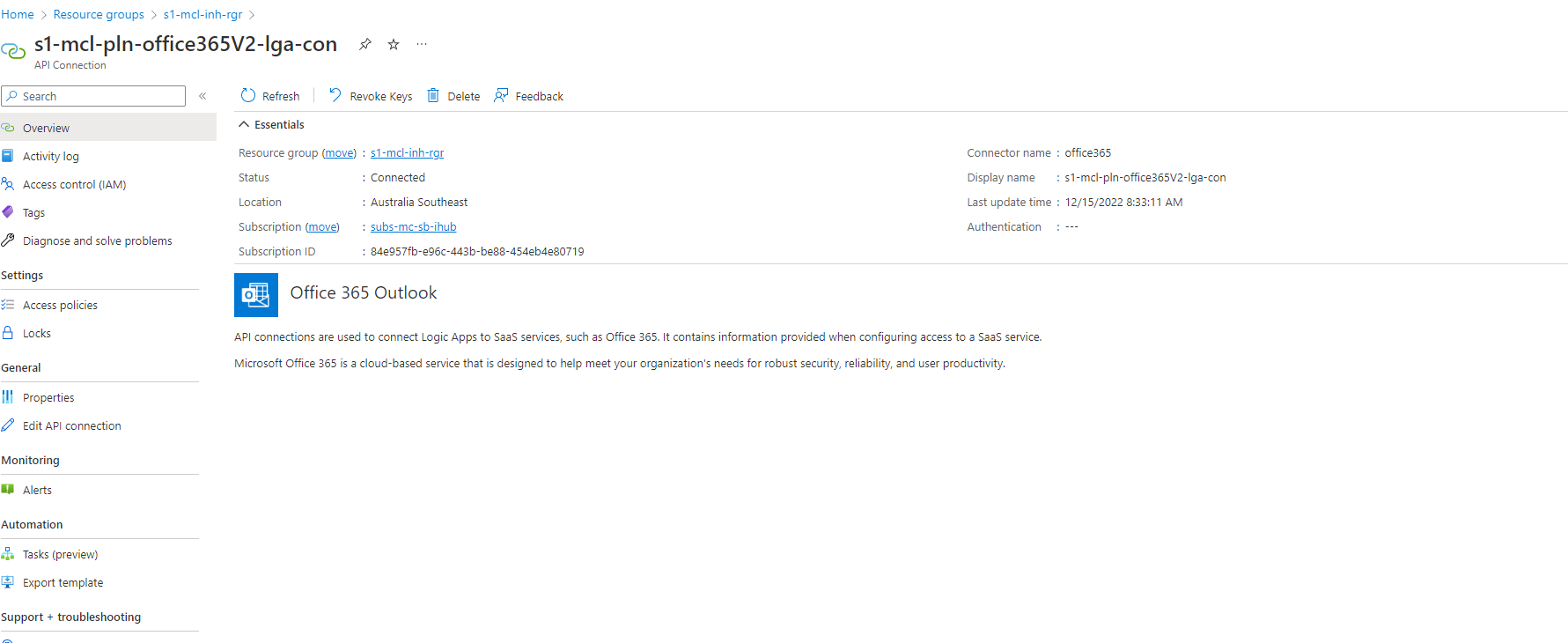
Finally, to complete the setup process, navigate to the Inbound Email stage Logic App (and workflow, if required).
Click on the designer and select the trigger action. An error message will be shown, saying that the test connection failed.
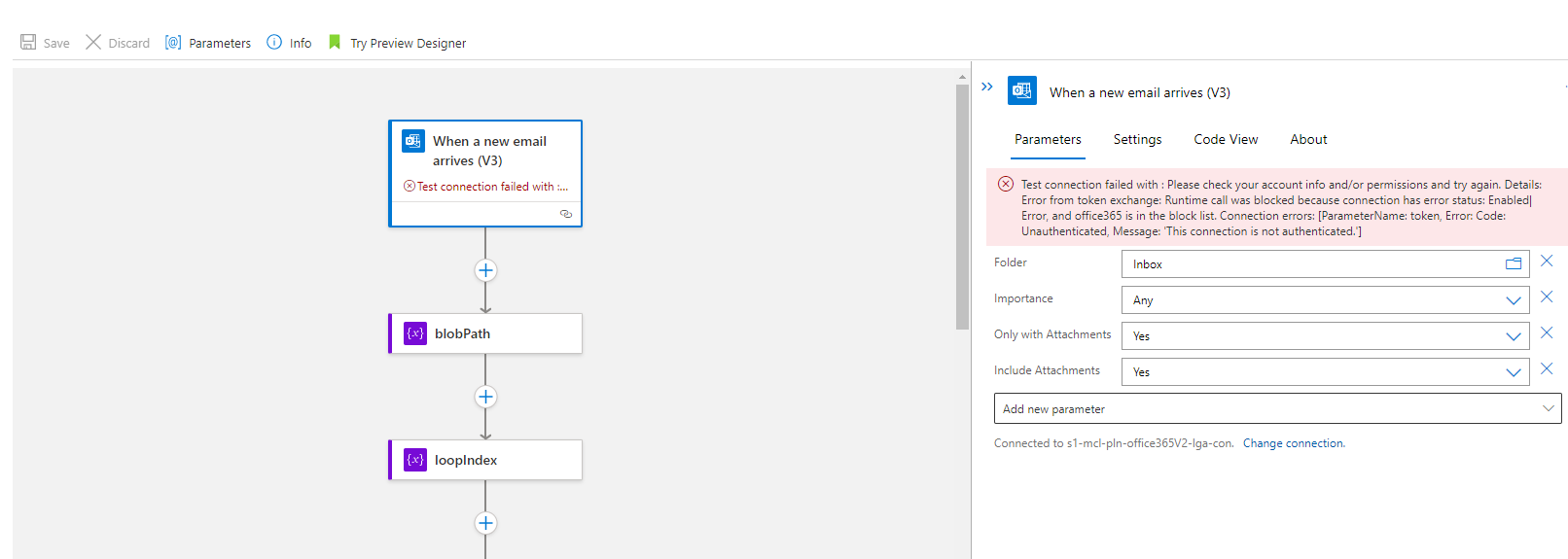
Click on the "Change connection" link, and the "Select Connection" option should be displayed:
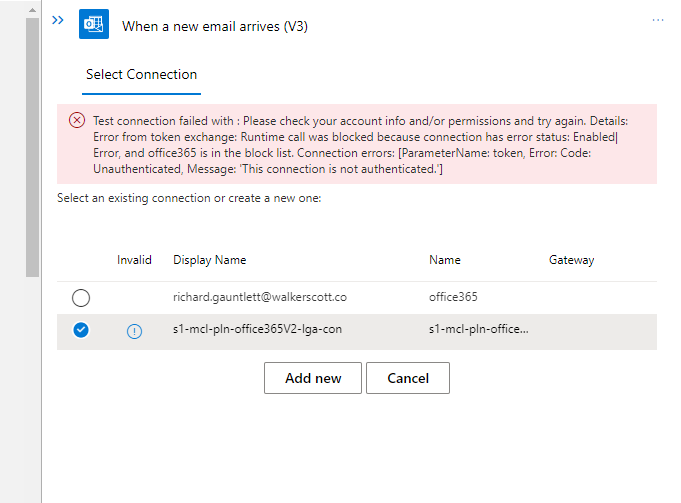
While more than one email connection option may be displayed, you should see the email "API Connection" option that you authenticated previously, with a warning icon showing in the "Invalid" column. You will be prompted to log in.
Log in using the account you use to access the Azure Subscription that Integration Hub is deployed into.
Do not log in using the credentials for the email account that will be receiving emails with attachments for Integration Hub processing!
Inbound email attachment monitoring and ingestion should now commence.
Last updated on