
Klevr Members Release Notes
Release Date: 29 Sept 2026
Version 2.26.0
Release Date: 29 Sept 2026
New Features
None
Bug Fixes
None
Dropped Features
None
Installing Klevr solutions using the pacman
This provides a guide for installing Klevr solutions using the pacman utility.
- Begin by obtaining the latest solution files from the Teams and placing all necessary items in a designated folder.


- Each file is identified by a number, such as 14 or 18. Please be mindful of these numbers during subsequent steps.
- Include the pacman.ps1 file in the same folder to access the required scripts.
- To launch PowerShell in the correct directory, use the address bar in Windows Explorer to enter
powershell.exe. - If you are utilizing pacman for a customer for the first time, authentication is required. Initiate this process by entering
pac authin PowerShell. - Windows will prompt an authentication window. Upon successful completion, you may proceed with solution installation.
- Typically, most environments require both Klevr Utilities and Klever Utilities Code. The following example demonstrates how to install these components:
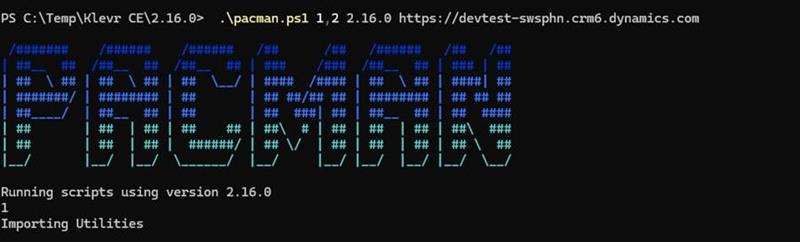
- In PowerShell, execute:.\pacman.ps1 1,2 2.16.0 https://org.crm6.dynamics.com/
- Here, "1" and "2" correspond to the solution numbers intended for installation.
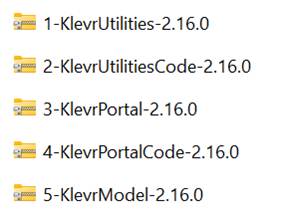
- The version specified, such as "2.16.0," must match the files you downloaded.
- The provided URL refers to the destination environment, utilising your authenticated credentials.
- This action initiates the installation process.
For further guidance, Richard Gauntlett has produced a short video detailing these steps:
Last updated on