
Portal App Registration
How to create and configure the Entra ID App Registration that the Klevr Integration Hub Portal uses for sign-in and Azure access.
The Klevr Integration Hub Portal feature needs an Entra ID App Registration in the Entra ID tenant defined by the TenantId value. The portal uses it to sign users in and to access the Klevr Integration Hub resources in Azure.
We recommend a standalone App Registration that is created just for the portal. You can also use the same App Registration that is used to deploy Klevr Integration Hub into Azure, but it then also needs a client secret.
Create the App Registration and a client secret before the first deployment. The sign-in redirect URI can only be set after the first deployment; see After We Deploy.
Create the App Registration and Client Secret
Give the Walkerscott team group the Application Developer role. See Microsoft Entra Roles. We create the App Registration and the client secret. You still grant the admin consent (see Add the Microsoft Graph API Permissions).
Set the Deployment Values
Walkerscott does this step, with the values that you send us.
When using the Klevr Integration Hub Portal feature, the AppRegistrationClientId, AppRegistrationClientSecret, portalSqlPassword, stringEncryptionDefaultPassPhrase, and TenantDefaultDomain values must be set in the environment library, along with the TenantId value (which must always be set even if not using the Klevr Integration Hub Portal feature).
List at least one Integration Hub Portal administrator for each environment in the admins file. Administrators then add and manage the other portal users on the User Admin page.
Add the Microsoft Graph API Permissions
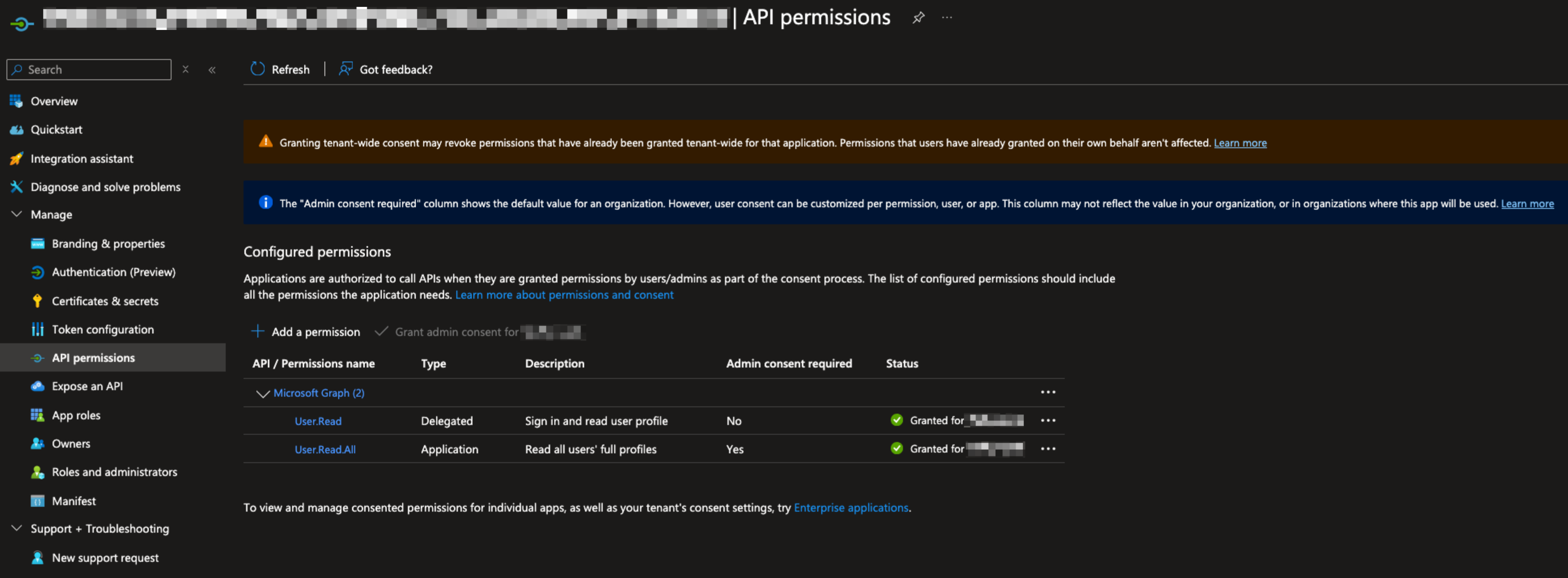
The portal uses Microsoft Graph to sign users in, and to look up a user's Entra ID account details. In the App Registration, go to Manage > API permissions, and make sure these Microsoft Graph permissions are present:
| Permission | Type | Used For |
|---|---|---|
User.Read | Delegated | Signing users in to the portal. |
User.Read.All | Application | Looking up users' Entra ID account details. |
To add User.Read.All, click + Add a permission, select Microsoft Graph, then Application permissions, and select User.Read.All.
User.Read.All needs admin consent. An Entra ID administrator with the Privileged Role Administrator or Global Administrator role must click Grant admin consent for {tenant}. Without it, the Integration Hub Portal service cannot find users' details in Entra ID, which prevents it from protecting against invalid logins via UPN re-use.
The API permissions page should then look like this:
If admin consent has not been granted, this error may appear when signing in to the portal: "{App Registration Name} needs permission to access resources in your organization that only an admin can grant. Please ask an admin to grant permission to this app before you can use it." Grant admin consent as above to fix it.
Assign Azure RBAC Permissions
Finally, to complete the setup of the Klevr Integration Hub Portal service, assign the following Azure RBAC permissions to the Klevr Integration Hub resource group, for the App Registration. If the resource group is created by the first deployment, do this after the first deployment; see After We Deploy.
- Reader
- Application Insights Component Contributor
- Azure Service Bus Data Receiver
- Azure Service Bus Data Sender
- Log Analytics Reader
- Storage Blob Data Contributor
Even if the App Registration used for the Klevr Integration Hub Portal service is the same one that is used to deploy Klevr Integration Hub, which should have the Azure RBAC Owner role assigned at the resource group level, this does not grant permissions to interact with Application Insights, Azure Service Bus, Log Analytics, and Azure Storage Accounts as needed for the Klevr Integration Hub Portal service to operate, and these roles are required in addition to the Owner role.
Last updated on