
After We Deploy
Actions to complete after the first deployment of Integration Hub, including the Integration Hub Portal sign-in setup.
Complete these actions after the first deployment of each environment. They need resources that only exist once the deployment pipeline has run.
When Walkerscott sets up Integration Hub with you, we tell you when the first deployment is done. If you gave us the roles, we do these actions for you, except where a step says otherwise.
Configure the Portal Sign-In Redirect URI
When using the Klevr Integration Hub Portal feature, the portal App Registration must be configured to redirect users back to the Klevr Integration Hub Portal service URL after authentication. To do this:
- Navigate to the Klevr Integration Hub resource group in Azure, and locate the "api" Azure Container App resource. (Take care not to use the "wba" Azure Container App.) Take a copy of the Application URL of the service.
- In the App Registration, go to Manage > Authentication (Preview).
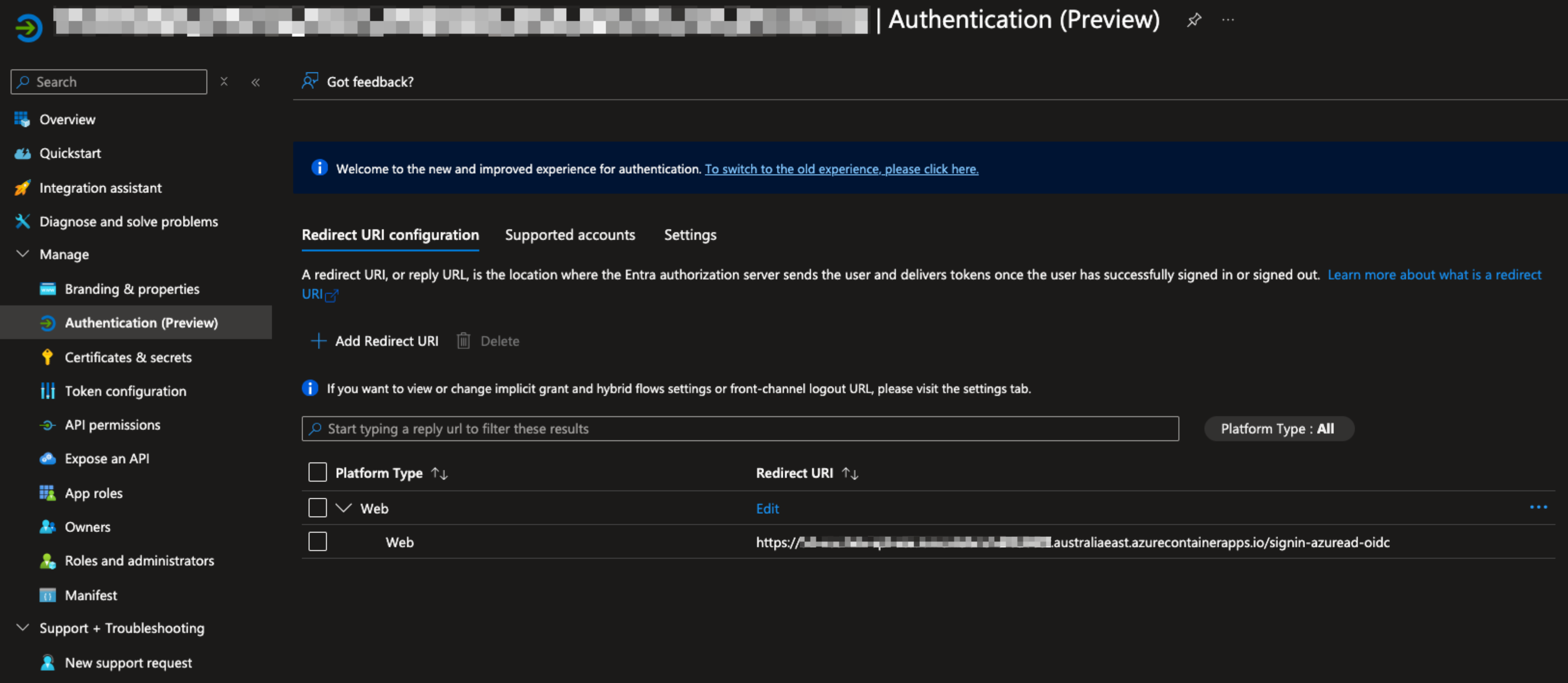
- On the Redirect URI configuration tab, click + Add Redirect URI, and select the Web platform.
- Enter the Azure Container App resource's Application URL value as the redirect URI, and add
/signin-azuread-oidcto the end of the URL. Then save it. No other options are required.
The Redirect URI configuration tab should then look like this:
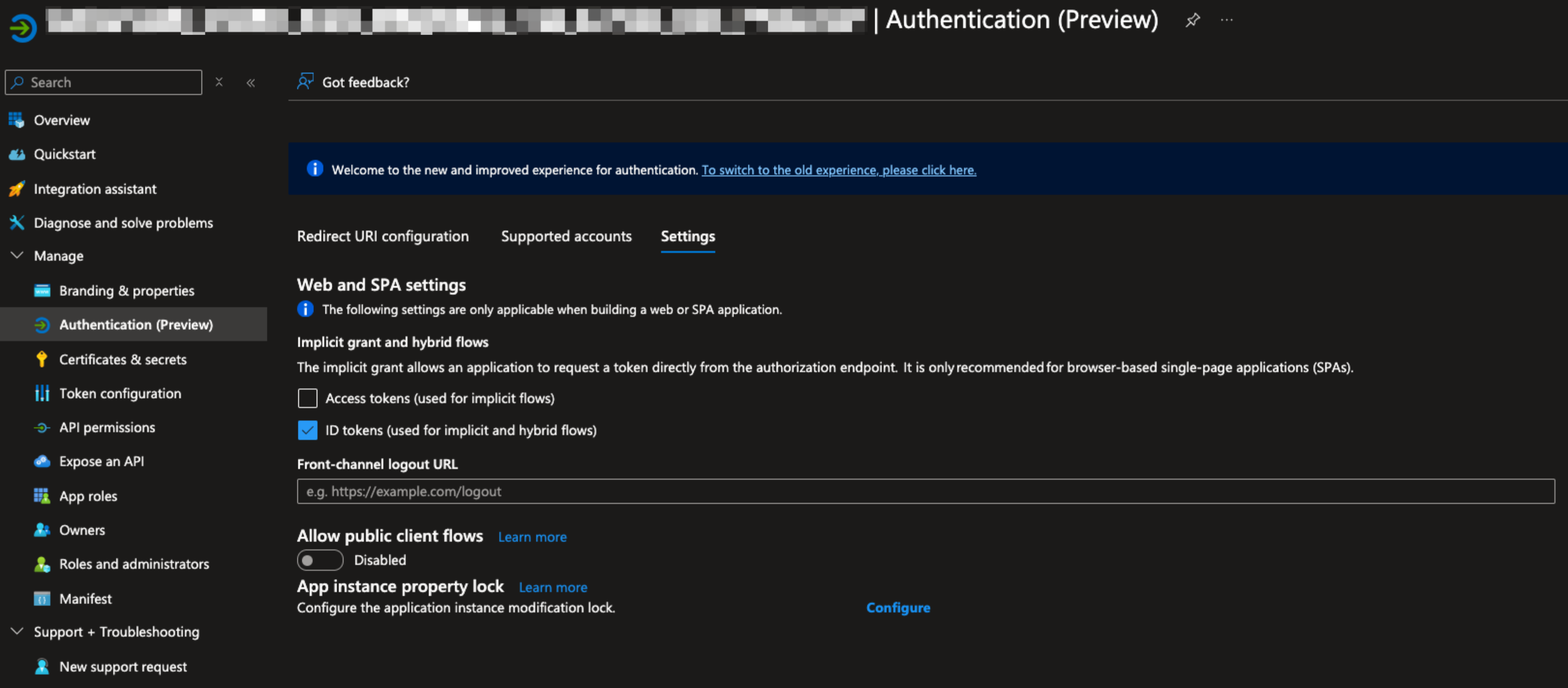
- Open the Settings tab. In the Implicit grant and hybrid flows section, select the ID tokens (used for implicit and hybrid flows) option, then save.
The Settings tab should then look like this:
If the App Registration is to be used for multiple environments, additional Web Redirect URIs can be added to the same App Registration.
Give Access to the New Resource Groups
Only needed if Integration Hub created its resource groups in the first deployment (Option A in Assign the Azure Roles). Before the first deployment, these resource groups did not exist, so their roles could not be assigned.
On each Integration Hub resource group, assign:
- The Walkerscott team group roles. See Azure Roles.
- The Portal App Registration roles, if you use the Integration Hub Portal. See Assign Azure RBAC Permissions.
Remove the Setup-Only Access
You do this step yourself. When setup is complete, we tell you. Then remove the access that the Walkerscott team only needed for setup:
- The roles that you gave the Walkerscott team group on the subscription, such as Contributor, Owner or User Access Administrator.
- The User Access Administrator role on the resource groups, if you gave it to our team.
- The Application Developer Microsoft Entra role, if you gave it to our team.
Keep the roles on the Integration Hub resource groups while Walkerscott supports Integration Hub for you. See Make the Access Time-Limited.
Do not remove the roles of the deployment App Registration. The deployment pipeline needs them for every deployment.
Last updated on