
Integrations
Use the Integration Hub Portal Integrations page to see the stages of an integration and its generated documentation.
The Integrations page shows how each integration in the selected Domain is built: its stages, how they connect, and the documentation for the integration and each stage. The page does not use the time range.
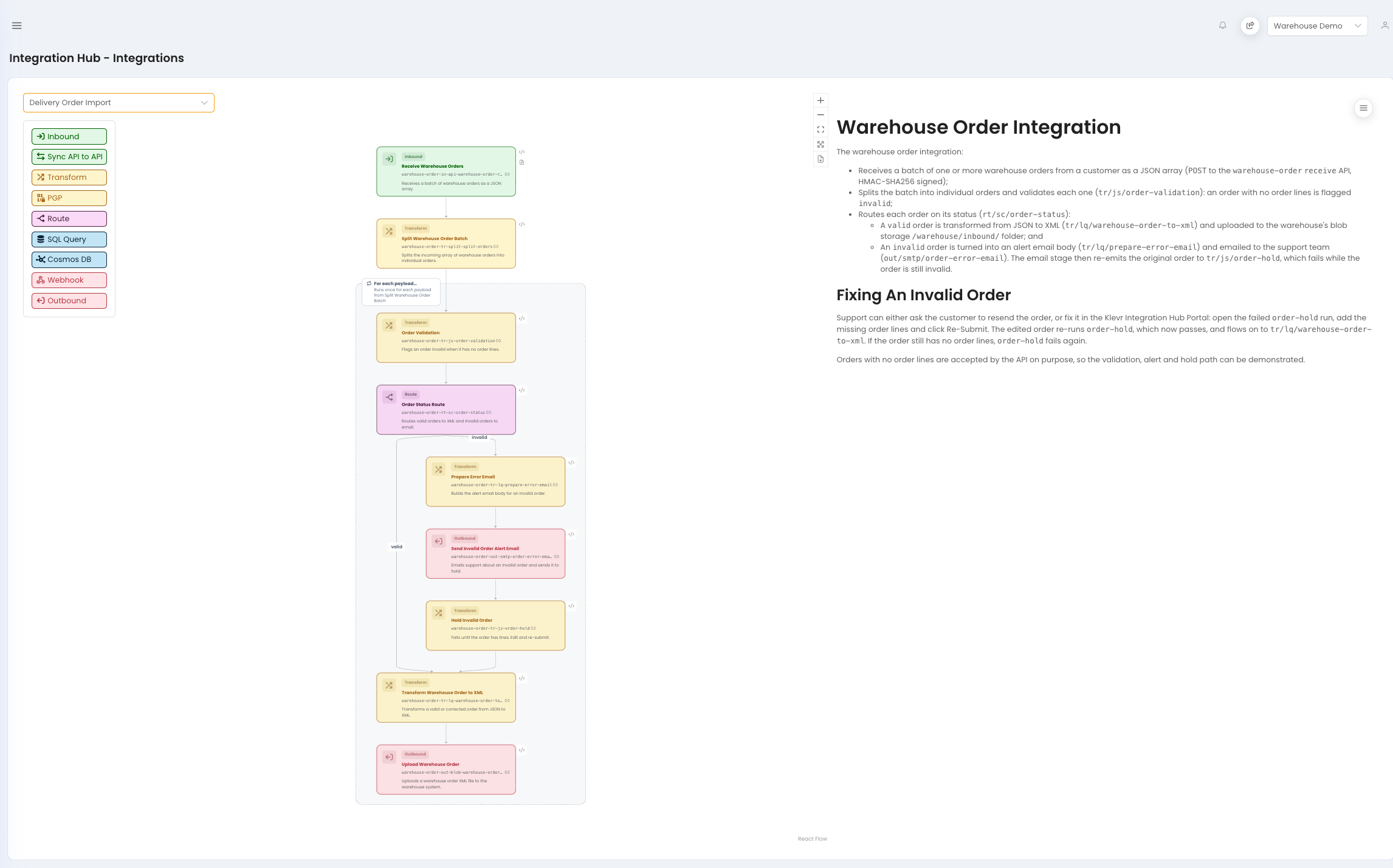
Select an Integration
Select the integration from the list at the top of the page. You can type in the list to search it. Integrations are shown by their display name when one is set.
Integration Diagram
The diagram shows one node for each stage of the integration. Each node shows:
- The stage type, for example
in-apiortr-lq. - The stage's
displayName. - An On Error marker on stages that are triggered when another stage fails.
- A marker on transform stages that are configured to end the run when the transformation produces an empty payload.
- A faded node with a red "!" badge when the stage is not running, for example because it was deployed disabled, it is disabled in Azure, or its Logic App does not exist. Hover over the badge to see the reason. The portal checks this in Azure when the diagram loads. See Infrastructure.
The lines between the nodes show how the payload moves between the stages, with an arrowhead showing the direction of each line. A dashed line goes to a stage that is triggered when another stage fails.
A dashed For each payload box surrounds the stages that run one time for each payload. The box starts after a stage that creates more than one payload, for example a split stage, an email stage (one payload for each attachment), a Cosmos DB webhook stage (one payload for each item), or a Consumption mode file pickup stage (one payload for each file). The label at the top of the box tells you what each run is for, for example "Runs once for each payload from Split Orders". A stage that also gets payloads from outside the box is shown outside it. When boxes are nested, each box shows one level of repetition.
Each node also has these links and dialogs:
| Item | What it does |
|---|---|
| Logic App name | Opens the stage's Logic App in the Azure portal, in a new tab. You need access to the Integration Hub resources in Azure to see it. |
| Code View | Shows the stage definition, and the schemas that the stage uses (schema, file name schema, pre-log transform schema and de-duplication schema), on separate tabs. |
| Documentation | Shows the stage's description and its Markdown documentation, when provided. |
Use the diagram tools to fit the diagram to the page, show it full screen, save it as a PNG image, or show the legend of stage types.
Integration Documentation
The panel next to the diagram shows the integration overview Markdown file, including Mermaid diagrams. When the integration has no overview file, the panel shows "No documentation has been provided".
All of the documentation on this page comes from the files in the Integration Hub repository. See the Documentation Guide for how to write it.
Last updated on