
Infrastructure
Use the Integration Hub Portal Infrastructure page to see the Azure resources that Integration Hub deployed, and to compare them with what Azure holds now.
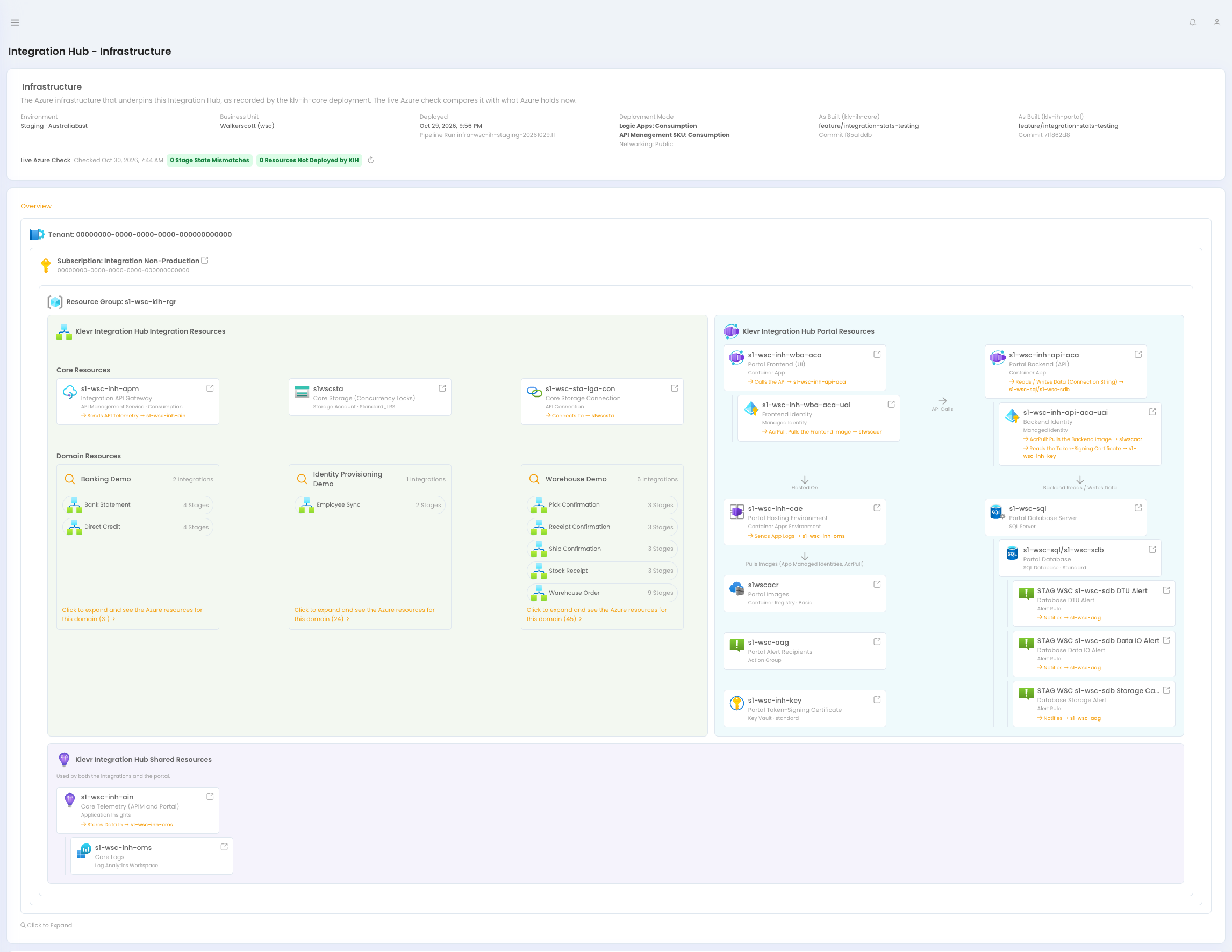
The Infrastructure page shows the Azure resources that the last Integration Hub deployment created for this environment, and how they connect. It also does a live check of Azure, to find stages that are not in the expected state.
Every user can see the page, in the menu below User Admin. Users see only the Domains that they have access to. Administrators see every Domain. The page does not use the Domain or the time range in the top bar.
Where the Data Comes From
Each deployment records the resources that it deployed (the "as-built" data) and sends it to the portal. The page shows this data. It changes only when Integration Hub is deployed again.
Before the first deployment of Integration Hub v6.0.0, the page shows "No As-Built Data Yet".
Header
The header shows the environment and region, the Business Unit, when the deployment ran and its pipeline run, the deployment mode, and the branch, tag or commit of Integration Hub and the Integration Hub Portal that were deployed.
Live Azure Check
When the page opens, the portal reads the Integration Hub resource groups in Azure and compares them with the as-built data. The header shows when the check ran, and:
- Stage State Mismatches: the number of stages whose state in Azure is not the state that the deployment set, for example a Logic App that is disabled in Azure but was deployed as enabled.
- Resources Not Deployed by KIH: the number of resources in the Integration Hub resource groups that the as-built data does not list. Only administrators see this.
Click the refresh button next to the check to read Azure again.
The live check uses the portal App Registration, which needs the Reader role on the Integration Hub resource group. This role is already required for the portal. Without it, the page shows the warning "The portal's Azure access app registration cannot read resource group ...".
Levels
The page has three levels. Click a Domain or an integration to go down one level. Use the breadcrumb at the top, or the close button, to go back up.
| Level | What it shows |
|---|---|
| Overview | The tenant, subscription and resource groups, with the core resources, a card for each Domain, the Integration Hub Portal resources, and the shared resources. For administrators, it also lists the resources not deployed by Integration Hub. |
| Domain | The integrations of the Domain, each with its stages, and the Domain's resources, for example its Function App, storage, Key Vault and monitoring resources. |
| Integration | The stages of the integration in the order that they pass the message on, with the systems that each stage reads from or sends to, the Logic App connections that it uses, and the other resources that it owns. |
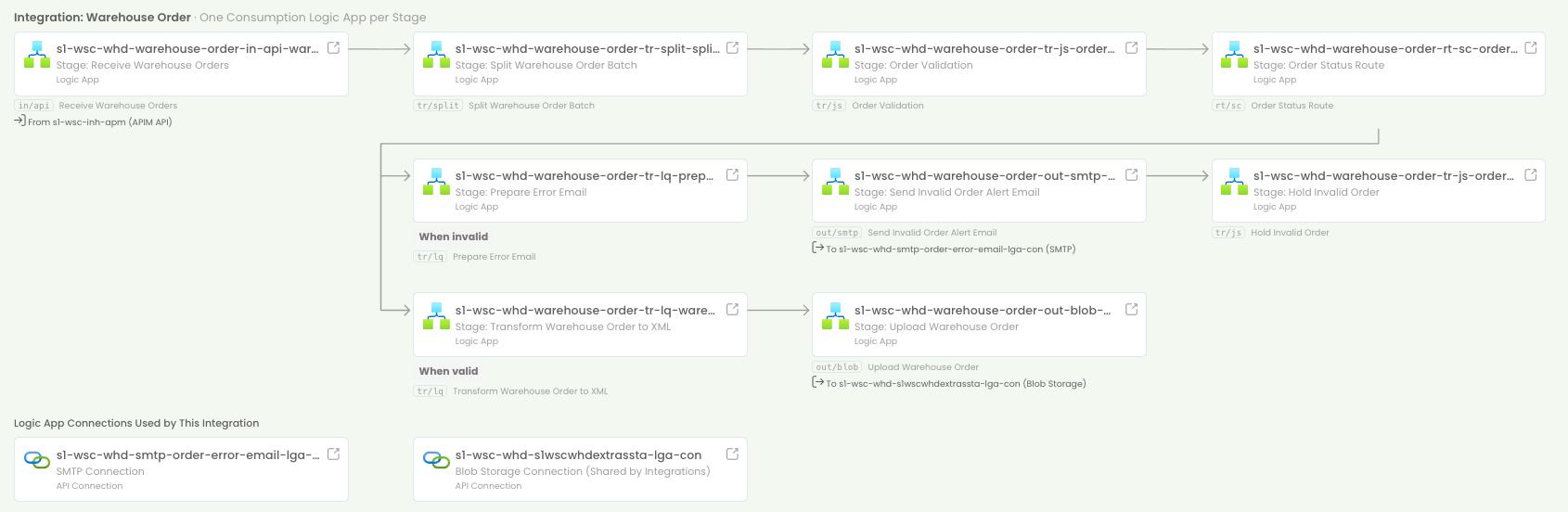
Each resource shows its Azure icon, name, role, type and SKU. Click the link icon on a resource to open it in the Azure portal. You need access to the Integration Hub resources in Azure to see it.
A Summary table at the bottom counts the resources by type, at the current level and including the levels below it.
Stage State
- Disabled stage: a stage that the deployment created in a disabled state is faded, with a red "!" badge.
- Mismatch: a stage whose state in Azure is not the expected state has an orange Azure tag that shows its state in Azure, for example
Azure: DisabledorAzure: Resource Missing.
The Integrations page uses the same check to mark stages that are not running.
Last updated on