
Search and Re-Submit
Use the Integration Hub Portal Search page to find integration runs, look at their payloads and errors, and re-submit failed payloads.
The Search page lists the integration runs in the selected Domain and time range. Use it to find a run, see what happened at each stage, and re-submit a payload that failed.
Filters
| Filter | What it does |
|---|---|
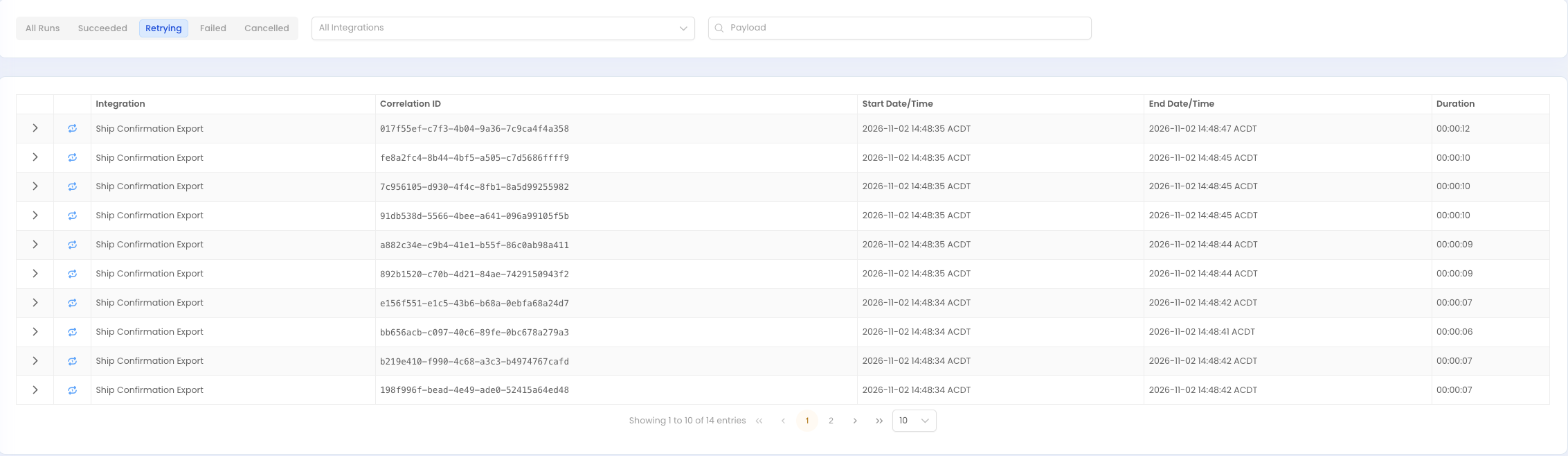
| Status | Shows runs with the selected statuses: All Runs, Succeeded, Retrying, Failed, or Cancelled. You can select more than one status. A selected status has a light tint of its status colour: green for Succeeded, blue for Retrying, red for Failed and grey for Cancelled. |
| Integration | Shows runs of the selected integrations only. The default is All Integrations. |
| Payload | Shows runs whose logged payloads contain the text that you enter. See the note below. |
The Retrying status shows only the runs that are waiting for an automatic retry, for example after an outbound API stage got a temporary error and put its message back on the queue to try again later. When the retry succeeds or fails, the run leaves the Retrying list. Retrying runs have a blue status icon.
The Payload filter searches the payloads that are logged to Azure Application Insights and Log Analytics, and only about the first 8 KB of each payload is logged. For large payloads, text after the first 8 KB cannot be found. Use a pre-logging transformation on a stage to log a smaller payload that keeps the key fields you need to search for. You can also use it to keep sensitive data out of the logs, so that the data cannot be found with the Payload filter.
Run List
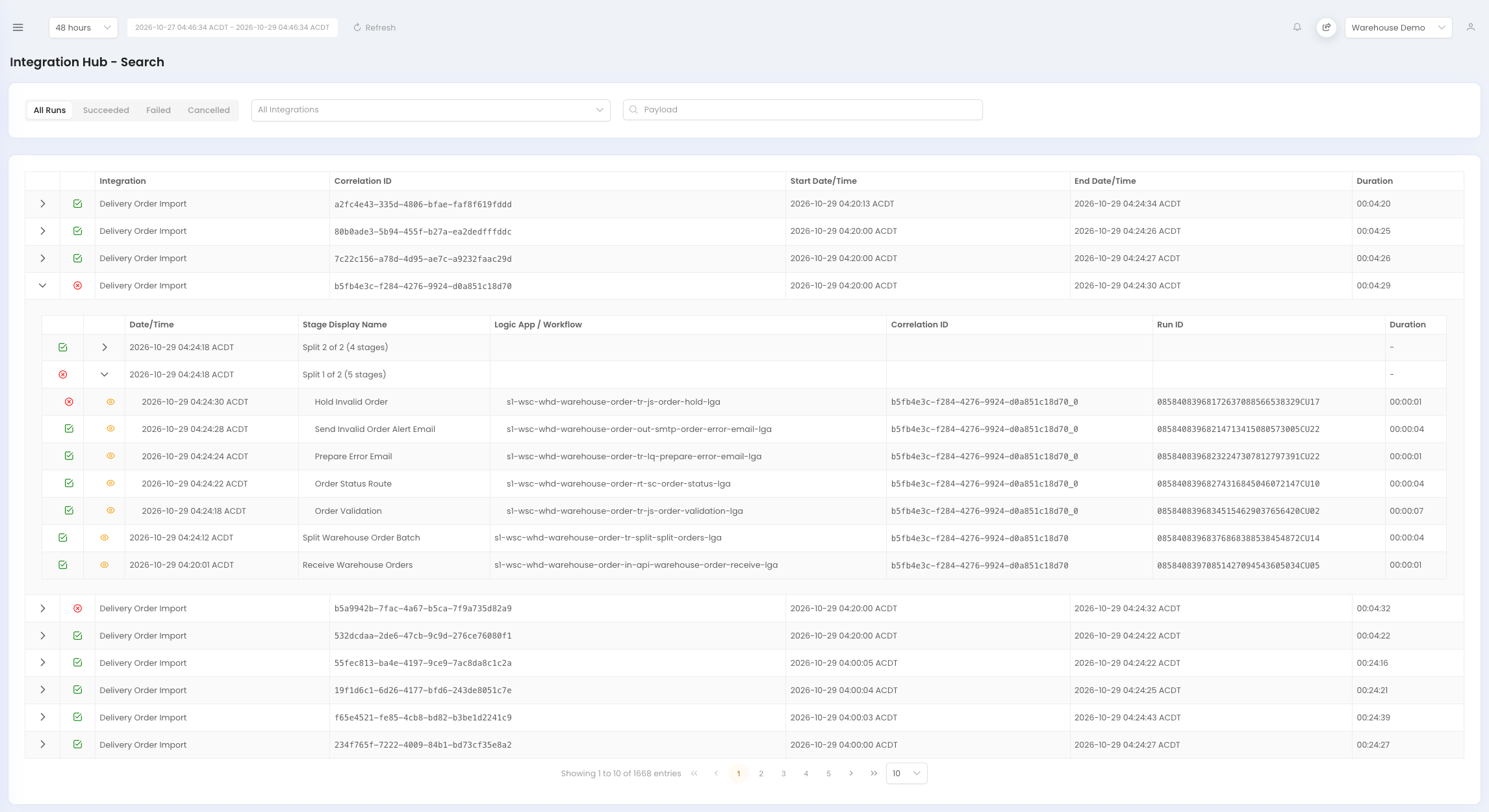
Each row is one integration run, with these columns: Integration, Correlation ID, Start Date/Time, End Date/Time and Duration.
Expand a row to see the stages of the run, with the date and time, the stage display name, the Logic App or workflow, the correlation ID, the run ID and the duration of each stage.
When an integration passes its message on to another integration with the same correlation ID, the run is one row, named after both integrations in the order that they ran, for example "Warehouse Order -> Pick Confirmation".
Runs that fan out into more than one run, for example one run for each email attachment, file or split record, are grouped together. Click the arrow on a group to show or hide its runs.
Icons on a run show when it failed, has a warning, is an automatic retry attempt, or was superseded by a later re-submission.
Loading and Refreshing
Search shows the newest runs first. For a long time range, the first page shows as soon as the newest runs are loaded, and older runs are added while "Loading older runs…" shows. The total grows as they load, and your page and expanded rows stay as they are. The run details, for example the Retrying status, are added last, while "Loading run details…" shows.
Changing the status filter, or moving to another page, does not search again, so the results change at once. The Retrying status can be up to 20 seconds old. When you go back a page, or return to Search with the same Domain, time range and filters within a minute, the portal shows the results at once.
Click Refresh in the top bar to load the runs that are new since the last search.
Run Details
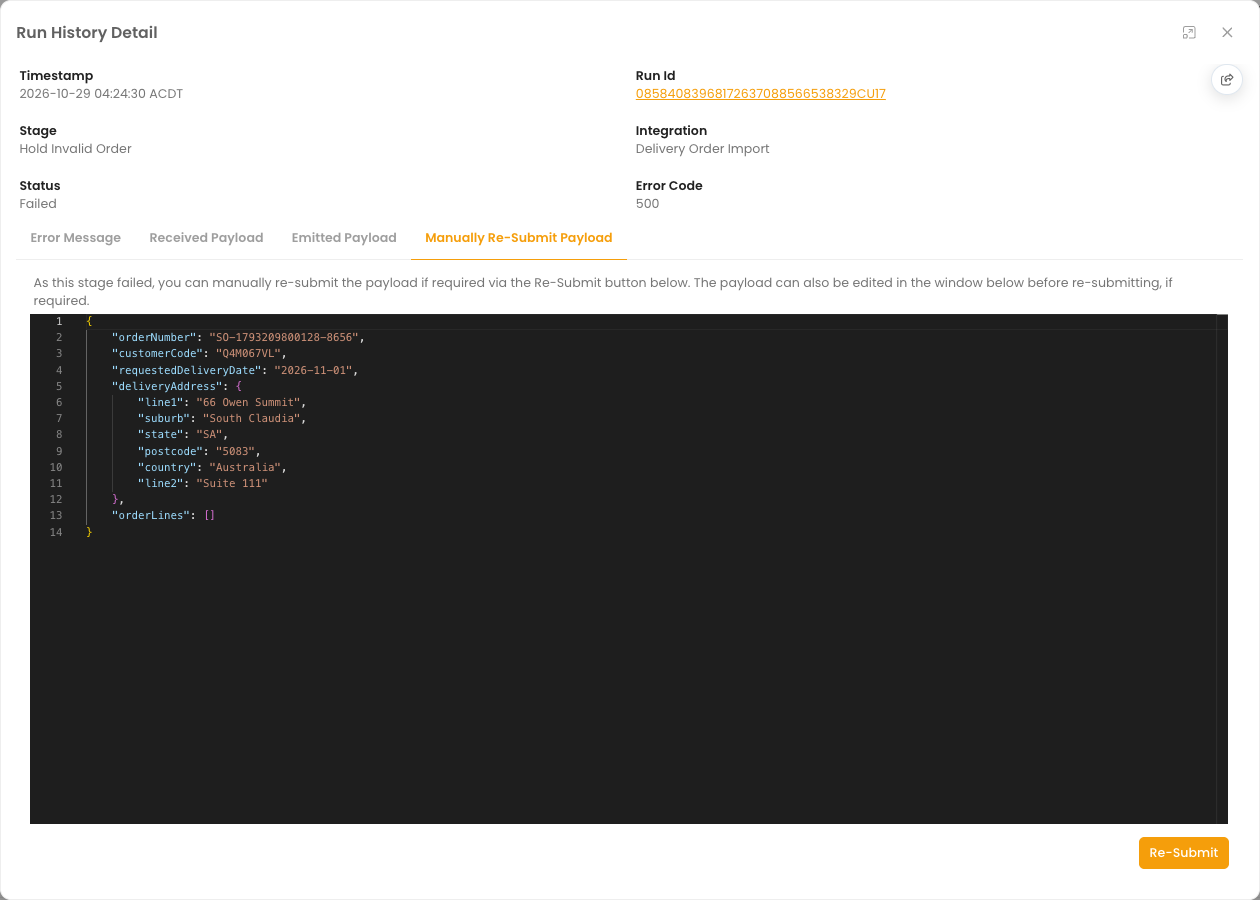
Click the eye icon on a stage row to open its run details. The header shows the integration, stage, status, timestamp and run ID. When the stage failed, it also shows the error code. When a transform stage ended the run because the transformation produced an empty payload, it shows a note.
The tabs that are shown depend on the stage type and on what happened in the run. A tab is only shown when it is relevant to the stage:
| Tab | When it is shown | What it shows |
|---|---|---|
| Error Message | When the stage failed, or reported an error, for example an API call that failed and was queued to retry later. | The error, including errors from SQL and Liquid Transform stages. |
| Received Payload | Always. Named Received Payloads when the stage received more than one payload. | The payload that the stage received. When there is more than one payload, each one has its own tab. |
| Exported Payload | For stages that send data out of Integration Hub. The tab name depends on the stage type. | The payload that the stage sent, with the path, file name, endpoint or email details. |
| Emitted Payload | For stages that emit a payload to the next stage. The tab name depends on the stage type, for example the response of an API call. | The payload that the stage emitted. |
| Manually Re-Submit Payload | When the stage failed. | See Re-Submit a Failed Payload. |
Some stages emit more than one payload in a single run, for example a stage that splits a payload into batches. For these stages, the Emitted Payload tab shows one payload at a time, with "Payload n of total". Use Previous Payload and Next Payload to move through them, or enter a number in Payload number to go straight to that payload.
JSON and XML payloads are formatted to make them easy to read.
When the run is a re-submission with an edited payload, the Received Payload tab shows a warning, and a Show Payload Diff button. Use it to compare the original payload of the first attempt (left) with the edited payload that this run used (right).
Re-Submit a Failed Payload
When a stage failed, the run details also have a Manually Re-Submit Payload tab:
- Click the eye icon on the failed stage row to open its run details.
- Open the Manually Re-Submit Payload tab.
- If necessary, correct the payload in the editor.
- Click Re-Submit.
Before you re-submit, the tab tells you when the run was already re-submitted, or when the run is itself a re-submission, and shows who re-submitted it and when.
The portal records who re-submitted each payload and when, so that re-submissions can be audited later.
Any user with access to the Domain can re-submit payloads. See Access Levels and Domains.
Last updated on