
Contacts
Accounts represent organisations applying for or delivering funded projects.
Accounts
Accounts represent organisations applying for or delivering funded projects. They act as the anchor for applications, contracts, and financial transactions. Accounts store organisational details, banking information (via portal), and hierarchical relationships for reporting. They are critical for linking grant activities to legal entities and for finance integration as vendors/customers.
Summary Tab
- Unique Account Number Automatically generated to uniquely identify each account.
- Account Name The name of the organisation or entity.
- Account Type A lookup field allowing flexible categorisation (e.g., Customer, Partner, Vendor). Users can select the type that best fits the organisation.
- Contact Information Includes Phone, Email, and Website.
- Primary Address Full address details for the organisation.
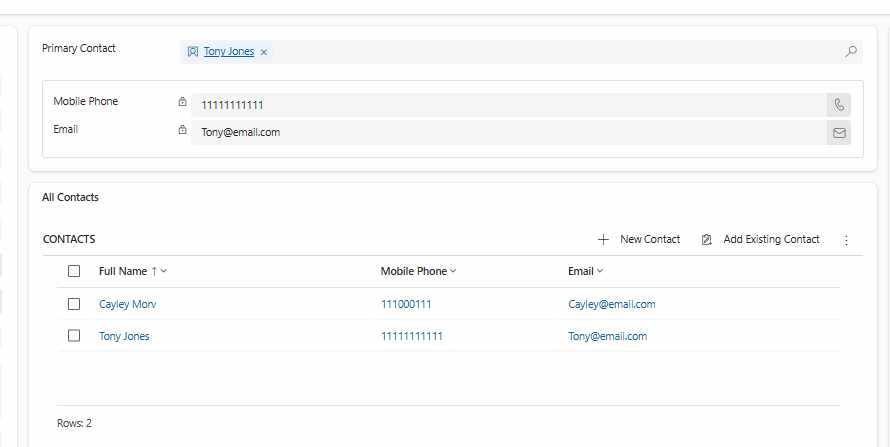
- Primary Contact A designated contact person for the account, displayed with a quick view of phone and email.
- Associated Contacts A subgrid listing all contacts linked to the account.
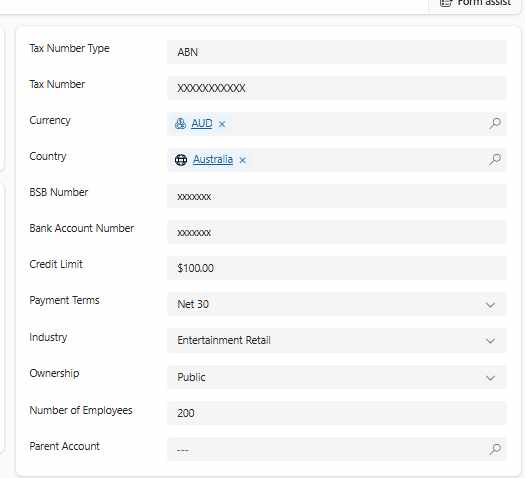
Additional Details Section
- Tax Number Type (e.g., ABN, NZBN)
- Tax Number
- Currency (e.g., AUD, NZD)
- Country
- BSB Number
- Bank Account Number
- Credit Limit
- Payment Terms (e.g., Net 30)
- Industry (e.g., Entertainment Retail, Brokers)
- Ownership (e.g., Public, Private)
- Number of Employees
- Parent Account (lookup to another account)
- Child Accounts (subgrid showing related accounts)
Tabs and Related Information
- Opportunities Tab Displays opportunities linked to the account.
- Customer Assets Tab Shows assets associated with the account. A Customer Asset represents a physical or digital item associated with an account or grant recipient. It is based on the Dynamics 365 msdyn_customerasset entity, originally designed for Field Service, and adapted in Klevr Grants for grant-related asset tracking
- Cases Tab Lists service or support cases related to the account.
- Activities Allows logging of tasks, emails, and other interactions.
- Files: Stores related documents.
- Audit: Provides an audit trail of changes to the contact record.
Quick Start Guide – Managing Accounts in Klevr Grants
As a user, you need to set up an organisation in Klevr Grants before applying for funding, manage contracts, or track milestones. The Account form is your starting point.
Step 1: Open the Account Form
Navigate to the Account form in Klevr Grants. This is where you store all organisation details.
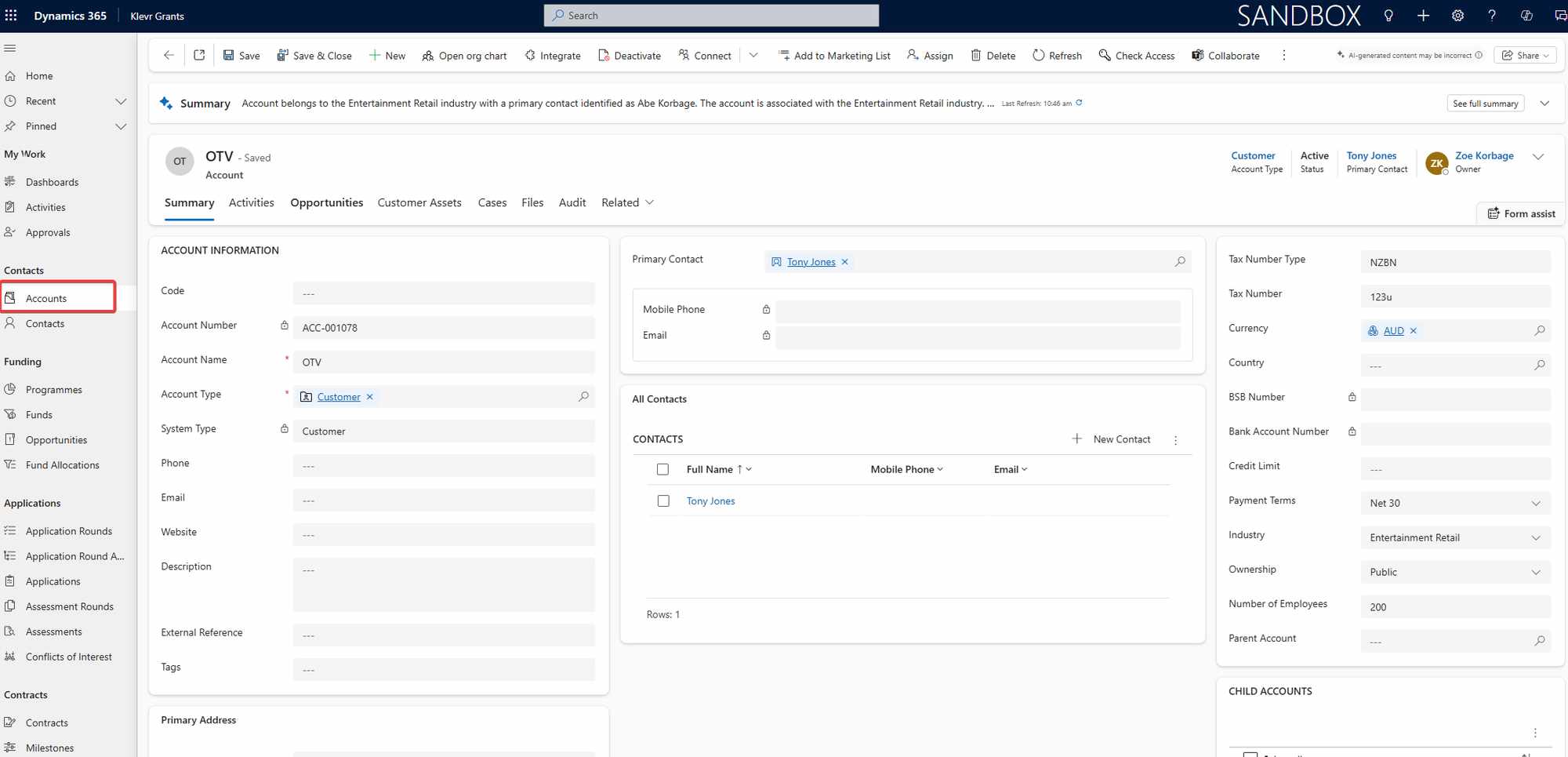
Step 2: Enter Basic Information
On the Summary tab, enter:
- Account Name – The official name of your organisation.
- Account Type – Choose from options such as Customer, Partner, or Vendor.
- Contact Details – Add phone number, email address, and website.
- Primary Address – Enter the main address for your organisation.
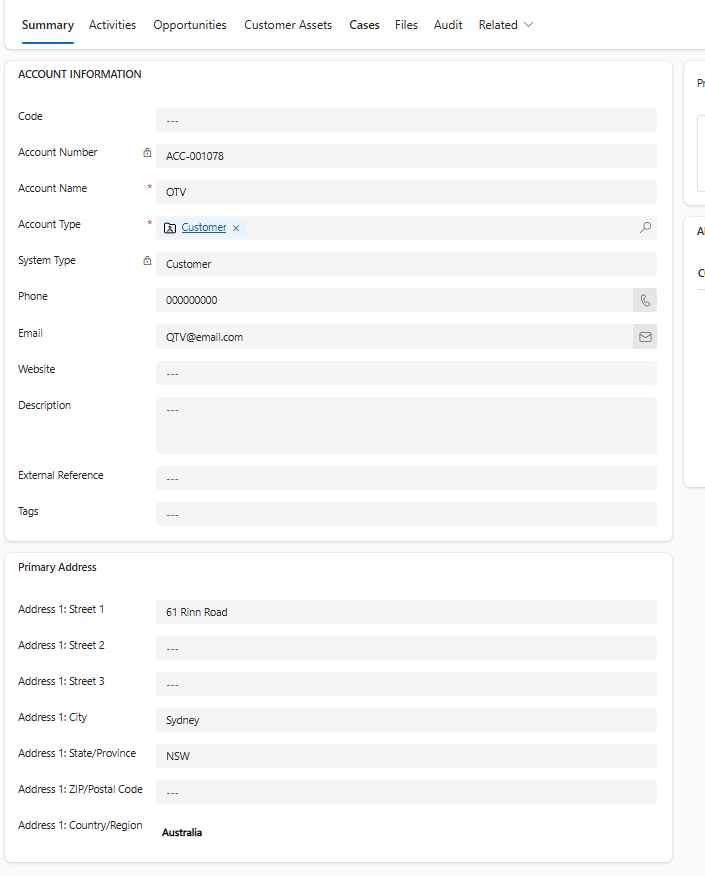
Step 3: Add Key Contacts
Select a Primary Contact and add other Associated Contacts. These contacts will:
- Submit applications.
- Collaborate on documents.
- Receive notifications.
Step 4: Financial Details
Scroll to the Additional Details section and provide:
- Tax Number Type & Tax Number – e.g., ABN.
- Currency & Country – For payment processing.
- BSB & Bank Account Number – For grant disbursements.
- Credit Limit & Payment Terms – If applicable.
- Industry, Ownership, Number of Employees – For reporting.
Contacts
Contacts represent individuals associated with Accounts, such as applicants, finance officers, or assessors. They hold communication preferences, roles, and portal access credentials. Contacts ensure that grant-related communications, assessments, and approvals are tied to the correct person, enabling personalised engagement and compliance.
Summary Tab
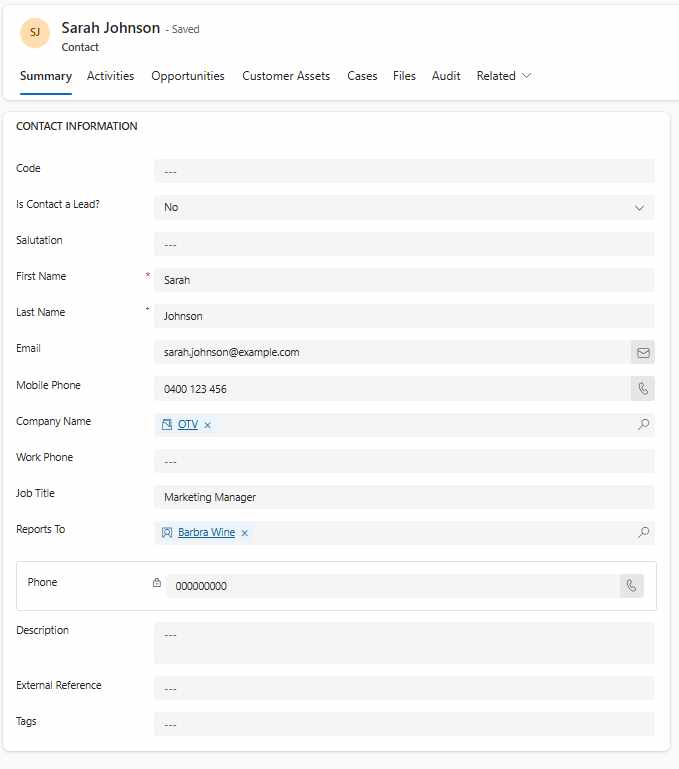
- Is Contact a Lead: Yes/No field indicating whether the contact is a lead.
- First Name: Contact’s given name.
- Last Name: Contact’s surname.
- Email Address: Primary email address.
- Mobile Phone Number: Contact’s mobile number.
- Work Phone Number: Contact’s work phone number.
- Company Name: Lookup field referencing the associated company.
- Job Title: Contact’s position within the company.
- Reports To: Lookup field indicating the contact’s manager or supervisor.
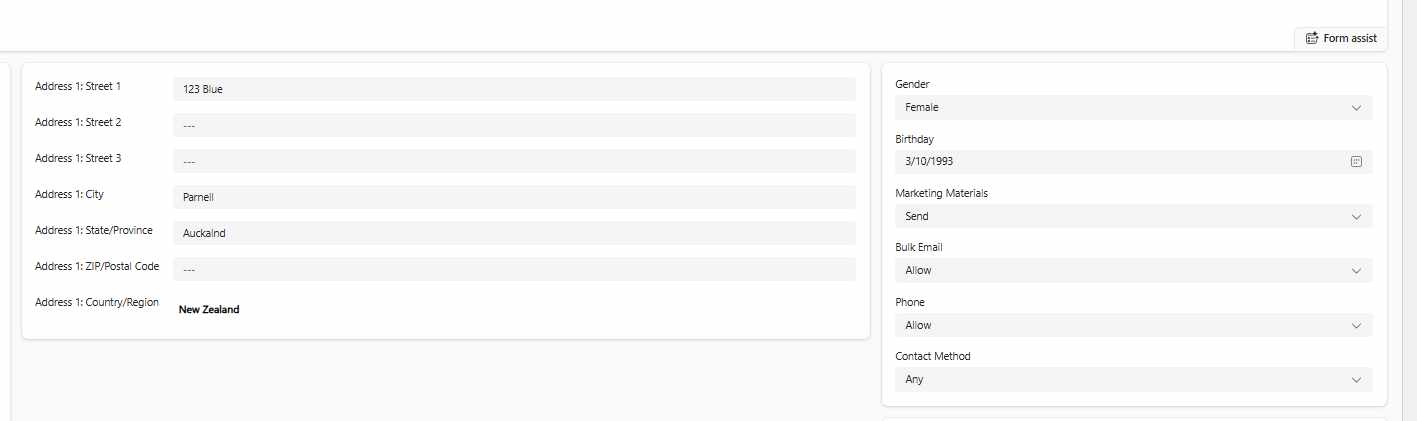
- Primary Address: Displays the contact’s main address.
- Gender: Dropdown field for gender selection.
- Birthday: Date field for the contact’s date of birth.
Marketing and Communication Preferences
- Marketing Materials: Indicates whether the contact receives marketing materials.
- Bulk Email: Specifies if the contact is included in bulk email campaigns.
- Phone: Allows or disallows phone communication.
- Contact Method: Preferred method of contact (e.g., phone, email).
Banking Details
- Country
- BSB Number
- Bank Account Number
Tabs on the Contact Record
- Activities: Displays all activities related to the contact.
- Opportunities: Lists all associated opportunities.
- Customer Assets: Shows assets linked to the contact.
- Cases: Displays support or service cases.
- Files: Stores related documents.
- Audit: Provides an audit trail of changes to the contact record.
Quick Start Guide: Managing a Contact in Klevr Grants
As a user, imagine you’ve just spoken to Sarah Johnson, a potential client who wants to learn more about your services. You need to create a contact record for Sarah in Klevr Grants so your team can follow up.
Step 1: Navigate to Contacts
As a user, start by logging into Klevr Grants and opening the Contacts section.

Step 2: Create a New Contact and enter Sarah’s Details
Click New Contact and fill in the following fields:
- First Name: Sarah
- Last Name: Johnson
- Email Address: sarah.johnson@example.com
- Mobile Phone: 0400 123 456
- Company Name: Select from the lookup list
- Job Title: Marketing Manager
Step 4: Add Additional Information
On the Summary Tab, include:
- Primary Address: Sarah’s business address
- Gender: Select from dropdown
- Birthday: Enter date of birth
Step 5: Set Communication Preferences
- Tick Marketing Materials if Sarah agrees to receive them
- Enable Bulk Email if she wants newsletters
- Choose Preferred Contact Method (e.g., Email)
Bank Account and Amendment
Overview
On Account and Contact records, the fields BSB Number and Bank Account Number are locked.
-
These fields can only be populated via the Portal, as the logged-in account or contact controls their own bank information.
-
Once updated in the portal, the details sync back into Dynamics 365 and populate the bank account fields.
-
Found under the Related tab on Account or Contact.
-
Allows customers to updates or add new bank accounts via the portal.
-
If a new record is created directly in Dynamics 365, all fields are locked. Manual updates require elevated access (“God mode”), but ideally changes should come through the portal.
Fields in Amendment Request:
- Amendment Type (Option Set) – Currently supports one update type: Bank Account update.
- Regarding (Lookup) – Links to the Account or Contact.
- Add Bank Account (Yes/No) –Yes: Creates a new Bank Account record. No: No new record is created.
- Mark Bank Account as Default (Yes/No) –Yes: Updates the Account or Contact bank fields and marks the new record as default. Existing bank accounts are updated to Default = No (only one default allowed). No: Does not update Account or Contact bank fields. If Add Bank Account = Yes, creates a new record with Default = No.
Additional Notes:
-
Approvals can be configured if required.
-
When the Amendment Request is ready, set Status Reason to Inactive – Approved.This updates the Account or Contact and creates Bank Account records if Add Bank Account = Yes.
-
Auto-created based on an approved Amendment Request.
-
Fields:Name (Auto Number) – Unique identifier. Regarding (Lookup) – Account or Contact linked to the bank account. Default (Yes/No) – Indicates if this is the default account. Country (Text) – Country of the bank account. BSB Number (Text) – Bank code. Bank Account Number (Text) – Account number.
Last updated on