
Funding
Programmes are an optional table and serve as the top-level container to hold multiple Funds.
Programmes
Programmes are an optional table and serve as the top-level container to hold multiple Funds. They represent strategic initiatives or areas of focus that align with organisational goals, policy priorities, a bucket of time ie. financial quarter, or community outcomes (e.g., Mental Health Initiatives 2025).
Summary Tab
- Programme Number A unique identifier automatically assigned to each programme.
- Name A descriptive name for the programme (e.g., Youth Mentorship).
- Total Applications Displays the total number of applications submitted under this programme.
- Total Approved Funding Shows the cumulative amount of funding approved for this programme.
Tabs
The Programme includes several tabs for managing and viewing associated data:
- Activities Lists all activities linked to the programme.
- KPI Measures Displays key performance indicators for tracking programme success.
- Associated Funds Shows funding sources and allocations tied to the programme. Each fund may have its own eligibility rules and reporting obligations.
- Files Stores documents and attachments relevant to the programme.
- Portal Links to the external portal for applicant interaction.
- Audit Provides an audit trail of changes to the Programme
Additional Details About Programmes
- Strategic Role: Programmes are designed to group related funding opportunities under a common theme or objective, ensuring alignment with organisational priorities.
- Hierarchy: Programmes sit at the top of the grants hierarchy, followed by funds, application rounds, and applications. This structure supports clear governance and reporting.
- Flexibility: Programmes can span multiple years and include diverse activities, KPIs, and funds to achieve long-term outcomes.
- Compliance & Audit: Each programme maintains an audit trail for transparency and accountability, which is critical for regulatory compliance.
- Integration: Programmes link to KPI measures, applications, and contracts, enabling holistic performance tracking across the grant lifecycle.
Creating a Programme in Klevr Grants
Imagine you’ve just logged into Klevr Grants and you’re ready to set up a new programme for your organisation. This guide walks you through the process step by step, so you can confidently create a programme that becomes the foundation for your grants, activities, and funding streams.
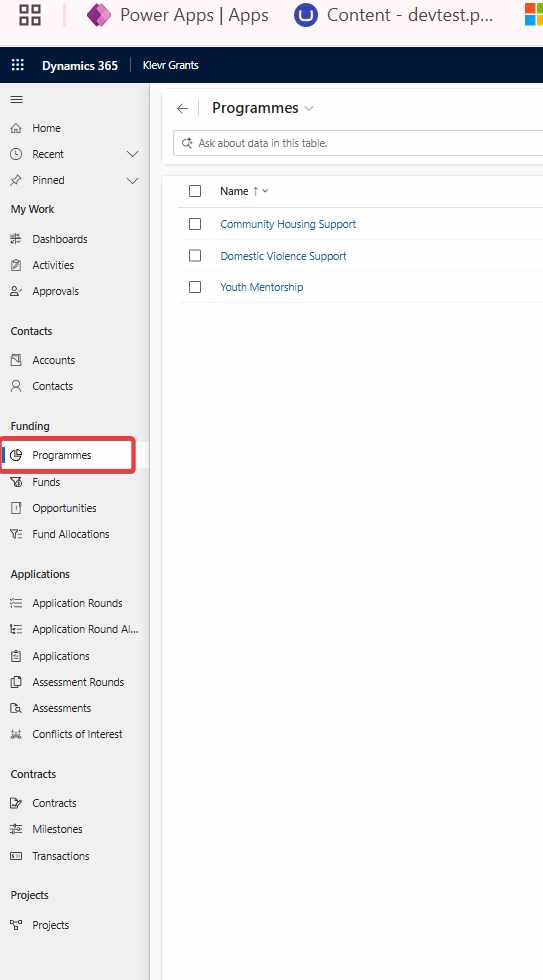
You start on the dashboard. From the main menu, click Programmes. This takes you to the Programme Table, where all existing programmes are listed.
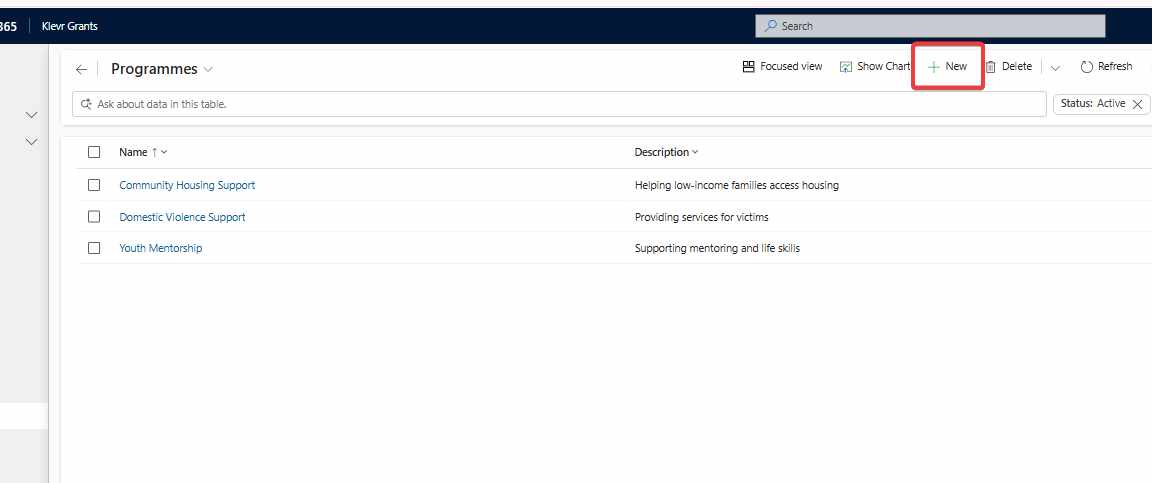
On the top right, you'll see a button labelled Create Programme. Click it, and a new programme form opens.
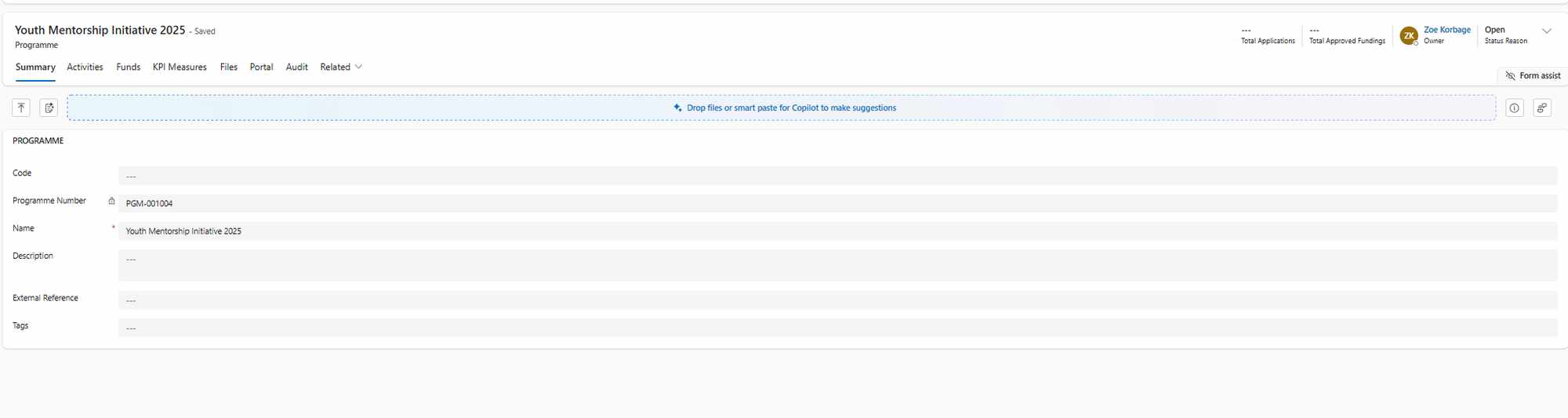
Now, you're in the Summary Tab. Here's what you do:
- Programme Number: This is auto-generated, so you don't need to touch it.
- Name: Type a clear, descriptive name. For example: Youth Mentorship Initiative 2025.
- Description (if available): Add a short summary of what this programme aims to achieve.
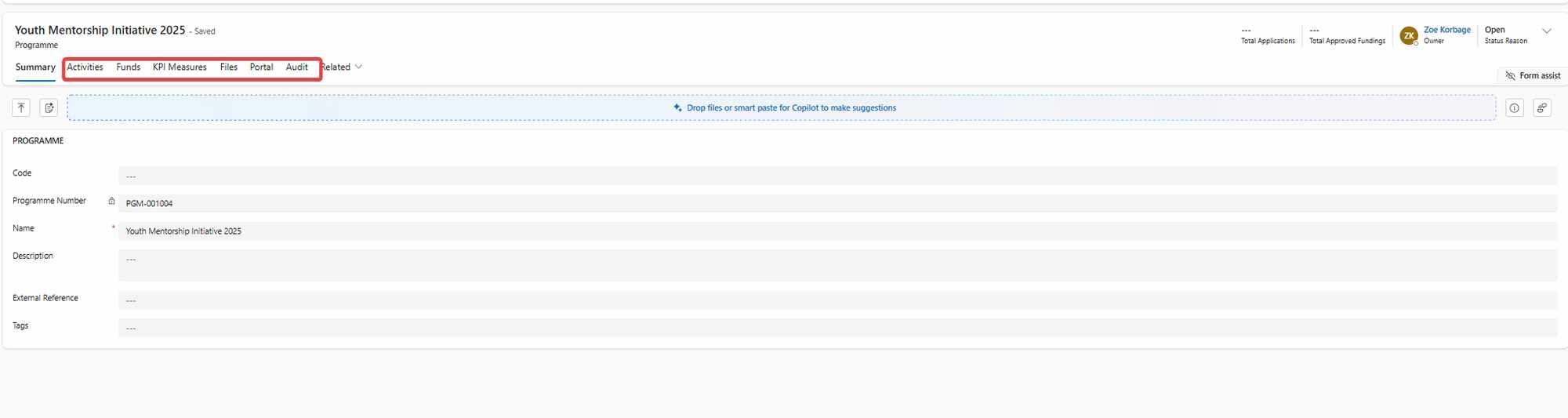
Your programme isn't just a name—it's a hub for related information. After saving the basic details, you can move through these tabs:
- Activities: Add activities that support your programme goals.
- KPI Measures: Define key performance indicators to track success.
- Associated Funds: Link funding sources to your programme.
- Files: Upload any supporting documents.
- Portal: Configure how applicants interact with the programme.
- Audit: Review changes for compliance.
Funds
The Fund table in Klevr Grants represents the actual money available to be allocated, typically scoped to a start and end date that align with a fiscal period. Each Fund record captures identifiers, financial totals and configurable workflow stages, and links to operational entities (e.g., Applications, Allocations, Expenses). Funds also reference Fund Sources, which show where the money comes from—such as government appropriations, self‑raised income (common for not‑for‑profits), lottery proceeds, or royalties—providing traceability from source through to allocation. Programs/Portfolios can group multiple Funds for planning and reporting, but Funds hold the money itself.
Summary Tab
The Summary tab displays key fields:
- Fund Number – Unique identifier for the Fund record.
- Name – Name of the Fund.
- Fund Type – Lookup field (e.g., Internal or External). Users can add custom values for flexibility.
- Programme – Lookup linking the Fund to a Programme.
- Department – Lookup to the organisation’s internal department responsible for, or associated with, the fund.
- Fund Manager – Person responsible for managing the Fund.
- Start Date / End Date – Defines the Fund’s active period.
- Private – Yes/No field controlling Portal visibility.
- Fund Value – Represents the total value of the Fund.
- If no Fund Sources exist: Fund Value must be entered manually.
- If one or more Fund Sources exist: Fund Value is locked and cannot be edited manually.
- When a Fund Source is approved: Fund Value is automatically set based on the value of approved Fund Sources only.
- Debit Account Number / Credit Account Number – For financial coding.
- Tax Code – Applicable tax classification.
- Tax Inclusive – Yes/No field indicating if amounts include tax.
- Total Applied Funding – The total value of funding requested across all applications, regardless of their approval status.
- Total Approved Funding – The total value of funding requested by applications that have been approved.
- Total Remaining Funding –The Total Remaining shows how much funding is still available for the Fund after taking Fund Allocations into account.
- Total Remaining Based On: Determines which data model is used to calculate the Total Remaining amount for the associated Fund Allocation
- Contract Budget Source
- Used when Contract Budget Source records are used to track contracted funding and writebacks.Total Remaining is calculated based on contracted amounts and writebacks derived from Contract Budget Sources.
Total Remaining = Total Allocated Amount − Total Contracted + Total Writeback
- Used when Contract Budget Source records are used to track contracted funding and writebacks.Total Remaining is calculated based on contracted amounts and writebacks derived from Contract Budget Sources.
- Contract Budget Only (default).
- :Used when Contract Budget Source records are not used.
Total Remaining = Total Allocated Amount − Total Approved
- :Used when Contract Budget Source records are not used.
- Contract Budget Source
- Summary Web Resource – Displays balances, variances, (see Web Resource: Funding Round article).
Fund cloning Button
Fund cloning Button allows administrators to quickly create a new Fund using an existing Fund as a starting point.
When a Fund is cloned, the following structure is copied to the new Fund:
- Fund record (excluding calculated, system‑managed, and aggregate fields)
- Fund Sources linked to the Fund
- Fund Allocations linked to the Fund
- Fund Source Allocations under each Fund Allocation
- Application Rounds associated with the Fund
- Application Round Allocations linked to Fund Allocations
The cloned Fund is created as a new, independent record, with all financial totals recalculated based on the newly created child records.
This feature is designed to save time when setting up new funding periods or similar Fund structures, while ensuring data integrity and clean financial calculations.
Tabs
- Activities – Notes, tasks, and communications.
- Applications – Associated applications linked to the Fund.
- Fund Sources – Origin of funds (e.g., government, internal).
- Fund Allocations –the individual “buckets” that the Fund’s total money is divided into. Money is spend from the allocation.
- Expenses – Related cost items.
- KPI Measures – Outcome metrics.
- Files – Document storage.
- Portal – Portal configuration and visibility.
- Audit – Change history.
Status & Lifecycle
- Active Status Reasons: Planning, Awaiting Approval, Published, Expired.
- Inactive Status Reasons: Closed, Cancelled.
Business Process Flow
Typical stages:
- Funding Round
- Monitor
- Closed
This flow is customisable by the delivery team or customer.
Relationships
- Programme → Fund → Application Round → Application → Contract/Milestones
- Funds link directly to Programmes for reporting and governance.
- Applications and Allocations roll up into Fund totals for financial integrity.
Portal Behaviour
- Private Flag controls whether a Fund and its rounds are visible externally.
- Applicants and assessors interact with Funds via secure authentication (e.g., Entra ID B2B).
Automations
- Locked Totals: Applied, Approved, and Remaining Funding are system-controlled and updated automatically.
- Approvals: Approval Groups can be configured; Funds cannot progress until approvals are complete.
- Integration Triggers: Approved Funds can push data to finance systems (e.g., Business Central) for dimension creation.
- Portal Updates: Publishing a Fund automatically updates Portal listings if not marked Private.
Finance Integration
- Funds often integrate with ERP systems for dimension mapping.
- Approved Contract Transactions linked to a Fund can generate invoices, credit memos, or journals in finance systems.
- Writebacks from finance systems update posted/paid statuses in Klevr.
Creating a Fund in Klevr Grants – User Guide
You’re a grants officer preparing to launch a new funding round for an Education Programme. You need to create a Fund that will hold the budget and link to applications.
Step 1: Navigate to Funds and Create a New Fund
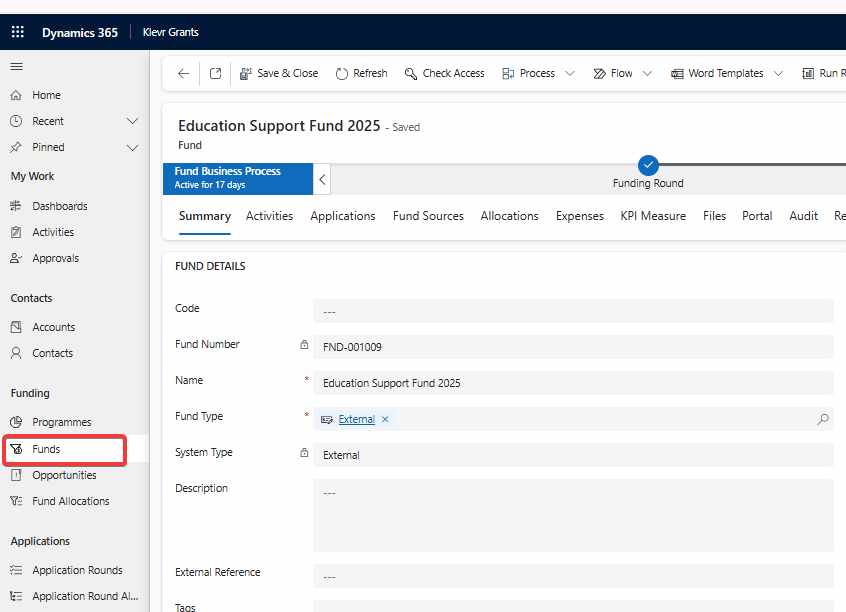
You start on the Klevr Grants dashboard. From the main menu, select Funds.
- Click New to open the Fund creation form.
- Fund Number: This is auto-generated, so you don’t need to fill it in.
- Name: Enter a clear name, e.g., Education Support Fund 2025.
- Fund Type: Choose Internal or External from the lookup list.
Step 4: Link to a Programme
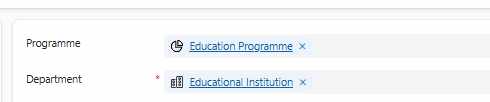
- In the Programme field, select the Programme this Fund belongs to (e.g., Education Programme).
- Add Department if required (e.g., Education).
Step 5: Assign a Fund Manager and Define Dates and Privacy
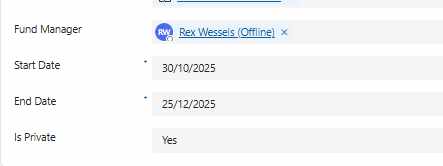
- Select the person responsible for managing this Fund.
- Start Date / End Date: Enter the operational period for the Fund.
- Private: Choose Yes if the Fund should be hidden from the Portal, or No if it should be visible externally.
Step 7: Add Financial Details
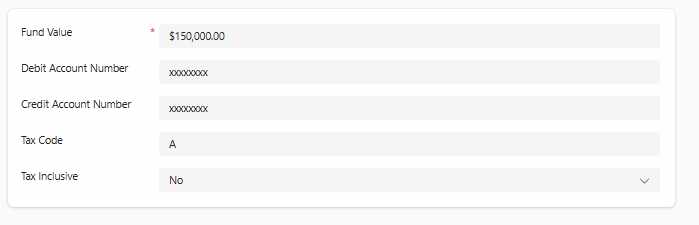
- Fund Value: Enter the total budget for this Fund.
- Debit Account Number / Credit Account Number: Add financial codes if required.
- Tax Code and Tax Inclusive: Complete tax details.
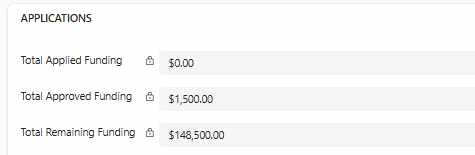
Step 8: Review Locked Totals
You’ll see Total Applied Funding, Total Approved Funding, and Total Remaining Funding. These are locked and will update automatically as applications and allocations are processed.
Step 9: Save the Fund
Click Save. The Fund is now created and ready for configuration of Application Rounds and Allocations.
Opportunities
The Opportunity entity in Klevr Grants is based on the standard Dynamics 365 Opportunity record but has been customised to align with grant management requirements. This record serves as the central point for tracking potential grant opportunities and related activities.
Summary Tab
When you open an Opportunity record, the Summary tab displays key fields:
- Unique Number – A system generated identifier for the opportunity.
- Opportunity Number – A lookup field allowing users to select the type of opportunity.
- Topic – A descriptive title for the opportunity.
- Source Type – Indicates the origin of the opportunity.
- Contact Lookup – Links to the primary contact associated with the opportunity.
- Account Lookup – Links to the relevant account or organisation.
- Region – Specifies the geographical region.
- Currency – Defines the currency for financial values.
- Estimated Value From / To – Range for estimated opportunity value.
- Probability – Percentage likelihood of success.
- Forecast Category – Classification for forecasting purposes.
- Proposed Value – Suggested value for the opportunity.
- Proposed Close Date – Target date for closing the opportunity.
- Actual Value – Final value once closed.
- Actual Close Date – Date the opportunity was closed.
- Reason Code – Indicates why the opportunity was won or lost.
- Active Status Reasons: In Progress, Review, On Hold, Draft, Approved, Active
- Inactive Status Reasons: Won, Lost
Tabs
The Opportunity record includes the following tabs for detailed management:
- Activities – Tracks tasks, emails, and appointments.
- Details – Displays extended opportunity information.
- Stakeholders – Lists individuals involved in the opportunity.
- Issues – Captures any problems or blockers.
- Products – Links to products or services associated with the opportunity.
- Quotes / Orders – Manages related quotes and orders.
- Approvers – Lists approval workflows and approvers.
- Contracts – Stores contract details.
- KPIs – Displays key performance indicators for the opportunity.
Fund Allocations
Overview
The Fund Allocations table in Klevr Grants is designed to manage and track how funds are distributed within a fund. Each record represents a specific allocation of funds for a defined purpose, such as equipment or services.
Location
The Fund Allocation record contains multiple tabs:
- Summary Tab – Core allocation details.
- Portal Tab – Fields related to the Klevr Portal.
- Audit Tab – Fields for compliance and tracking changes.
Fields on the Summary Tab
- Name A descriptive name for the allocation (e.g., Equipment).
- Fund A lookup field referencing the Fund table. This links the allocation to its parent fund.
- Description A free-text field for additional details about the allocation.
- Total Allocation A currency field representing the total funding available for distribution within the Fund Allocation.When Fund Source Allocations are used, this field is automatically calculated and read‑only. Its value is derived from the sum of the Available Amount from all related Fund Source Allocations.
- Total Budgeted Amount The total amount of funding planned for this fund allocation. This represents the intended budget and does not represent committed or contracted funding.
- Total Forecasted The total forecasted amount expected to be allocated from this fund allocation in the future. This value is calculated from related Fund Forecast Allocations
- Total Applied The total value of funding requested across all applications, regardless of their approval status.
- Total Approved The total value of funding requested by applications that have been approved.
- Total Contracted The total amount that has been contractually committed against this fund allocation. This value is calculated from all Contract Budget Sources linked to this fund allocation.
- Total Writebacks The total amount that has been written back to this fund allocation from related Contracts Budget Source.
- Total Remaining The remaining amount of funding available for this fund allocation based on the selected Total Remaining Based On from the Fund:
- Contract Budget Source
- Used when Contract Budget Source records are used to track contracted funding and writebacks.Total Remaining is calculated based on contracted amounts and writebacks derived from Contract Budget Sources.
Total Remaining = Total Allocated Amount − Total Contracted + Total Writeback
- Used when Contract Budget Source records are used to track contracted funding and writebacks.Total Remaining is calculated based on contracted amounts and writebacks derived from Contract Budget Sources.
- Contract Budget Only (default).
- :Used when Contract Budget Source records are not used.
Total Remaining = Total Allocated Amount − Total Approved
- :Used when Contract Budget Source records are not used.
- Contract Budget Source
Fund Source
A Fund Source represents the origin of funding within Klevr Grants. It identifies where money comes from before it is allocated, distributed, or committed.
Fund Sources exist to provide transparency, reporting, and auditability by clearly separating where money comes from from how and when it is used.
Typical examples include:
- Government funding programs (e.g. NZ Govt 2025)
- Philanthropic or donor funding
- Internal organisational funding pools
How Fund Source Is Used
Fund Sources:
- Are associated to a Fund
- Represent the gross value of funding received
- Are not spent directly
A Fund Source on its own does not control budgeting or spending. It provides visibility of funding origin and total value.
Where organisations require more detailed control, Fund Sources may optionally be connected to Fund Allocations via Fund Source Allocations, but this is not mandatory.
Key Fields
Name
The name of the Fund Source.
Purpose: Clearly identifies the funding origin throughout the system (e.g. NZ Govt 2025).
Sourced From
A lookup indicating the originating entity or funding pool.
Purpose: Provides traceability to where the funding originated from, such as:
- An external funding body
- A parent fund
- An internal funding pool
This supports transparency and audit requirements.
Fund
The Fund that this Fund Source contributes to.
Purpose: Groups funding origins under a single Fund, allowing multiple sources to contribute to the same Fund while remaining individually traceable.
Amount
The total amount provided by this Fund Source.
Purpose: Represents the gross value of funding received from this source. This amount is informational and forms the basis for downstream reporting and (optionally) allocation.
Total Allocated Amount (Read‑only)
The total amount from this Fund Source that has been allocated.
Purpose: Provides visibility into how much of the source funding has been allocated where allocation tracking is enabled.
This value is system‑calculated.
Total Unallocated Amount (Read‑only)
The remaining amount from the Fund Source that has not been allocated.
Purpose: Helps users understand how much funding from this source is still available.
Total Quarantined Amount (Read‑only)
The total amount from this Fund Source that is quarantined or restricted.
Purpose: Shows funding reserved for internal, operational, or restricted use and not available for general distribution.
Approvals
If 'Record Approved' eq yes the Fund 'Fund Value' is updated
Relationship to Other Records
- Fund A Fund can have one or many Fund Sources.
- Fund Allocation There is no direct relationship between Fund Source and Fund Allocation.
- Fund Source Allocation (Optional) Where enabled, Fund Source Allocation provides the link between a Fund Source and a Fund Allocation, allowing:
- Source‑level allocation
- Quarantining
- Available amount calculations
This is an optional enhancement and not required for all implementations.
Fund Source Allocation
A Fund Source Allocation represents the allocation of funding from a Fund Source into a Fund Allocation.
It is an optional capability that allows organisations to introduce source‑level control, restrictions, and visibility over how funding is made available within an allocation.
Fund Source Allocation exists to support scenarios where organisations need to understand not just how much funding is available, but which funding source it came from and what restrictions apply.
When Fund Source Allocation Is Used
Fund Source Allocation is used when an organisation needs to:
- Allocate funding from specific funding sources into an allocation
- Combine funding from multiple sources into a single allocation
- Distribute funding from one source across multiple allocations
- Quarantine or restrict portions of funding
- Report on funding availability by source
If this level of control is not required, Fund Allocations can exist without Fund Source Allocations.
How Fund Source Allocation Fits in the Model
Fund Source Allocation acts as a many‑to‑many junction between Fund Sources and Fund Allocations.
- A single Fund Allocation can have multiple Fund Source Allocations
- A single Fund Source can have multiple Fund Source Allocations
This allows organisations to:
- Pool funding from multiple sources into one allocation
- Reuse a funding source across different allocations
- Apply different restrictions or quarantining rules per allocation
Fund Source Allocation does not represent spend or commitment. It only defines what funding is available to an allocation and under what conditions.
Key Fields
Name
The name of the Fund Source Allocation.
Purpose: Clearly identifies the allocation of a specific funding source to a specific allocation (e.g. Aus Gov 2026 MHF).
Fund Allocation
Lookup to the Fund Allocation this funding contributes to.
Purpose: Defines which allocation this portion of funding is made available to.
This is how source‑level funding becomes available within an allocation.
Fund Source (filtration applied based on selected Fund Allocation)
Lookup to the Fund Source providing the funding.
Purpose: Identifies where the funding originates from, ensuring traceability and auditability.
Total Amount
The total amount of funding being allocated from the Fund Source.
Purpose: Represents the gross amount contributed from the Fund Source to this allocation, before any restrictions are applied.
Quarantined Amount
The portion of the Total Amount that is restricted or reserved.
Purpose: Represents funding that is not available for grant distribution, such as:
- Operational pools
- Internal administration
- Program overheads
This amount is excluded from available funding.
Restriction Reason
Lookup identifying why funding has been quarantined.
Purpose: Provides justification and context for restricted funding. This field is required when a Quarantined Amount is entered.
Example values include:
- Operational pool
- Internal administration
- Program overheads
Available Amount (Read‑only)
The amount available for grant distribution.
Purpose: Represents the funding that can actually be used within the Fund Allocation.
This field is automatically calculated:
Available Amount = Total Amount − Quarantined Amount
Last updated on