
Installation Guide
Our preference is to host in Azure as we have templates and pipelines to deploy infrastructure and code.
Hosting
Our preference is to host in Azure as we have templates and pipelines to deploy infrastructure and code.
The production resources are included within the portal pricing (subject to fair use) and the baseline resources are as follows:
We also strongly recommend that Cloudflare should be used in front of the portal, as detailed here: Domains and DNS
Umbraco
All of the following components need to be in place and configured correctly for the entire solution to work:
- Web Server
- The web server hosts Umbraco and the DLL's used to connect to Dynamics.
- SQL Server
- This is used for Umbraco's data store. A new DB can be initialized when Umbraco is run for the first time.
- Web.config
- This contains settings for SQL Connection, SMTP (sendgrid)
- Azure AD authentication Settings
- API Key used for Dynamics to access the portal. A new key should be generated for each environment. It is currently just a GUID but can be any random string of sufficient length to be secure.
Once Umbraco is up and running, it will require some content pages.
- These can be created using the usync and usync content edition plugins. The config files for the required pages are in version control and will be picked up by usync to be created. Go to the back office, settings, usync, and click import.
- There are a number of account/profile related pages that control local and AD-based authentication, registration, invitation redemption, and password reset.
- There is a layout.cshtml that renders the menu and imports all the vue and primevue controls and css. It should be used as the master for any other pages.
- There are content types for dynamics-specific pages.
In the back office, the connection to CRM should be configured. This must use a service app ID and key that needs to be configured in Dynamics.
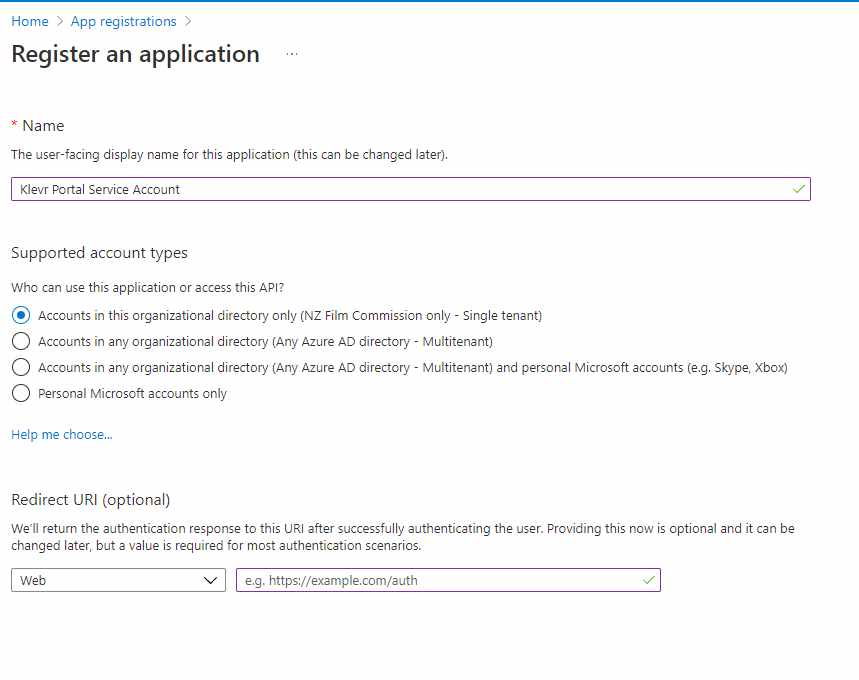
To create an app service account, first, create an app registration in Azure. Give it an appropriate name to match your dynamics environment, only allow accounts in the current directory, and leave the Redirect URI blank:
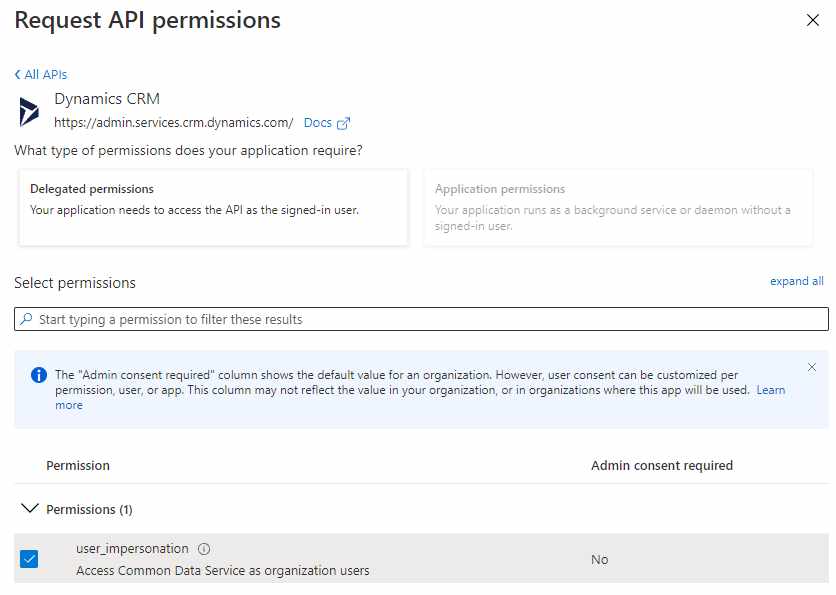
Next, add the appropriate API permissions to the registration. Go to API permissions within the app registration
Now we need to create an application user within Dynamics. Browse to the Dynamics environment, and go to advanced settings -> security -> users.
Select Application Users in the view selector.
Click new. Make sure the form selected is the Application user form.
Enter the application ID as found on your app registration form above.
Add an appropriate security role to the user. Keep in mind that this user needs access to all data exposed to any user on the portal, and also needs access to the metadata for entities to determine field types, etc. For testing purposes, the system admin role can be used, but ideally, a minimum privilege role should be constructed for your specific implementation.
Create a secret key in the app registration in Azure and paste it into the Klevr Configuration page in the Umbraco Backoffice
Once this is done, new Dynamics lists and Dynamics forms can be created as content pages, and permissions need to be configured to grant access to users to the Dynamics data requested by these pages. In order to log in as a user, you can either create an invite and use the code if you already have a dynamics contact record or self-register, and find the associated contact record in order to allocate records to it to be visible on the portal.
The Dynamics contact, its relationship to other records within Dynamics, the permissions, and the configured pages all work hand in hand in order for the end result to be generated.
Ensure the App Service account's timezone is set to UTC in dynamics. This will ensure date fields are correctly updated and rendered on the portal. The portal converts the dates to the browser's timezone, and saves them to dynamics as UTC.
Dynamics
Dynamics has an environment variable called klevr_PortalConfiguration. This is actually automatically configured from the portal. That that it contains the right detail, and if not, please update the library variables for your portal to have the right URL.
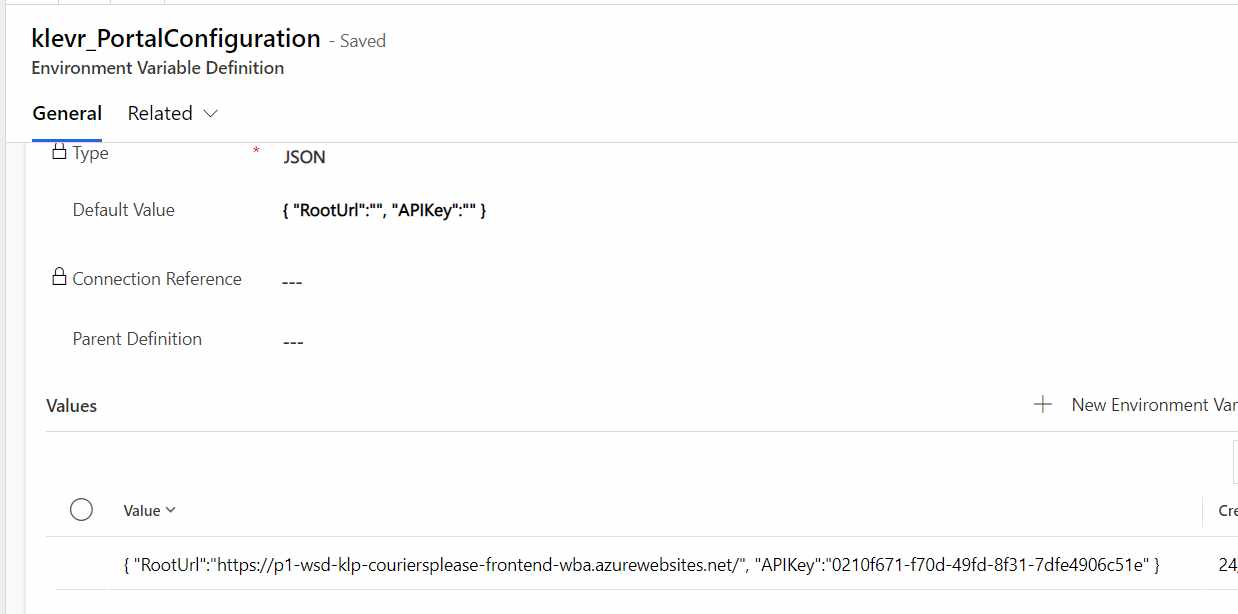
The API key must match the key configured in the Umbraco web.config file, if one is specified, otherwise the portal will generate it automatically and update dynamics.

Additional Settings
For non production environments, it's recommended to set the robots.txt definition to prevent search engines indexing these sites. The instructions below will block all robots for all pages, but you could further fine tune it. See https://www.seoptimer.com/robots-txt-generator for a handy generator.
To do this:
User-agent: * Disallow: /
If you plan on exposing Dynamics data to the public, please create the "Anonymous" member role first if it doesn't exist yet.
Last updated on