
Relationships
Grouping for individuals (Contacts/Accounts) or groups of individuals.
Feature Overview
Grouping for individuals (Contacts/Accounts) or groups of individuals.
Contacts
Is an individual, they can be a donor (past, current or potential)
They can be individuals who are donating, attending events or participating in Campaigns.
- Constituent Id is automatically generated on save
- The Age and Birth Year fields are automatically calculated based on the Birthday field
- On the Summary tab a Contact can be marked as Deceased and provide a date the individual passed away. Then the Age is calculated from the Birth Year and Deceased date.
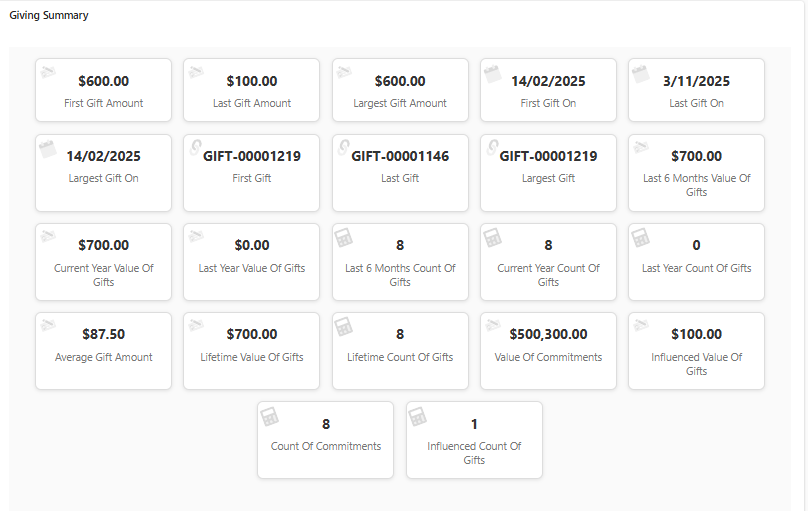
- On the Giving summery, you can easily view Giving information such as the first Gift amount, the values of Commitments the Donor has made, what Gifts have they influenced etc:
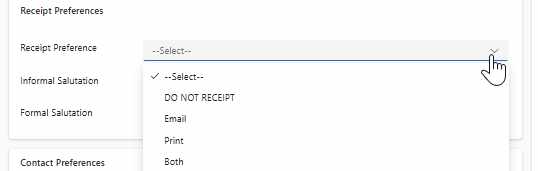
- In the 'Receipt Preferences' section, add the preferred method, such as no receipt, email, print, or both.
- When a Gift is created there is a 'Receipt Preference' field that will map over from the Primary Contact.
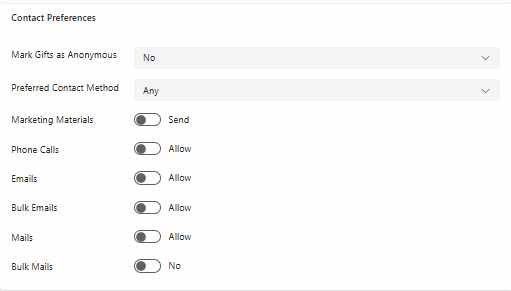
- Under 'Contact Preferences,' you can set the donor's preferred contact method, such as receiving emails or choosing to make their donations anonymous etc.
- The 'Mark Gifts as Anonymous' field maps to the Gift record after the 'Donor' field is populated on the Gift.
- The 'Classification' tab holds information about the donor's solicitation status, acquisition sources, Categorised roles, and their specific role connections.
- Solicitation Status - The related stage or status of a donors solicitation journey before a related opportunity is created. Values and Purpose are:
- Discovery: Initial research and identification of potential donors.
- Research: Gathering more detailed information about the potential donor.
- Initial Contact: First outreach to the potential donor.
- Engagement: Building rapport and gauging interest.
- Qualification: Assessing the potential donor's capacity and willingness to give.
- Pre-Solicitation: Preparing for the formal solicitation process.
- Constituent Sources: Identifies how the donor was acquired. Examples: Email campaigns, phone calls, direct mail, events, social media, online advertising, etc.
- Constituent Types: Categorised roles such as donor, volunteer, or board member.
- Constituent Type Connections: Links a donor to a specific role and records the start and end dates of this relationship.
- Solicitation Status - The related stage or status of a donors solicitation journey before a related opportunity is created. Values and Purpose are:
- In the 'Prospecting' tab you can track any Opportunities or Pledges the Donor has been in.
- On the Payments tab of the Contact you can see a list of all the Payments the Contact has made and their current status such as Blocked or Processed. Here, you can also add the contact's payment method(s)
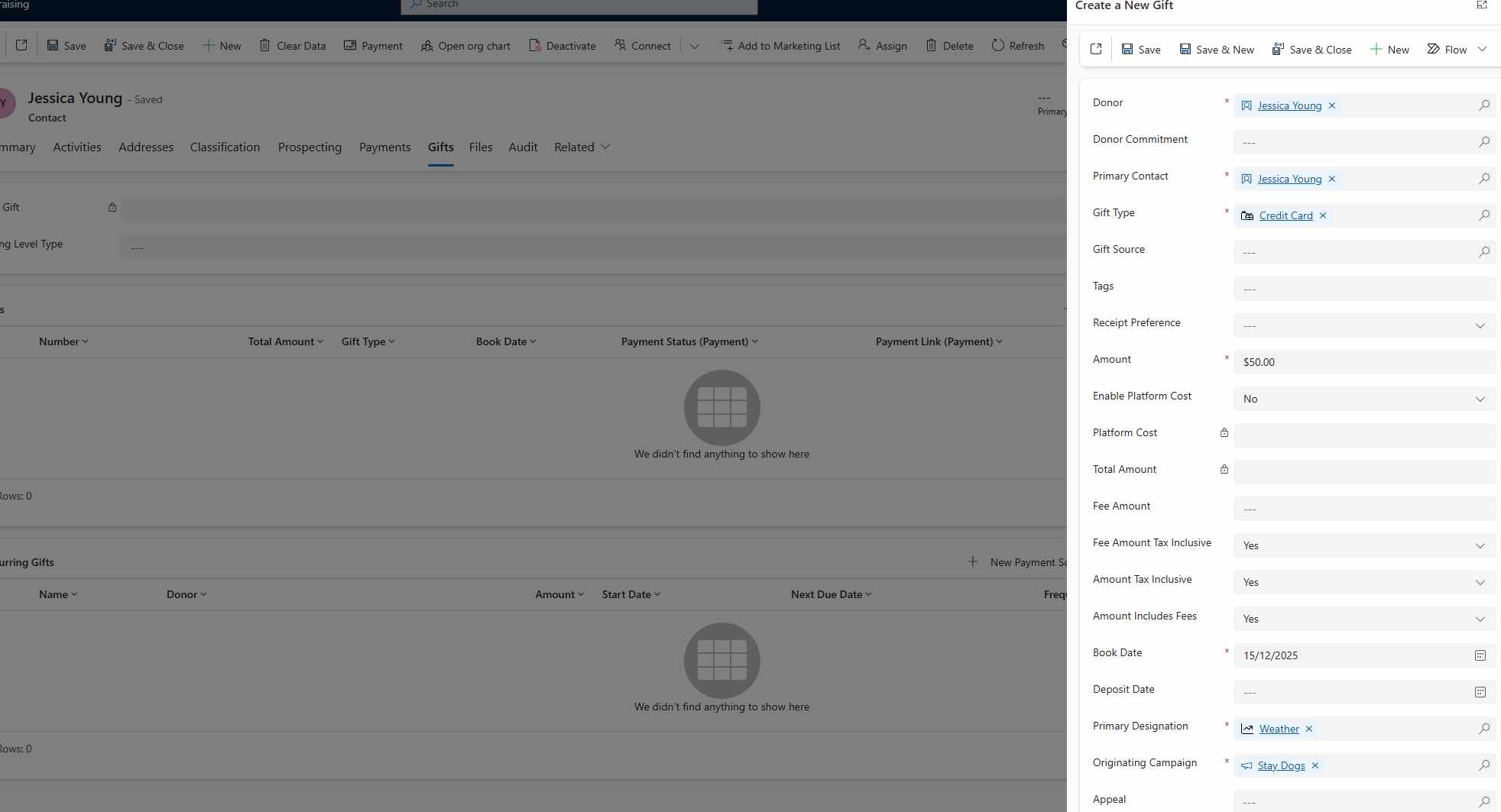
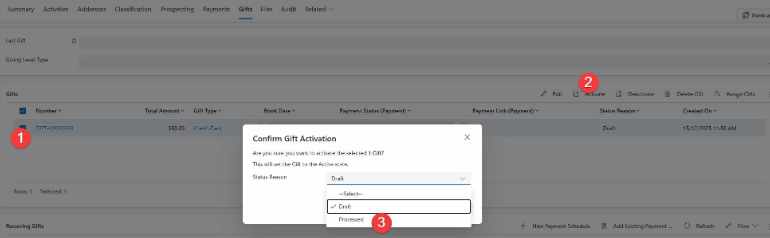
- Gifts tab, you can easily create new Gifts using a pop-out window. Fill in all the required details to set up the Gift. Once ready, you can update the Gift status reason to Processed. If the Gift has a Gift Type of Monetary Online, you can generate a payment. This can either create a payment link or use the default payment method configured in the system.
- Example:
- Creating Gifts
- Example:
- Updating status (if you are not using Payment button)
- Generating payments
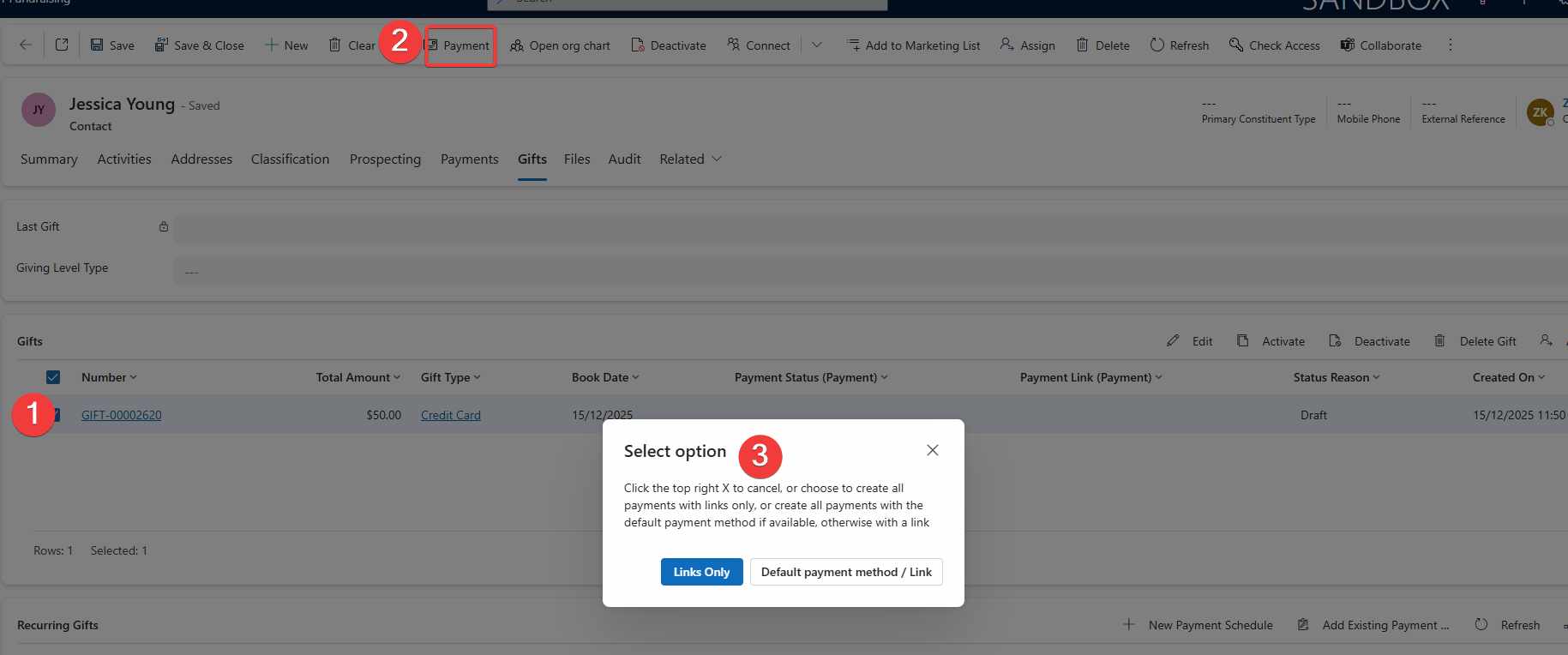
Using Link - Click on “Links Only” and refresh the page. You can now click the provided link, which will open the payment gateway where you can enter the card details.
Default Payment Method - Click on “Default Payment Method/Link”. This will attempt to process the payment using the default card. If no default card is available, a payment link will be generated instead.
Accounts
An Account is a company or organisation. They can be a donor (past, current or potential)
They can donate, attend events or participate in Campaigns.
- Account Number is automatically generated on save
- A 'Primary Contact' to identify the main contact for the account, providing a quick view of their phone and email information.
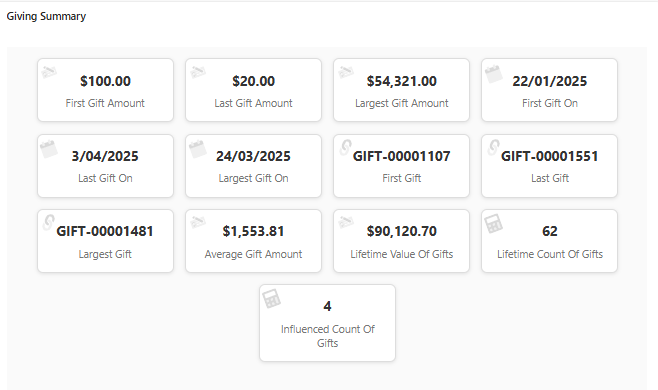
- On the Giving summery, you can easily view Giving information such as the first Gift amount, the values of Commitments the Donor has made, what Gifts have they influenced etc:
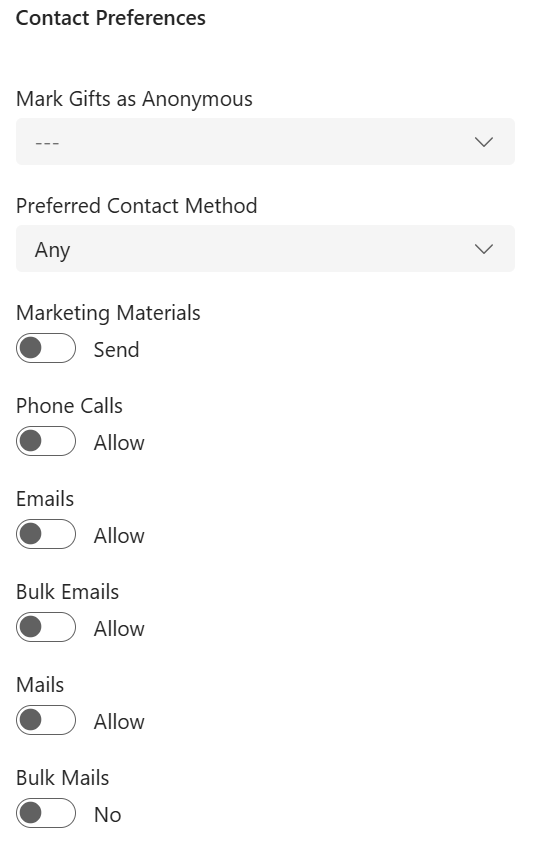
- Under 'Contact Preferences,' you can set the donor's preferred contact method, such as receiving emails or choosing to make their donations anonymous etc.
- The 'Mark Gifts as Anonymous' field maps to the Gift record after the 'Donor' field is populated on the Gift.
- In the 'Contacts' tab this is where you can find all the Contacts that are connected with the Account.
- The 'Classification' tab holds information about the donor's solicitation status, acquisition sources, Categorised roles, and their specific role connections.
- Solicitation Status - The related stage or status of a donors solicitation journey before a related opportunity is created. Values and Purpose are:
- Discovery: Initial research and identification of potential donors.
- Research: Gathering more detailed information about the potential donor.
- Initial Contact: First outreach to the potential donor.
- Engagement: Building rapport and gauging interest.
- Qualification: Assessing the potential donor's capacity and willingness to give.
- Pre-Solicitation: Preparing for the formal solicitation process.
- Constituent Sources:Identifies how the donor was acquired. Examples: Email campaigns, phone calls, direct mail, events, social media, online advertising, etc.
- Constituent Types: Categorised roles such as donor, volunteer, or board member.
- Constituent Type Connections: Links a donor to a specific role and records the start and end dates of this relationship.
- Solicitation Status - The related stage or status of a donors solicitation journey before a related opportunity is created. Values and Purpose are:
- In the 'Prospecting' tab you can track any Opportunities or Pledges the Donor has been in.
- You can track Payments
- On the Payments tab of the Account you can see a list of all the Payments the Donor has made and their current status such as Blocked or Processed. Here, you can also add the payment method(s).
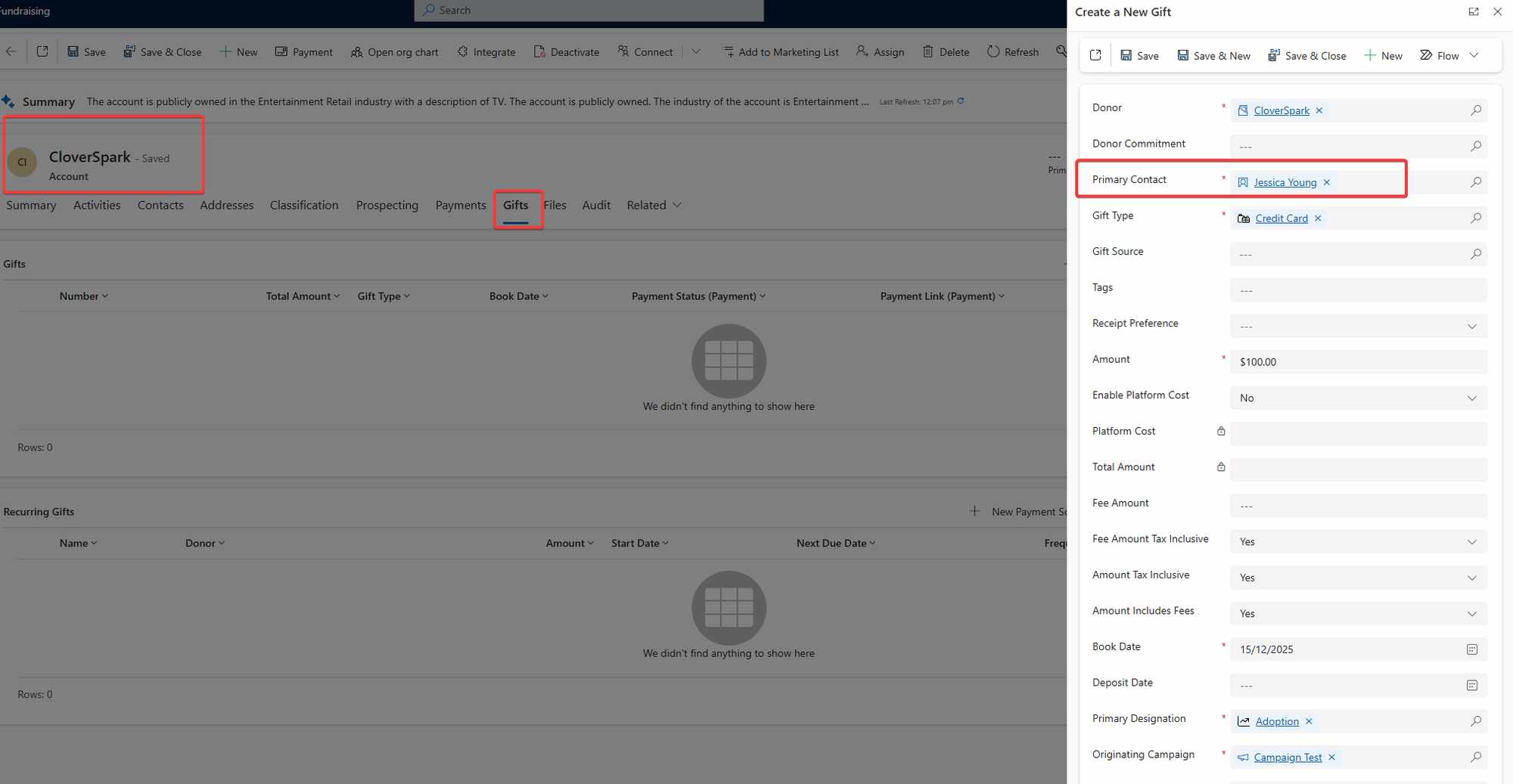
- Gifts tab, you can easily create new Gifts using a pop-out window. Fill in all the required details to set up the Gift. Once ready, you can update the Gift status reason to Processed. If the Gift has a Gift Type of Monetary Online, you can generate a payment. This can either create a payment link or use the default payment method configured in the system.
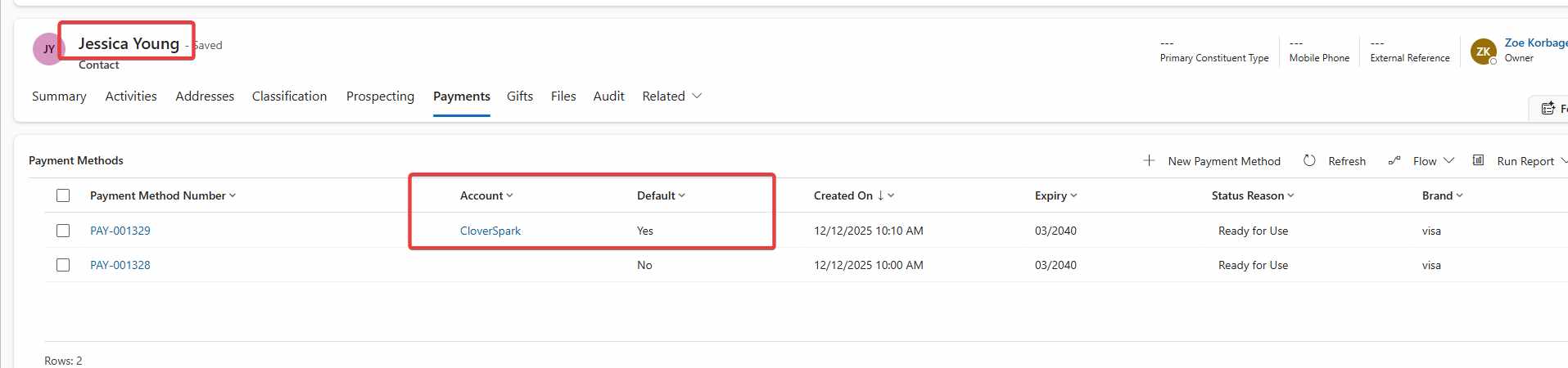
- Example: Creating Gifts (If you plan to use the default payment method, ensure that the same contact associated with the Payment Method is entered in the Primary Contact' field.)
- Updating status (if you are not using Payment button)

- Generating payments
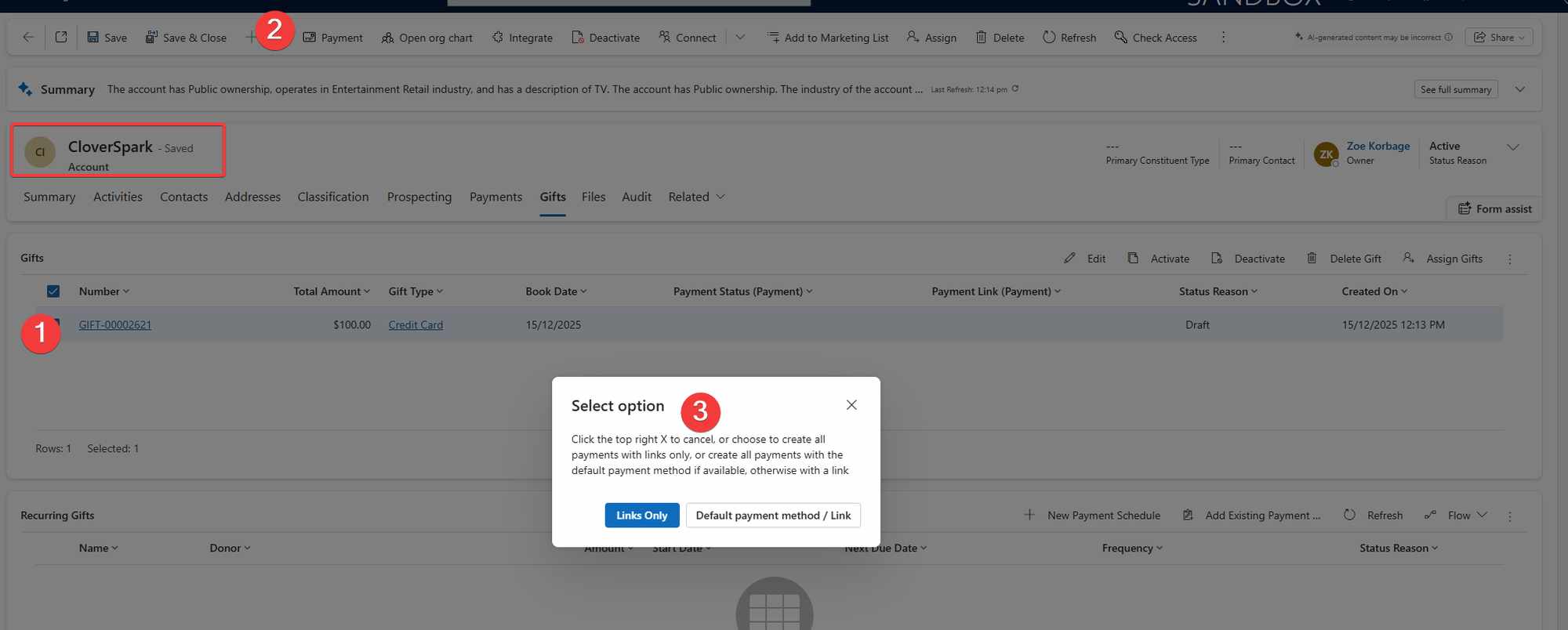
Using Link - Click on “Links Only” and refresh the page. You can now click the provided link, which will open the payment gateway where you can enter the card details.
Default Payment Method - Click on “Default Payment Method/Link”. This will attempt to process the payment using the default card. If no default card is available, a payment link will be generated instead.
Collectives
Overview
A Collective is a collection of Accounts and/or Contacts. It replaces Households in Fundraising & Engagement and supports many-to-many relationships between Contacts and Accounts.
A Collective:
- Represents a shared giving unit or fundraising context
- Groups individuals (Contacts) and organisations (Accounts) together
- Allows flexible relationship management through Collective Connections
Collectives act as the central record for managing relationships, engagement, and giving across a group.
Purpose
- Group related Contacts and Accounts into a single structure
- Provide a shared view of fundraising activity
- Track relationships between members and the Collective
- Support engagement, reporting, and donation tracking
Collective Information
- Code System-generated or manually assigned identifier for the Collective
- Number Unique record number for the Collective
- Name The name of the Collective
- Type Defines the type of Collective:Household → used for individuals and families Companies → used for organisations
- Description Optional field used to capture additional context about the Collective
- External Reference Used to store an external system reference or identifier
- Tags Used to categorise or group Collectives for filtering and reporting
- Informal Salutation The preferred informal greeting used when communicating with the Collective
- Formal Salutation The preferred formal greeting used for official communications or receipts
Connections
The Connections tab is used to manage all members of the Collective.
Each member is stored as a Collective Connection, linking a Contact or Account to the Collective.
- Supports multiple Contacts and Accounts
- Each connection represents a distinct relationship
Role (Relationship Type)
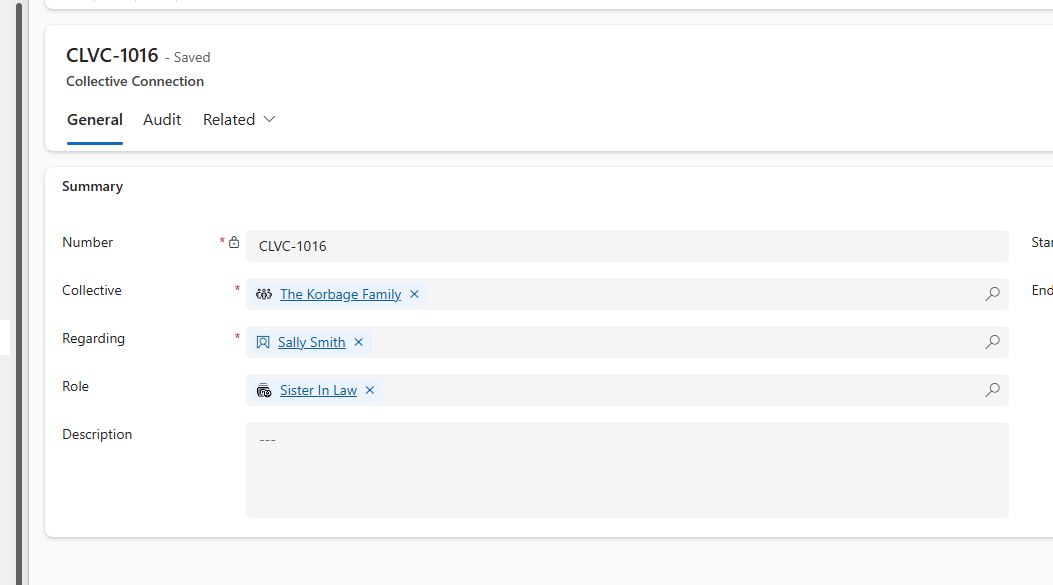
Each Collective Connection includes a Role field.
- Defines how a Contact or Account is related to the Collective
- Available when creating or editing a Collective Connection
- Visible across the Collective experience (form and subgrids)
Examples:
- Family Member
- Employee
- Decision Maker
- Board Member
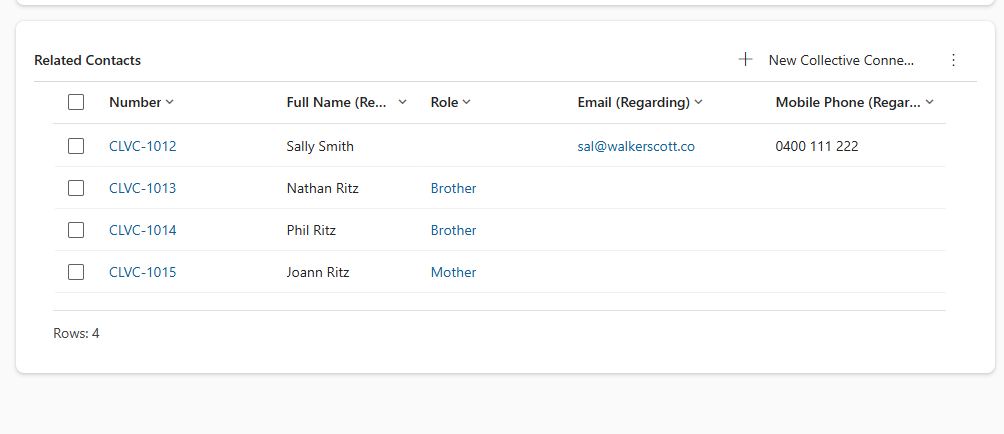
Related Contacts
Displays all Contact members linked to the Collective.
- Shows key details such as:Name Email Phone Role
Related Accounts
Displays all Account members linked to the Collective.
- Shows key details such as:Account Name Contact details Role
Tabs
- Activities Timeline for tracking interactions and notes
- Connections Manage Collective members (Contacts and Accounts)
- Prospecting Track Opportunities and Pledges associated to the Collective
- Gifts View all Donations made by the Collective
- Files Document storage
- Audit Track changes to the record
- Related Access additional related data
Tribute or Memories
The Tribute or Memories is for tracking donations made in honour or memory of someone.
- Record the name for who the Tribute or Memory is for.
- In the 'Prospecting' tab see related Opportunities, Pledges and Bequests where a Tribute or Memories has been given.
- Find all Gifts that the Tribute or Memories has been mentioned by going to the 'Gifts' tab.
Dataro Integration Support
Overview
Klevr Fundraising includes support for organisations that use Dataro alongside Microsoft Dynamics 365.
As part of this support, a collection of fields has been added to the Contact and Account tables to store values generated by Dataro. These fields allow Dataro to write scores, rankings and related data back into Dynamics 365 where it can be viewed, reported on and incorporated into existing fundraising processes.
Although the fields were introduced to support Dataro integrations, they were created using the standard klevr publisher prefix and form part of the Klevr Fundraising solution.
Purpose
The Dataro fields provide a predefined location within Klevr Fundraising for information generated by Dataro.
This allows organisations using Dataro to store Dataro-generated data directly against Contact and Account records without requiring customer-specific schema changes.
The fields can then be surfaced through forms, views, dashboards, reports and other Dynamics 365 components.
Supported Tables
Dataro fields are available on the following tables:
- Contact
- Account
To support Dataro integrations, both the Contact and Account forms include a dedicated Dataro tab.
The Dataro tab contains the Dataro-related fields and is hidden by default. This ensures the additional fields do not clutter the standard user experience for organisations that are not using Dataro.
Organisations implementing a Dataro integration can unhide the tab and make it available to users as required.
Available Data
The fields support information returned by Dataro, including areas such as:
- Suggested ask amounts
- Donor rankings
- Direct mail scores and rankings
- Regular giving scores and rankings
- Reactivation indicators
- Churn indicators
The exact values populated depend on the customer's Dataro configuration and subscription.
Related Resources
For organisations implementing a Dataro integration, additional documentation, schema mapping information and configuration guidance may be available directly from Dataro. Delivery Consultants should refer to the documentation provided by Dataro when establishing or troubleshooting a Dataro integration.
Last updated on