
Processing
Grouping for Payments associated to Gifts and Receipts.
Feature Overview
Grouping for Payments associated to Gifts and Receipts.
Payments
In Klevr Fundraising a Payment is a record that gets processed by a payment gateway and receives a response on how the processing of the payment went.
- A Payment is normally automatically created by a Gift or a Recurring Gift.
- In the situation where a Recurring Gift creates the Payment, then the Gift will be created through another process. Please see the Gift section for more details.
- A Payment is normally created on the day that it will be processed.
- A Power Automate called 'Klevr Portal - Process Scheduled Payments' picks up the Payments in a state of "Requested" and sends the details to the payment gateway for processing.
- By default, this happens once an hour but can be configured differently.
- If a Payment failed (for example, comes back with a Hard Decline.) When you click on the "Related" tab, go to 'Payment Failures'.
- The automation receives a response from the payment gateway that updates the Payment record with those details.
- 'Payment' record is updated with a 'Payment Status', 'Status Description' and 'Code' that identifies the Hard Decline based on the returned 'Code' in the 'Payment Processing Status' record.
- You can also see the 'Retry Count' set by the Payment Proscessing Status record for each decline.
- Generally there no need for end users to change values on a Payment record.
- Status Reason**:**
- Draft - The payment has not yet been submitted for processing. This status allows users to enter or update payment details before requesting payment.
- Requested - The payment is ready to be processed. If the Next Process On date and time has been reached (or is blank), the system will attempt to process the payment. Payments must be in this status for retries to occur. The system may automatically return a payment to Requested when a retry is scheduled after an error.
- Started - The payment request has been sent to the payment gateway and is awaiting a response. Payments typically remain in this status only briefly while processing is underway.
- Blocked - The payment could not be completed due to an error. This may occur when retry attempts have been exhausted, a non-recoverable failure occurs, or the payment gateway reports an error that prevents further processing.
- Failed - This status is not used by the product's automated processes. It can be used manually to indicate that follow-up actions have been completed for a payment that was previously blocked.
- Cancelled - The payment has been cancelled. This status may be set when a cancellation notification is received from Stripe. It is also used for placeholder payment records created when setting up recurring payments through the portal payment processor.
- Succeeded - The payment was processed successfully and the funds were received.
- Other - The payment could not be processed for a reason that does not fit another status. This may occur when Stripe returns an unspecified event, or when required payment information is missing and processing cannot begin. Examples include a missing amount or other mandatory payment details.
Failures
- If there is a failure a 'Payment Failure' record gets generated. This can be seen on the Related tab of the Payment record.
- When a Payment fails, the 'Payment Processing Status' record for the given error is evaluated and the 'Set Recurring Gift Status' is noted.
- When a Payment fails the 'Status Reason' of the 'Recurring Gift' record is updated to the same value on 'Set Recurring Gift Status'.
- For example: Specific errors like Hard Declined can be configured to "Paused" or "Cancelled" on the 'Recurring Gift' record.
- There is no notifications system built in to work with Failures due to how each organisation works differently with notificaitons. This should be handled by the Delivery team.
Failure Retries and Status Automation
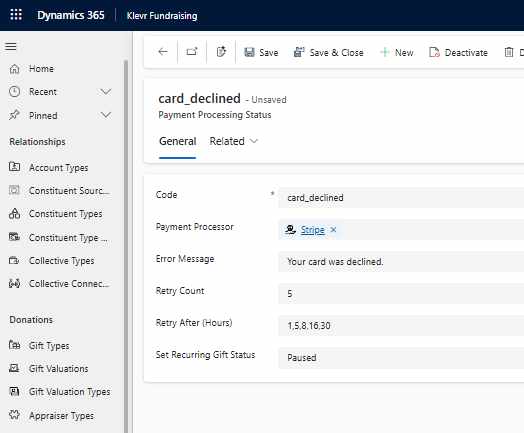
- In the Klevr Fundraising Settings section there is a table called 'Payment Processing Status'.
- For each unique Status that can be received from the Payment Gateway a 'Payment Processing Status' needs to be created and configured. This will then set the rules to what happens when the payment gateway gives a response.
- For example Stripe code "card_declined" may want a retry of 5 times, and then set the 'Recurring Gift' Status to Paused after those attempts.
- The delivery team needs to work with the customer on what Payment Statuses come from their gateway and what the customer would like for each one
When a Payment has a retry and a Payment Method is already set, the system will use that method. If the Payment Method field is cleared before the next retry, it will find the default Payment Method. So, prior to the next retry, you can either:
- Clear the field to trigger the default method, or
- Update it with a new payment method.
For future Recurring Gifts, the system checks the default payment method on the Contact record. If the 'Use Default Payment Method' field is set to false, it will use the specified payment method instead.
Testing Payment Scenarios
The method for testing payment flows—such as successful transactions, declines, or failures—depends on the underlying provider configured in PayFurl or directly in Stripe. Each provider has its own documentation and test card numbers. Stripe Example
If Stripe is your configured provider (either directly or via PayFurl), you can use Stripe Testing to simulate various scenarios. In Stripe, you typically simulate a failed transaction by using specific test card numbers or modifying the External Reference field.
Bambora Example
If Bambora is your configured provider via PayFurl, refer to Bambora Testing.
- Set up a Payment Method using one of Bambora’s test cards.
- Bambora does not use the External Reference field for simulating failures.
📌 Notes
- Always refer to the provider’s official documentation for the most accurate and up-to-date test card numbers and simulation methods.
- Testing behaviour may vary significantly between providers, so ensure your test cases align with the provider’s specifications.
Payment processing works as follows:
- When the Payment is first marked as "Requested", a plugin sends the details to the payment provider (stripe/payfurl) and marks 'Payment Status' as "Sarted".
- Payfurl/Stripe attempts to make the payment. They both call a web hook back to Klevr Portal to tell it what is going on
- Klevr Portal processes the web hook and updates the Payment record in CE as "Successful" or "Failed".
- If failed, it creates the Payment Failure record, and links it to the specific Payment Processing Status record. It gets the retry info from this record. Based on the retry, it will increase the 'Retry Count' on the Payment record, and set's the 'Process on' timestamp to x hours in the future, according to the retry config.
- If it has run out of retries, or its specified as a hard fail, it updates the Payment status to the one specified in the Payment Processing Status record for the last error it received.
- The Flow runs again and picks up any Payment that is awaiting retry and has a 'Process on' date in the past (i.e. the x hours specified has elapsed).
- The flow triggers the initial plugin again to attempt payment. This sends the process back to step 1 above to do it all over again, until it hits a hard stop failure or runs out of retries, or succeeds.
From this you can trouble shoot as follows:
- Is 'Payment Status' Requested: Plugin in step 1 never executed.
- Is 'Payment Status' Started and 'Process on' blank: Webhook didn't work -> check payment provider web hook details and check portal Hangfire logs to see how far it got
- Is 'Payment Status' Started and 'Process on' in the future: Wait. While waiting, check retry count and last payment failure and payment processing status to see what it should be doing. You can also check payment provider logs and Hangfire logs for the details of the last webhook for the transaction.
- Is 'Process on' in the past: Check to see if the flow has run since then and see if it picked it up. If not, check the filter criteria on the flow and figure out why not.
- Is 'Payment Status' Cancelled: Check status description, last payment failure, and payment provider logs for more details.
- Is 'Payment Status' Succeeded: Nothing to check, you have money in the bank.
Payment Link
When a Donor makes a phone call to the organisation the User can generate a Payment Link (a Payment Link is a URL to the Payment Gateway) The User can follow this link and process the payment over the phone from the Donor giving the detail OR the link can be sent to the Donor so the Donor can process this on their own. (PCI compliance, and any automations around this process would be handled by the Delivery team.)
- When a Gift is created from the Gift Batch and you click on the Payment button, a Payment Link in the subgrid will aprear as long as the Donor does not have a default Payment Method. When you click onto the Payment Link, a popout window will appear to take and process the payment. You can also email the link to the Donor if required.
- When the Payment has gone through, it will create a Payment record and then set the Gift record to 'Processed'.
Please see 'How to Guide - Payment Link' for more details
Payment Batch
Klevr Fundraising has a batching feature exclusively supported on PayFURL that enables thousands of recurring payments to be processed on a scheduled basis, with minimal effort and built-in safety features to ensure everything can be reviewed before processing begins.
Steps:
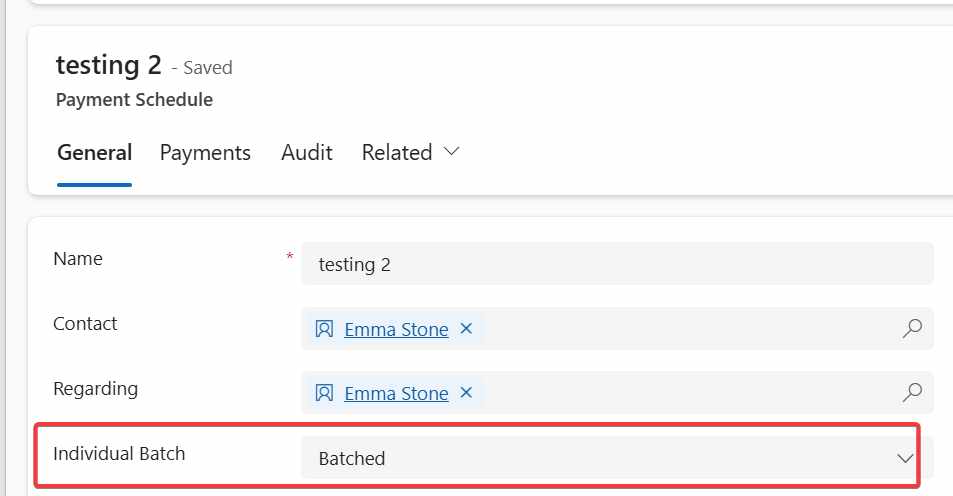
- Create a Recurring Gift and set the 'Individual Batch' to Batch
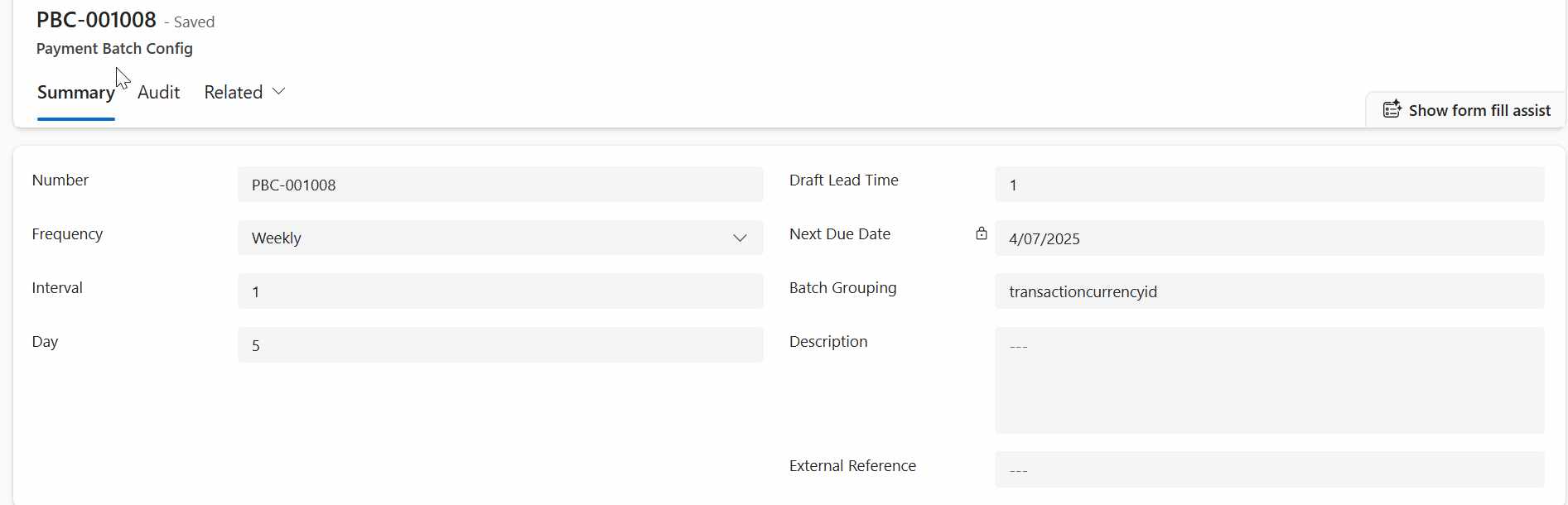
- Add or create a new Payment Batch Config record for the Recurring Gift
- The Payment Batch Config is for setting up the batching process, fill in the details such as once a week. Add the Draft Lead Time (This will create Payment Batch Records in draft for the desired lead time, for example you add 2 to the field, that means two days prior to the 'Next Due Date' the Payment Batch with the Payments associated will all be in Draft giving the User time to review if they wish.
- Set the Next Due Date that the Payment should process (these will not be in draft, this will trigger to process the actual payments on this day)
- Populate the Batch Grouping field:
- Specify the schema names of fields on the Recurring Gift to determine how batches are grouped. For example, setting this to 'transactioncurrencyid' will create separate batches for each unique currency found among the associated Recurring Gifts.
- Save and close
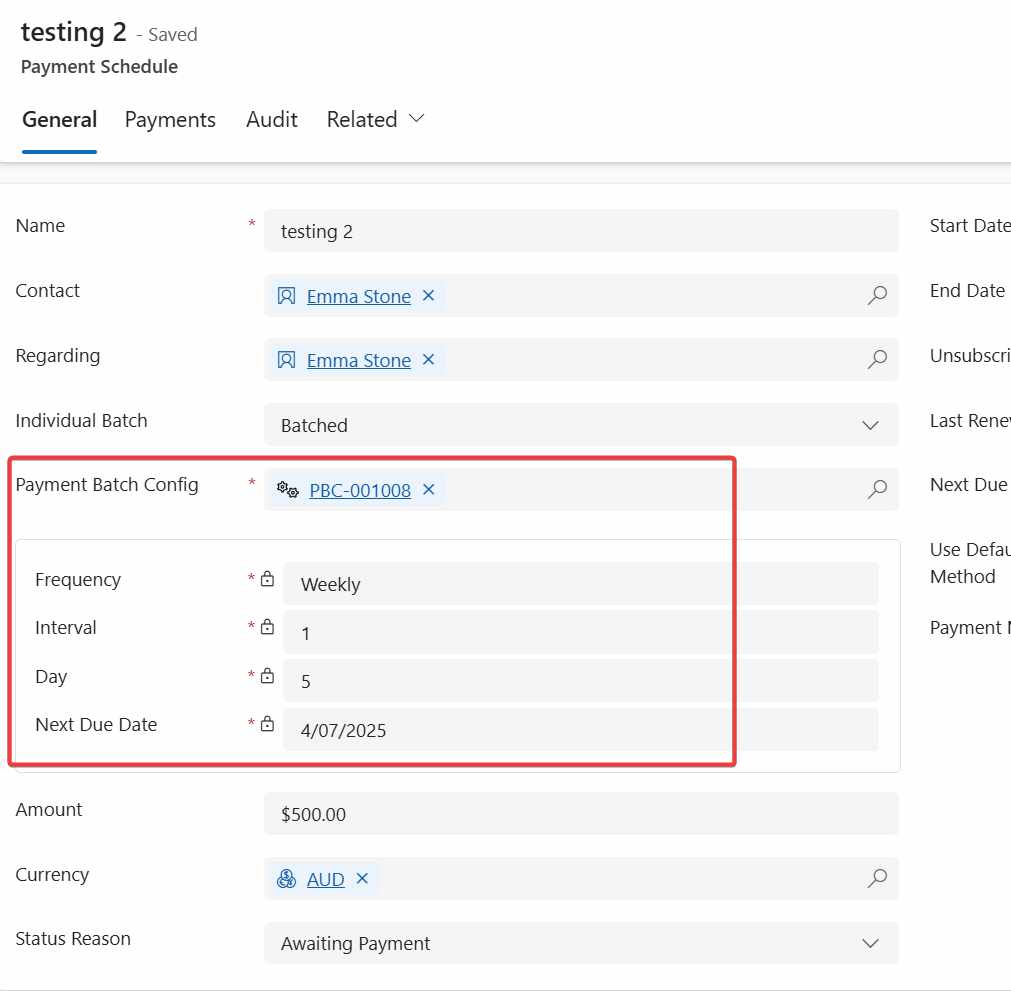
- In the Recurring Gift a quickview will show all the details on the schedule.
- Save the record
- A Flow called 'Klevr Portal - Create Payment Batches' will trigger each day and look for any upcoming Payment Batch Configs that have a lead time and create the Payment Batch in a state of Draft along with a Payment in a state of draft and then update the 'Next Due Date' a week later (or month depending on the schedule) .
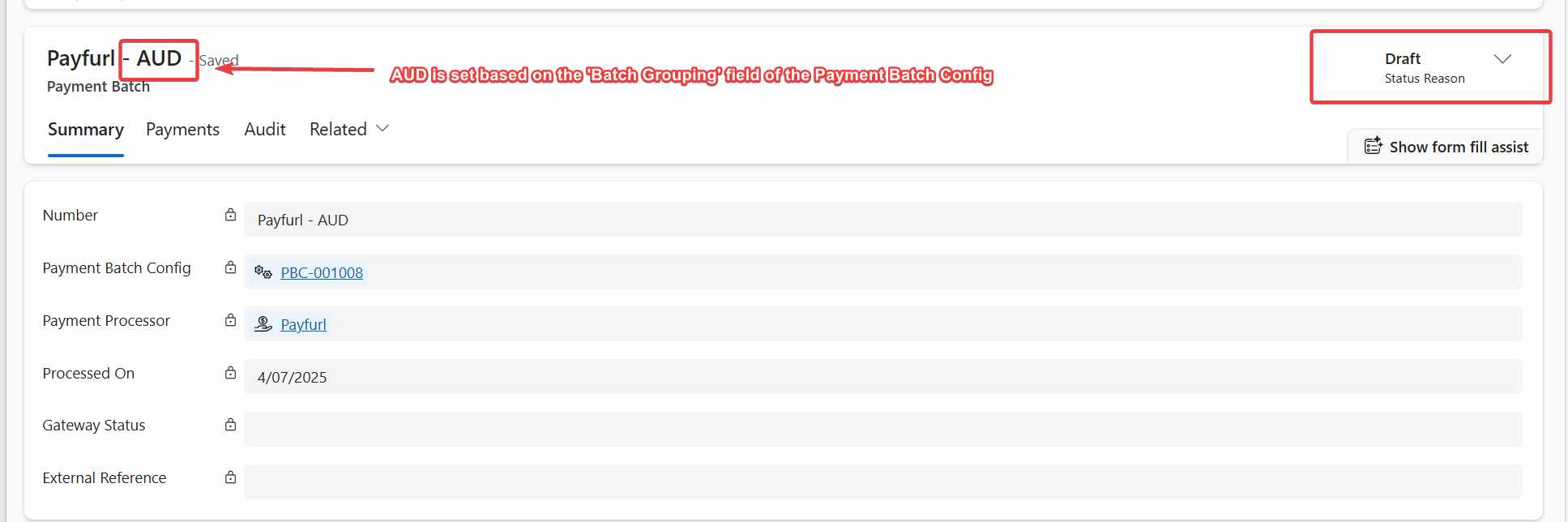
- Within the same Flow it will list all Payment Batches where the 'Processed on' eq today and attempts to process the Payment Batches and associated Draft Payments.
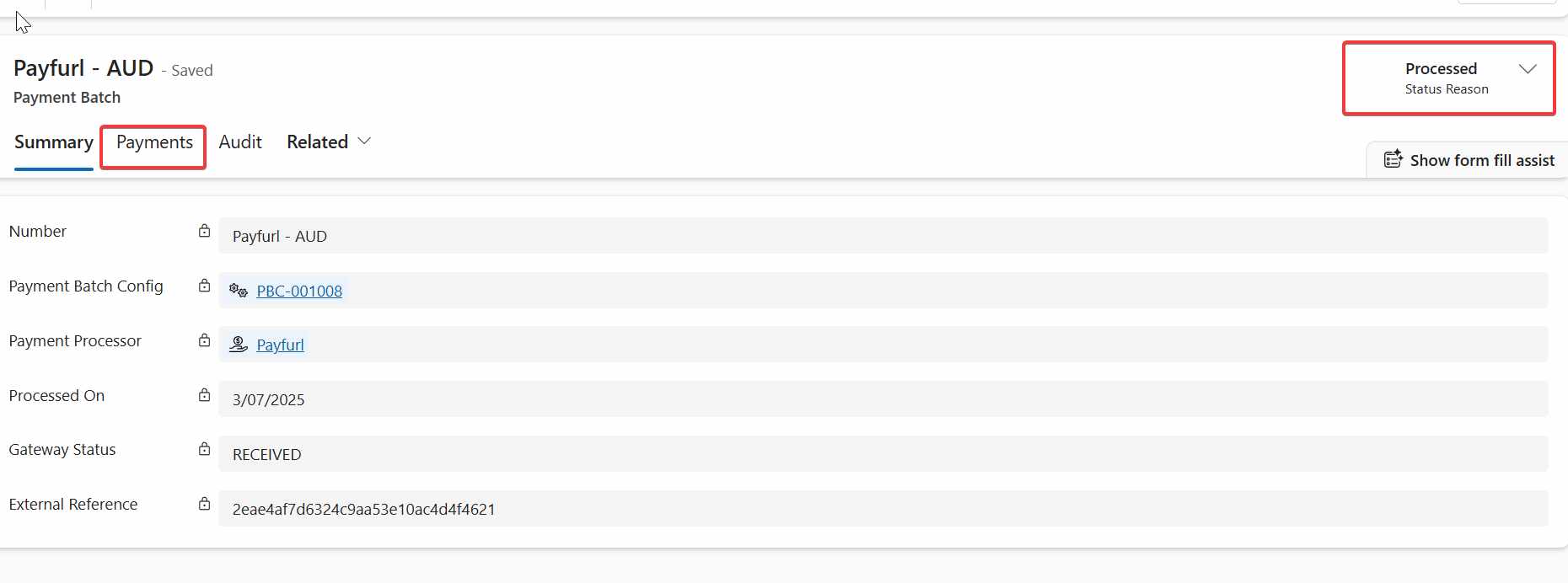
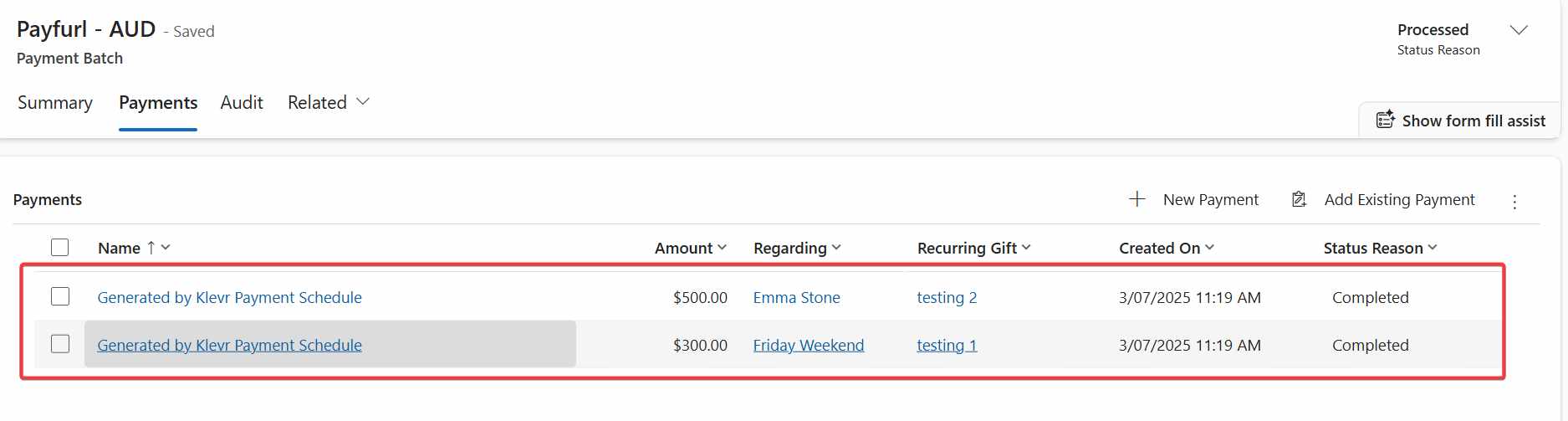
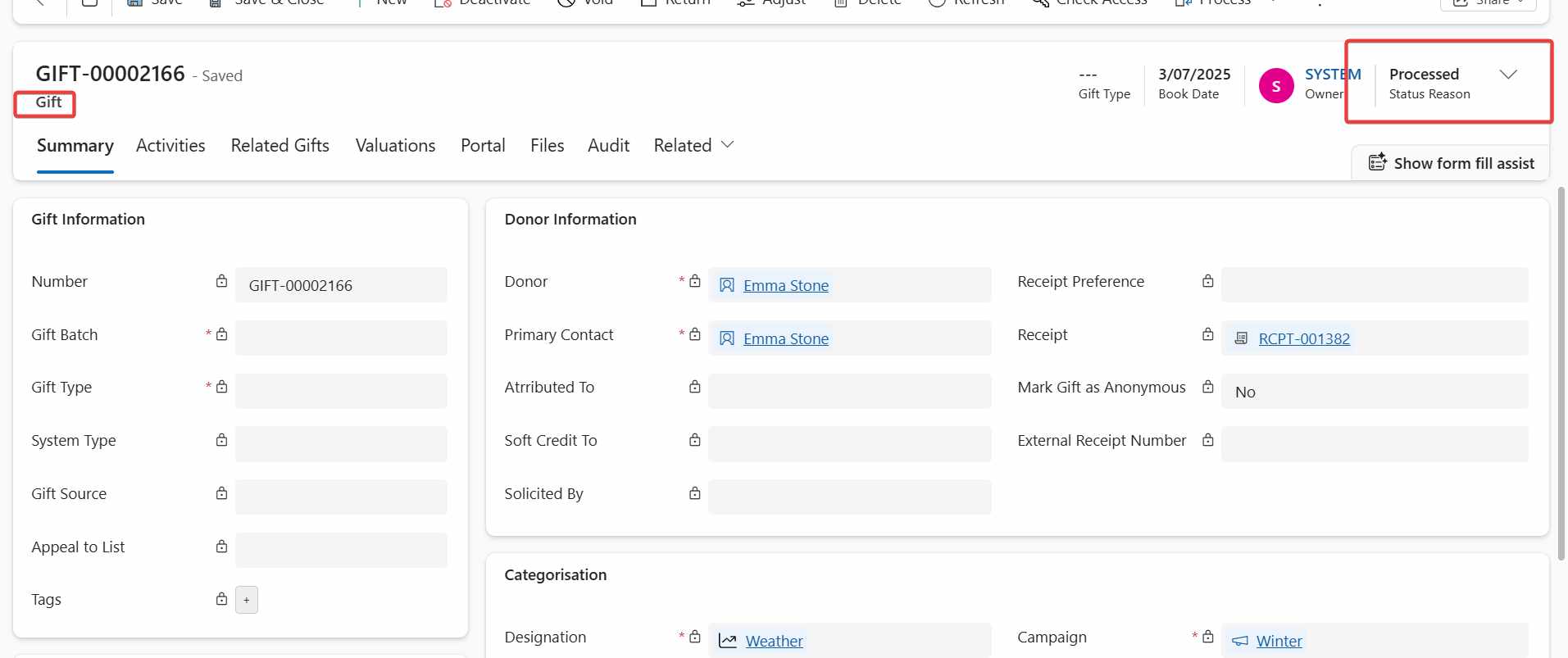
- If successful it will create a new Gift record in a state of Processed
Stripe payment batches
When the Payment Provider is set to Stripe, Payment Batches are created and managed slightly differently.
- The Payment Batch is not sent to Stripe, so the Gateway Status remains blank for the batch.
- The Lead Time field does apply:
- The batch is created in Draft
- Payments are created with a Processed On date in the future based on the Lead Time The Payment flow will not execute those payments until the future date is reached
- When the Processed On date is reached:
- The Payment Batch is updated to Processed as part of the batch flow
- Payments are then executed one by one as part of the payment flow
Receipts
Receipts are records that are created after the successful processing of a Gift. This functionality can be extended by the delivery team to meet the receipting processes of the customer.
- Receipts are auto generated from the Gift when the Status Reason on the Gift changes to 'Processed'
- The Receipt record will sit in a State of 'Draft' until the User decides to send the Receipt. There is no process out of the box for setting the Receipt Status Reason as many customers have unqiue processes that need to be delivered from the Delviery team.
- Out of the box there are Template fields that can be used to call on email templates.
- The Receipt Preferences field is set by the matching Receipt Preference field on the Donor at the time the Receipt is created.
- The delivery team can integrate to third party programs like Document Core Pack
- When the Receipt is ready to be issued the user can go to the Receipt record, set the Status Reason to 'Issued' and complete the Receipt Issue Date with the date. This can be extended by the Delivery team for any automations that the customer may want.
- If there is more than one Gift associated to the Receipt, a Subgrid will appear to show all the related Gifts.
- There is a Template section with two fields 'Email Template' and 'Print Template'. These two fields use a PCF control to show a list of Templates that can then be used for the record. This PFC control uses fetch XML to list the templates and can be updated by the delivery team.
- The default Templates that are pre-populated on these fields are set by the environment variable called 'klevr_ReceiptTemplatePriority' that can be configured to import the template from the matching fields on the Campaign, Appeal, or Package.
Receipt Tax Deductible Calculations
When a Gift is updated to Processed, a Receipt record is automatically created.
During receipt creation, the system evaluates the Gift’s associated Designation Credits and calculates tax deductible and non‑tax deductible totals.
Receipt Fields
| Field | Description |
|---|---|
| Amount | Total value of the gift (sum of all Designation Credits) |
| Tax Deductible Amount | Sum of all Designation Credits marked as tax deductible |
| Non‑Tax Deductible Amount | Sum of all Designation Credits marked as non‑tax deductible |
Calculation Logic
- Retrieve all Designation Credits associated with the Gift
- For each Designation Credit:If Tax Deductible = Yes, add the amount to Tax Deductible Amount If Tax Deductible = No, add the amount to Non‑Tax Deductible Amount
- Populate the Receipt fields accordingly
The combined Tax Deductible and Non‑Tax Deductible amounts will always equal the Receipt Amount.
Example Scenario:
Designations
- Cats — Tax Deductible = Yes
- Platform Cost — Tax Deductible = No
- Tickets — Tax Deductible = No
Gift Designation Credits Breakdown
- $95.00 → Cats
- $2.00 → Platform Cost
- $5.00 → Tickets
Receipt Values
| Field | Value |
|---|---|
| Amount | $102.00 |
| Tax Deductible Amount | $95.00 |
| Non‑Tax Deductible Amount | $7.00 |
This approach ensures accurate tax reporting even when gifts are split, reallocated, or include multiple non‑deductible components.
How Receipt Templates Are Determined
When a Receipt is created, the system automatically attempts to populate the Email Template and Print Template fields based on the related fundraising hierarchy.
The default behaviour is:
- The system first checks the Campaign for defined templates
- If none are found, it checks the Appeal
- If none are found, it checks the Package
- If no templates are defined at any level, the Receipt Template fields will remain empty
This behaviour can be altered using the environment variable klevr_ReceiptTemplatePriority. This variable controls whether the standard hierarchy should be overridden.
For example:
• Setting the value to Appeal will force the system to always source templates from the Appeal
• Setting the value to Package will force the system to always source templates from the Package
Receipt scenario for Void Gifts:
When a gift is Voided, the system handles it differently depending on the status of the associated Receipt. Below are the two possible scenarios:
- Scenario 1: Receipt Not Yet Sent (Draft Status)
- A Gift is created and marked as Processed.
- The system automatically generates a draft Receipt.
- The User Voids the Gift.
- The Voided Gift is linked to the same draft Receipt.
- Since the Receipt is still in draft and has not been sent to the customer, the system:
- Reverses the amount of the original Gift on the Receipt.
- Updates the total to $0.
- Keeps both the original and voided gifts linked to the Receipt for reference.
- Scenario 2: Receipt Already Sent (Issued Status)
- A Gift is created and marked as Processed.
- The system generates a draft Receipt.
- A customer-specific process sends the Receipt using the preferred template
- A customer-specific process marks the Receipt as Issued.
- The Gift is later Voided.
- A copy of the Gift is created and linked to the same Receipt showing the same value shown on the Gift.
- Since the Receipt has already been sent:
- The Receipt is not modified.
- The negative Gift is not sent to the customer.
- Sending a negative Receipt would not be useful or actionable for the customer.
- The voided Gift remains linked to the original Receipt for internal reference only.
Receipt scenario for Return Gifts:
When a gift is Returned the below scenario will take place regardless of a Receipt being in a Status Reason of Draft or Issued:
- A Gift is created and marked as Processed.
- The system automatically generates a draft Receipt.
- The Gift is later Returned.
- The Receipt on the origanl Gift does not change.
- The Returned Gift is in a Draft state with the negative amount and no link to a Receipt unless the Gift is updated to Processed, then a new Receipt record will be created for the same negarive amount as the Returned Gift in a state of Draft.
Receipt scenario for Adjusted Gifts:
When a gift is Adjusted, the system handles it differently depending on the status of the associated Receipt. Below are the two possible scenarios:
- Scenario 1: Receipt Not Yet Sent (Draft Status)
- A Gift is created and marked as Processed.
- The system automatically generates a draft Receipt.
- The Gift gets Adjusted.
- The original Gift Receipt record is updated to Void.
- A copy of the Gift with a negative amount is linked to the same Voided Receipt.
- Since the Receipt was originally in a Draft state and was not sent to the customer, the system:
- Reverses the amount of the original Gift on the Receipt.
- Updates the total to $0.
- Keeps both the original and negative adjusted Gifts linked to the Receipt for reference.
- A second copy for the Adjusted Gift is in a state of Draft with no link to a Receipt until you update the Gift to Processed where a new Receipt record gets generated in a state of Draft.
- Scenario 2: Receipt Already Sent (Issued Status)
- A Gift is created and marked as Processed.
- The system generates a draft Receipt.
- A customer-specific process sends the Receipt using the preferred template
- A customer-specific process marks the Receipt as Issued.
- The Gift is later Adjusted.
- The original Gift Receipt record is updated to Void showing the same value shown on the Gift.
- A copy of the Gift with a negative amount is created with a new Receipt showing the negative amount in a state of Draft.
- A second copy for the Adjusted Gift is in a state of Draft with no link to a Receipt until you update the Gift to Processed where a new Receipt record gets generated in a state of Draft.
Fiscal Statements - Consolidating Receipting
What is Consolidating Receipting:
Consolidated Receipting is the concept of a Primary Contact requesting to receive a Receipt of all their donations at the end of the Company's fiscal year.
Klevr Fundraising delivers this through a new table called Fiscal Statements that generates a record and associates the receipts in the fiscal year to this record. From there a global template or Document Core Pack can be used to issue the consolidated receipt to the Primary Contact.
Important Delivery Notes:
- The functionality is based on an Instant Power Automate.
- This Power Automate is built in a way to be cloned and modified by the Delivery team to meet any custom requirements from the customer.
- This is an Instant flow that will require the Delivery team to trigger the flow depending on how the customer wants it, such as a Button on the Command Bar or triggered from a parent Power Automate that calls on this flow.
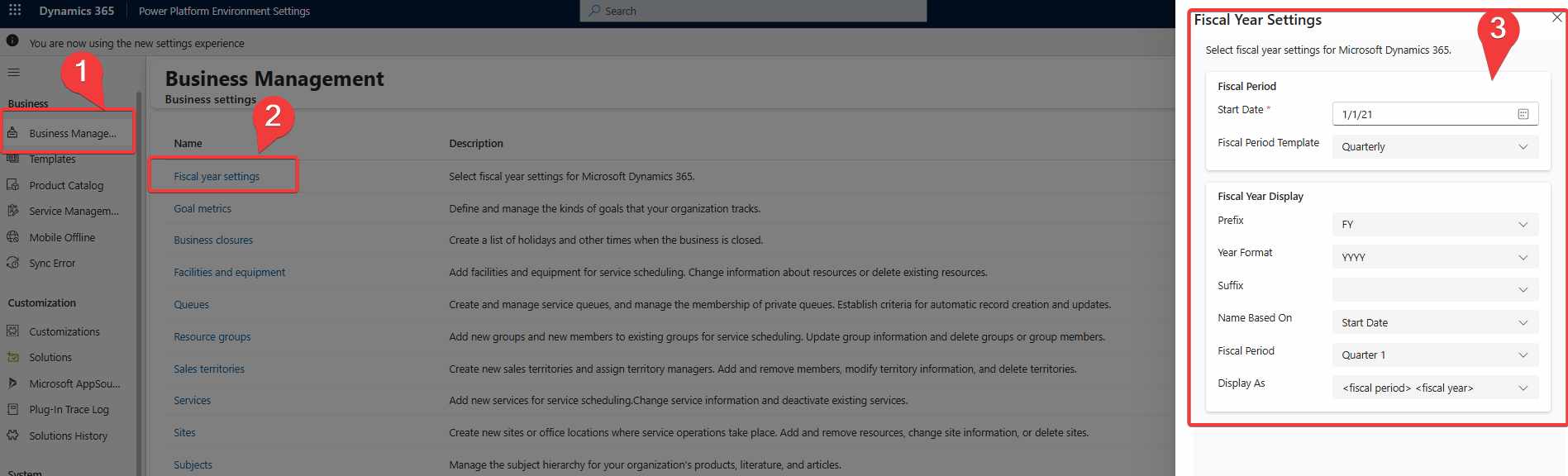
- The Fiscal Year setup must be completed in the Advanced Settings of the Dynamics 365 Instance.
Some examples where you may need to modify the cloned flow would be:
- If Fiscal Statements should only be generated from Gifts that have Recurring Gifts associated to them
- If Fiscal Statements should only be generated from Gifts that are connected to a Campaign
We have also set a field called 'Template for Statement' to look at a placeholder global template. This is just a placeholder for a Template reference, this could also be extended with the use of Document Core Pack.
- The Delivery team will need to extend this functionality to actually send the Fiscal Statement (Consolidated Receipt) they generate.
How it works:
Base Setup
Set up the Fiscal Year Settings in Advanced Settings of the D365 instance.
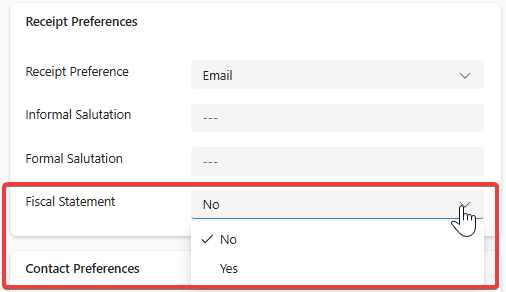
On a Contact there is a field called Fiscal Statement (Yes/No).
In the Klevr Fundraising solution, there is a Power Automate called "Klevr Fundraising - Fiscal Statement".
This flow is triggered by a button or parent flow (to be set up by Delivery team).
The flow lists Receipts within this Fiscal Year and where Primary Contact 'Fiscal Statement' eq Yes.
Composes the current year.
A Condition checks if Receipt 'Fiscal Statement' contains data.
If no, it lists all Fiscal Statement records where 'Primary Contact' and 'Donor' equals the same, the 'Status Reason' is in Draft and the 'Statement Year' eq current year.
A Condition checks the count of Fiscal Statement records that exist.
If yes, update the Receipt 'Fiscal Statement' lookup.
If no, create a Fiscal Statement record and associate Receipts to it along with setting the current year.
On this Fiscal Statement record, we can see a Rollup field counting the sum value of all the associated Receipts as well as a place holder for a Global Template.
Complex Example Scenario
- Bob Smith is a Contact who said yes to receiving a Fiscal Statement, so on the Contact record Fiscal Statement is set to Yes.
- Walkerscott is a Donor who gave 5 times this year where Bob Smith was the Primary Contact
- Separate from that, Bob Smith was also a Donor who have 3 times this year and was the Primary Contact
- Icomm is a Donor who gave 2 times this year and Bob Smith was the Primary Contact
- When the flow is triggered it will look at all the Contacts in the system where Fiscal Statement eq Yes, because Bob Smith is set to yes, it will attempt to create three records.
- First Fiscal Statement record is Walkerscott and Bob Smith
- This will have 5 receipt records associated to the one record.
- Second Fiscal Statement record is Bob Smith and Bob Smith
- This will have 3 receipt records associated to the one record.
- Third Fiscal Statement record is Icomm and Bob Smith
- This will have 2 receipts associated to the one record.
- First Fiscal Statement record is Walkerscott and Bob Smith
- If the flow is triggered again, any new receipts will be added to these existing Fiscal Statements.
- Additionally, when the Fiscal Statement record is created, it sets the Year field to the current year.
- We also created two status reasons, draft and processed. The idea here is that when the Fiscal Statement is ready to be sent you can update the 'Status Reason' to Processed either manually or through an additional automation
-
The flow that will only add additional receipts to an existing Fiscal Statement where a Gift was made this year and the Status Reason is in Draft. Otherwise if the Status Reason is Processed, a new Fiscal Statement record will be created with that receipt.
-
Internal demo video below:
Disclaimer: I swear I'm saying "fiscal", no, this isn't about your gym goals.
Payouts
A Payout (often seen as a Financial Payout) is a record to document the financial movement of money from a Payment Gateway to the organisation that is using Klevr Fundraising. For example, Donors give Gifts to Company XYZ through Stripe, then after two weeks Stripe pays out the Donations collected to a nominated bank my Company XYZ in the amount totalling these Payments that are in a state of Processed. This is called a Payout.
By extension there is Payout Transactions. For every Payment that is associated to the total of the Payout there is a record called a Payout Transaction. This can be seen as a subgrid on the Payout record and connects each individual Payment to the Payout.
Last updated on