
Donations
Grouping for tracking Gifts or potential Gifts (Pledges)
Feature Overview
Grouping for tracking Gifts or potential Gifts (Pledges)
Gift Batches
The Gift Batch is the first step before a Gift is created.
- Here you can record the Gift Type along with the default DCAP information.
- Add the main Donor details for the Gift Batch.
- Record the expected number and value of the Gifts to be associated with the Batch.
- Reconciliation Status to indicate if the actual number and value of the associated Gifts match
- The Gift Batch can have many different Donors in the associated Gifts
- Bulk import Gifts using 'Gift Imports' see 'How to Guide - Gift Import'
- Scan Gifts from an Appeal to List, see 'How to Guide - Scan Gifts'
- See all the Gifts that belong to the Gift Batch
- A Business Process Flow to help guide the user through the Gift Batching process
- If the BPF stage changes to In Progress then the Status Reason of the Gift Batch will change to In Progress
- When the BPF stage transitions to 'Processed,' the Status Reason does not automatically update to 'Processed.' This is intentional, as not all organisations prefer this behaviour. The 'Processed' Status Reason triggers the locking of numerous fields. The delivery team can extend this functionality if needed.
Field Locking on Status Reason = Processed
When a Gift Batch record changes to Status Reason = Processed all the fields will become locked. This is so that changes can not be made to the record accidently after processing.
However, there is often the need for records to become associated or updates to happen in the background after a Gift Batch is Processed. Because of this the technical state of the record is still Active to support these processes if needed.
Klevr Fundraising uses Field Locker from the Klevr Utilities to provide this locking functionality while keeping the record Active.
Credit Cards
- For credit card processing a Gift Type record needs to be used with the 'System Type' set to 'Monetary - Online'.
- When a Gift Type record that is Monetary - Online is used on the Gift Batch then a 'Payment' button will appear in the Gift Batch command bar.
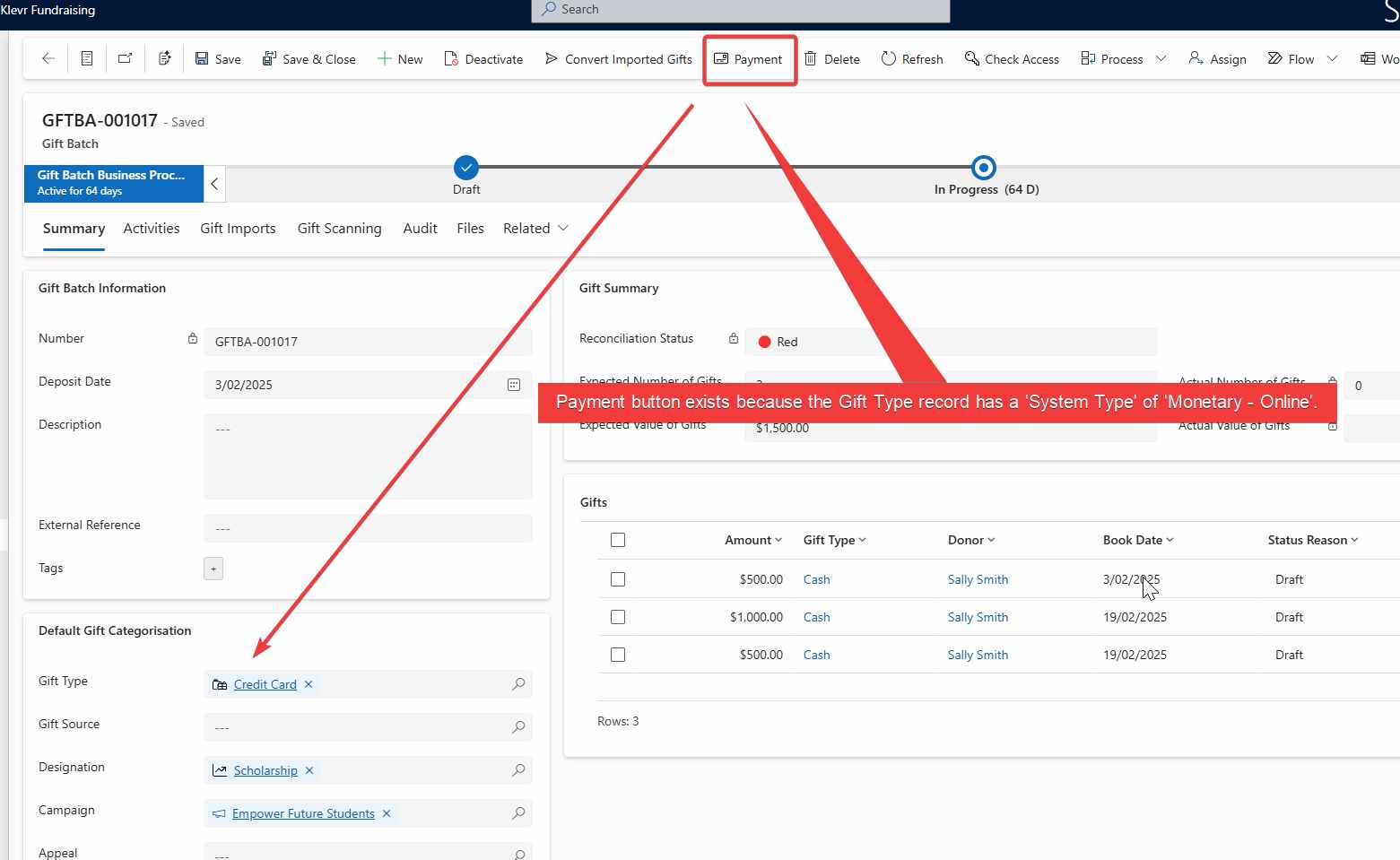
- Click on 'Payment' button. If the Donor has a default Payment Method this will create a Payment record where the donation will get processed by the gateway, if the Payment was successful, the Gift 'Status Reason' will update to "Processed".
- Please see the Payment section for more details on how Payments are processed and Statuses are set.
Additional Notes
In Klever Fundraising you will see the following fields used between several different tables: Gift Batch, Gift, Designation Credit, Pledge, Donor Commitment, Recurring Gift, Bequest, Opportunity, Appeal to List.
- Attributed To: Indicates the Contact, Account or Collective officially credited with the donation for recognition or reporting purposes.Additionally, 'Attributed To' is intended to be used for visibility and reporting on workplace and peer to peer giving.
- Soft Credit To: A soft credit is when someone is acknowledged for influencing or facilitating a donation, even though they didn’t make the Gift themselves. Often times this is used to acknowledge someone however they would not receive any tax benefits of the donation.
- Solicited By: Refers to the Contact or a staff member (User) who actively asked for or encouraged the donation, often used for tracking fundraising efforts. This can often refer to third parties.
- Tribute or In Memory Of A Tribute record is used when a donor gives in honor or in memory of someone. These records store key details such as:
- The tribute type (In Honor, In Memory, In Tribute)
- Who the tribute is about
- Tribute records can be linked to Gifts and, if needed, surfaced through the portal.
Gifts
Gifts are where donations are recorded, the only way a Gift is created is through a Gift Batch unless a Payment has come from the Portal or a Recurring Gift, the Payment will create the Gift in that case.
- Gifts show whether the Donor prefers their donations to be anonymous and if they would like to receive their receipt by email or print, etc. This information is cascaded from the Account or Contact record, depending on what is populated in the Donor field.
- There is a field called 'External Receipt Number' that can be used for receipting one-off gifts with an external receipt number, e.g., PayPal.
- For Gifts that are "Monetary - Offline" such as cash, cheques or "Non-Monetary" such painting etc. The User will need to update the 'Status Reason' to "Processed" once all the details are confirmed.
- You can Void Gifts, see 'How to Guide - Gift Void Action'
- Return Gifts, see 'How to Guide - Gift Return Action'
- Adjust Gifts, see 'How to Guide - Gift Adjust Actions'
- Please see Designation Credit section for more details.
- We have a locked field called 'Return' that will show and set to "Yes" if the Gift was a Return. This is under the 'Related Gifts' tab.
- A view designed for easily identifying Gifts that have been returned, labeled as 'Returned Gifts'.
Field Locking on Status Reason = Processed
When a Gift record changes to Status Reason = Processed all the fields will become locked. This is so that changes can not be made to the record accidently after processing.
However, there is often the need for records to become associated or updates to happen in the background after a Gift is Processed. Because of this the technical state of the record is still Active to support these processes if needed.
Klevr Fundraising uses Field Locker from the Klevr Utilities to provide this locking functionality while keeping the record Active.
Platform Cost Functionality
This section outlines the new Platform Cost feature available within Klevr Fundraising. The feature allows donors using the portal to optionally cover platform costs on their donation. Selecting this option automatically calculates the platform cost, updates the total amount payable, and allocates the platform cost to a designated designation within Klevr Fundraising.
Overview
When a donor logs into the portal and enters a donation amount (e.g. $100), they are presented with a toggle asking whether they would like to cover the platform cost.
- If the donor selects Yes, the system calculates the platform cost using the percentage defined in an environment variable.
- The platform cost is displayed as a separate field
- The Total Amount updates to reflect the sum of the donation and the platform cost (e.g. $105).
- During payment, the donor is charged the full Total Amount.
- If the donor selects No, platform cost is set to $0, and the Total Amount remains equal to the donor’s original amount.
In addition, if platform cost is enabled, the allocated platform cost is applied to a separate designation (also defined via environment variable).
An environment variable called 'Klevr_PlatformCostConfiguration' controls:
- The designation to which platform costs should be allocated (entered as the GUID of the designation).
- The percentage used to calculate the platform cost (e.g. 5%, 10%, 40%).
System Behaviour and Logic
- Portal Entry (Online Gift Table)
The portal uses the Online Gift table as a temporary container prior to generating a Gift record in Klevr Fundraising.
The following fields support platform cost functionality:
| Display Name | Schema Name | Purpose |
|---|---|---|
| Amount | klevr_useramount | The amount entered by the donor. |
| Total Amount | klevr_amount | Read‑only field showing the total (donation + platform cost). |
| Enable Platform Cost | klevr_enableplatformcost | Toggle indicating whether platform cost is applied. |
| Platform Cost | klevr_platformcost | Calculated value based on environment variable percentage. |
Process:
- Donor enters an Amount (e.g. $100).
- If Enable Platform Cost = Yes: Platform Cost is calculated using the environment variable percentage. Total Amount = Amount + Platform Cost.
- If Enable Platform Cost = No: Platform Cost = $0. Total Amount = Amount.
The Total Amount is what the payment gateway must always display and charge.
A plugin reads the environment variable, applies the percentage, and ensures all fields are updated accurately.
Payment Submission
When the donor clicks Pay Now:
- The payment gateway charges the Total Amount.
- A Payment record is created in Klevr Fundraising.
- A Gift record is then created and populated with the relevant totals and designation credits.
Gift Record Structure
Within the Gift record:
| Display Name | Schema Name | Notes |
|---|---|---|
| Amount | klevr_useramount | Mandatory. Represents donor’s base amount. |
| Total Amount | klevr_amount | Read‑only. Sum of Amount + Platform Cost. |
| Enable Platform Cost | klevr_enableplatformcost | Reflects donor selection. |
| Platform Cost | klevr_platformcost | Calculated value. |
Designation Credits
When platform cost is enabled:
- Two designation credits are created: Primary Donation Credit Amount: donor-entered value (e.g. $100) Destination: donor’s chosen designation Platform Cost Credit Amount: calculated platform cost (e.g. $5 or $0.40) Destination: designation specified in the environment variable
When platform cost is disabled:
- Only one designation credit is created (the normal donation credit).
Both designation credits combined equal the Total Amount.
Example
Environment Variable Percentage: 4% Donor Amount: $10.00
| Field | Value |
|---|---|
| Amount | $10.00 |
| Platform Cost | $0.40 |
| Total Amount | $10.40 |
Designation credits created:
- $10.00 → Donor’s chosen designation
- $0.40 → Platform cost designation
Returns and Adjustments for Gifts with Platform Costs
When a Gift originally included a Platform Cost and the User performs a Return or Adjustment, the system will create new Designation Credits with an Amount of 0 for the User to manually update.
Example Flow:
- A Gift is created with an Amount (e.g. $100) and a Platform Cost (e.g. $5).
- The Gift is processed.
- The User clicks Return (or performs an Adjustment).
- The system generates a new Gift record.
- The new Gift includes Designation Credits representing:the donor’s original designation the platform cost designation
- These Designation Credits will:be created in an Active state have their Amount fields set to 0
The User is required to update each Designation Credit manually to reflect the correct returned or adjusted amounts.
Tax Deductible and Non‑Tax Deductible Amounts
Klevr Fundraising supports scenarios where a single gift may contain both tax deductible and non‑tax deductible components. This commonly occurs with platform costs, tickets, or other benefits that are not eligible for tax deduction.
Rather than hard‑coding specific scenarios (such as platform costs), Klevr Fundraising determines tax deductibility based on the Designation used for each portion of a gift.
Designation Tax Deductible Flag
A Tax Deductible (Yes/No) field is available on the Designation record.
- Yes — Amounts allocated to this designation are tax deductible
- No — Amounts allocated to this designation are non‑tax deductible
This allows flexibility for different use cases, including but not limited to:
- Platform costs
- Tickets or event benefits
- Merchandise
- Any other non‑deductible component
Designation Credit Tax Deductible Indicator
Each Designation Credit inherits the tax deductibility of its related Designation.
A Power Fx field on the Designation Credit exposes this value:
- Tax Deductible = Yes → Deductible component
- Tax Deductible = No → Non‑deductible component
Gift Fees and Taxes
This section will describe the Fees and Tax scenarios for a Gift.
Klevr Fundraising needs to be flexible to any Fees and Taxes that are charged at the payment gateway level and properly present them in Klevr Fundraising.
Notes:
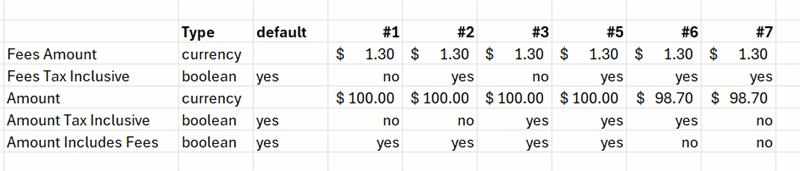
Designation Credit would always be the value of the Amount field, which is how it currently works. This should give flexibility to specific tax inc/exc for both Fees and Amount, and whether the Amount includes fees or not
Then the integration would:
Look at the Designation Credit.
Go to the Parent Gift.
Gather information from Fee Amount, Fee Tax Inclusive, Amount Tax Inclusive, Amount Includes Fees.
Build its "payload".
Deliver "payload" to the finance system.
"I've mocked up a payload schema (note it is psuedo code, won't work and is missing a bunch of fields e.g. Designation, Campaign, Donor etc.), but you should get the idea.
It will retrieve a Gift and all associated Designation Credits with their corresponding Integration Maps, then merge the fields specified into a single JSON message"
{
    "PrimaryKey": "klevr_giftid",
    "LinkField": "klevr_giftid",
    "Entity": "klevr_gift",
    "Alias": "gift",
    "Fields": {
        "klevr_giftid": "id",
        "klevr_name": "number",
        "klevr_gifttypecode": "giftSystemType",
        "klevr_amount": "amount",
        "klevr_amountTaxInclusive": "amountTaxInclusive", // proposed field.
        "klevr_amountIncludesFees": "amountIncludesFees", // proposed field.
        "klevr_feeAmount": "feeAmount", // proposed field.
        "klevr_feeAmountTaxInclusive": "feeAmountTaxInclusive", // proposed field.
        "klevr_bookdate": "bookDate",
        "statecode": "status",
        "statuscode": "statusReason",
        "klevr_integrationstatuscode": "integrationStatus",
        "klevr_tags": "tags",
        "klevr_externalreference": "externalReference",
        "createdon": "createdOn",
        "modifiedon": "modifiedOn",
        "transactioncurrencyid": ""
    },
    "Parents": [
        {
            "PrimaryKey": "transactioncurrencyid",
            "LinkField": "transactioncurrencyid",
            "Entity": "transactioncurrency",
            "Alias": "currency",
            "Fields": {
                "isocurrencycode": "currencyCode"
            }
        }
    ],
    "Related": [
        {
            "Entity": "klevr_designationcredit",
            "PrimaryKey": "klevr_designationcreditid",
            "Filter": "<condition attribute='klevr_giftid' operator='eq' value='{{gift.klevr_giftid}}' />",
            "Alias": "designationCredit",
            "Fields": {
                "klevr_name": "number",
                "klevr_amount": "amount",
                "klevr_integrationmapid": ""
            },
            "Parents": [
                {
                    "PrimaryKey": "klevr_integrationmapid",
                    "LinkField": "klevr_integrationmapid",
                    "Entity": "klevr_integrationmap",
                    "Alias": "integrationMap",
                    "Fields": {
                        "klevr_name": "integrationMapNumber",
                        "klevr_creditaccountnumber": "creditAccountNo",
                        "klevr_debitaccountnumber": "debitAccountNo",
                        "klevr_taxcode": "taxCode",
                        "klevr_istaxinclusive": "taxInclusive", // determine if this OOTB works better than specific fields on Gift or could be used for matching
                        "klevr_ledgeraccounttypecode": "ledgerAccountTypeCode",
                        "klevr_ledgertemplatecode": "ledgerTemplateCode",
                        "klevr_isrecurring": "isRecurring",
                        "klevr_externalreference": "integrationMapExternalReference"
                    }
                }
            ]
        }
    ]
}
Additional Notes
In Klever Fundraising you will see the following fields used between several different tables: Gift Batch, Gift, Designation Credit, Pledge, Donor Commitment, Recurring Gift, Bequest,
Opportunity, Appeal to List.
- Attributed To: Indicates the Contact, Account or Collective officially credited with the donation for recognition or reporting purposes.Additionally, 'Attributed To' is intended to be used for visibility and reporting on workplace and peer to peer giving.
- Soft Credit To: A soft credit is when someone is acknowledged for influencing or facilitating a donation, even though they didn’t make the Gift themselves. Often times this is used to acknowledge someone however they would not receive any tax benefits of the donation.
- Solicited By: Refers to the Contact or a staff member (User) who actively asked for or encouraged the donation, often used for tracking fundraising efforts. This can often refer to third parties.
- Tribute or In Memory Of A Tribute record is used when a donor gives in honor or in memory of someone. These records store key details such as:
- The tribute type (In Honor, In Memory, In Tribute)
- Who the tribute is about
- Tribute records can be linked to Gifts and, if needed, surfaced through the portal.
Non Monetary Gifts
We have added a field to the Designation Credit showing the Gift System Type. This value can be used to filter integrations. (if the Gift Type is non monetary and there is no value needed, place 0 into the amount field.)
Gifts in Kind / Non-Monetary Change
On the Designation Credit, we have added a field called Gift System Type which will automatically be populated with Non-Monetary Online, Non-Monetary Offline, or Monetary as per the details on the Gift. This allows for better visibility at the Designation Credit and enables the delivery team to be able to set up the integrations should they want to exclude non-monetary items from flowing into the ERP system.
Pledges - General
A Pledge is where a Donor is committing to Donate in the future, there can be one-off commitments or scheduled commitments the Donor has made.
- A pledge can be created from an Automation set by the delivery team coming from an Opportunity.
- A pledge can be manually created by a D365 user on behalf of an Donor, such as over the phone.
- A pledge could be created by an integration or data import as set by the Delivery Team.
- A Contact or an Account can have multiple Pledges.
- Out of the box a Pledge musty be associated to a Designation and Campaign for traceability.
- Number is auto generated on create
- Add Attribute, Soft Credit and Solicited by along with Tribute or In memory of
- Assign the main Designation, Campaign, Appeal or Package to the Pledge
- Add in the amount the Donor has pledged to give along with the Gift Type such as Cash.
- If there are any admin fees, you can select an amount or a percentage along with the Designation the fees should be applied to.
- You can set the Pledge up to create a Donor Commitment manually or on a Schedule basis.
- If manually, just add the 'Donor Commitment' record from the subgrid under the 'Commitments' tab.
- If Scheduled, set up all the required details:
- Start date (day the Donor Commitment starts)
- End Date (when should it end)
- First Amount (what should the first Donor Commitment record be)
- Recurrence (do they want it weekly or monthly)
- Interval (how many x amount of weeks or months, maybe across 5 weeks)
- Day (Weekly would be 1-7 sun-sat, Monthly would be 1-31)
- Save the record
- Click on 'Generate Scheduled Commitments'
- All the Donor Commitments will auto generate based on the Schedule you gave it.
- See 'Donor Commitments' for details.
Financial Information fields:
- Amount - Gross amount pledged, inclusive of Admin Fees (if applicable)
- Gift Type - The method or type of gift associated with this pledge (for example, Credit Card).
- Admin Fee Type - The administrative fee option selected for this pledge
- Fee Amount - Total Amount of Admin Fees
- Admin Fee Percentage - Admin Fee expressed as a percentage (%)
- Admin Fee Designation - Default Designation used for Admin Fees
- Admin Fee Amount - Calculation of the 'Fee Amount' or 'Admin Fee Percentage' along with the Write-on or Write-off Donor Commitment 'Fee'.
- Adjusted Amount - Calculation of the 'Amount' and the Write-on or Write-off Donor Commitment 'Amount'.
- Specified Amount - Amount Pledged less Admin Fees
- Adjustments - Shows the total amount of the Donor Commitment Write-On's or Write-Off's.
- Specified Amount - Displays the specified amount associated with the pledge. This field cannot be edited directly.
- Fee Adjustments - Shows the total Admin Fee Amount of the Donor Commitment Write-on or write-Off.
- Total Commitment Amount - Shows the total amount of all the Donor Commitments against this Pledge.
- Gifts Received - Calculates the total of all the Designation Credits associated to every Donor Commitment
- Gifts Outstanding - Calculates the outstanding amount from the 'Adjusted Amount' compared to 'Gift Received'
- Commitments Match - Determines if the Donor Commitments match agaisnt the Pledge 'Adjusted Amount'
Pledges - Write On
A Pledge Write On is when a Donor gives more than expected to a single Donor Commitment through a Gift. For example, Bob pledges to give $100 split between two Gifts. Then on the second Gift, gives $150 instead of the expected $50. This means there was an extra $100 received and it needs to be recorded against the Pledge as it was received in that payment.
In this situation a new Donor Commitment with a System Type of Write-On can be created for $100 to balance the Pledge and show the extra funds that were received from this Gift.
On the Pledge record the Total Commitment Amount will show the total giving amount including the Write On amounts to give visibility to this additional funds. The Commitments Created will also show "Exceeds" through the Summary tab of the Pledge. Both of these pieces are core Klevr Fundraising functionality and does not need extending from the Delivery Team.
Pledges - Write Off
The inverse of a Write On is a Write Off, the situation where a Donor commits to sending Gifts but either Gifts an amount less than Pledged, or does not meet the Pledge.
For example, Bob pledges to give $100 split between two Gifts. Then on the second Gift, gives $20 instead of the expected $50. This means there was a decrease of $30 received and it needs to be recorded against the Pledge.
In this situation a Donor Commitment with a System Type of Write-Off could be created for -$30 to balance out the Pledge and give visibility to the situation.
On the Pledge record the Total Commitment Amount will show the total giving amount including the Write Off amounts to give visibility to this decreased funds. The Commitments Created will also show "Under" through the Summary tab of the Pledge. Both of these pieces are core Klevr Fundraising functionality and does not need extending from the Delivery Team.
The concept of Write Off is open to more configuration based on the organisation and how they would like to handle this functionality. Some organisations may want to leave unfulfilled Donor Commitments open and not use the functionality or perhaps only Write Off if an entire Pledge is not met within a certain time period. This is up to the organisation and the Delivery Team to use automations if needed to meet the needs.
Demo Video of Pledge Changes from June 2025
Additional Notes
In Klever Fundraising you will see the following fields used between several different tables: Gift Batch, Gift, Designation Credit, Pledge, Donor Commitment, Recurring Gift, Bequest,
Opportunity, Appeal to List.
- Attributed To: Indicates the Contact, Account or Collective officially credited with the donation for recognition or reporting purposes.Additionally, 'Attributed To' is intended to be used for visibility and reporting on workplace and peer to peer giving.
- Soft Credit To: A soft credit is when someone is acknowledged for influencing or facilitating a donation, even though they didn’t make the Gift themselves. Often times this is used to acknowledge someone however they would not receive any tax benefits of the donation.
- Solicited By: Refers to the Contact or a staff member (User) who actively asked for or encouraged the donation, often used for tracking fundraising efforts. This can often refer to third parties.
- Tribute or In Memory Of A Tribute record is used when a donor gives in honor or in memory of someone. These records store key details such as:
- The tribute type (In Honor, In Memory, In Tribute)
- Who the tribute is about
- Tribute records can be linked to Gifts and, if needed, surfaced through the portal.
Recurring Gifts
Recurring Gifts are donations set in a schedule; it's not a commitment like a Pledge would be, it will be an actual Payment that takes place over and over again set against a schedule. This means that on the scheduled date the system will automatically draw the agreed amount from the Donors chosen Payment Method.
Platform Cost
Klevr Fundraising supports Platform Cost recovery for Recurring Gifts, allowing donors to optionally cover platform costs for each recurring payment.
This functionality follows the same logic and configuration as one‑off Gifts, but applies per scheduled payment within a Recurring Gift (Payment Schedule).
When a donor sets up a Recurring Gift via the portal, they can choose whether they would like to cover the platform cost for their ongoing donation.
If platform cost recovery is enabled:
- Platform cost is calculated per payment using the percentage defined in the environment configuration.
- The donor is charged the Total Amount for each instalment (donation amount + platform cost).
- Platform cost is allocated to a separate designation, consistent with one‑off Gifts.
If the donor chooses not to cover the platform cost, the donation proceeds at the base amount only.
Configuration
Recurring Gifts use the same environment variable as standard Gifts:
Environment Variable Klevr_PlatformCostConfiguration
This controls:
- Designation to which platform costs are allocated (via Designation GUID).
- Percentage used to calculate the platform cost (e.g. 5%, 10%, 40%).
No additional configuration is required specifically for Recurring Gifts.
Payment Schedule Fields (Recurring Gift)
The following fields support Platform Cost functionality on the Recurring Gift (Payment Schedule) record:
| Display Name | Schema Name | Purpose |
|---|---|---|
| Amount | klevr_useramount | The base amount entered by the donor (per instalment). |
| Total Amount | klevr_amount | Read‑only. Total of Amount + Platform Cost (per instalment). |
| Enable Platform Cost | klevr_enableplatformcost | Toggle indicating whether platform cost is applied. |
| Platform Cost | klevr_platformcost | Calculated value based on configured percentage. |
Behaviour and Calculation Logic
For each scheduled payment:
- Donor enters an Amount (e.g. $25.00).
- If Enable Platform Cost = YesPlatform Cost is calculated using the configured percentage. Total Amount = Amount + Platform Cost.
- If Enable Platform Cost = NoPlatform Cost is set to $0.00. Total Amount = Amount.
The Total Amount is always the amount sent to the payment gateway.
Payment Processing
When each recurring payment is processed:
- The payment gateway charges the Total Amount.
- A Payment record is created.
- A Gift record is generated for that instalment.
- Designation Credits are created based on the platform cost selection.
Recurring Gifts calculate and apply platform cost independently for each payment, ensuring accurate allocations even if amounts change over time.
Designation Credits
- When Platform Cost is enabled: Two designation credits are created per instalment:
- Primary Donation Credit: Amount: donor‑entered Amount (e.g. $25.00) Destination: donor‑selected designation
- Platform Cost Credit: Amount: calculated platform cost (e.g. $1.00) Destination: designation defined in
Klevr_PlatformCostConfiguration - When Platform Cost is disabled
- A single designation credit is created for the full Amount.
In all cases, designation credits combined equal the Total Amount charged.
Payment Methods
To enable a Recurring Gift, the Contact field must be populated with a person. This individual must have an associated Payment Method.
By default, the system will use the Payment Method marked as Default on the Contact record. However, on the Recurring Gift record, the field Use Default Payment Method can be set to No. When this is selected:
- The Payment Method field becomes mandatory.
- A list of available Payment Methods for the Contact will be displayed.
Payment Schedule Enhancements
- The Start Date field in the Payment Schedule will be read-only if it already contains data. This is enforced via a business rule.
- A new field called Previous Amount has been added. This field is read-only and will be populated by a plug-in. When the Amount field is changed, the plug-in will update Previous Amount with the value that was previously entered.
- A new field called Variance has been introduced. This field is read-only and can display either a positive or negative number depending on the differnce between the Amount and Previous amount. It is calculated using PowerFx.
- A new field called Variance Date has been added. This is a date-only, read-only field. A plug-in will populate Variance Date with the current date whenever the Variance field is updated.
- A new field called Take First Payment has been introduced to allow an initial payment to be processed immediately when creating a new Recurring Gift. This field is a Yes / No option on the Payment Schedule and is designed for scenarios where a donor sets up a recurring gift but would like their first payment taken straight away (for example, during a phone call).
- How it works:
- When Take First Payment is set to Yes and the Payment Schedule record is saved for the first time:The system will look at the donor’s selected Payment Method (or Default Payment Method if applicable).
- A payment will be processed immediately upon save.
- After the payment is successfully processed, the system will automatically calculate and update the Next Due Date to the following scheduled date based on the frequency, interval, and day settings.
- Important notes:
- The Start Date, Frequency, Interval, and Day should still be completed as normal when setting up the schedule.
- This functionality only applies when the record is first created.
- Changing Take First Payment on an existing Payment Schedule will not trigger an immediate payment.
- How it works:
Scheduling Engine
There is a very flexible scheduling engine that Recurring Gifts uses.
- Frequency can be set to Weekly or Monthly
- Interval can be set to any number
- Day can be set to 1-7.
- This can make up any variation of scheduling throughout the year. For example Frequency = Monthly, Interval = 6, Day = 15. This would create a Payment for every 6 months on the 15th day of the month.
- Start Date and End Date set the range in which the scheduling engine should process. If no End Date is set the engine will continue to process indefinitely. If there is an End Date the Status Reason will update to Completed when that date happens in the real world.
- Next Due Date is a system set date that will automatically populate via background processes showing the next date a Payment will be created.
- Override Next Due Date allows controlled manual changes to the Next Due Date when required.
- When Override Next Due Date is set to Yes, the Next Due Date field becomes editable.
- This is intended for one-off adjustments (for example, aligning a payment to a specific date agreed with a donor).
- After a payment is successfully processed on the Next Due Date, the system automatically resets Override Next Due Date to No, locking the field again.
- No validation is performed if the Next Due Date is changed without using this field. This allows organisations to permanently unlock the Next Due Date by removing the Override Next Due Date field from the form, if desired.
Initial Discount
Klevr Fundraising has the ability to capture a discount at the state of the Recurring Gift that may run for a set period of time.
- Discount Type - Define if the discount will be a percentage or a set amount.
- Discount - This is a number that defines the discount, such as 15 (which would be a precent or dollar based on the selection in the Discount Type)
- Discount Duration (Months) - How many months the discount runs from the beginning of the Recurring Gift. This applies to all Payments generated by the Recurring Gift in this time frame.
Initial Additional Cost
If you need to add an additional amount to the Recurring Gift, go to the ''Initial Additional Cost' section where you will find the following fields:
- Initial Cost Description - Add the description with the invoice line description here, otherwise it will default to 'Registration Fee' if left blank.
- Initial Additional Cost - Add a value of the additional cost.
Recurring Gifts Status Behaviour
The Recurring Gifts status is used by the system to determine how and when payments should be processed.
The system behaves as follows:
- Active / Awaiting Payment Payments are processed as normal according to the schedule.
- Completed When the End Date is reached, the system automatically updates the status to Completed. No further payments will be generated.
- Paused A schedule is considered paused when either:
- The status is set to Paused, or
- The current date falls within the Pause Start Date and Pause End Date range. While a schedule is paused, the system will not process payments. Any payments that fall within the paused period will be created with a Cancelled status.
- Cancelled When a schedule is set to Cancelled, the system completely ignores the schedule. No further payments will be generated or evaluated.
- Best practice for cancelling Recurring Gifts
- Klevr Fundraising does not enforce a single approach for cancelling payment schedules. Organisations may choose the process that best fits their governance and validation requirements.
- Common approaches include:
- Capturing required cancellation details on the form, then using automation to set the status to Cancelled once those fields are validated.
- Allowing users to manually set the status to Cancelled, with custom validation to ensure required cancellation fields are completed before the status change is allowed.
- Regardless of the approach, the key requirement is that the schedule ends in a Cancelled status so the payment processing engine can safely ignore it.
- Best practice for cancelling Recurring Gifts
Manually Testing Recurring Gifts (Optional)
- For testing or validation purposes, Recurring Gifts can be manually processed using a Power Automate flow called 'Klevr Portal – Process Scheduled Payments'
- This flow can be found by navigating to: Managed Solutions → Klevr Portal Code → Cloud Flows
- From here, the flow can be manually run to simulate the scheduled payment processing and observe how payment schedules are evaluated and processed.
- This is particularly useful for:
- Testing schedule behaviour without waiting for background processing
- Verifying paused, cancelled, or completed schedule states
- Confirming Next Due Date and payment creation logic during configuration or troubleshooting
Recurring Gift Action Buttons (Cancel, Pause, Override)
Recurring Gifts can be managed using standardised actions to support common supporter requests, including cancelling, pausing, or temporarily adjusting donation amounts.
Each action is captured as a separate record, ensuring a complete history of all changes made to a recurring gift.
Key Concepts
- Actions are recorded against the Recurring Gift
- Each action includes:
- The type of action performed (Cancel, Pause, Override)
- The reason for the action
- Supporting details (if provided)
- The user who performed the action
- The date the action occurred
- All actions are visible from:
- The Recurring Gift record
- The related Account or Contact record
Performing an Action
Users can perform actions directly from the Recurring Gift using the command bar.
Available actions include:
- Cancel – Permanently stops the recurring donation
- Pause – Temporarily suspends payments for a defined period
- Override – Temporarily changes the donation amount for a defined period
When an action is selected:
- A pop-out form is displayed to capture the required details
- The Recurring Gift is prepopulated and locked
- Relevant fields are shown based on the selected action
- Users must provide a reason for the action
Once the record is saved and closed:
- The action is recorded against the Recurring Gift
- The Recurring Gift is updated accordingly
Cancel Action
The Cancel action is used when a supporter chooses to stop their recurring donation.
When a Cancel action is completed:
- The Recurring Gift status is updated to Cancelled
- The cancellation reason is stored with the action record
- Additional notes can be captured if required
Pause Action
The Pause action allows a Recurring Gift to be temporarily suspended.
When a Pause action is completed:
- A From Date and To Date must be provided
- The Recurring Gift is updated to reflect the pause period
- Payments are not processed during the defined period
Override Action
The Override action allows the donation amount to be temporarily changed.
When an Override action is completed:
- A From Date and To Date must be specified
- An override amount is applied for the defined period
- The original donation amount automatically resumes after the override period ends
Action History and Audit
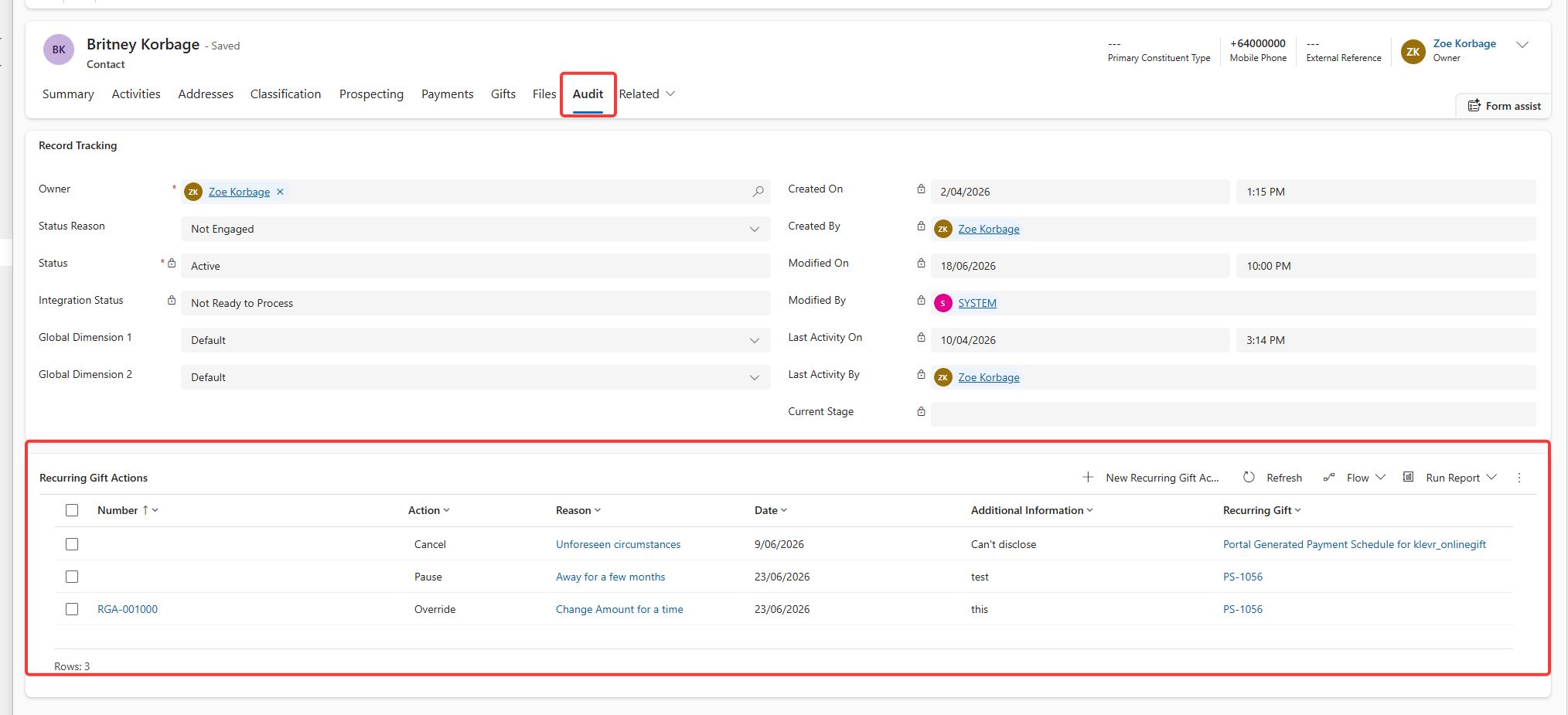
All actions are stored as individual records and can be viewed in the Recurring Gift Actions subgrid.
This provides:
- A complete audit trail of changes
- Visibility into supporter behaviour over time
- Context for cancellation and modification requests
The same history is also available from the related Account or Contact record.
Additional Notes
In Klever Fundraising you will see the following fields used between several different tables: Gift Batch, Gift, Designation Credit, Pledge, Donor Commitment, Recurring Gift, Bequest,
Opportunity, Appeal to List.
- Attributed To: Indicates the Contact, Account or Collective officially credited with the donation for recognition or reporting purposes.Additionally, 'Attributed To' is intended to be used for visibility and reporting on workplace and peer to peer giving.
- Soft Credit To: A soft credit is when someone is acknowledged for influencing or facilitating a donation, even though they didn’t make the Gift themselves. Often times this is used to acknowledge someone however they would not receive any tax benefits of the donation.
- Solicited By: Refers to the Contact or a staff member (User) who actively asked for or encouraged the donation, often used for tracking fundraising efforts. This can often refer to third parties.
- Tribute or In Memory Of A Tribute record is used when a donor gives in honor or in memory of someone. These records store key details such as:
- The tribute type (In Honor, In Memory, In Tribute)
- Who the tribute is about
- Tribute records can be linked to Gifts and, if needed, surfaced through the portal.
For more information on payments, failed payments, and payment processing statuses, see: Here and here
Last updated on