
How to Guide - Scan Gifts
Create a Gift Batch for the Appeal to Lists and complete the following fields:
Detailed Instructions
- Manually create an Appeal to List or import in bulk.
- In the 'Regarding' field choose a Campaign, Appeal or Package.
- The parent DCAP fields will automatically populate based on the selection you make in the 'Regarding' field. For example, if you select a Package in the 'Regarding' field, the Appeal, Campaign, and Designation fields under the Categorisation section will be filled in automatically.
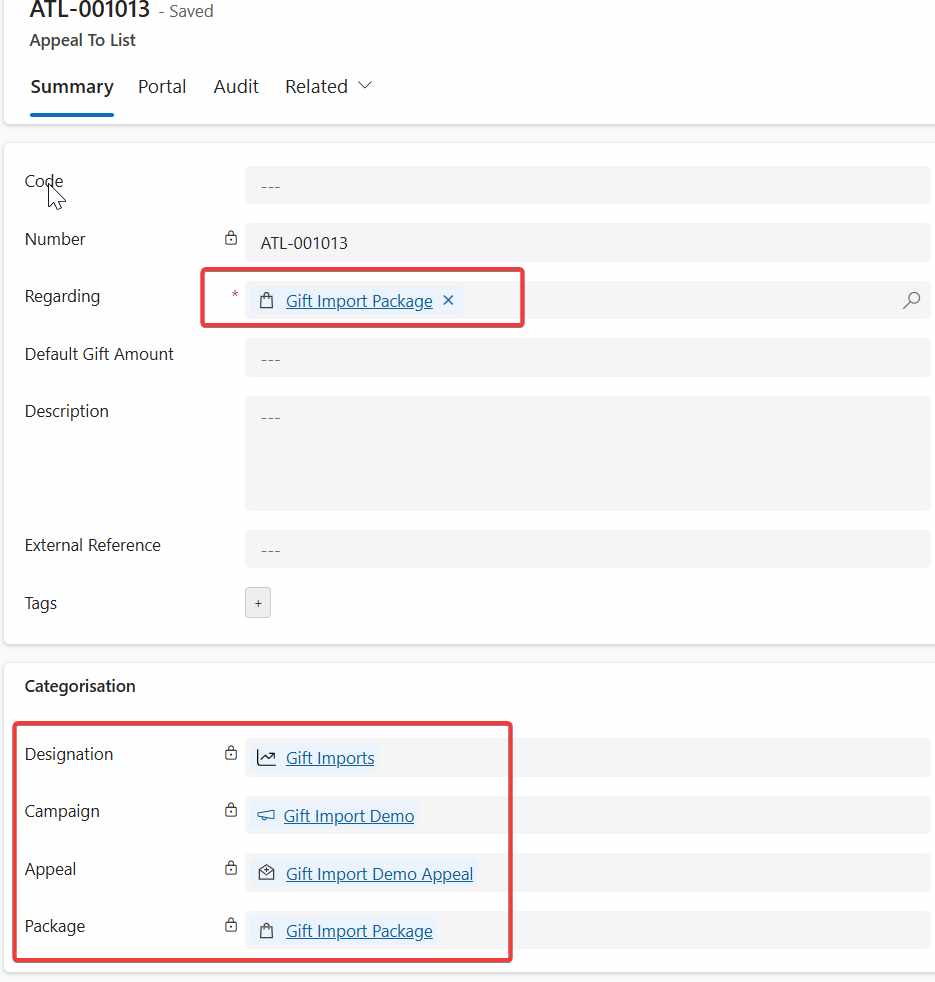
- Add the Potential Donor and Primary Contact manually. Alternatively, if you're importing data, enter the donor's number into the Import Constituent Number field. For example:
- Use the Account Number if the donor is an Account.
- Use the Constituent Number if the donor is a Contact.
- The system will search for a matching record and automatically populate the Potential Donor and Primary Contact fields during the import process.
- The Appeal to List will generate a unique number, such as ATL-001013.
- The generated number can be used as a barcode on mailed communications.
- If the donor chooses to make a donation against the Campaign, Appeal or Package, the barcode can be scanned to create the Gift.
Create a Gift Batch
Create a Gift Batch for the Appeal to Lists and complete the following fields:
- Expected Number of Gifts
- Expected Value of Gifts
- Gift Type
- Book Date
Scan Gifts
- Navigate to the Gift Scanning section of the Gift Batch.
- Wait for the message "Ready to Scan" before scanning barcodes. Metadata is loaded when the page first opens.
- Scan or enter the Appeal ID and press Enter to create a Gift.
- Then refresh subgrid and add the Amount that the Donor provided from the editable grid.
Optional Settings
Prompt for Amount
- When Prompt for Amount is selected, an amount entry field is displayed after the barcode is scanned.
- Enter the donation amount and press Enter.
- The Gift will be created using the amount entered.
- The system will then immediately be ready for the next scan.

Create Payment Link Immediately
- When Create Payment Link Immediately is selected, a Payment Link will be automatically generated on the Gift record when the Gift is created.
- This option requires Prompt for Amount to also be selected and an amount entered.
- If no amount is entered, the Payment Link cannot be generated as the Gift does not contain a donation amount.

Press enter, and refresh:

Reviewing Created Gifts
- Each successful scan creates a Gift record.
- Refresh the Gifts subgrid to view newly created Gifts.
- If Prompt for Amount is not used, donation amounts can still be entered directly into the editable Gifts grid after scanning.
- Open the Gift record to view all information inherited from the originating Appeal to List, including any Campaign, Appeal, Package and Designation details that were mapped from the Appeal to List record.
- If Create Payment Link Immediately was selected and an amount was entered, the generated Payment Link will be visible on the Gift record and in the Gift Batch grid.
Last updated on