
How To Guide - Gift Void Action
Step-by-step instructions for the Void action:
Detailed Instructions
Step-by-step instructions for the Void action:
- Create the Gift with an amount, for example $200.
- Save the record.
- Change the 'Status Reason' to "Processed".
- Save the record.
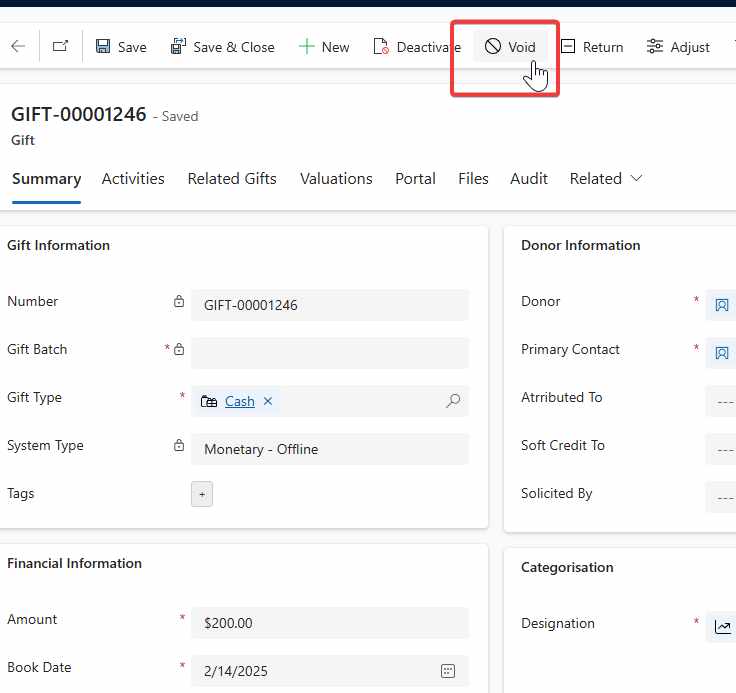
- Click on the Void Button at the top of the record (screenshot below).
- Provide a reason in the fly out menu, save and close.
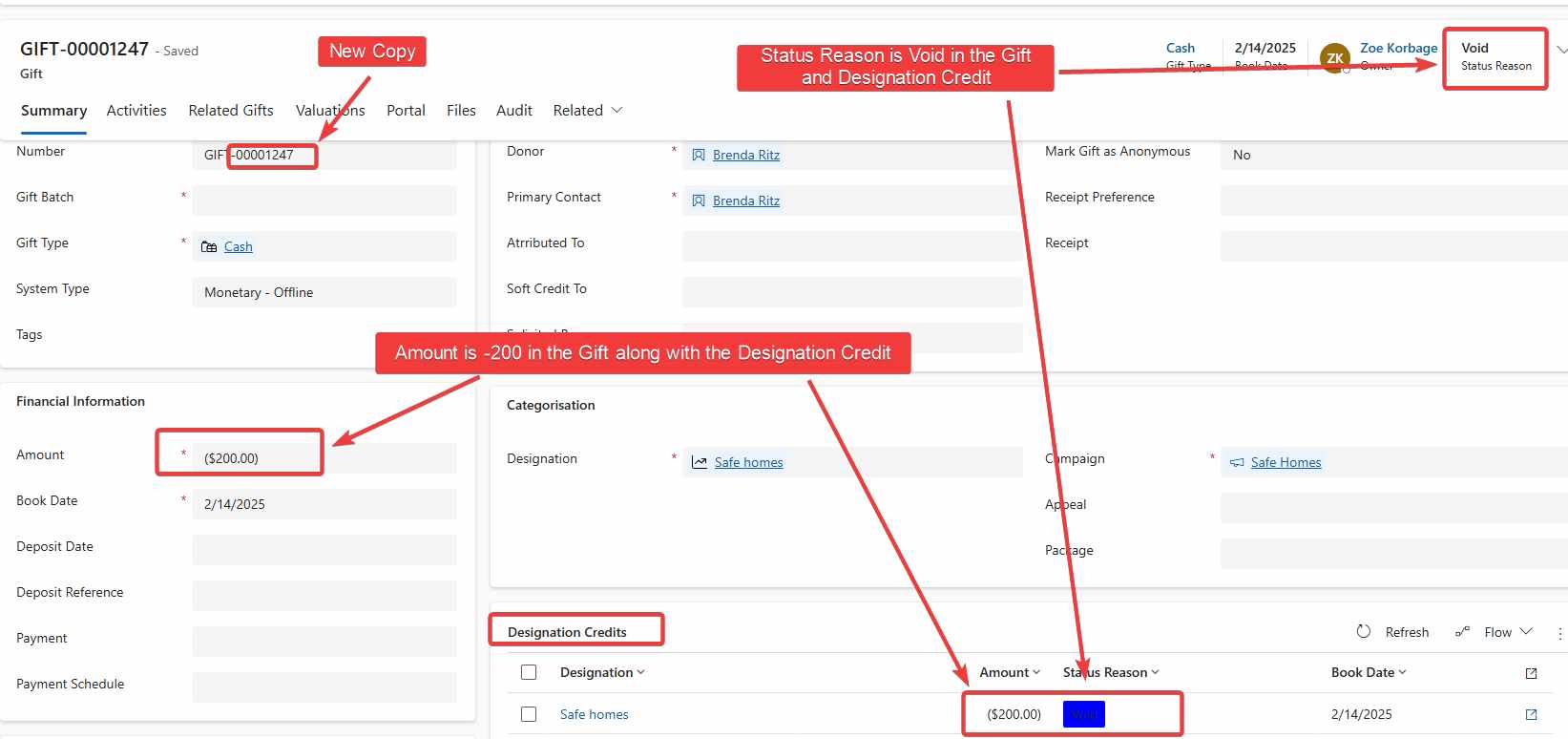
- You should now see a new copy of the Gift where you can see an amount of -$200 along with the Designation Credit showing -$200, both with a 'Status Reason' of "Void". (Screenshot below).
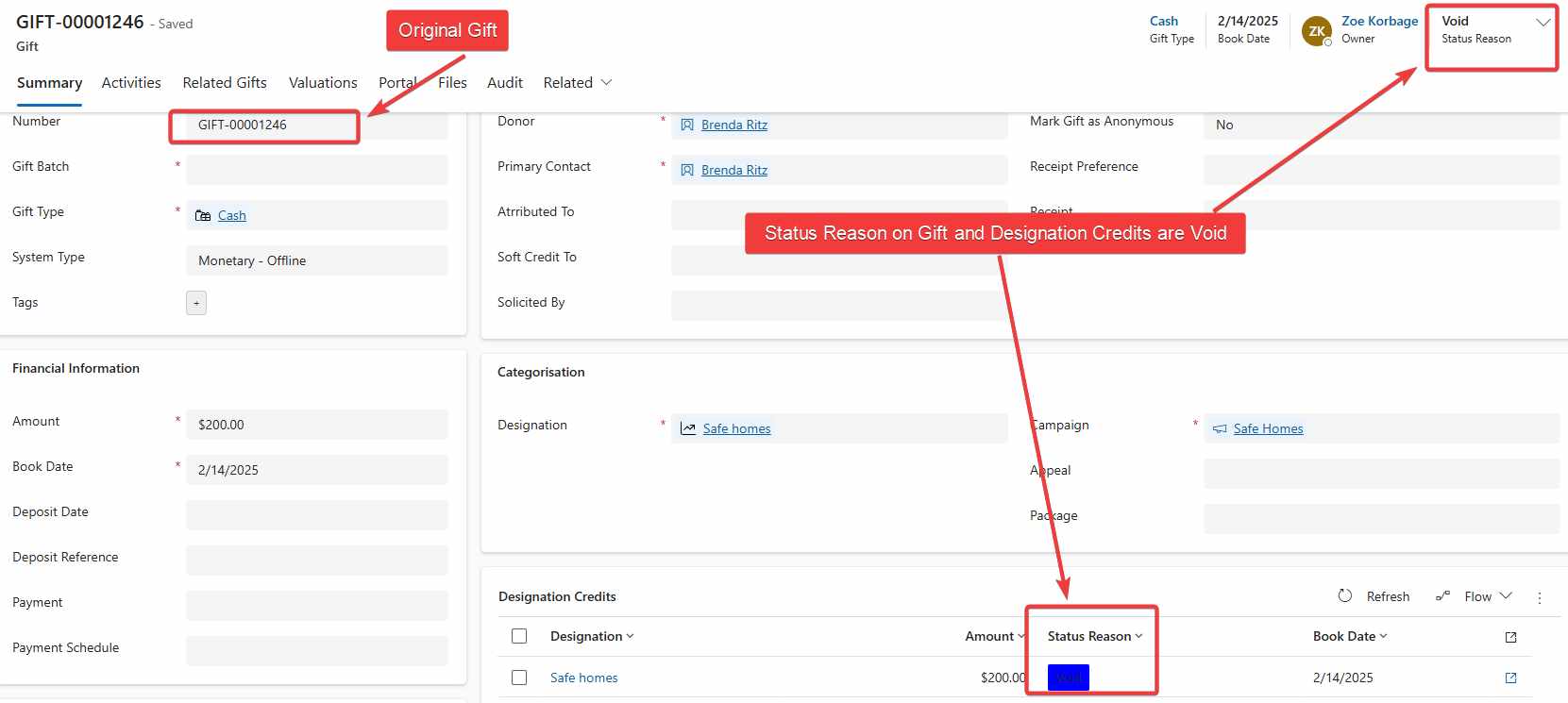
- You should also see on the Original Gift (found under the 'Related Gifts' tab) showing a 'Status Reason' of "Void" along with the Designation Credit 'Status Reason' showing "Void". (Screenshot below).
Void Gifts that have Split Designation Credits and Donor Commitments
- A Gift is created for $100
- Gift with Donor Commitmet - This will create a seond Designation Credit for the fees
- If the Gift has a Designation Credit that is Split using the existing functionality say for $50
- The Gift is processed
- The User clicks the Void button
- Fills in the Void details
- The Gift gets marked as Status Inactive, Status Reason Void
- The multiple Designation Credits on the Gift become Status eq Inactive, Status Reason eq Void
- A new Gift gets created with matching details from the original, with the Amount being negative of the same Amount from the first Gift (ie. If the gift was $100, this gift should be -$100)
- On this new Gift there should be a Designation Credit created for each Designation showing a negative amount and an Inactive State and Status Reason of Void
Last updated on