
How to Guide - Gift Return Action
There are three ways you can return a Gift:
Detailed Instructions
There are three ways you can return a Gift:
Full Return
- Create the Gift with an amount, for example $500.
- Save the record.
- Change the 'Status Reason' to "Processed".
- Save the record.
- Click on the Return Button at the top of the record (screenshot below).
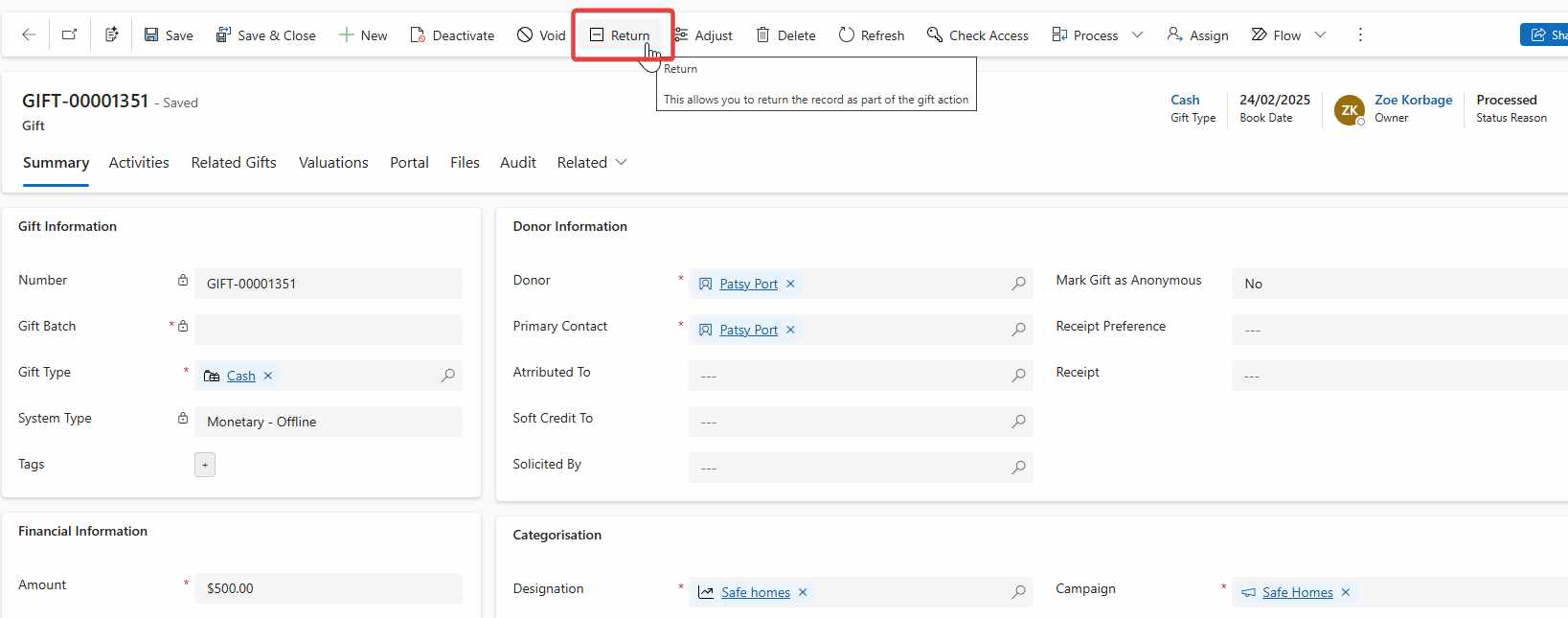
- Enter the full amount $500 in the fly out menu along with a reason
- Save and Close
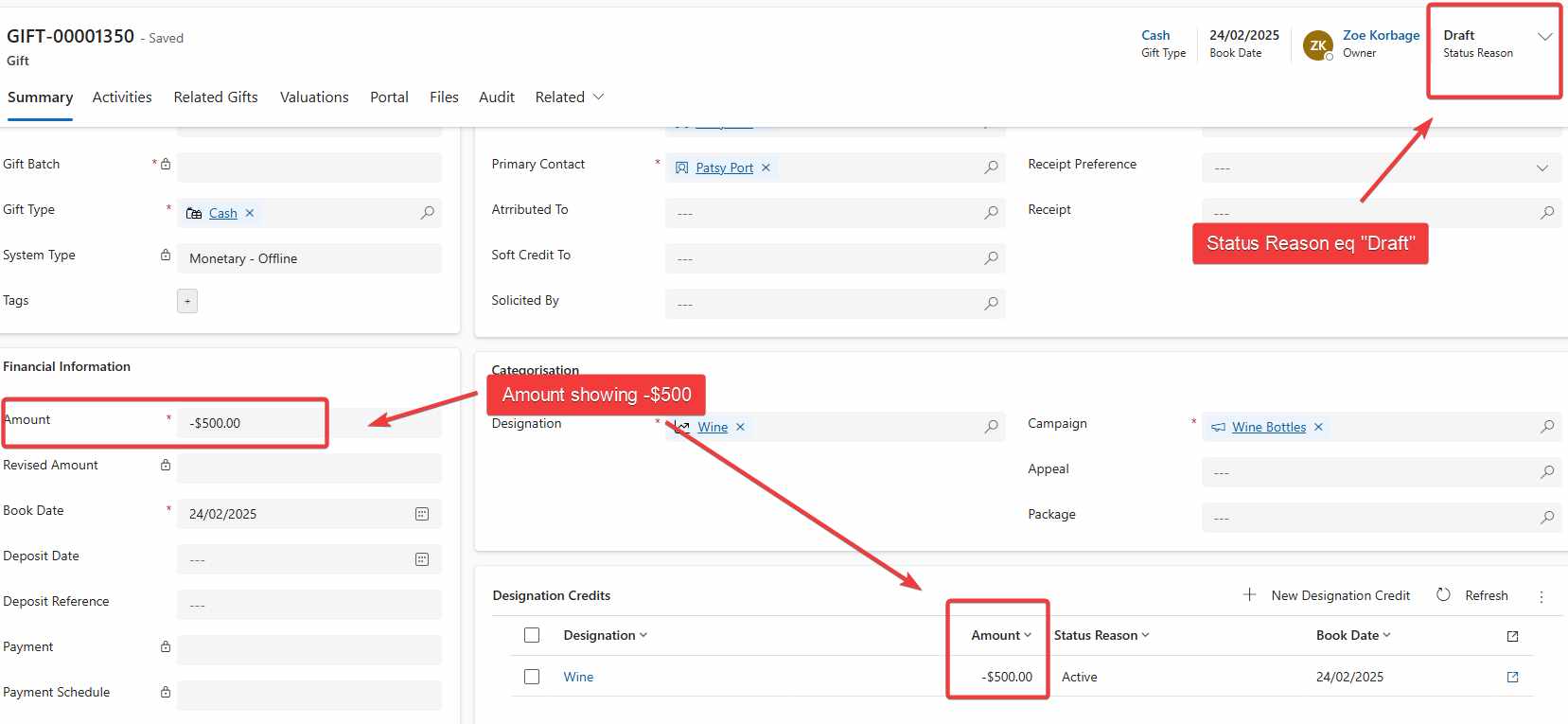
- You will see a new Gift with a Status Reason of "Draft" along with the Amount showing -$500 and the associated Designation Credit of -$500 (Screenshot below).
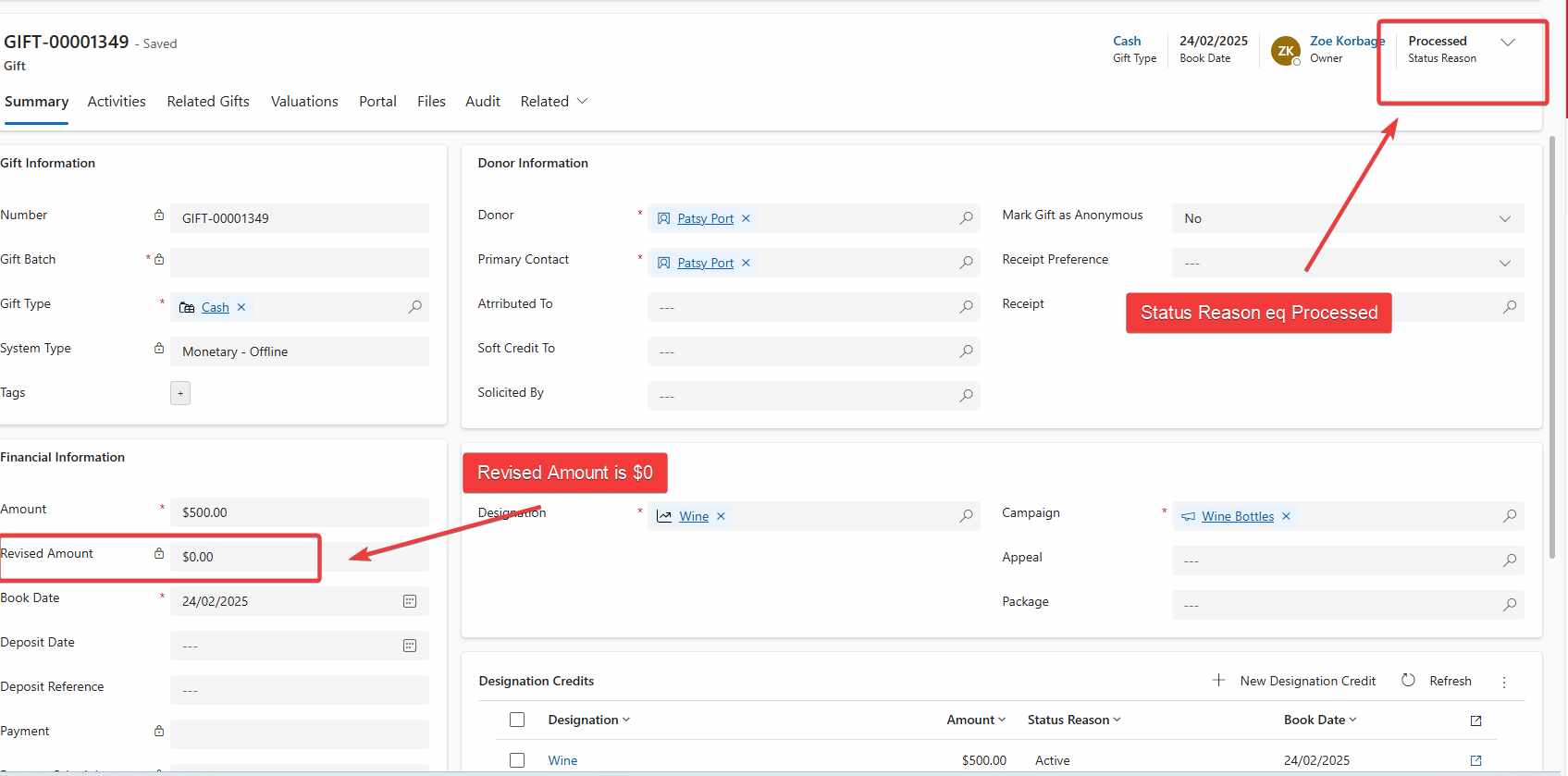
- Go back to the Originating Gift and you will see the Status Reason of 'Processed' with the Revised Amount of $0 (Screenshot below).
Partial Return
- Create the Gift with an amount, for example $500.
- Save the record.
- Change the 'Status Reason' to "Processed".
- Save the record.
- Click on the Return Button at the top of the record.
- Enter in a partial amount in the fly out menu with a reason. For example $50.
- Save and Close
- You will see a new Gift with a Status Reason of "Draft" along with the Gift Amount and the Designation Credit showing -$50.
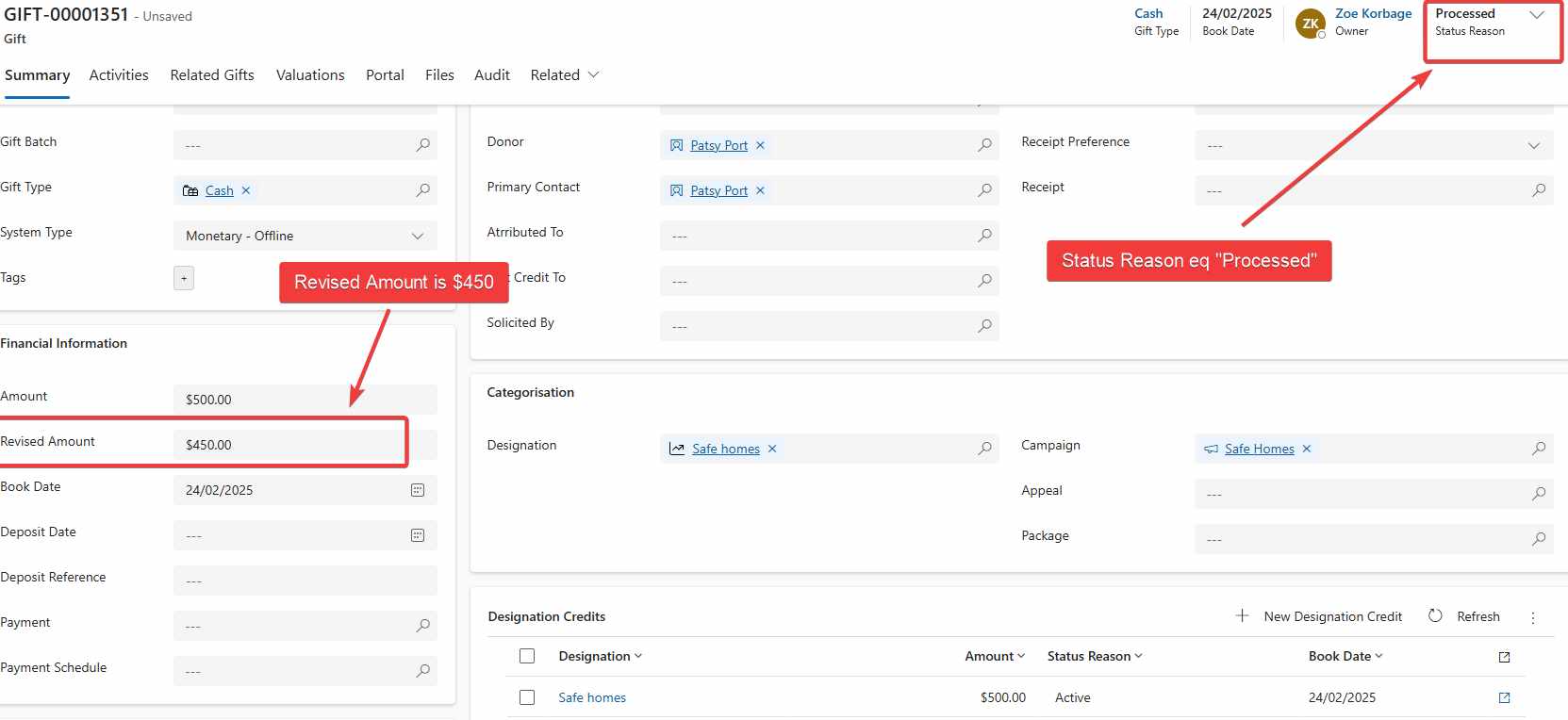
- Go back the Originating Gift from the 'Related Gifts' tab, you will see the record is in a State of "Processed" and the Revised Amount set to $450 (Screenshot below).
Multi-Return
- Create the Gift with an amount, for example $500.
- Save the record.
- Change the 'Status Reason' to "Processed".
- Save the record.
- Click on the Return Button at the top of the record.
- Enter in an amount in the fly out menu with a reason. For example $50.
- Save and Close
- You will see a new Gift with a Status Reason of "Draft" along with the Gift Amount and the Designation Credit showing -$50.
- Go back the Originating Gift from the 'Related Gifts' tab, you will see the record is in a State of "Processed" and the Revised Amount set to $450
- On the Original Gift click the Return button.
- Enter in $100 for example from the flyout menu with a reason.
- Save and Close
- You will see a new Gift with a Status Reason of "Draft" along with the Gift Amount and the Designation Credit showing -100.
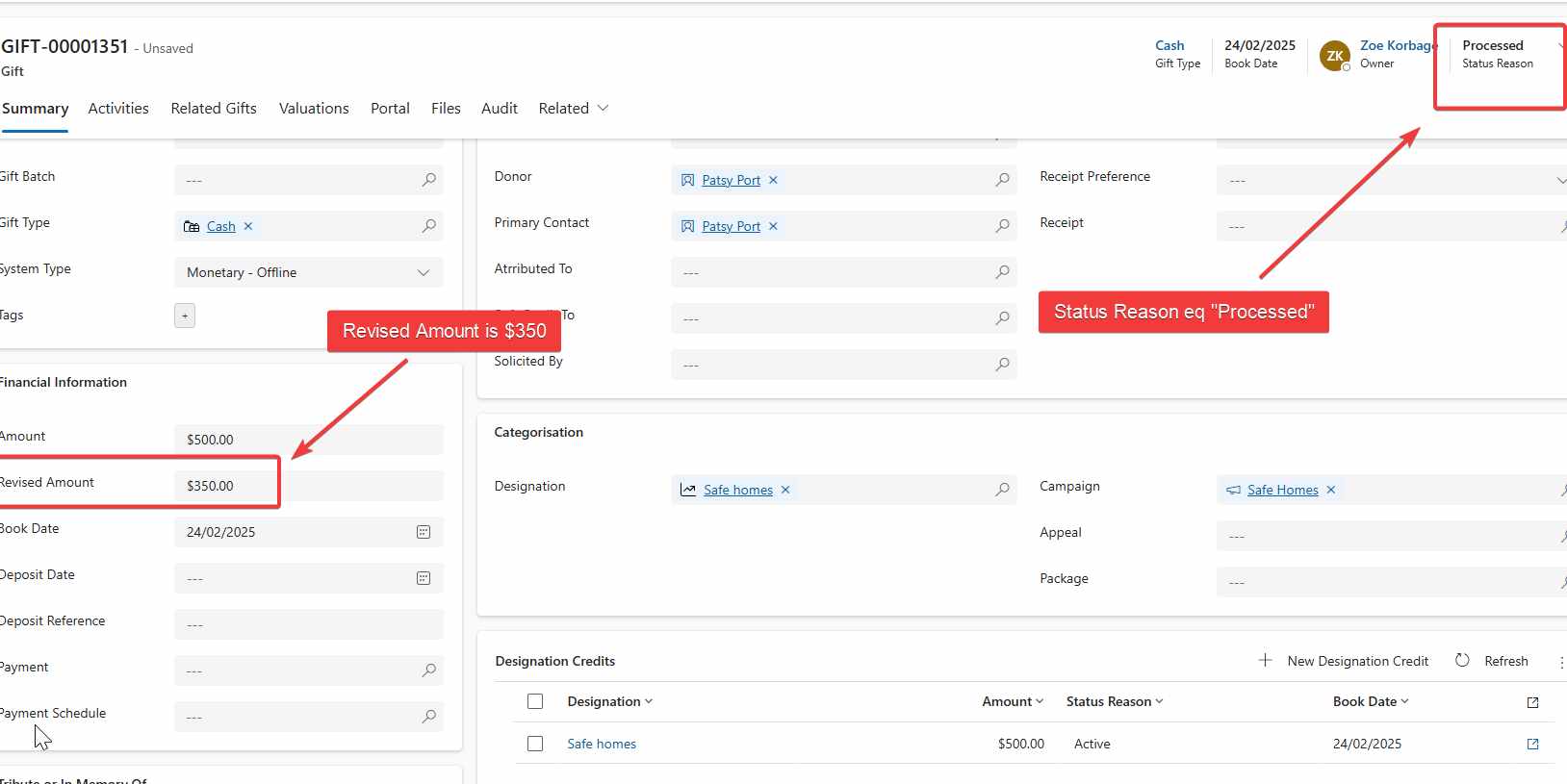
- Go back to the Originating Gift from the 'Related Gifts' tab, you will see the record in a State of "Processed" and the Revised Amount set to $350 (Screenshot below).
Return Gifts that have Split Designation Credits and Donor Commitments
- A Gift is created for $100
- Gift with Donor Commitmet - This will create a seond Designation Credit for the fees
- If the Gift has a Designation Credit that is Split using the existing functionality say for $50
- The Gift is processed
- The User clicks Return button
- Fills in the Return amount details
- On the new Gift there will be a Designation Credit created for each Designation, they will be in an Active State, the Amount field should be blank.
- The User updates each Designation Credit reflecting the return amount for each Designatioin
- The Gift is processed
The 'Amount' fields are left blank on Returned Gifts where there are multiple Designation Credits because the appropriate distribution of the return amount is not predetermined. This allows the User to manually allocate the amounts as needed. To ensure accuracy, the system prevents the Gift from being marked as 'Processed' until all 'Amount' fields are completed and their total matches the Gift 'Amount'.
Additional Details
- Adjustment after a Return: If a Gift has a return and later on needs adjusting, navigate to the original Gift and click the 'Adjustment' button. Fill in the amount shown in the 'Revised Amount' of the Gift, click save and close. This will create a new draft Gift for the adjustment. Once it looks good you can update the Gift record to Processed.
For example:
Brenda donates $100 to Adoption (Designation), then requests a $20 return and wants the remaining $80 applied to Schools (Designation).
Steps:
- Click the Return button and select $20.00.
- Navigate to the Original Gift. You should see:
- Amount: $100
- Revised Amount: $80
- Click Adjustment and enter $80 in the pop-out window.
- Navigate back to the Original Gift, then go to the Related Gifts tab. You should see something like:
- Gift –$20
- Gift –$80
- Gift $80 (This reflects the $20 return and the $80 adjustment to a different Designation Credit.)
Last updated on