
How To Guide: Capture Card Information Without a CVV Code
This guide explains how to enable and use the process of capturing credit card information without a CVV code when taking payments through Dynamics.
Overview
This guide explains how to enable and use the process of capturing credit card information without a CVV code when taking payments through Dynamics. This process is only available when using Stripe as the payment gateway and requires strict adherence to PCI SAQ‑D compliance. Card capture can be initiated from supported records such as Payment Method, Gifts, and Payment Schedules
Prerequisites
Before enabling this functionality, ensure the following:
- Stripe Payment Gateway is being used.
- The customer is PCI compliant and meets SAQ‑D requirements.
- The feature is disabled by default; the steps in the Enabling section below on how to enable it.
Business Process Overview
A typical end‑to‑end workflow looks like this:
Begin by creating a new gift batch record.
Within the batch, create one or more gift records.
Open a gift record from the batch.
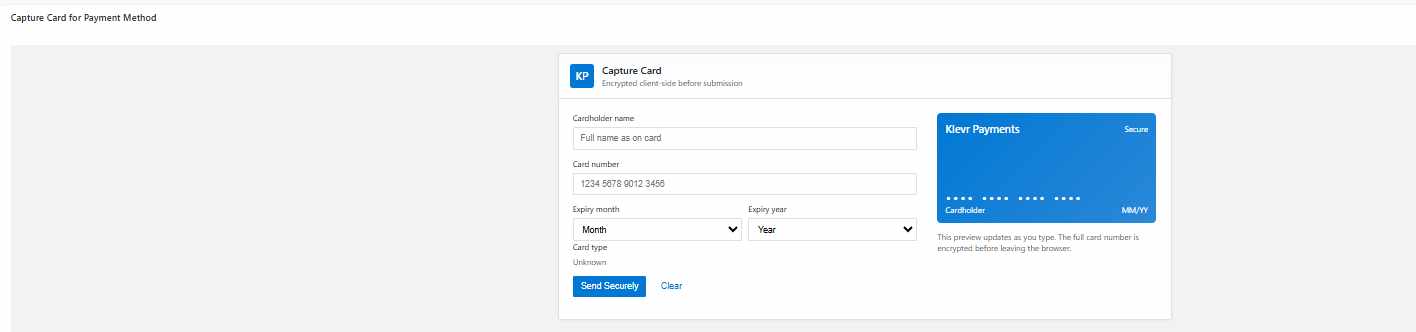
On the Summary tab (bottom‑right), you will find the Capture Card section.
This section:
- Is hidden by default.
- Becomes visible only if:
- The environment variable configuration is configured correctly, and
- The gift does not already have a payment method.
Enter the card details and click Send Securely.
If successful, the plugin will:
- Identify the donor on the gift.
- Identify the payment processor on the gift—or, if not set, select the highest‑priority provider.
- Currently, only Stripe is supported.
- Retrieve the donor’s existing Stripe Customer ID, or:
- Create a new Stripe customer and store the ID in Dynamics.
- Create a new payment method for the customer in Stripe using the submitted card details.
- Create a corresponding Payment Method record in Dynamics.
- Link the payment method to the gift.
- Once complete, refreshing the gift form will show the new payment method and hide the card capture section.
Return to the gift batch and click the Process Payments ribbon button.
In the dialog, select the Payment Method / Link option
(because the previous step already attached the payment method to each gift).
The batch processing will:
- Charge the payment through Stripe.
- Trigger webhooks that update the Portal and Dynamics.
- Update the payment record status in Dynamics automatically.
Alternative Flow 1 - Capture card on the payment method Form
You can also create a payment method as per usual. Once the payment method is saved for the fist time, with Stripe as payment provider, and no card details present yet, instead of pressing the "add payment details" ribbon button as usual, you will see the "Capture Card Info" section and web resource at the bottom of the general tab. Once the card is captured and saved, refresh the record to see the details in the locked fields, and notice that the card capture section will also now be hidden.
Alternative Flow 2 - Capture card on the Payment Schedule form
You can also capture card info directly on a recurring payment form. Steps are as follows
- User creates or edits a Payment Schedule and selects a Contact
- Once a contact is selected, Capture Card for Payment Method opens the secure card capture popup
- User enters card details and saves
- A new Payment Method is created and the Payment Method lookup on the recurring payment form is set to the new payment method.
This process allows you to capture the card even before the recurring payment record is saved, so that it can be captured during the creation of a recurring payment. This is possible since the payment method is linked to the contact, and the payment method lookup is populated as it is captured.
Enabling the Card Capture functionality
To enable this functionality:
- Locate the environment variable: klevr_CardCaptureConfiguration.
- Create a Current Value for it.
- Copy the JSON structure from the Default Value.
- Set: the JSON property "CustomerIsPCICompliant": true
⚠️ This confirms the customer meets all SAQ‑D PCI requirements. If they do not, do not enable this functionality.
- Generate a secure passphrase in Bitwarden (20+ random characters including upper/lowercase, numbers, and symbols).
- Paste the passphrase into the "passphrase" property value in the JSON.
- Save the environment variable.
The gift form script, card capture web resource and the plugin will read the environment variable and enable the functionality.
Technical Deep Dive
Client-Side (Form & Web Resource)
The standard Product Gift form and Payment Method Form includes a hidden section containing a card capture web resource.
Form scripts:
- Validate the environment variable.
- Confirm no payment method exists on the gift.
- Show/hide the card capture area accordingly.
- When information is submitted:
- The web resource encrypts the card data using:
- The environment variable passphrase, and
- A randomly generated salt.
- The encrypted payload is sent to a custom API endpoint in Dynamics.
Server-Side (Custom API & Plugin)
The plugin on the custom API decrypts the payload using the same passphrase.
This is symmetric encryption, it is only used as a safeguard against network logging or interception of requests where the raw card information could be saved in a log, causing PCI compliance breaches.
The plugin processes the request by:
- Validating that only gift records are currently supported.
- Checking the payment processor:
- If provider is externally managed → do nothing.
- If not Stripe → return an error.
- Support for additional providers may be added later.
- Ensuring the donor has a Stripe Customer ID:
- Creates one if not found.
- Tokenising the card in Stripe and attaching it as a payment method.
- Creating (or updating when used from payment method) the corresponding Payment Method record in Dynamics.
- Updating the gift to use this new method (if used from the gift record).
Downstream Payment Processing
The rest of the payment processing follows the pre-existing standard process.
The standard Gift Batch Processing will:
- Use the linked payment method.
- Create a payment.
- Submit it through Stripe.
- Receive webhook updates (Portal → Dynamics).
- Trigger standard retry logic on errors.
Last updated on