
Donations
Categorise and manage various types of donations and their valuations, ensuring accurate tracking and supporting donor commitments generated from pledges.
Feature Overview
Categorise and manage various types of donations and their valuations, ensuring accurate tracking and supporting donor commitments generated from pledges.
Gift Types
Gift Type is used to categorise the nature of a Gift, allowing users to specify the source or form of the donation, such as Credit Card, Debit Card, Painting, etc. This helps in accurately tracking and managing various types of donations.
Gift Valuations
This feature within the Gift allows users to manage and record the valuation of donations. It provides options to categorise the type of valuation, such as “In-kind,” “Stock,” or “Property.” Users can enter an estimated value for the donation and later update it with a professional appraisal if needed.
Field Explanation
- Gift Valuation Type - A lookup that classifies the type of valuation being recorded. Examples might include:
- Estimated Value
- Donor‑Provided Valuation
- Professional Appraisal
This helps distinguish informal estimates from formal, externally appraised valuations.
- Appraiser - A lookup to the person or organisation that provided the valuation. This may be:
- An external professional (e.g. licensed valuer)
- An internal staff member
- The donor themselves (for self‑declared estimates)
- Appraiser Type - Indicates the category of appraiser who performed the valuation. Typical uses include distinguishing:
- Professional / External Appraisers
- Internal Staff
- Donor‑Provided Valuations
- Appraised Value - The monetary value assigned to the gift as part of this valuation record. This represents:
- The estimated or assessed fair market value of the gifted item
- A point‑in‑time value, not necessarily the Gift Amount itself
- Multiple valuations can exist over time with different values.
- Appraised Date - The date on which the valuation was provided or becomes effective.
- Details - Free‑text field used to capture additional context about the valuation.
Gift Valuation Types
This serves as supporting data allowing users to define and manage various types of Gift Valuations such as “Stock,” “Property,” “In-kind,” etc. These categories help in accurately recording and tracking the type valuation, ensuring each gift is appropriately valued and managed.
Giving Level & Giving Level Type
Overview - What is Giving Level and Giving Level Type
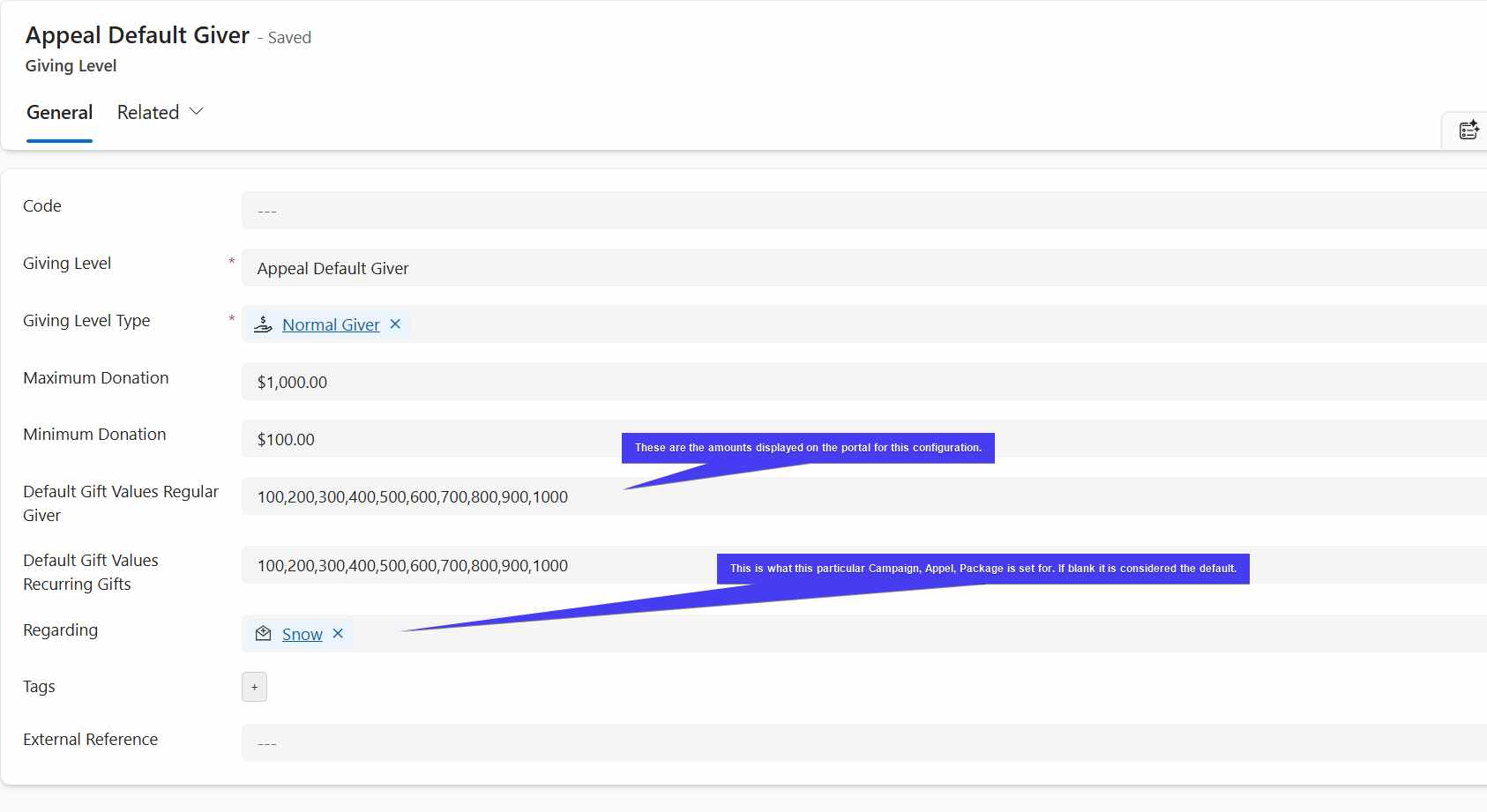
Giving Level is the concept of identifying what level of giving a Contact record is. This then gets extended into the Portal where pre-determined values can be displayed to that Contact based on their Giving Level Type and the Campaign, Appeal, or Package.
How it works high level
- On the Contact records under the Gift tab there is a field called 'Giving Level Type', here you can set the Giving Level of this Contact.
- In the Settings area there is a table on the Site Map called 'Giving Level Type'. This is where the levels are setup. Ie. Low, Normal, High. Set one of the levels as default, so that if a contact does not have a giving level, the system will select the default level for them.
- In the Settings area there is a table on the Site Map called 'Giving Level'. This is where the configuration for each Campaign, Appeal, Package, and default (i.e. not associated to a specific CAP) setting is set for the portal.
- These three things come together to display unqiue preset donation values in the portal for a Contact based on the Campaign, Appeal, Package.
Deeper Details
- On the Contact record under the 'Gifts' tab there is a field called 'Giving Level Type' here you can chose to set the Contact as a High, Normal or Low giver (or whatever labels delivery chooses)
- If the Contact does not have a 'Giving Level Type' selected then they will inherit whatever the default giving level type is. One of the giving level types need to be marked as default for this purpose.
- The delivery team can set up 'Giving Level' records for specific Appeals, Campaigns, Packages along with the Giving Level Type. For example, you have a Campaign called 'Help Stray Dogs' and you want to make sure there are defaults set for three type of givers when a donor logs into the portal.
- First record you would set the Giving Level Type to normal and the 'Regarding' field to campaign called Help Stray Dogs where the defaults 'Default Gift Values Regular Giver' are: 100,200,300,400 and 'Default Gift Values Recurring Gifts are: 150,250,350,450 for example. You can also set the Minimum and Maximum Donation to be shown.
- The second record you would set the giving level type to low and the regarding to campaign called 'Help Stray Dogs' where the defaults 'Default Gift Values Regular Giver' are: 10,20,30,40 'Default Gift Values Recurring Gifts" are: 15,25,35,45 for example. You can also set the Minimum and Maximum Donation to be shown.
- Third record you would set the giving level type to high and the regarding to campaign called 'Help Stray Dogs' where the defaults 'Default Gift Values Regular Giver' are: 500,600,700,800 'Default Gift Values Recurring Gifts" are: 550,650,750,850 for example. You can also set the Minimum and Maximum Donation to be shown.
- You would also have 'Giving Level' records for each Giving Level Type where the the regarding campaign, appeal, or package is blank. This is the giving level that will be used if a giving level for the currect campaign, appeal or package cannot be found (basically a fallback default). For example:
- Normal Giver with 'Giving Level Type' field set to Normal Giver with defaults set to 10,20,30,40
- Low Giver with 'Giving Level Type' field set to Low Giver with defaults set to 1,2,3,4
- High Giver with 'Giving Level Type' field set to High Giver with defaults set to 50,60,70,80
- In that case the default amount in the portal should show based on the 'Giving Level Type' the Contact has, so if Bob Smith is a low giver and choses a Campaign, Appeal or Package where a default has not been given then they should see 1,2,3,4 as the default amounts. Now if they didn't have a 'Giving Level Type' selected the system will give them the default amount based on the Giving Level record that has the 'Default' selected on it.
Technical Notes
- There is a plugin that ensures only one Giving Level Type record is marked as 'Default' by automatically unchecking the 'Default' field on any existing record when a new one is selected.
- Set up the 'Giving Level Type' record types, for example: Low, Normal, High. Choose what one is the default for situations where the Contact does not have a 'Giving Level Type' given to them.
- The User will need to add the 'Giving Level Type' for each contact
- Set up 'Giving Level' records for each scenario you wish to have default amounts showing in the Portal
- The 'Default Gift Values Regular Giver' and 'Default Gift Values Recurring Gifts' fields on the 'Giving Level' record cannot have a comma in the number, for example 1,000 is a no no, instead do 1000. This is due to the plugin looking at the commas to separate between the numbers.
- There is a Custom API Action that calculates the 'Giving Level' record for any given Campaign, Appeal or Package along with the Contacts Giving Level Type. The Delivery team will then need to update the portal control to look at the calculation. The Custom API accepts 2 parameters, contact id, and campaign/appeal/package id. Either or both of these could be blank. It will then find a suitable giving level, first by checking the contact's giving level type, or using the default Level Type if either the contact was not specified or the contact specified does not have a level selected. Next it will attempt to find a giving level for this giving level type, matched by the provided regarding id, if provided. If it can't find a match or the id is not provided, it will find the giving level where regarding is blank. It will return a JSON object containing the minimum, maximum, regular giving and recurring giving values from the giving level record, or an error if anything could not be found or no defaults were configured.
Delivery
- Updating the portal control can't be done in product. That would be customer specific script
- There is the potentail for automatically setting the Giving Level Type of a Contact through automations based on the logic the customer wants, however this would be a deliverable outside of the core functionality.
- In order to use the giving level on the portal, a developer will need to write a bit of code. Firstly, the klevr_DetermineGivingLevel Custom Action needs tobe added to the portal's API configuration. Next a bit of javascript on the page needs to be written to get the current user id and campaign id. Using these values, the javascript should call the API endpoint configured above, and get the return value. Using the return value, the values on the donation control can be set to the value from the API call. If there is an option of regular or recurring giving, then the javascript needs to take this into account as well.
Donor Commitments
Core concepts to Donor Commitments:
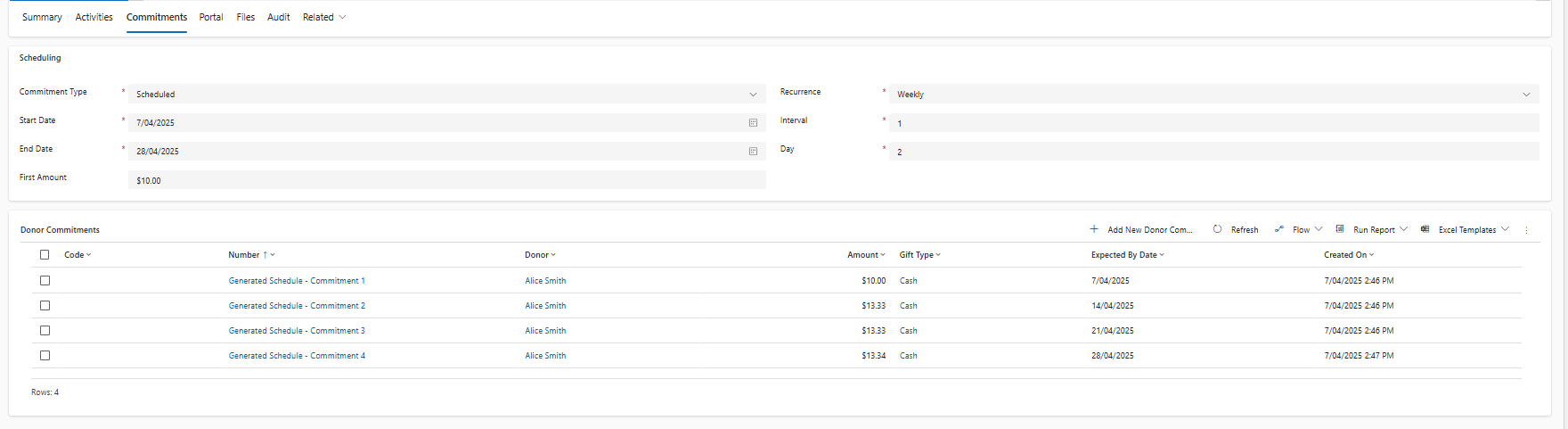
- A Donor Commitment is always a child to a Pledge and shows the breakdown of the Pledge.
- A Donor Commitment gets generated from a Pledge.
- Generally a Donor Commitment is generated by the system, but there can be situations where a Donor Commitment is manually created.
- If a Pledge has Commitment Type = Scheduled then more fields will be shown to the Klevr Fundraising user to set the schedule.
- If a Pledge is Commitment Type = Manual, then the Klevr Fundraising User can manually create the individual Donor Commitments. An example of this situation would be when a Donor Pledges to give $1000 but does not want to commit to a schedule on giving, so they could call in Donor Commitments that get created manually.
- Additionally Write Ons and Write Offs are manually created Donor Commitments. Please see that section for more details.
- This will auto populate the Donor, Primary Contact, Designations along with the Campaign, Appeal or Package if any
- The Financial information will come through as well, if it was on a Schedule basis, the amount would be split amongst the Donor Commitments created against the Pledge. You have the ability to adjust the Admin fee if needed as well.
- There may be times where a Designation Credit will need to be created without a Gift associated to it, you can do this by going to the 'Gifts' tab and adding a Designation Credit from the subgrid.
- The Status Reason will open in a State of "Draft" the User can update this to "Active" when the Commitment is open and then select the 'Deactive' button to set the Status Reason to "Complete".
Additional Notes
In Klever Fundraising you will see the following fields used between several different tables: Gift Batch, Gift, Designation Credit, Pledge, Donor Commitment, Recurring Gift, Bequest,
Opportunity, Appeal to List.
- Attributed To: Indicates the Contact, Account or Collective officially credited with the donation for recognition or reporting purposes.Additionally, 'Attributed To' is intended to be used for visibility and reporting on workplace and peer to peer giving.
- Soft Credit To: A soft credit is when someone is acknowledged for influencing or facilitating a donation, even though they didn’t make the Gift themselves. Often times this is used to acknowledge someone however they would not receive any tax benefits of the donation.
- Solicited By: Refers to the Contact or a staff member (User) who actively asked for or encouraged the donation, often used for tracking fundraising efforts. This can often refer to third parties.
Link Tracking - Configuring Auto-DCAP Mapping for Online Gifts Using Link Tracking
Summary
Allows Online Gift records to automatically populate DCAP and other fundraising fields based on a Link Tracking record.
The solution is configured within the Klevr Portal (Umbraco) and uses Button Update Fields to retrieve values from a Link Tracking record when an Online Gift record is saved via the Portal. This provides a flexible, no-code approach for associating donations with the correct fundraising entities.
Business Scenario
Organisations often need online donations to automatically link to the correct:
- Campaign
- Appeal
- Designation
- Donation source
- Other fundraising classifications
Instead of building custom plugins or development, consultants can create Link Tracking records that contain the required fundraising values and use those records to drive the mapping process.
Where the Configuration Occurs
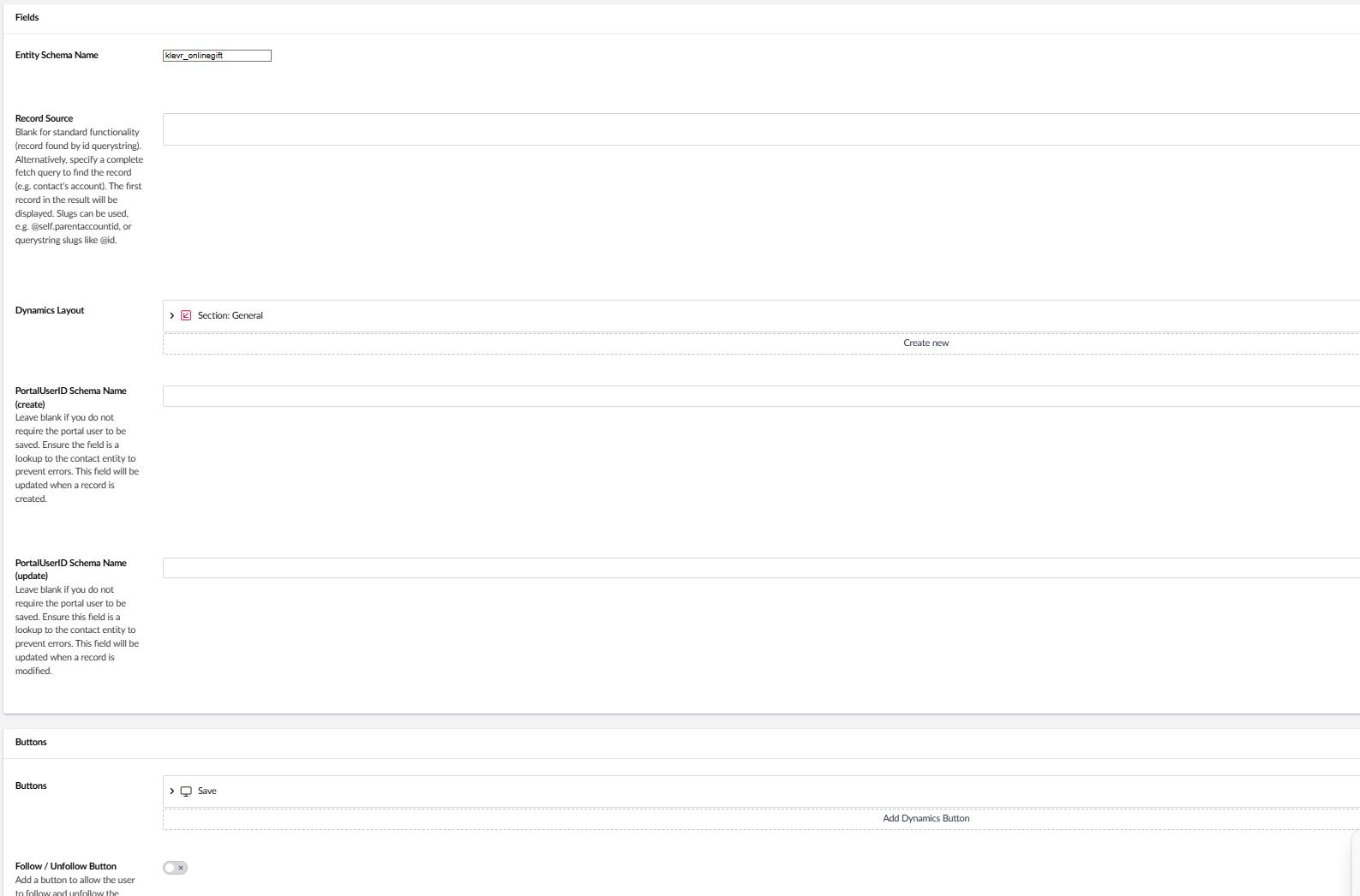
Auto-DCAP Mapping is configured within the Klevr Portal (Umbraco) on an Online Gift page.
The configuration consists of:
- An Online Gift page via Dynamics Form 2.0
- A Save button
- One or more Button Update Fields
- A Link Tracking record
- A query string parameter passed through the URL
The mapping logic is configured on the Save button. When the Online Gift record is saved via the Portal, the Button Update Fields retrieve values from the matching Link Tracking record and populate the Online Gift record automatically.
Dynamics Form 2.0 for Online Gift:
Save Button

Update Fields within the Save Button

Solution Components
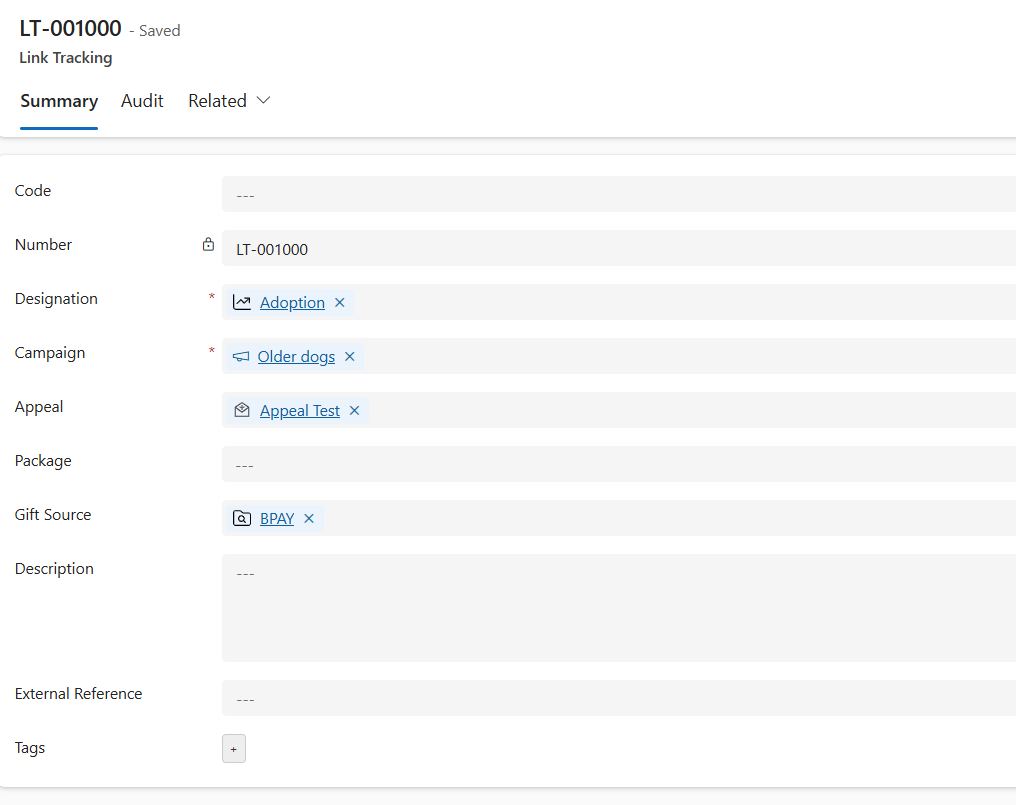
Link Tracking
The Link Tracking table stores the fundraising values that should be applied to an Online Gift record.
Example fields may include:
- Campaign
- Appeal
- Designation
- Description
- Code
- Link Tracking Number
The Link Tracking record acts as the source of truth for all mappings.
Link Tracking record example:
Button Update Fields
Button Update Fields are configured within a Button component and are responsible for updating fields on the Online Gift record.
A separate Button Update Field should be configured for each value that needs to be populated.
Examples:
- Campaign
- Appeal
- Designation
How Auto-DCAP Mapping Works
When an Online Gift record is saved via Portal, the system:
- Reads a query string parameter from the page URL.
- Uses that value to identify a Link Tracking record.
- Retrieves values from the Link Tracking record.
- Updates the Online Gift record.
- Saves the completed record.
No plugins or custom code are required. All configuration is completed through the Portal.
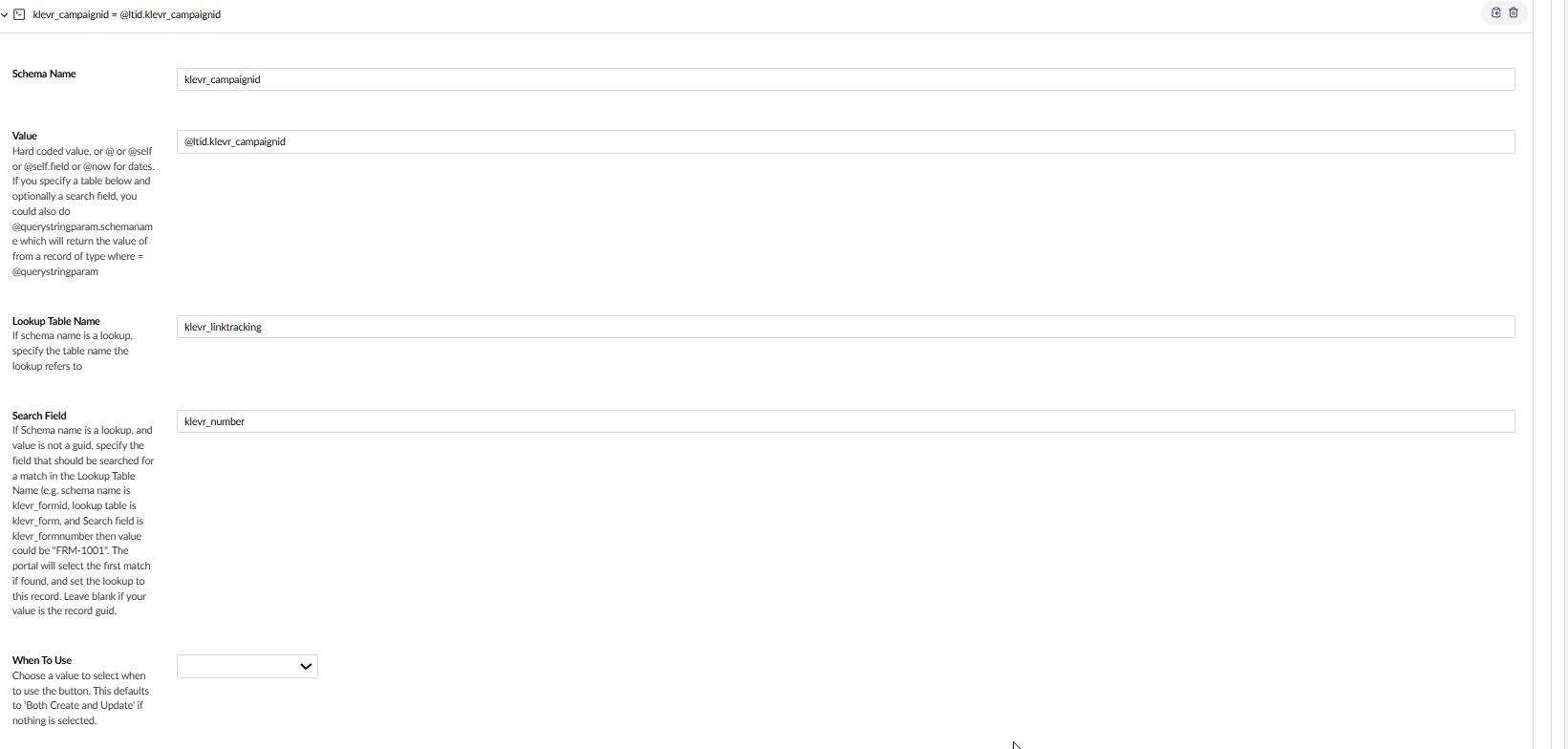
Notice '@ltid' and klevr_number
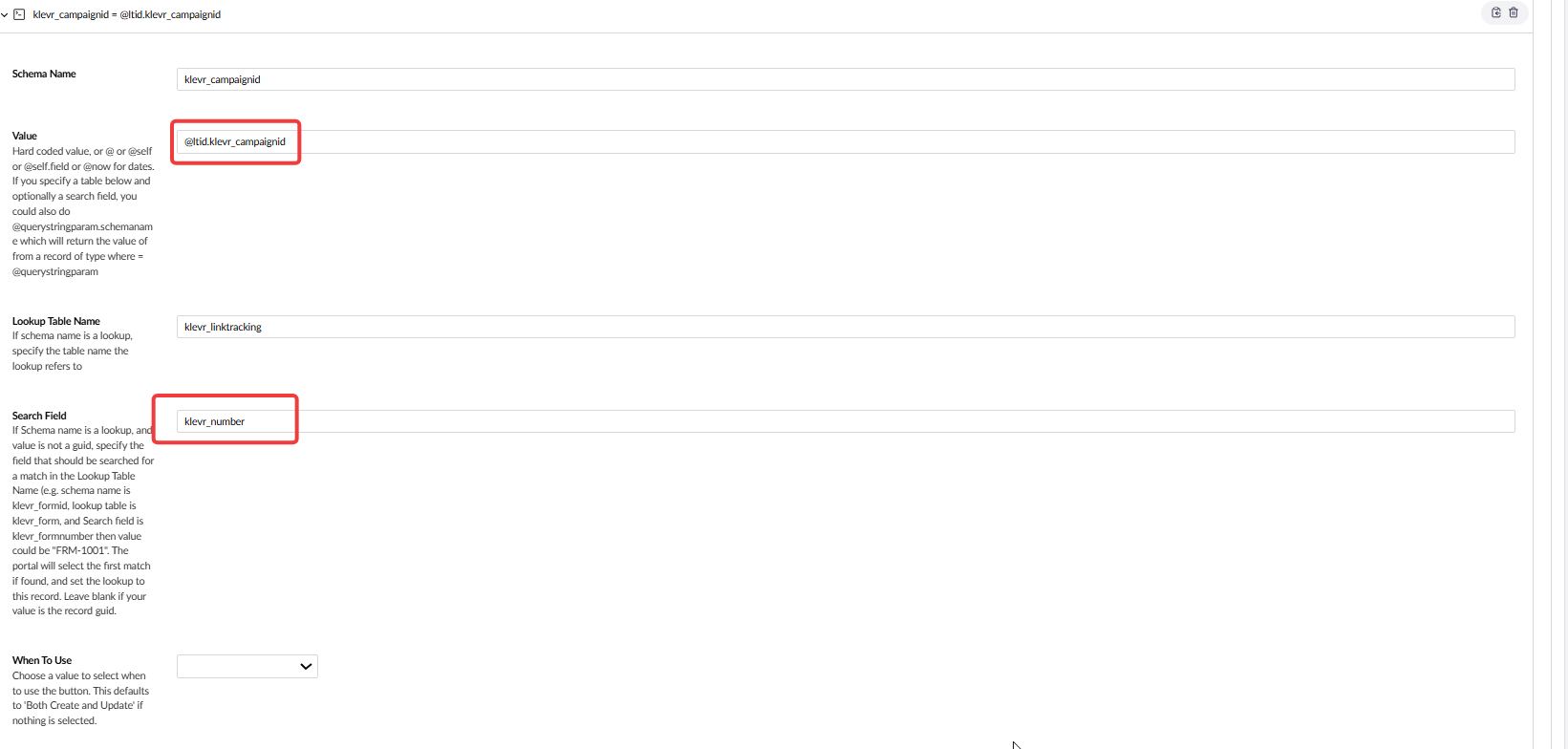
The configuration above basically execute as follows:
the Value starts with an @, therefore it checks built in slugs (e.g. @self) or any matching querystring parameter with that name. In this case, it will use the ltid querystring parameter value.
Next, it checks if the lookup table name has a value, in this case, we have specified the klevr_linktracking entity, so it will search this table for a record with a value of ltid. By default it will assume it is a guid, unless the search field value is populated. In the example, we have klevr_number as our search field, therefore the portal will find the first klevr_linktracking record where klevr_number is equal to the ltid querystring parameter value. Once it's found this record, it will then by default return the guid, unless we specified a specific field as part of the value. In our example, we have @ltid.klevr_campaignid, so the portal will take the klevr_campaingid value from the klevr_linktracking record with a klevr_number that matches ltid, and it will map it to the Schema Name field on the record that the user clicked the button on, in our case, it's an online gift, and we are storing the value in the online gift's klevr_campaingid field.
This logic can apply to any other record, field or lookup table as well.
Klevr_number value from Link Tracking record copied.
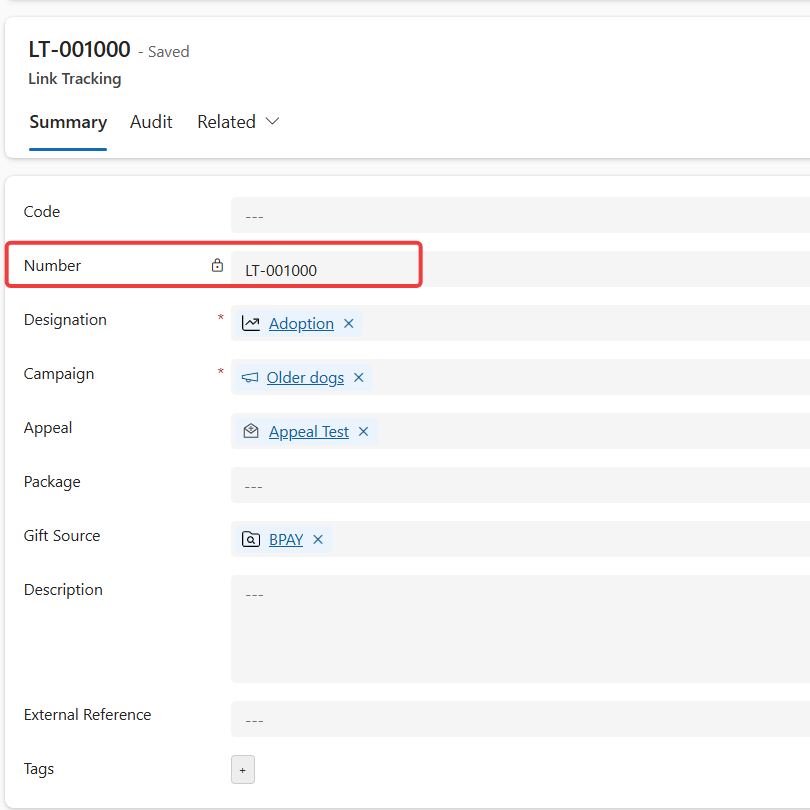
Update Portal URL.
For example: '?ltid=LT-001000'

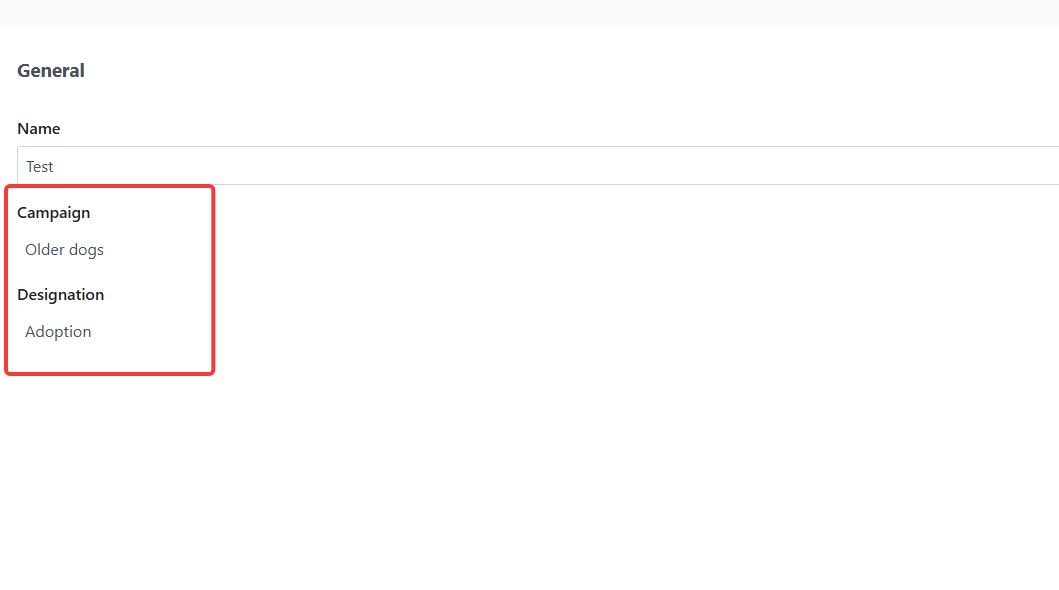
Press enter, fill in the details such as 'Name' and save the record. Below are readonly 'Campaign' and 'Designation' fields that auto populated based on the Link Tracking record.
Query String Parameters
The solution uses a query string parameter to identify the Link Tracking record that should be used.
Example:
?LTID=LT1000
The parameter name configured within the Button Update Field must match the parameter used in the URL.
Example donation URL:
https://portal.company.com/donate?LTID=LT1000
When the donor submits the form, the Save button reads the value of LTID and uses it to locate the corresponding Link Tracking record.
GUID
A GUID can also be passed through the URL.
Example:
?LTID=f4c0f285-xxxx-xxxx-xxxx-xxxxxxxxxxxx
The system can use the GUID to locate the Link Tracking record directly.
Benefits:
- Direct record reference
Considerations:
- Less user friendly
- Harder to manage manually
Alternative Search Fields
The solution can also search using other fields on the Link Tracking record.
Examples include:
- Code
- Description
- Other unique fields
This provides flexibility where organisations already use an existing tracking or campaign code structure.
Save and Update Behaviour
The Save button can be configured to run on:
- Save
- Update
This allows Auto-DCAP Mapping to execute when:
- A new Online Gift record is created.
- An existing Online Gift record is updated.
Last updated on