
Custom Environment Specific Configuration Settings
In some instances, you may require environment-specific settings that can be read and used within portal templates.
Feature Overview
In some instances, you may require environment-specific settings that can be read and used within portal templates.
Design Details
Method:
To Create Custom Settings, you edit the configuration for the website within Azure. All Klevr Portal web apps will be created with the following naming convention:
p1-xxx-klevr-portal-wba
- p - first letter of the environment (devtest - d, staging -s, production - p)
- 1 - a default number for the region code, this is almost always 1
- xxx - the TLA for the customer
- klevr-portal - default name given to klevr portal azure resources
- wba - Walkerscott Azure Resource naming convention for Web Apps
Navigate to the correct App service and select the configuration button in the left navbar.
You can create "Application Settings" that can be referenced in the template code.
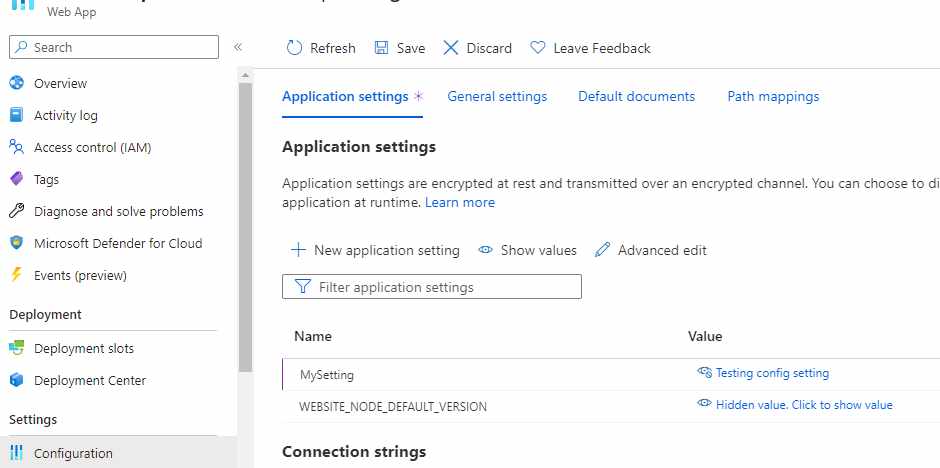
You can also use Application Settings to override default vlues in the appsettings.json file used by the portal for configuration. In order to override a setting that is present in the json file, you need to specify the "path" to the setting by using double underscores as delimiters. For instance, to override the setting to control back office AD login, you would use the following syntax in your library: Klevr.AllowBackOfficeADLogin but would use the following syntax in Application Settings: Klevr__AllowBackOfficeADLogin. For any custom settings, you can use your own name, for instance, "MySetting".
To read the setting in a template, you must insert the following line near the top of the file:
@inject Microsoft.Extensions.Configuration.IConfiguration__configs;
This will give you access to the configuration. To read a value from the configuration you can use the following code:
@
This will then be replaced with the value of your setting.
Last updated on