
Custom Validation for Blob Storage
This example demonstrates a quick and easy way to write a custom validation for blob storage, by utilising the provided validation.
This example demonstrates a quick and easy way to write a custom validation for blob storage, by utilising the provided validation. The standard validation checks for a minimum number of files, a maximim number fo files and at least one file of a type for a given list of types. In this scenario, we want to validate if a file of type "Passport Visa" is uploaded if a checkbox is marked as "non-resident".
About this example
This example describes the following tasks:
- Add a script with a custom validation function
- Utilise the product validation function
- Apply a custom validation to a Blob Storage control.
📋 Prerequisites
To complete this example, you will need:
- A Dynamics Form with a boolean field called "ws_isresident". You can substiute this with your own field or set of fields as required.
- Permissions for the user to view the form for an existing record where files can be attached.
- The file Type "Passport Visa" needs to be added (or substituted) in the Attachment Type table in D365, and appropriate portal permissiongs granted to read this record.
🔐 Roles
The role and security configuration is left to the user for this example.
📖 Scenario
Enforce the uploading of a file of type "Passport Visa" when the non-rersident checkbox is checked.
Script:
Create the following script and attach it as a media item to your portal in the backoffice, then add it as a custom script to your page.
function ws_VisaValidation() { // give your function an appropriate name. This will be used in the blob storage validation configuration.
  if (dFormApp.$data.ws_isresident != true) { //check if the record is marked as non resident
    //use the built-in validation to check for a file of type passport visa. The first two parameters are minimum and maximum number of files, and can be null to skip those checks.
    //We need to reference the blob attachment grid. The number would be it's 0 based item on your page configuration. In this instance we have a section (0), a blob attachment (1), and the blob grid (2), thus we use _2. You can also check multiple file types, by adding more parameters after the first file type.
     return dFormApp.$refs.listklevr_azureattachment_2.ValidateAttachments(1, 1, "Passport Visa");
  }
  return true; // return true or false to indicate if the validation has passed or not.
}
Configure the function as a custom validation:
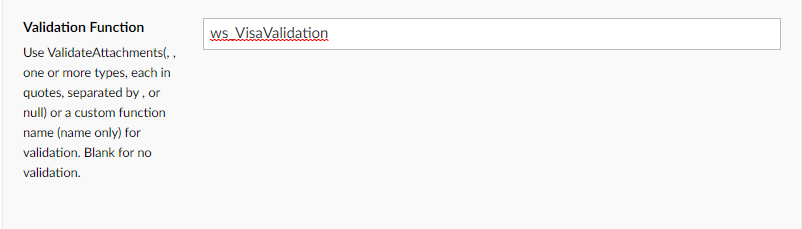
On your Dynamics Form 2.0 page, go to the Blob Attachment section, and enter the name of your validation function on the "Validation Function" property:
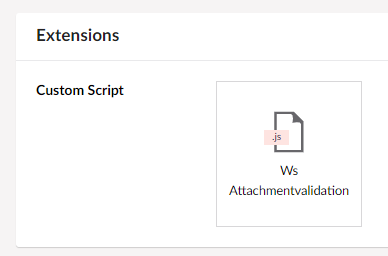
Remember to also add your custom script file to the page:
⏩ Next Steps
You can modify the function to do any number of logic checks or call the built in function again in an else statement to check for different file types if the condition is not met, etc.
Last updated on