
Klevr Forms 2.0
Klevr forms have been rewritten to use the SurveyJS framework.
Feature Overview
Klevr forms have been rewritten to use the SurveyJS framework. Forms can be constructed in Dynamics using a friendly editor with a lot of functionality and extendability. These new forms are rendered on the portal to the end users, and upon save, they are stored in Dynamics Form Submission records (similar to before) but with a read-only view of the completed form. It also includes download buttons to access any files uploaded. For Files, you have the choice of storing them in Dynamics on the form submission record as notes, or in blob, or in a SharePoint Document Location associated to the form response.
We have also included a form conversion utility in Dynamics to convert existing forms to the new structure (as far as possible).
Assumptions
You understand Klevr Forms and the existing portal functionality for forms.
Dependencies
The following are dependencies for this feature:
- Klevr CE Forms v2.3.0 or higher solutions and dependent solutions.
- Version 2.9.0 or higher of the portal
Usage
To convert an existing form, open the form record in dynamics and change the form class picklist to Klevr Forms 2.0. A prompt will appear asking if you want to attempt automatic conversion. This conversion will read the current sections and questions and convert them to pages and questions using matching types. It will not convert the validation functions, and some properties might not convert 100%. Please check the converted form using the editor on the second tab. The existing sections, questions and validations will still be associated to the form record, but will no longer be used by the portal. You can change the class back to v1.0 if required. A second conversion will not occur if you change it to forms 2.0 again, because the hidden json field will now contain a value. If need be, you can clear this through the SDK to re-apply conversion, but it should not be neccesary.
Once converted, the portal will automatically see that the class is now forms 2.0 and will render the new survey from the json structure instead of the old sections and questions.
Blob / SharePoint Attachments
On the portal there are a few new properties in the backoffice for klevr form sections on a page, mainly around file attachment storage. In order for SharePoint or Blob storage to work, you need to have the configuration in place that you would have for standard SharePoint or Blob attachments (i.e. all the relevant settings in your pipeline library to make it work). Also note that for SharePoint attachments, the files are attached to the form submission record, therefore the form submission entity needs to have SharePoint enabled, then run the SP wizard to create a folder for the entity and create or open 1 form record and navigate to the documents section to ensure all SharePoint pointers are created and working.
The file download functionality in Dynamics uses the portal to download the files, but is automatically authenticated through an API key, so no user interaction is required, but all Dynamics users will be able to access all uploaded files for the submissions they can see in CE.
The Editor in CE contains 2 custom properties on fields and 1 on sections for portal visibility and field mapping. The field mapping allows you to specify a schema name of a dynamics field on the associated record. This will load the value as an inial value when displaying the survey as well as update the value on the Dynamics record if the user changes it, as it did in v1.0
The Portal Visiblity field can be populated with any value (e.g. 'secure'). On the portal in the backoffice, there is a visibility level property on the form block. If left blank, all blocks will be rendered, even if they have a value. If you enter a value or a comma separated list of values, then only sections with blank or matching visibility levels will be rendered. For instance, on a page used by assessors, you can enter "assessor" as a value, and then any section or question makred as "secure" (or any value that doesn't match "assessor" will not be rendered on this page.
In CE, in the form response you are able to edit and show/hide what buttons are displayed. By default you will have two buttons enabled "Save as PDF" - Which is SurveyJS's pdf generation. And you will have "Print" which uses the browsers built in Print system. You can both rename and enable/disable each button by editing the "klevr_SurveyButtonConfiguration" environment variable.
 {
  "enableSurveyJSSaveAsPDF": true, // Enabling/Disabling SurveyJS Save As PDF Feature button
  "enableSurveyJSSaveAsPDFToSharePoint": true, // Enable/Disable Save to Sharepoint button.
  "enableWindowPrint": true,  // Enable/Disable default browser Print functionality button.
  "windowPrintLabel": "Print", // Changing the Window Print button
  "surveyJsSaveAsPDFLabel": "Save As PDF",  // Changing SurveyJS button
  "saveToSharepointLabel": "Save PDF to Sharepoint" // Changing Save to Sharepoint button.
  "saveToSharepintApiUrlFilter": "" // Allows adding $orderby, $select
  "fileName": "FormSubmision_{klevr_name}" // PDF file name
}
To customize the name of the generated PDF file, use the fileName property in the klevr_SurveyButtonConfiguration environment variable. This property supports dynamic slug replacement using curly brace syntax, allowing you to insert values from the related entity into the filename. For example, setting "fileName": "FormSubmission_{klevr_name}" will automatically replace {klevr_name} with the corresponding field value from the entity linked via regardingobjectid. The system fetches the related entity using the form submission’s regardingobjectid, retrieves its fields, and replaces any {field} placeholders in the template. This enables meaningful, personalized filenames like FormSubmission_Bob.pdf without manual input.
The saveToSharepintApiUrlFilter environment variable allows dynamic extension of the base Web API query used to retrieve SharePoint document locations. When populated, its value is appended directly to the request URL, enabling environment-specific control over filtering, sorting, or limiting results (e.g. $top, $select, $orderby). This provides flexibility to adjust query behaviour without modifying code, supporting different deployment scenarios or configurations. If the variable is not set or is empty, a default ordering ($orderby=createdon) is applied to ensure consistent results.
Design Details
See https://dev.azure.com/klevr/Klevr%20Apps/_wiki/wikis/Klevr%20CE/949/3895-Klevr-CE-Portal-Forms-v2
Security Considerations
- Questions and sections that has a visibility level specified (any string value) will only be rendered if the block is configured with a blank value or with a matching value ofr "render visibility level".
- The Portal user needs access to create, read and update form submission records, as well as access to read form records. The first available form submission record associated to the current portal record will be used for the user to read and update. This means that users could have shared access to the same response for a form on a record and co-author the response.
- For assessors the same principal applies. They will need read access to the correct form response record to be able to see the response.
Advanced Features
Dynamic content for picklists / radio buttons
SurveyJS supports linking list type questions to a RESTful service to populate the options. Using the new API you can point SurveyJS to a specific query API page to show a list of records (e.g. countries), or you can point it to the metadata page for an entity, and show the options from a picklist.
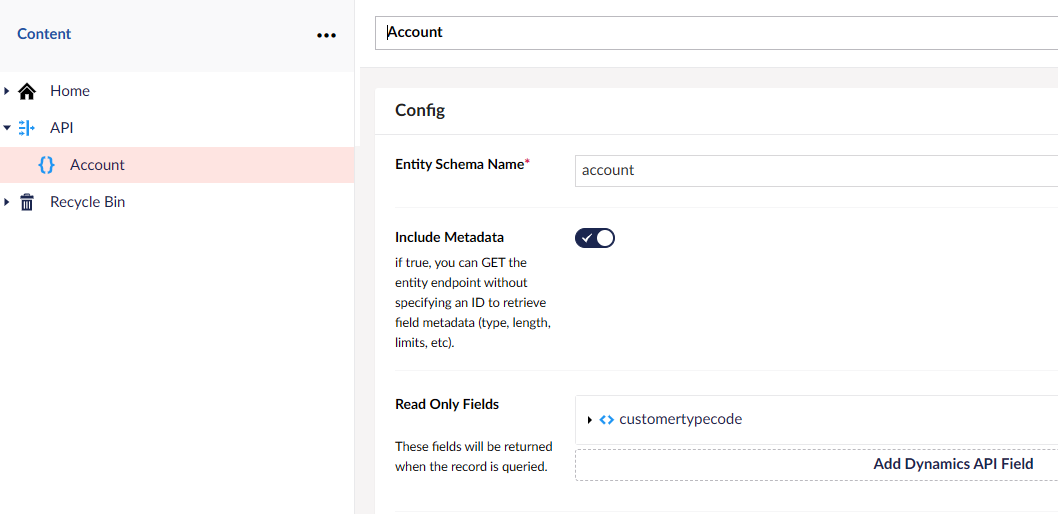
In order to show picklist options, create an API endpoint for the entity that contains the picklist field. Add the field as a read-only field. Ensure the enable metadat is also switched on. If you browse to the API endpoint (e.g. /api/account) you should see the metadata for the entity, one of which would be the optionset field, e.g. customertypecode_metadata. From the structure of the JSON you can see that the optionset values are found in customertypecode_metadata.OptionSet.options and each option has a key and a value property. We use this to apply it in the survey editor.
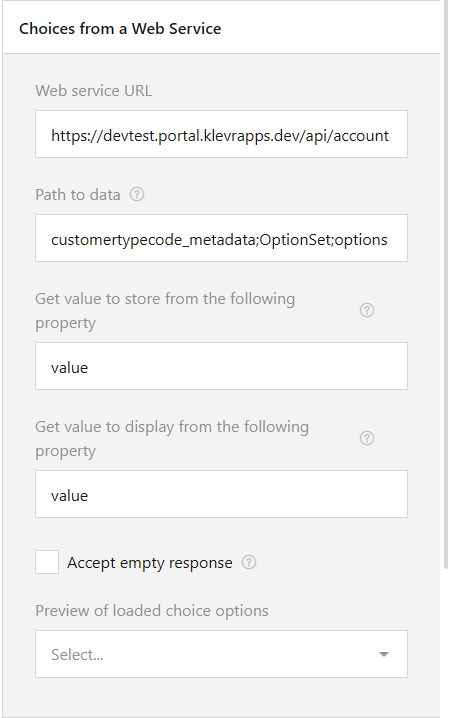
For a question with options that you want to base on the optionset, go to the "choices from a webservice" property.
Fill in the url for the metadata api endpoint you created (e.g. your_websiteurl/api/account) in the path to data, you need to specify the JSON path to the options, using ; to separate properties. It is also case sensitive. In our example this would be customertypecode_metadata;OptionSet;options For the vlaue to store, you can either store "key" or "value" depending on whether you want the picklist id or the picklist label stored in the answer. For the "value to display" you would use value so that the user can see the piclist label.
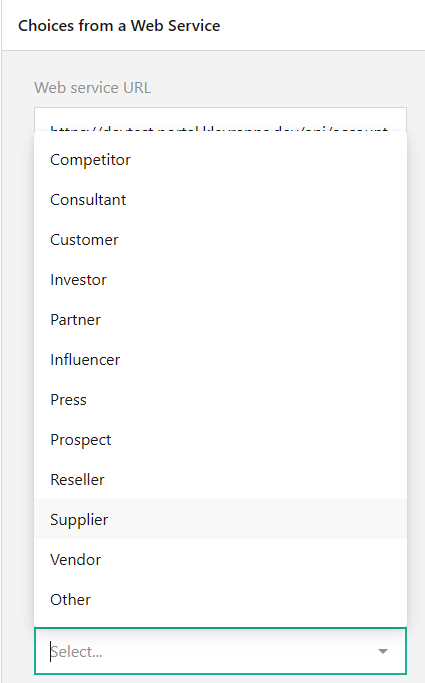
You can then check the preview of loaded choice options to ensure they are correct.
In a similar way you can expose a query of records. The path is much simpler, but the key and value options should be set to the record guid and the field name that identifies the record the best (e.g. klevr_name).
Images in the editor
When you add images (e.g. imagepicker or image question types) into the editor in CE, it will upload the images to the portal (configured in the the environment setting), and the portal will store these images in the Azure Blob Storage configured in the Klevr.AzureStorageConnectionString. Please ensure these are configured and created, otherwise the images will not upload.
📎 References
- For more information on how to configure forms and extended features like validation, please refer to the SurveyJS documentation
Last updated on