
Klevr Forms 2.0 - Import from PDF
The Klevr Forms SurveyJS Editor now includes an Import from PDF action that uses an AI-assisted flow to generate a SurveyJS form from a PDF document.
Feature Overview
The Klevr Forms SurveyJS Editor now includes an Import from PDF action that uses an AI-assisted flow to generate a SurveyJS form from a PDF document.
This feature is designed for structured documents such as:
- application forms
- questionnaires
- intake forms
- surveys with clear section and field layout
The generated result is inserted directly into the SurveyJS Form Editor and, when valid, saved back to the form record.
How it works
When a user selects Import from PDF in the Survey Editor:
- The editor checks whether the current survey already contains content.
- If the survey is not empty, the user is warned that the import will replace the existing survey structure.
- The user selects a PDF file from their device.
- The editor validates that the file is:
- a PDF
- 8 MB or smaller
- The editor sends the file to a configured Flow endpoint.
- The Flow returns SurveyJS JSON.
- The editor validates the returned JSON.
Setup
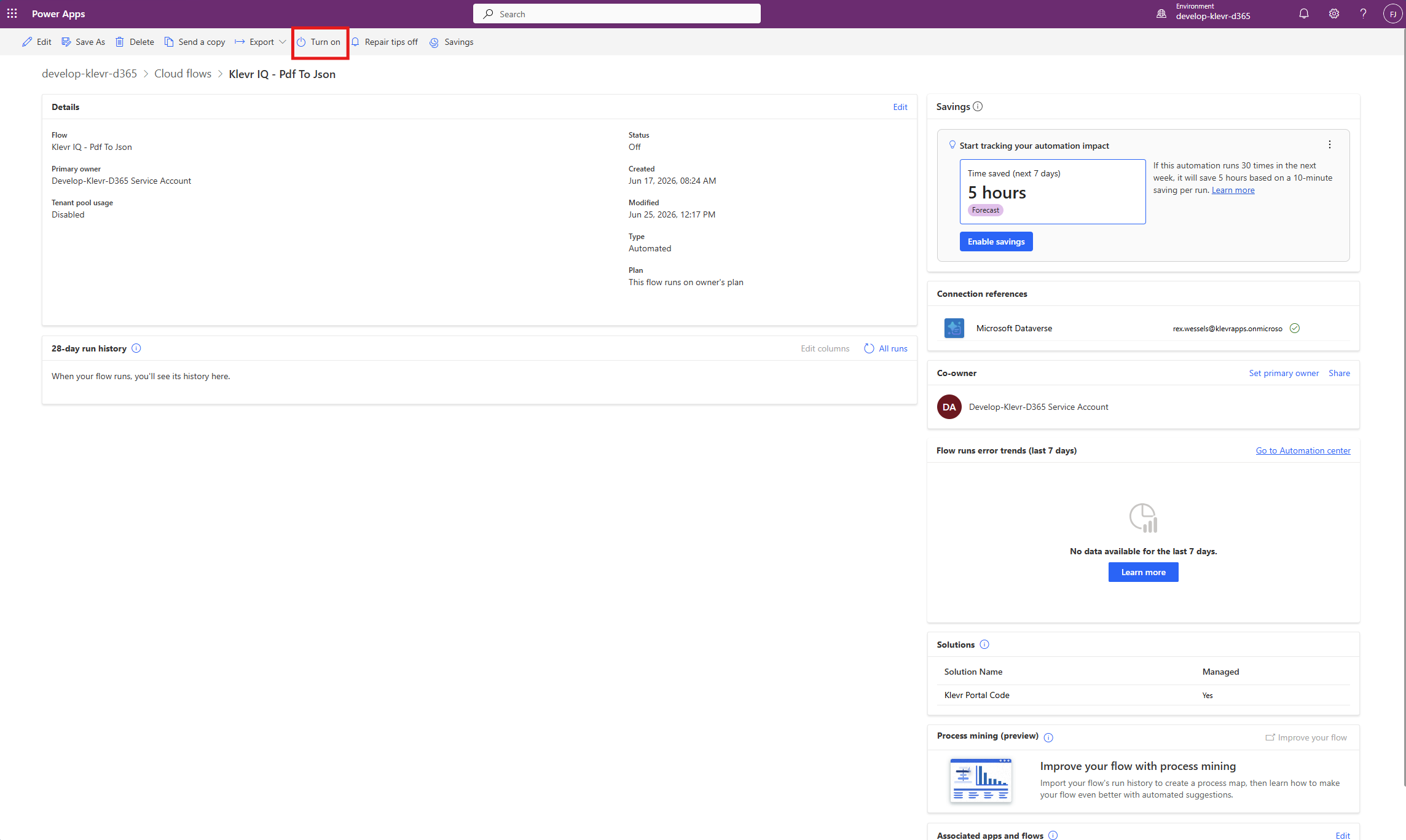
To set up the feature, you first need to enable the Klevr IQ - Pdf to Json Power Automate flow. You can find it under Cloud Flows in the Klevr Portal Code solution. Navigate to the flow, and click on 'Turn On' if required.
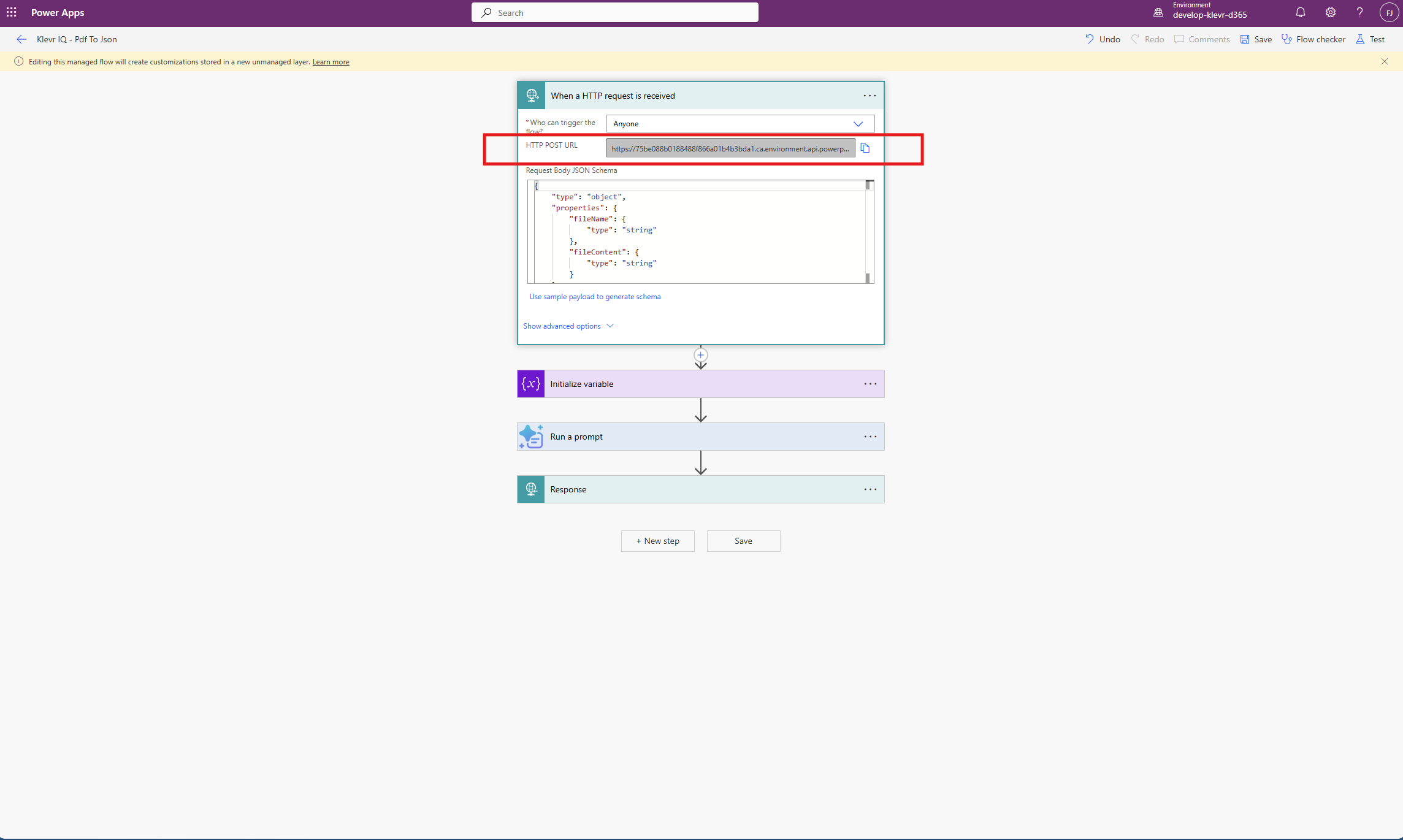
Next, open the flow by clicking on "Edit Flow" and copy the HTTP POST trigger URL
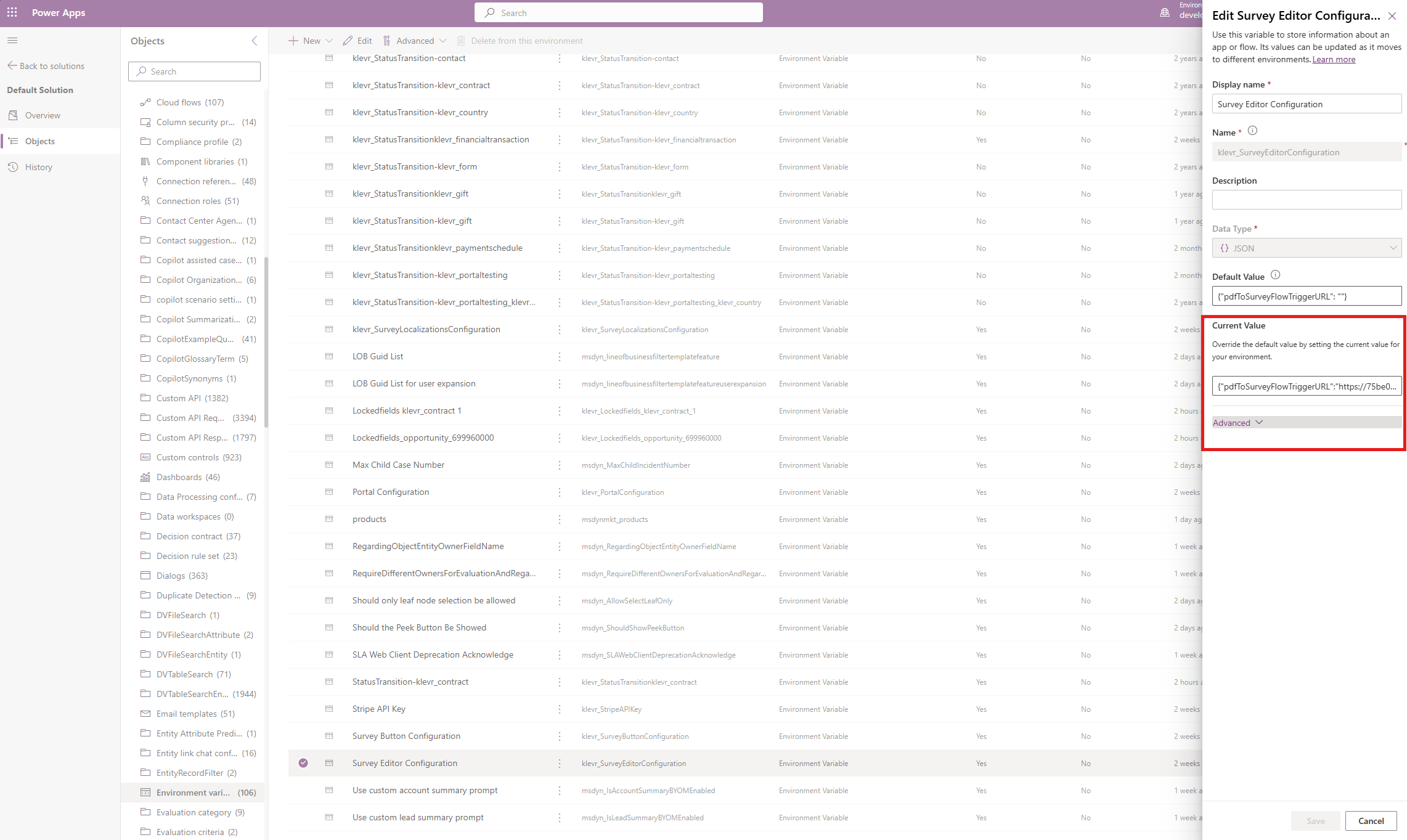
Paste the URL into the pdfToSurveyFlowTriggerURL value in the klevr_SurveyEditorConfiguration environment variable.
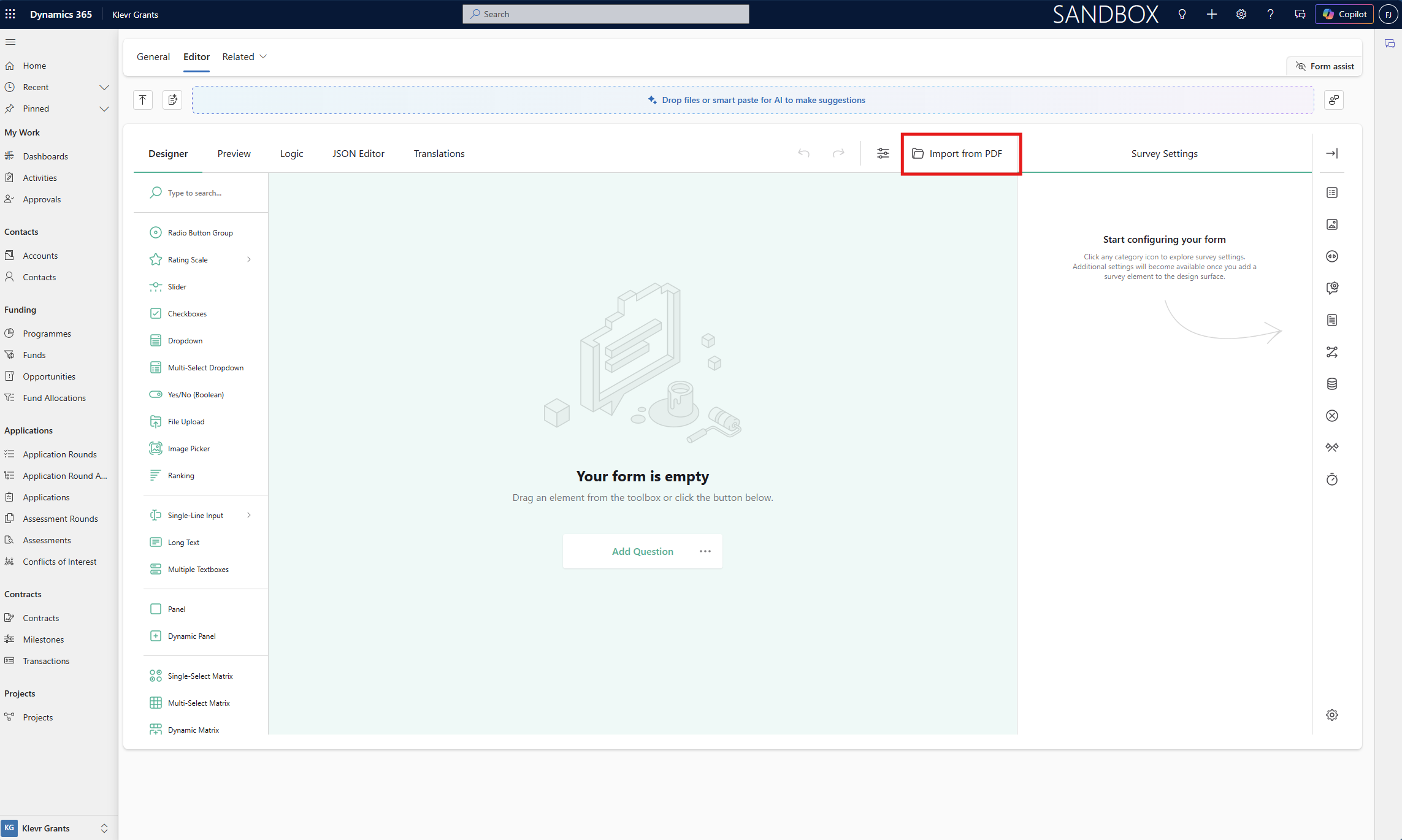
Open the Survey Editor in editable mode and use the designer tab. The Import from PDF action is only shown when the editor is on the Designer tab.
Usage
Import a PDF
Open the Survey Editor for the form you want to update and switch to the Designer tab.
Review the warning and AI guidance messages.
Wait while the survey is generated.
Review the generated survey carefully before publishing or sharing it.
If the current survey already contains content
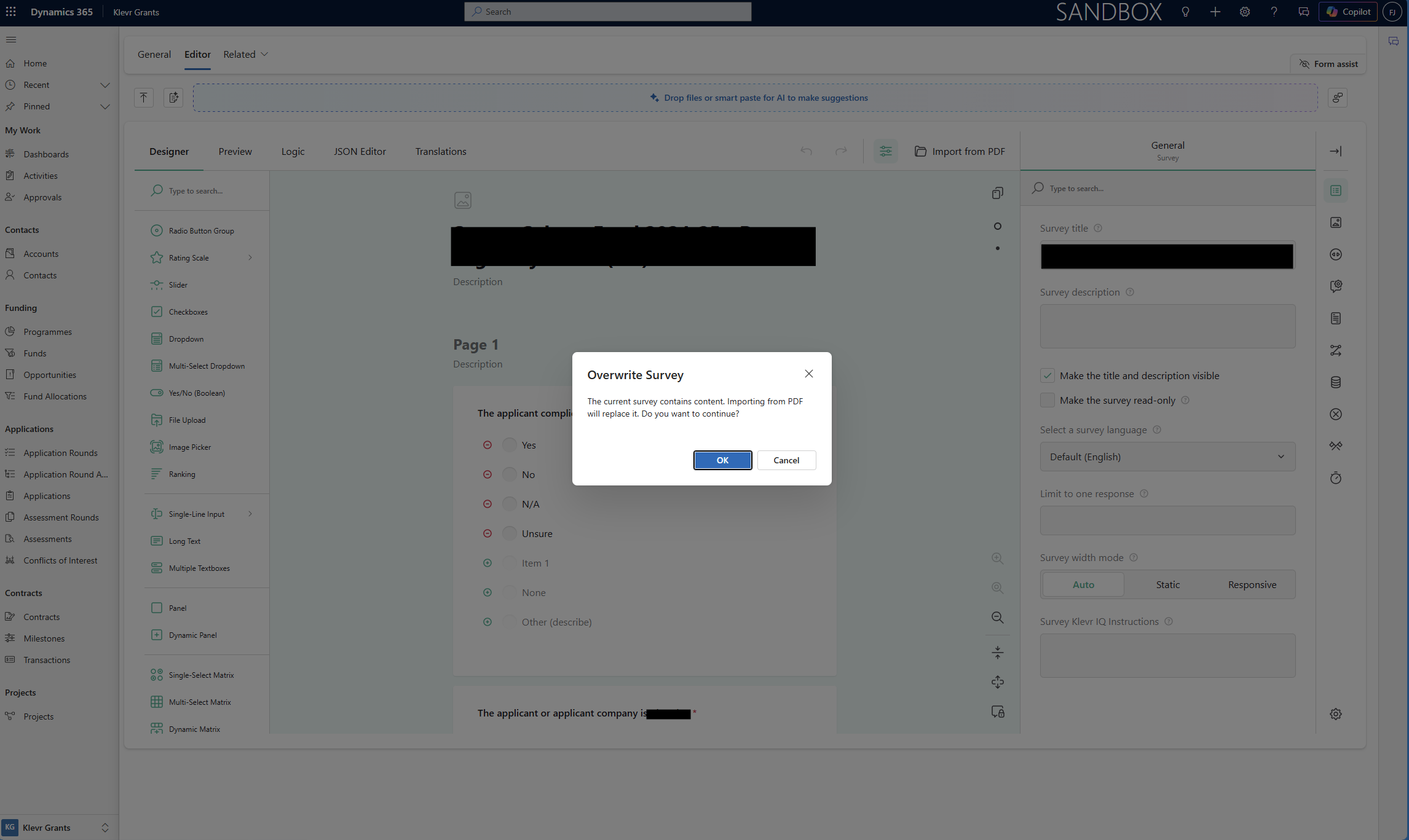
If the survey is not empty, the editor prompts before continuing.
- Choosing Cancel keeps the existing survey unchanged.
- Choosing OK replaces the current survey structure with the imported result.
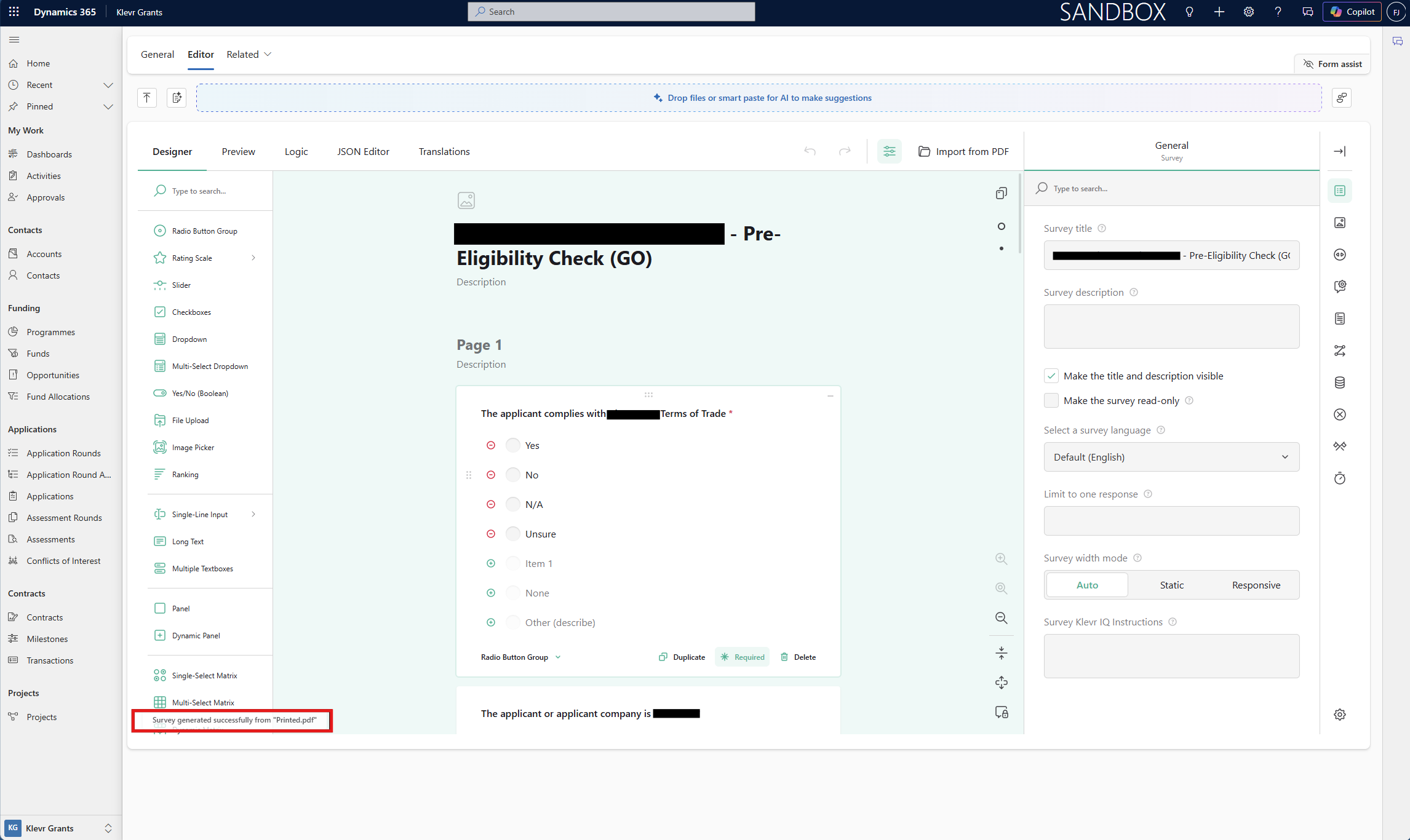
If the generated output is valid
When the returned SurveyJS JSON is valid:
- the editor updates the survey definition
- the survey is saved automatically
- a success message is displayed
If the generated output is invalid
When the output cannot be validated:
- the editor shows an error notification
- the editor switches to the JSON tab
- the generated JSON is inserted there for manual correction
This makes it easier to review or repair partially correct output.
Troubleshooting
The feature says it is not configured
Check the klevr_SurveyEditorConfiguration environment variable and make sure it includes a valid pdfToSurveyFlowTriggerURL value.
The PDF is rejected
Confirm that:
- the file is actually a PDF
- the file size is under 8 MB
The Flow returns an error
Check the Flow run history and verify that the flow completed successfully and returned a usable result.
The editor shows the JSON tab after import
This means the imported survey was generated, but validation failed. Review the JSON and correct any invalid SurveyJS properties or structure.
Note
Because the generated form is AI-assisted, the result should always be reviewed before use.
Last updated on