
Klevr IQ
Klevr IQ is a core AI capability of Klevr Portal that enables AI-assisted evaluation of Klevr V2 Forms.
Feature Overview
What is Klevr IQ?
Klevr IQ is a core AI capability of Klevr Portal that enables AI-assisted evaluation of Klevr V2 Forms.
It allows the platform to automatically generate draft form submissions using AI, based on information already captured in an earlier submission. These drafts assist human reviewers by reducing manual effort, improving consistency, and accelerating review workflows.
Klevr IQ is form-agnostic. It can be used to evaluate any Klevr V2 Form, regardless of which product or module that form belongs to.
Dependencies
This section outlines what must be in place before configuring or deploying Klevr IQ.
Platform Requirements
- Klevr Portal installed
- Klevr V2 Forms
- Power Automate access
- Azure subscription with Azure AI Foundry enabled and the following permissions:
- On the parent resource of your project, you need the "Azure AI User" role to access model deployments and create agents. Owners automatically get this role when they create the resource. Other users need a specific role assignment.
- On the parent resource of your project, you need the "Azure AI Project Manager" role to create a project connection for MCP authentication and either "Azure AI User" or "Azure AI Project Manager" to use the MCP tool in agents.
- On your project, create a system-assigned managed identity for interactions with Azure AI Search.
- On your search service, assign the "Search Index Data Reader" role to your project's managed identity for read-only access to search indexes.
Product Preconditions
- A product built on Klevr Portal (e.g. Klevr Grants)
- A form-based evaluation or review process
Setup and Usage Guide
Setup
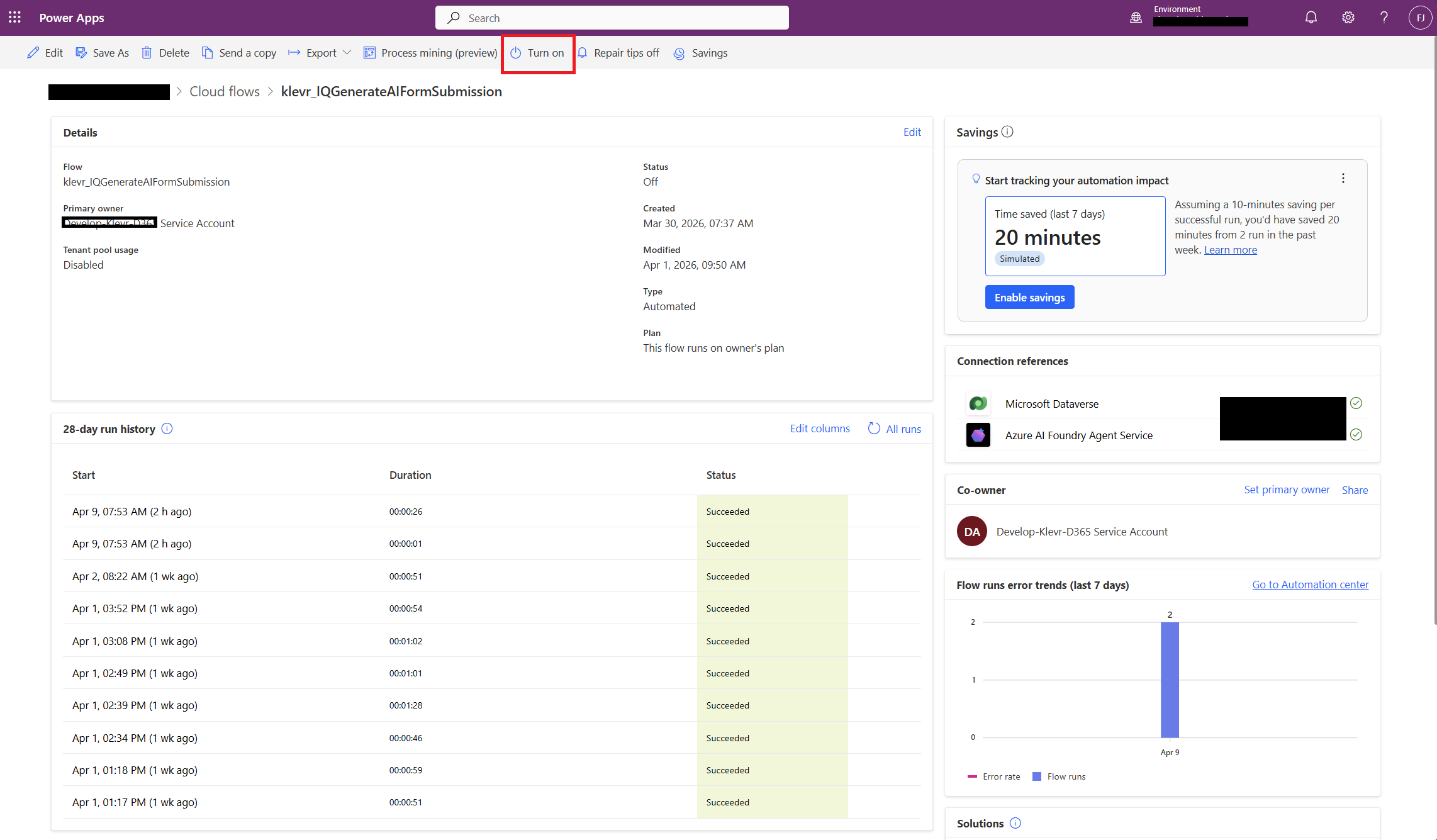
- Klevr IQ's workflow is primarily orchestrated by a Power Automate Flow - klevr_IQGenerateAIFormSubmission, located in the 'Klevr Portal Code' solution
- First, we need to ensure that the flow is enabled, navigate to the flow and click on 'Turn On' if required.
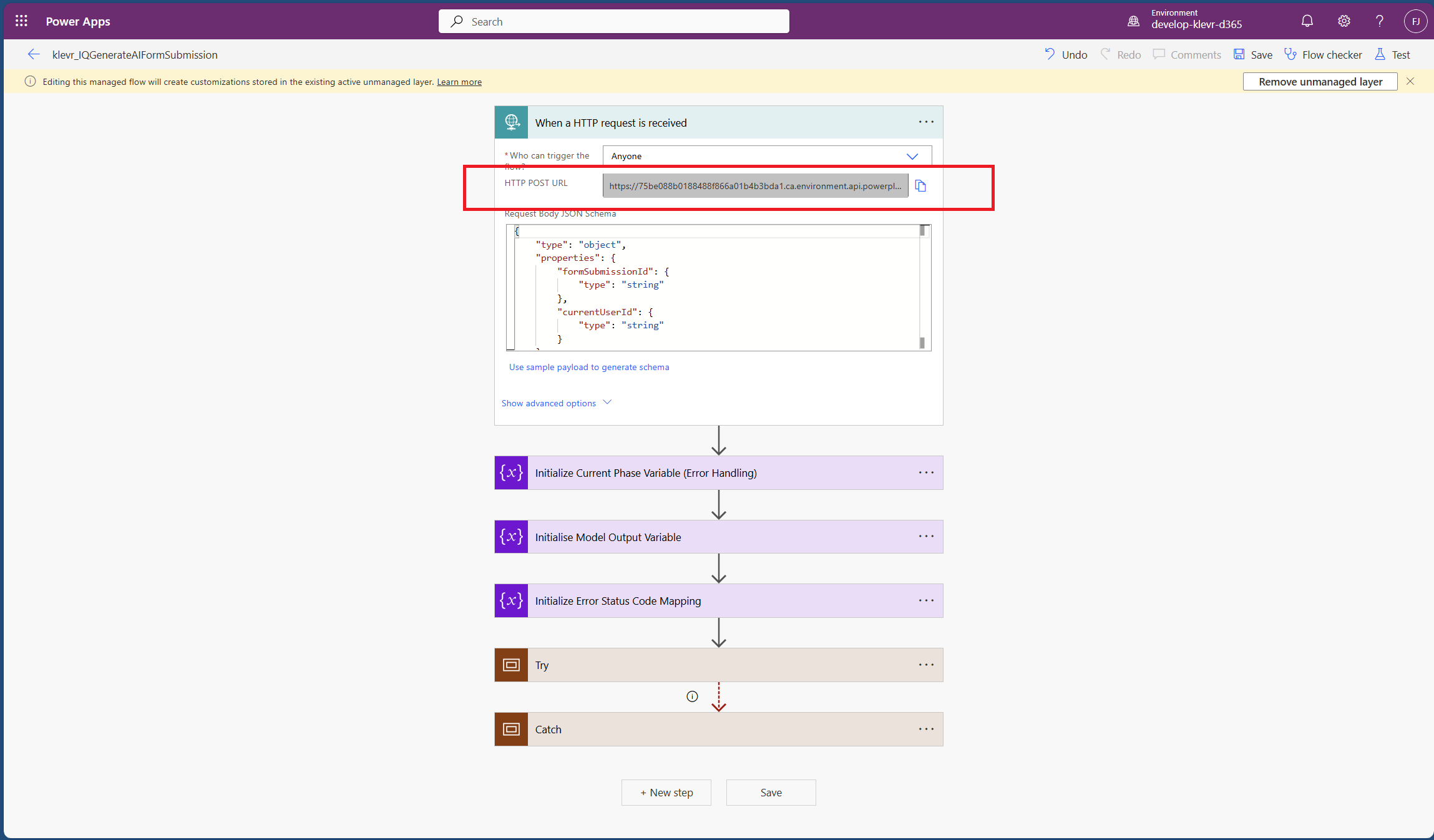
- It is triggered by a HTTP Request, and can be configured to run in multiple ways.
- The default way would be to trigger it using the existing "Run Klevr IQ Evaluation" Ribbon button on a Form Submission
- To configure this button, press "Edit Flow" and copy the HTTP POST URL from the HTTP Trigger
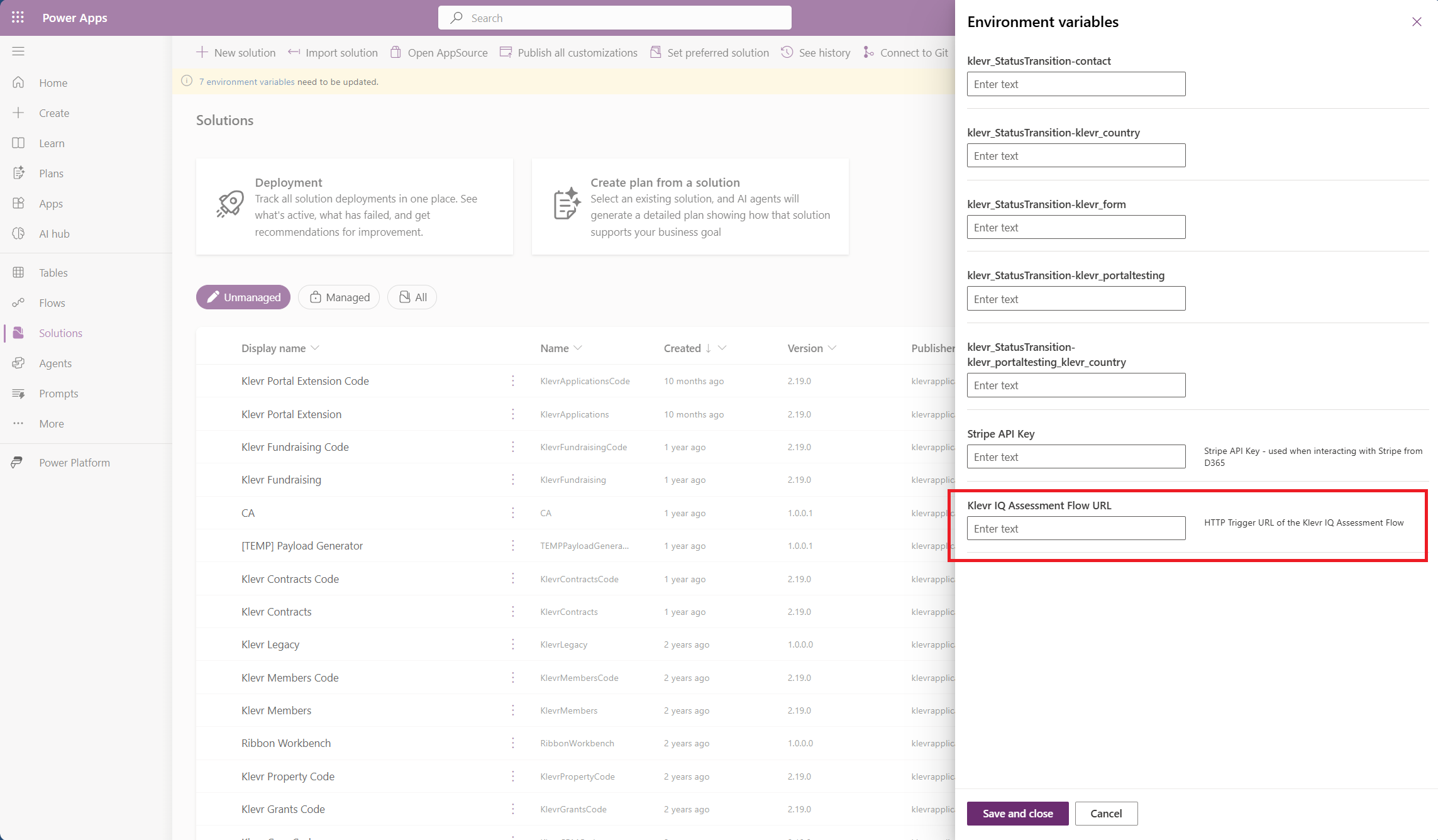
- Set the "Klevr IQ Assessment Flow URL" Environment Variable to this URL.
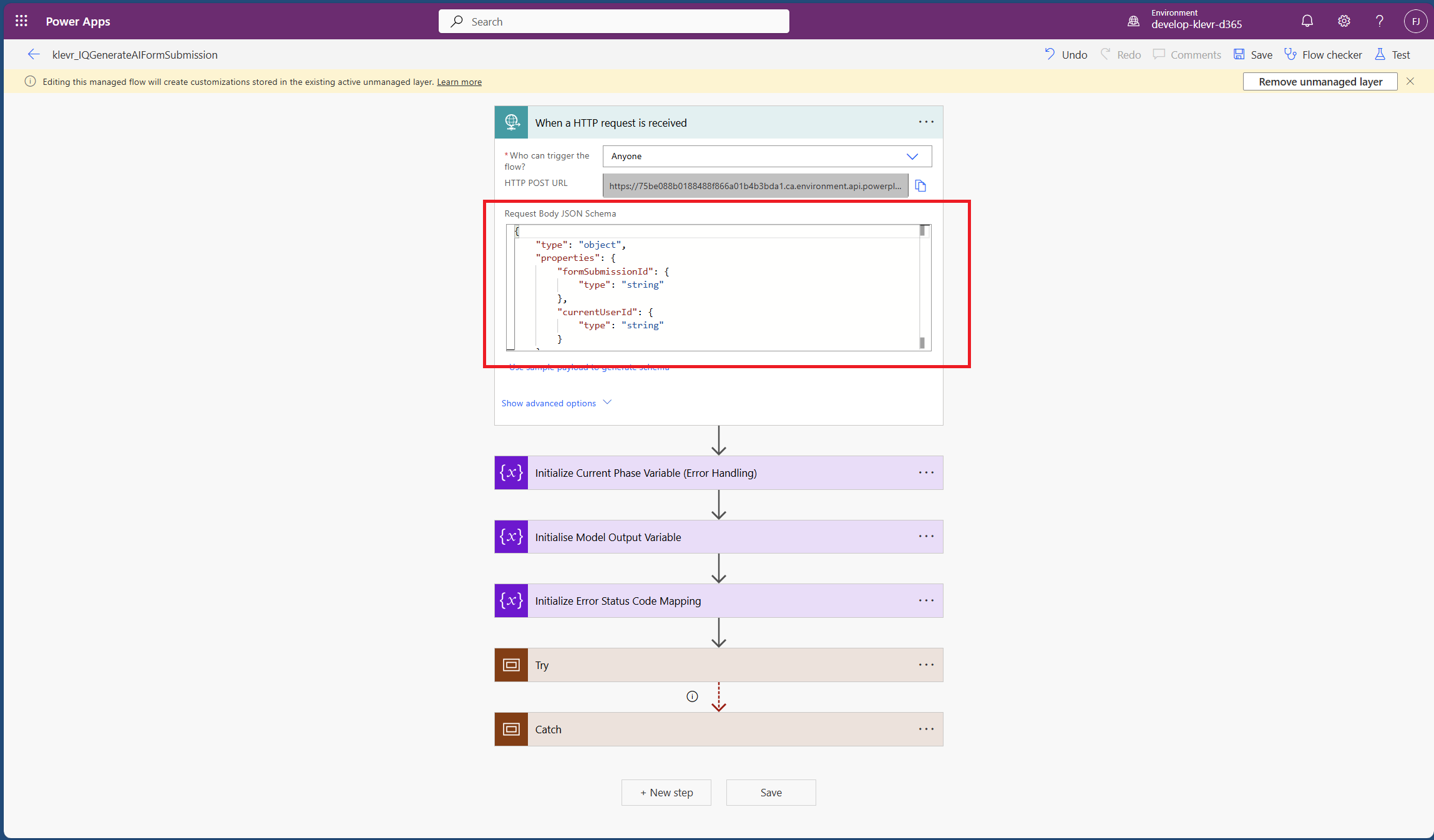
- If you want to automate the flow (For example, on submission of an initial form) it can be configured as well, by creating a flow that triggers it based on the condition of your choosing, just making a HTTP POST request with a JSON payload consisting of a Form Submission ID (The guid of the submission to the initial form), and the Current User ID (the guid of the intended owner of the Klevr IQ evaluated form submission)
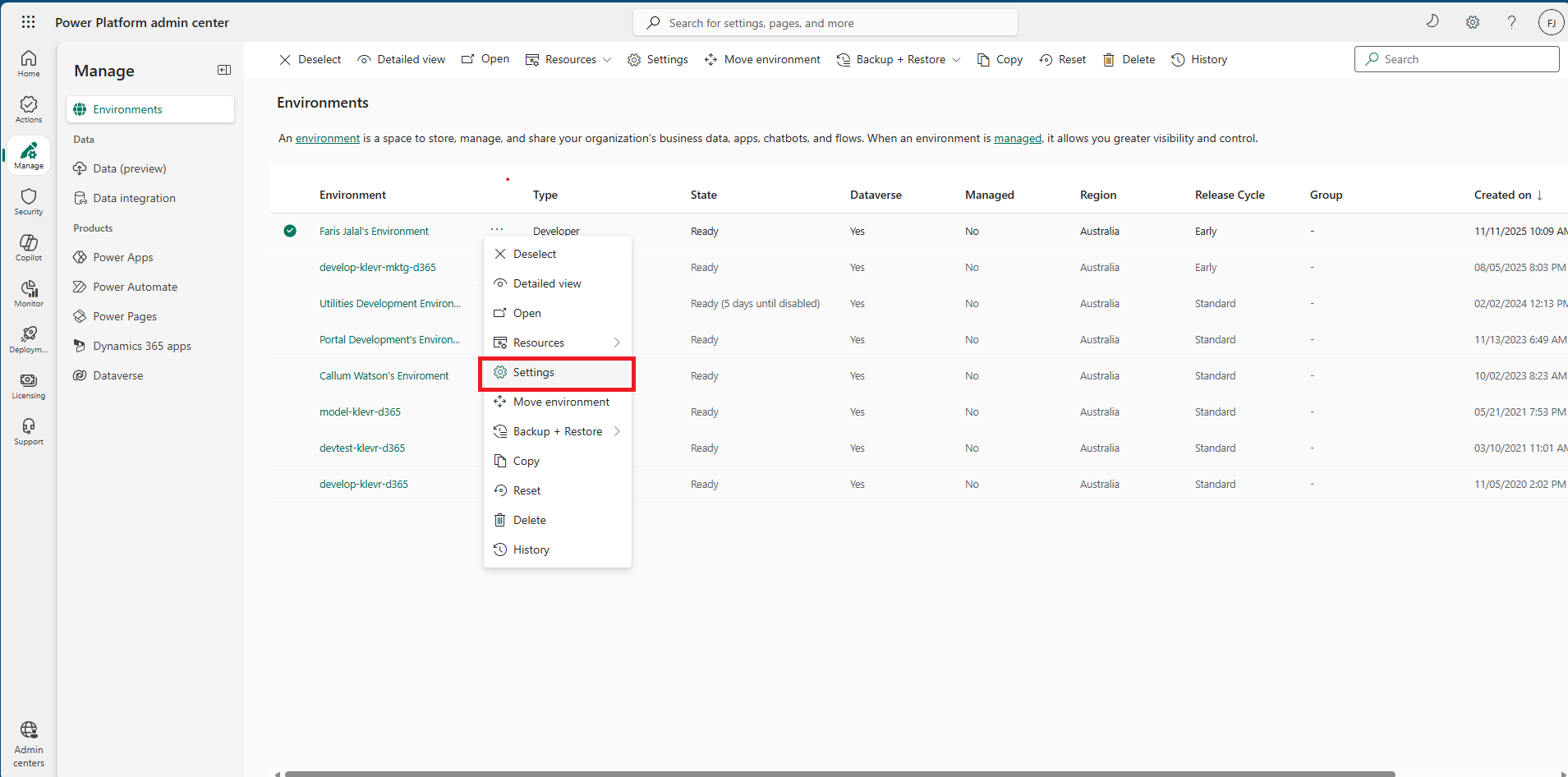
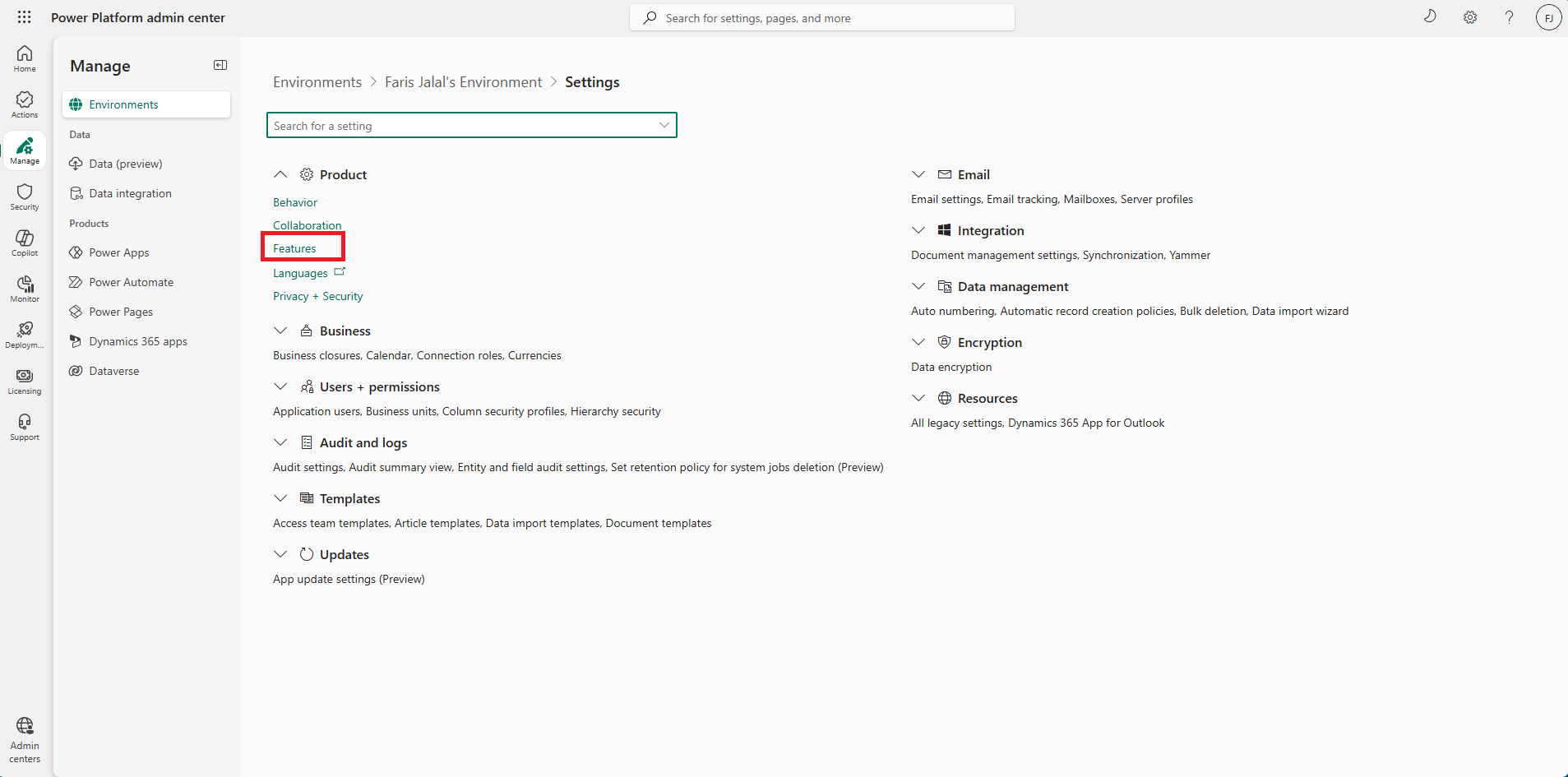
- AI Prompts must be enabled for the environment, this is for the Default AI Builder Model to function.
- Go to the Power Platform admin center -> Select your Environment, Go to settings -> Features, and enable AI Prompts

- Prerequisites :
- Azure Subscription and an Azure Resource Group that the Foundry resources can live in.
- Access to a role that allows you to create a Foundry resource, such as Azure Account AI Owner or Azure AI Owner on the subscription or resource group.
- Deploy a Foundry resource, and an associated Foundry Project (Follow Foundry Portal instructions).
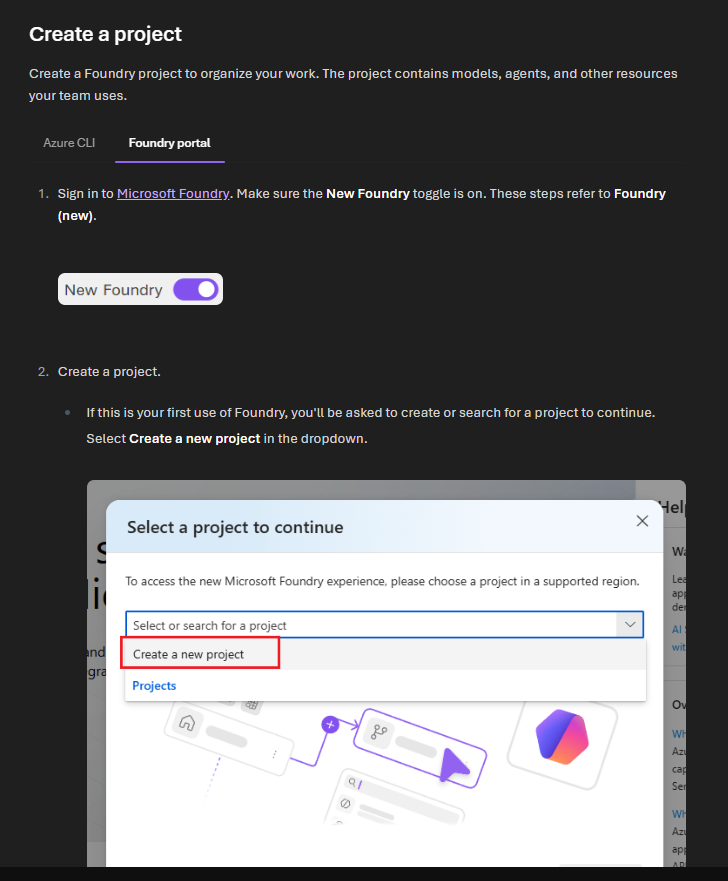
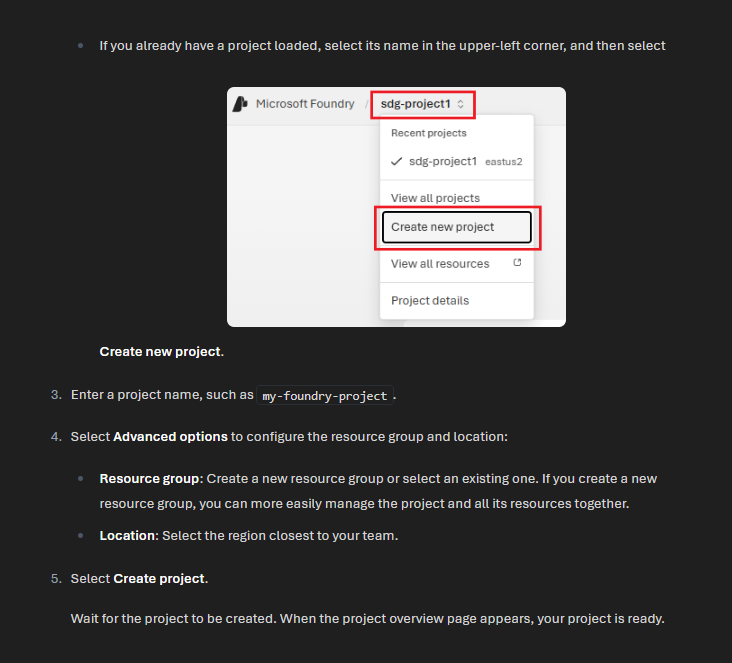
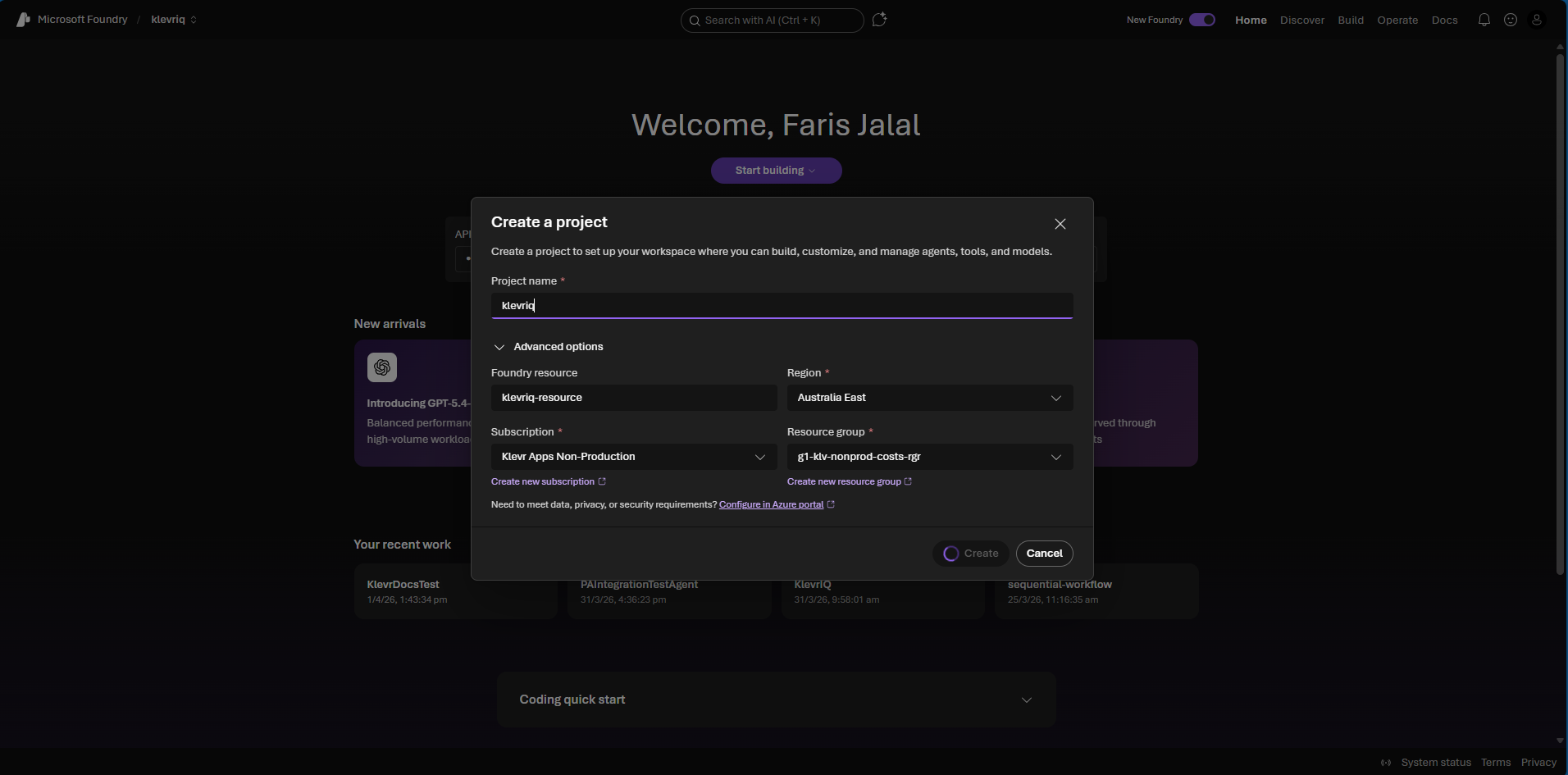
- Following that should result in 2 resources being created in the resource group.

- To enable external and Sharepoint grounding, deploy a Bing Custom Search resource and an Azure AI Search resource.

- Create an Agent with the following system instructions:
    You are an assistant that completes a SurveyJS form using ONLY:
    (1) the current Form schema (SurveyJS),
    (2) the current Form Submission (answers), and
    (3) the next AI Evaluation Form schema (SurveyJS).

    Additional AI Prompt Metadata (optional, may be absent):
    - aiFormPrompt (Survey root): global instructions for the entire next AI Evaluation form.
    - aiPagePrompt (page object): section-level instructions for all questions on that page.
    - aiPrompt (question/element object): question-level instructions for that specific question.

    How prompts compose (most specific wins if there is any conflict):
    For each question in the NEXT AI Evaluation form, build the effective instructions as:
    1) nextAiEvalForm.aiFormPrompt (if present)
    2) + the containing page.aiPagePrompt (if present)
    3) + the element.aiPrompt (if present)

    Rules:
    - Work strictly within the NEXT AI Evaluation form questions and choices.
    - Use the composed effective instructions (aiFormPrompt + aiPagePrompt + aiPrompt) when interpreting what the question is asking and how to answer it.
    - If a prompt field is absent (not present in JSON), ignore it completely.
    - If effective instructions conflict with each other, follow the most specific level: aiPrompt > aiPagePrompt > aiFormPrompt.
    - Infer answers conservatively; if unknown, choose the safest truthful option and explain in aiComment.
    - Output ONLY a single JSON object with:
    - top-level key/values for each form question's `name`
    - plus a sibling object `_ai` where each question has:
        - `aiComment` (1-2 concise sentences citing the fields you used; mention relevant prompt guidance only if it materially affected the choice)
        - `aiConfidence` (0.00-1.00; calibrated)
    - Answer every question in the provided NEXT AI Evaluation form schema.

    aiComment rules:
    - aiComment must explain *why* the answer was chosen and what information was used.
    - If instruction metadata influenced the answer, refer to it only as:
    - "Klevr IQ instructions for this form"
    - "Klevr IQ instructions for this page"
    - "Klevr IQ instructions for this question"
    - NEVER mention or expose the property names aiFormPrompt, aiPagePrompt, or aiPrompt.
    - Do not quote instructions verbatim unless necessary; summarise their intent.

    Inputs:
    (1) Current Form Schema:
    {{currentKlevrForm}}

    (2) Current Form Submissions:
    {{currentFormSubmission}}

    (3) Next AI Evaluation Form Schema:
    {{nextAiEvalForm}}

    Output format (example):
    {
    "<questionName>": <value>,
    ...
    "_ai": {
        "<questionName>": { "aiComment": "<why>", "aiConfidence": 0.85 }
    }
    }

    Now produce the complete JSON for the AI Evaluation submission. No prose, no markdown - JSON only.
To configure any Klevr IQ Model, navigate to the "Settings" area, where you should find "Klevr IQ Models". Clicking on it should display the Active Klevr IQ Models. By default there should be none, hence let us configure 2 to start with:
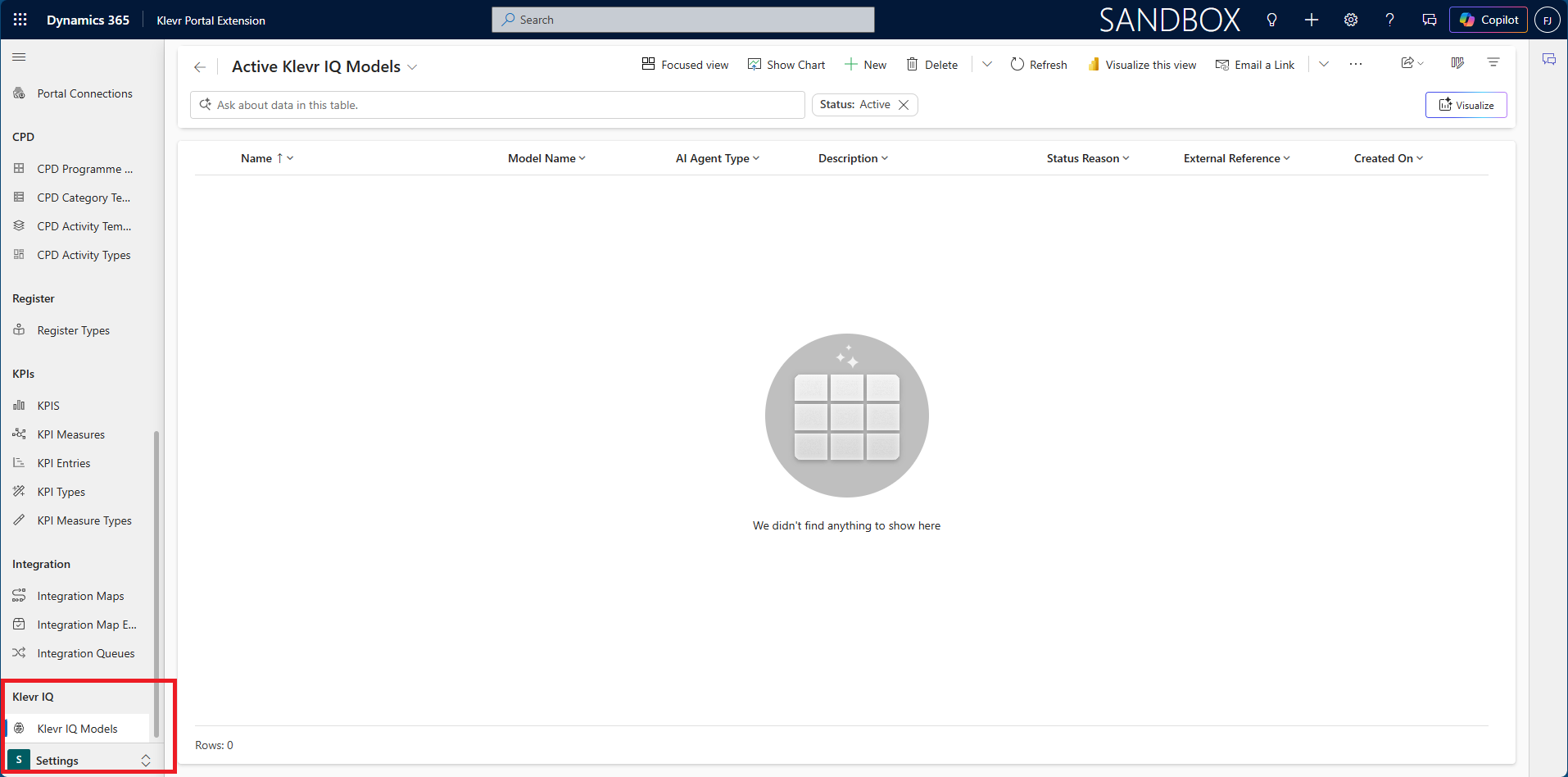
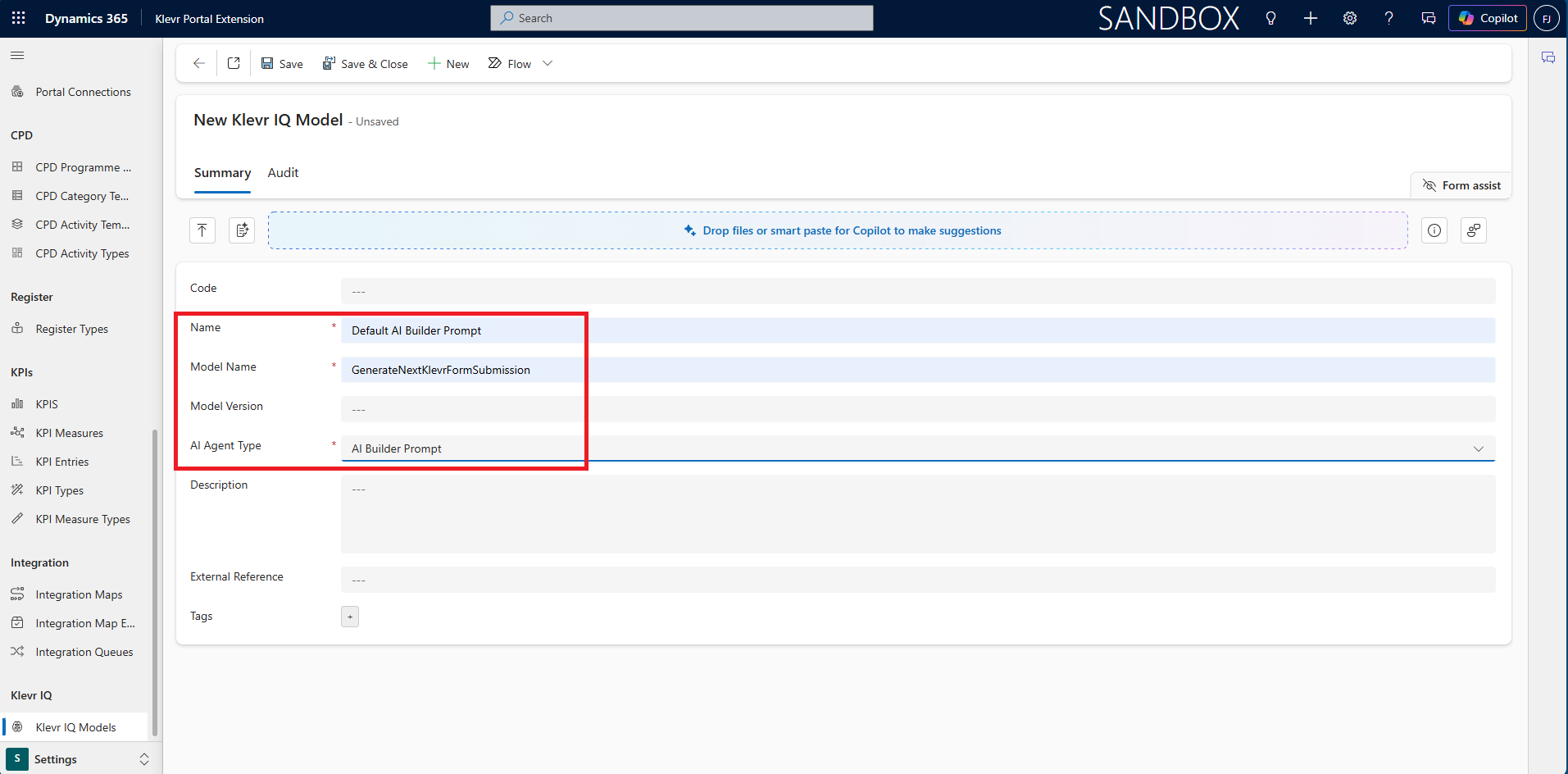
- Default AI Builder Prompt
- Fill in the Name with any desired display name, but ensure Model Name and AI Agent Type are "GenerateNextKlevrFormSubmission" and "AI Builder Prompt" respectively. AI Builder Prompts do not typically have a Model version.
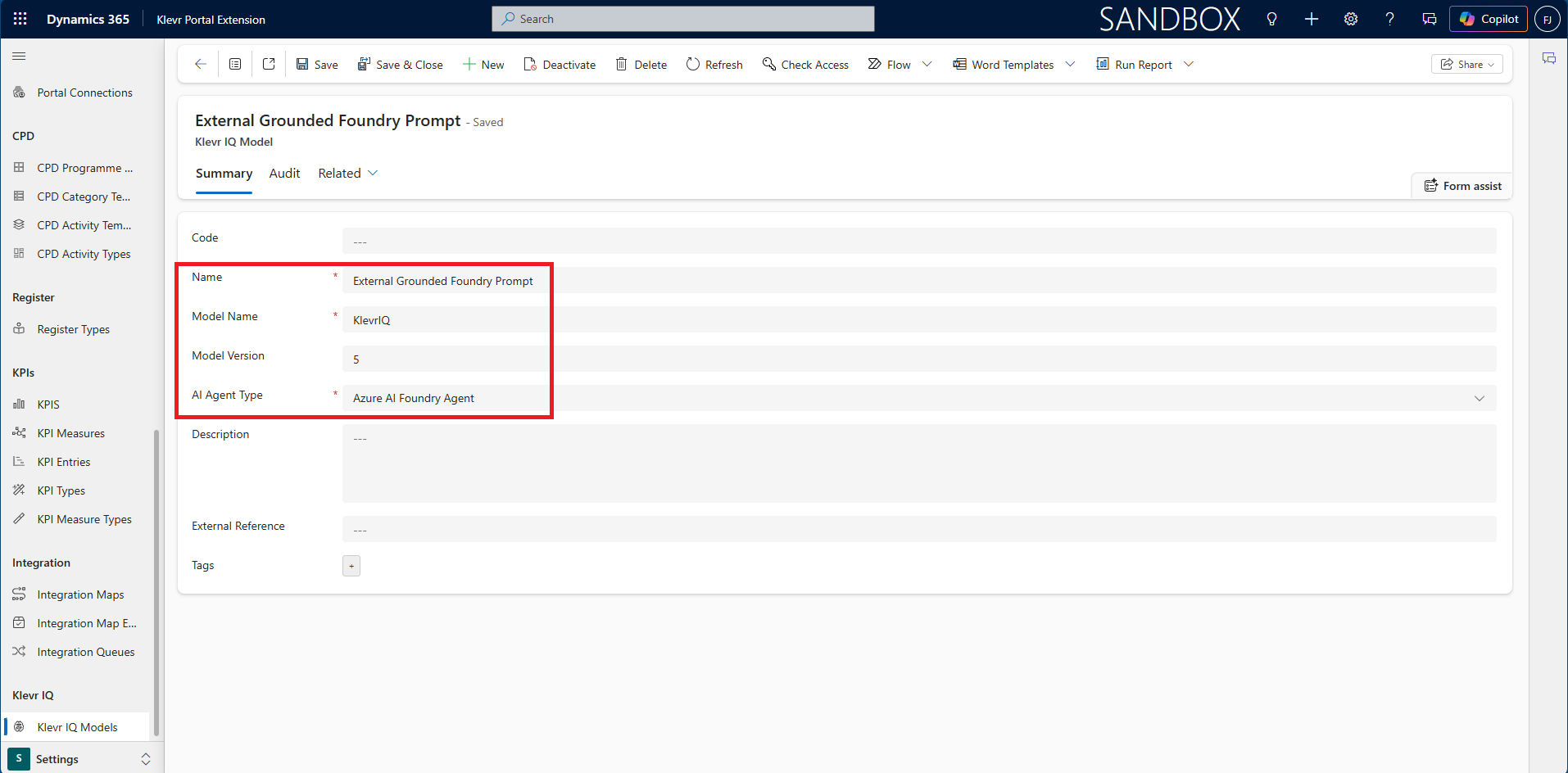
- AI Foundry Agents
- Fill in the Name with any desired display name, set Model Name and Model Version to the Name and Version of the Azure AI Foundry Agent you created in an earlier step, and ensure AI Agent Type is "Azure AI Foundry Agent"
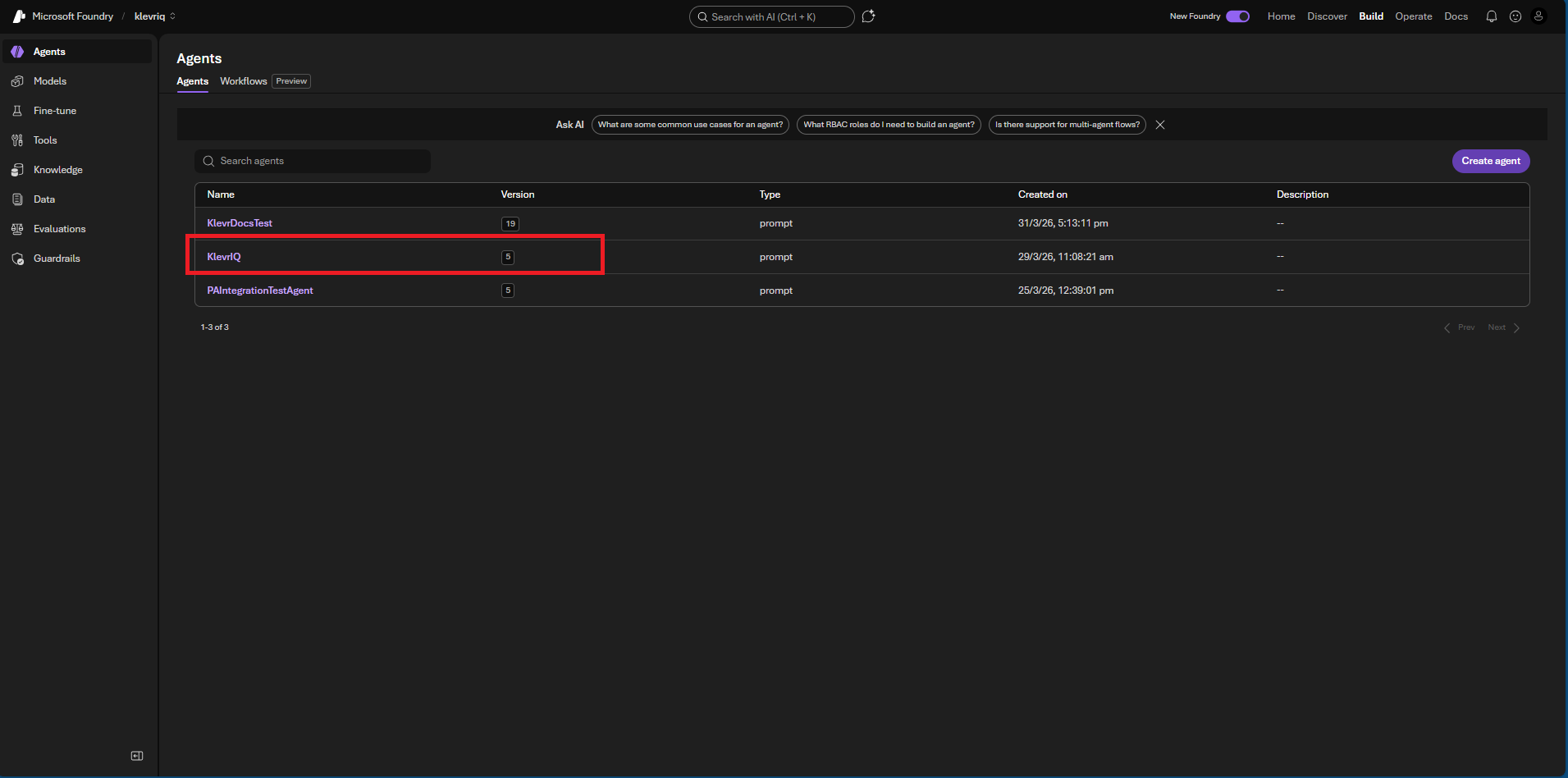
- Feel free to create further Agents in AI Foundry using different models and different knowledge bases
That is it! Now, move over to Usage to see how to use Klevr IQ!
Usage
To use Klevr IQ, the following must exist:
- A primary form (e.g. Grant Application)
- A separate assessment form (e.g. Pre-Screening or Assessment)
- The assessment form is linked as the Klevr IQ Evaluation Form
Once linked, Klevr IQ is available for that form.
Let us assume we have a grants application process, with an initial application, a pre-screening and then a formal assessment. Traditionally, staff would:
- Read the application
- Manually complete a separate pre-screening form
- Re-enter information that already exists
Klevr IQ automates this step.
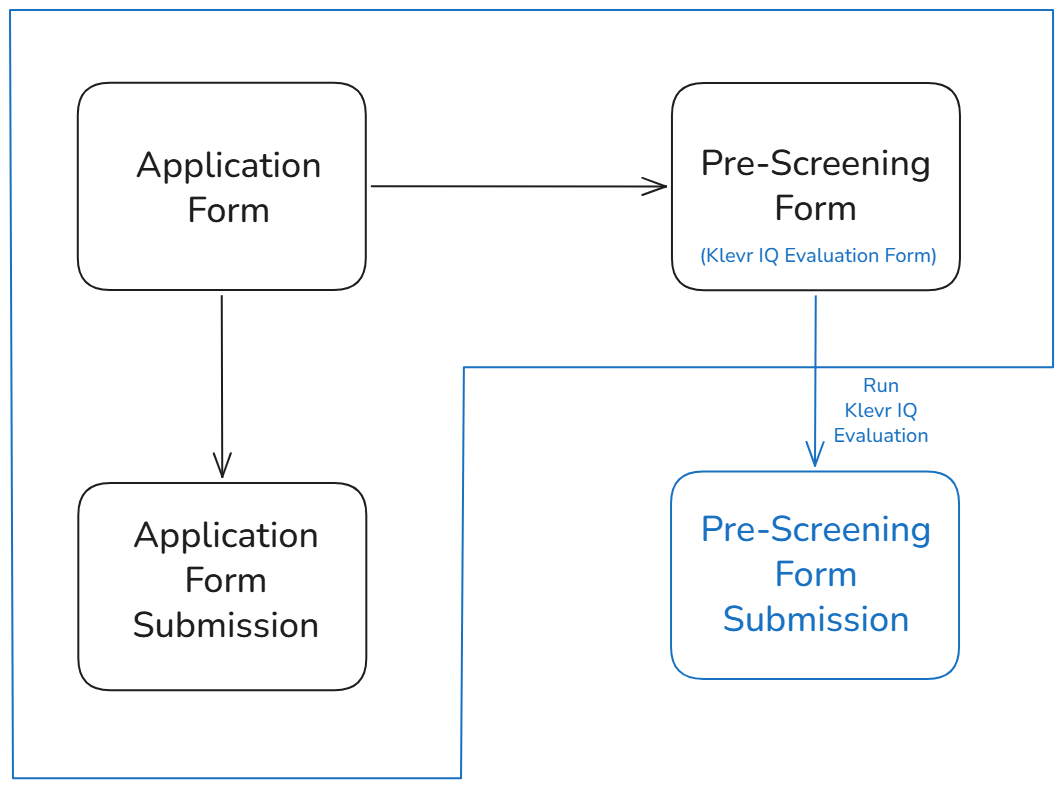
Create the 2 Klevr Forms (Initial/Primary form and the Klevr IQ Evaluation Form) as you regularly would, using the Editor to build it out. (New Klevr IQ options have been added to the form editor, and will be explained later in the guide)
Once the two forms are created, navigate to the Initial/primary form. On here you should see 2 fields with drop-down menus - Klevr IQ Assessment Form, and Klevr IQ Model.
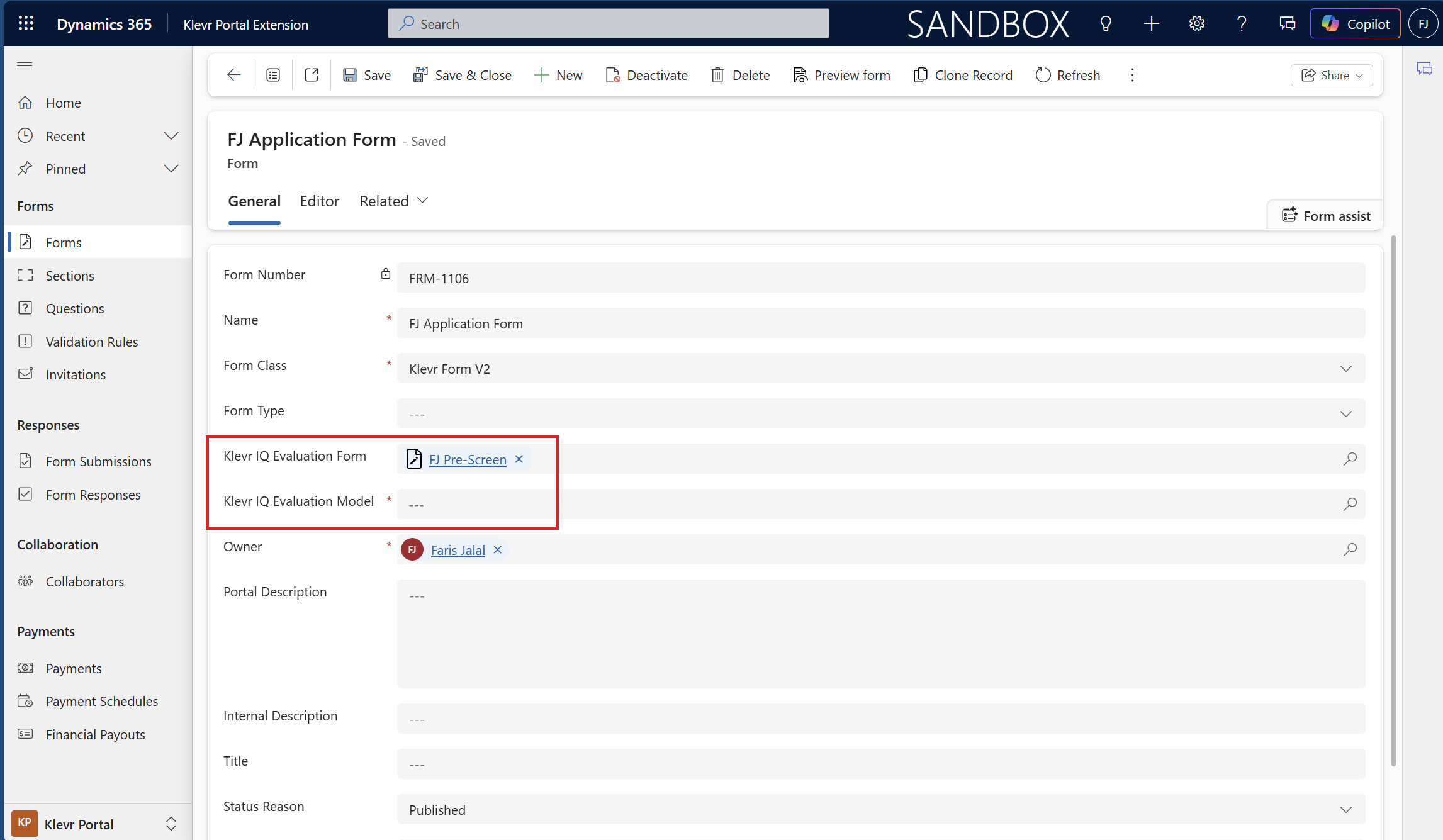
Select the Form you would like Klevr IQ to evaluate based on the initial form, and choose which Klevr IQ Model you would like to use to evaluate it.
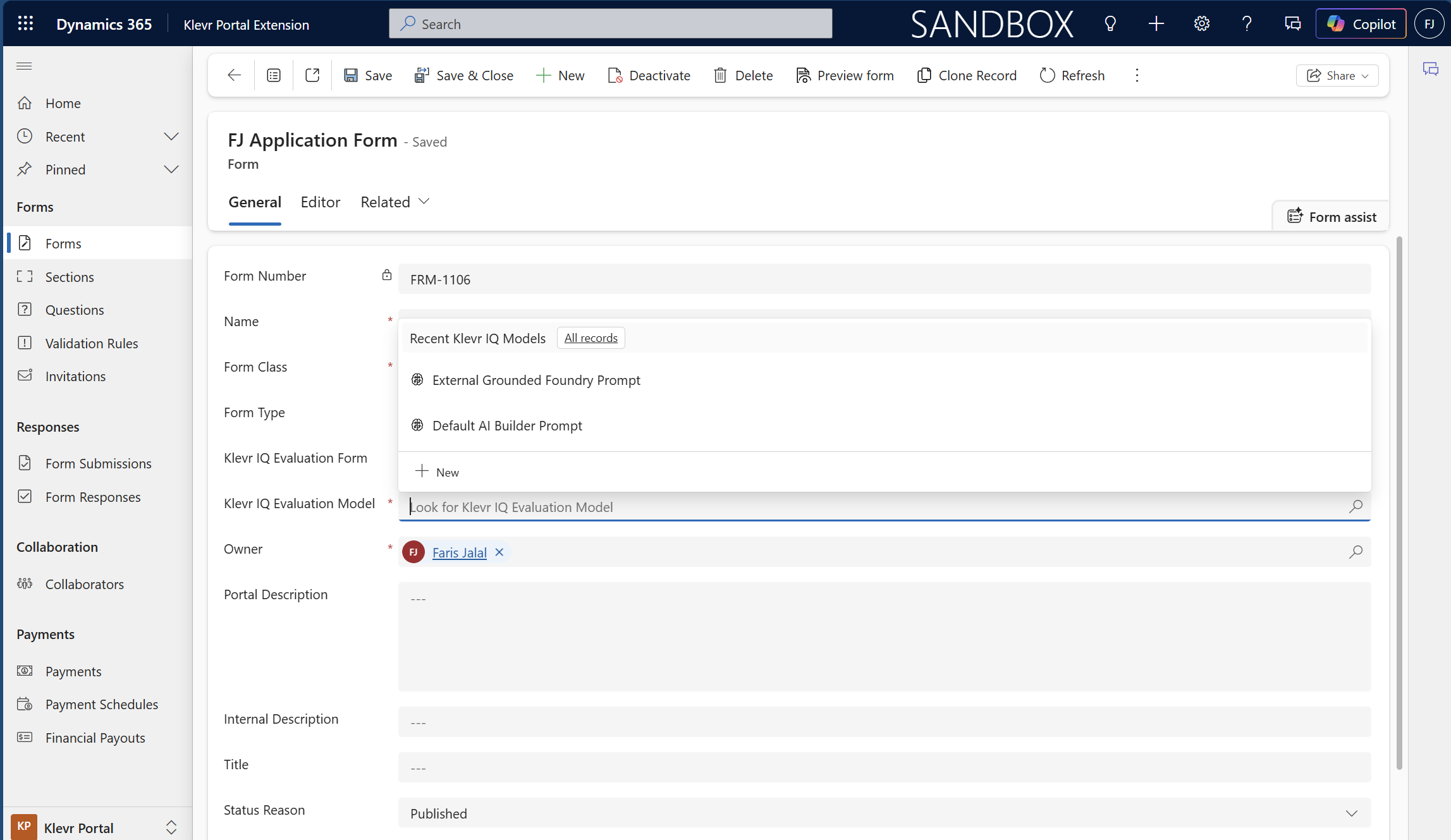
Save and close the form after setting these.
- An applicant completes and submits a Grant Application through the Klevr Portal
- This application is saved as a Form Submission.
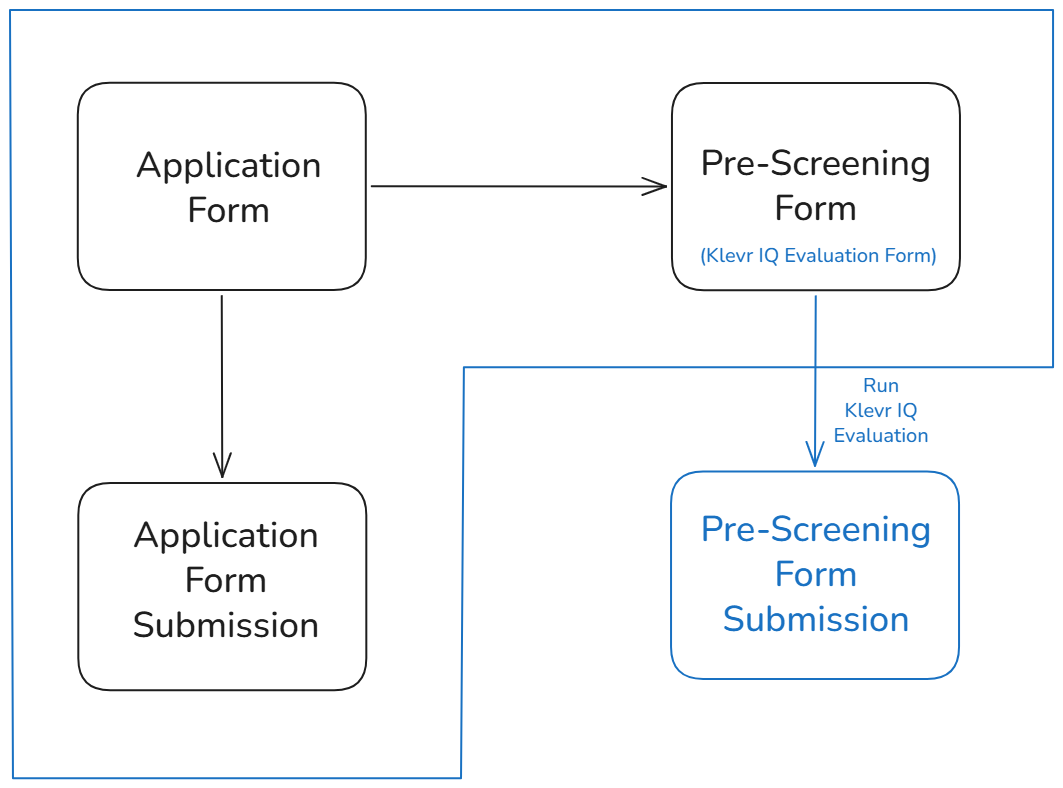
Now, we want to run the Klevr IQ Evaluation on this form submission. So we navigate to it, and since its associated form has a Klevr IQ Evaluation Form associated with it, a ribbon button appears - "Run Klevr IQ Evaluation"
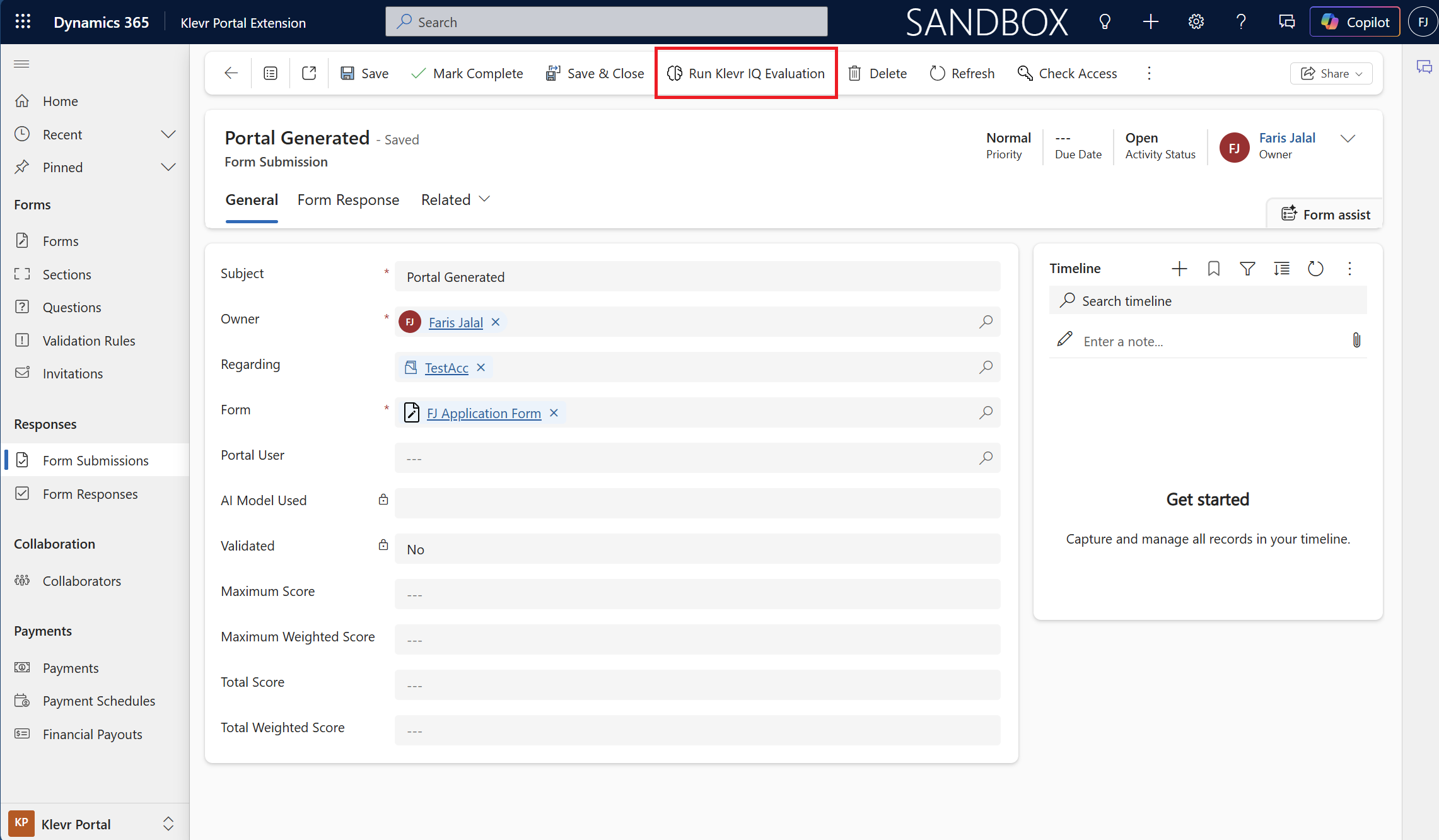
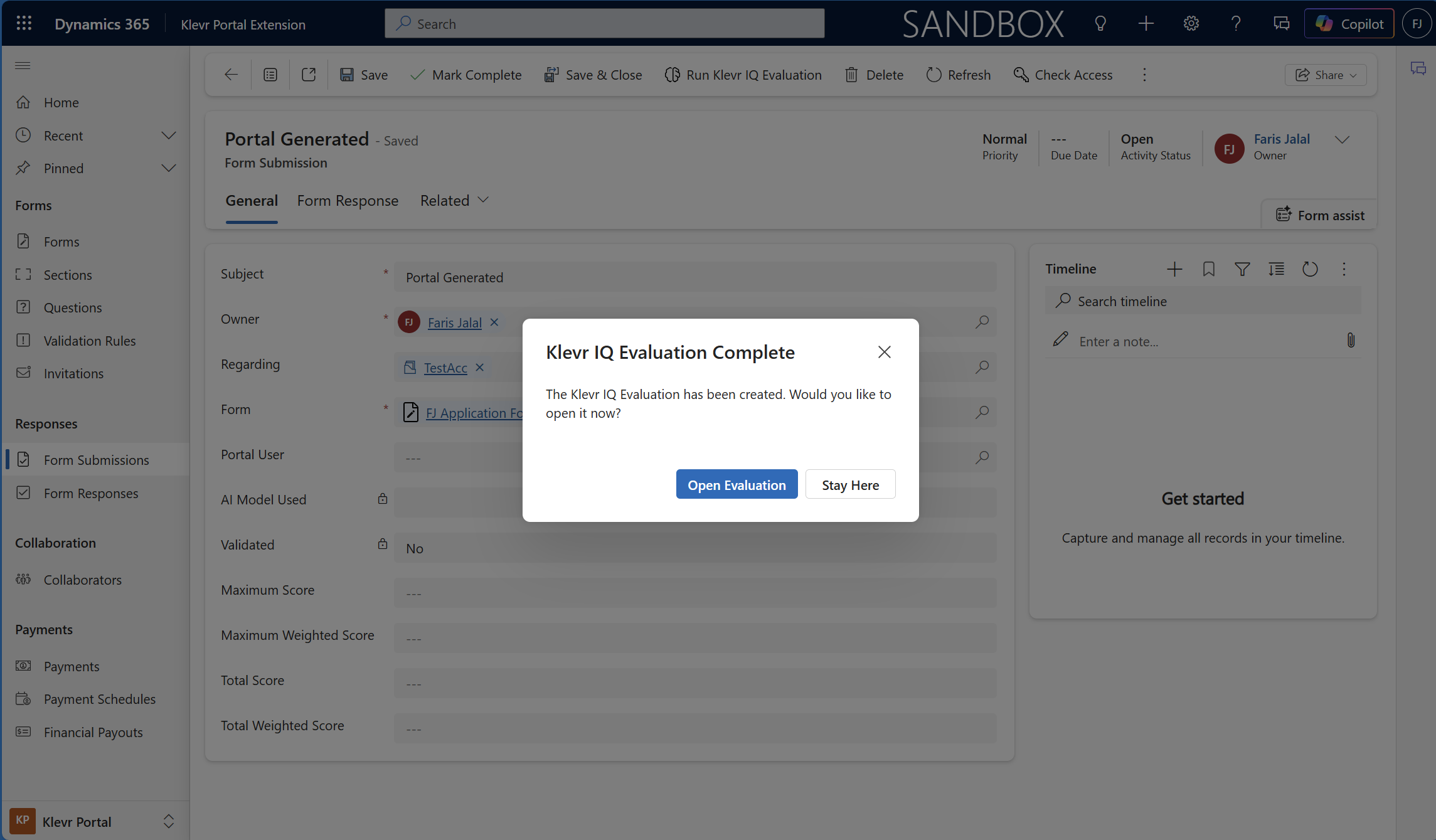
Pressing the button triggers the Klevr IQ Evaluation, which, on completion prompts you to navigate to the newly generated form submission
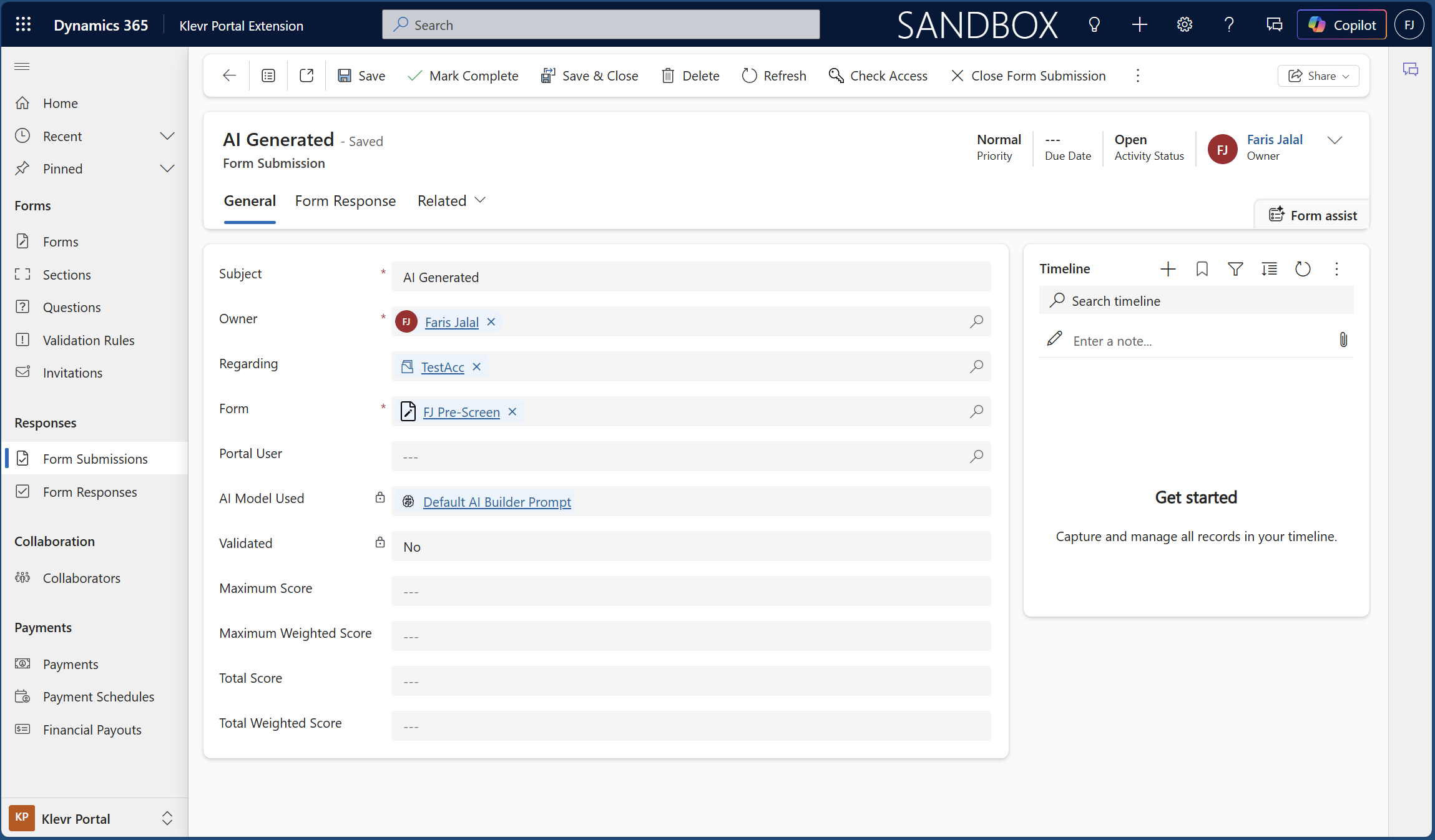
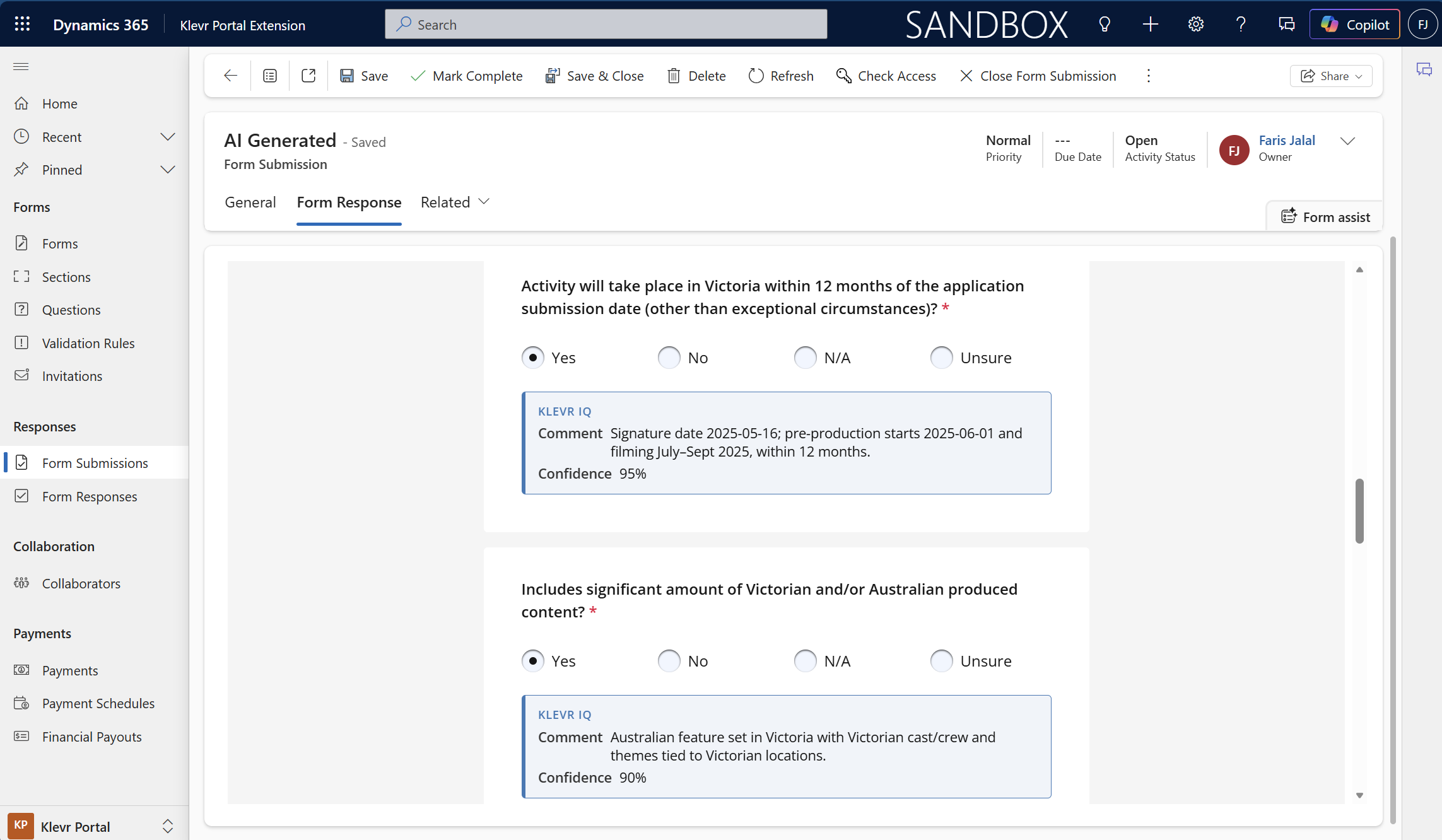
Navigating to the newly created form submission, we can see that it is AI generated, with the associated form being the provided Klevr IQ Evaluation Form, and the "AI Model Used" field populated with the earlier configured Klevr IQ Model.
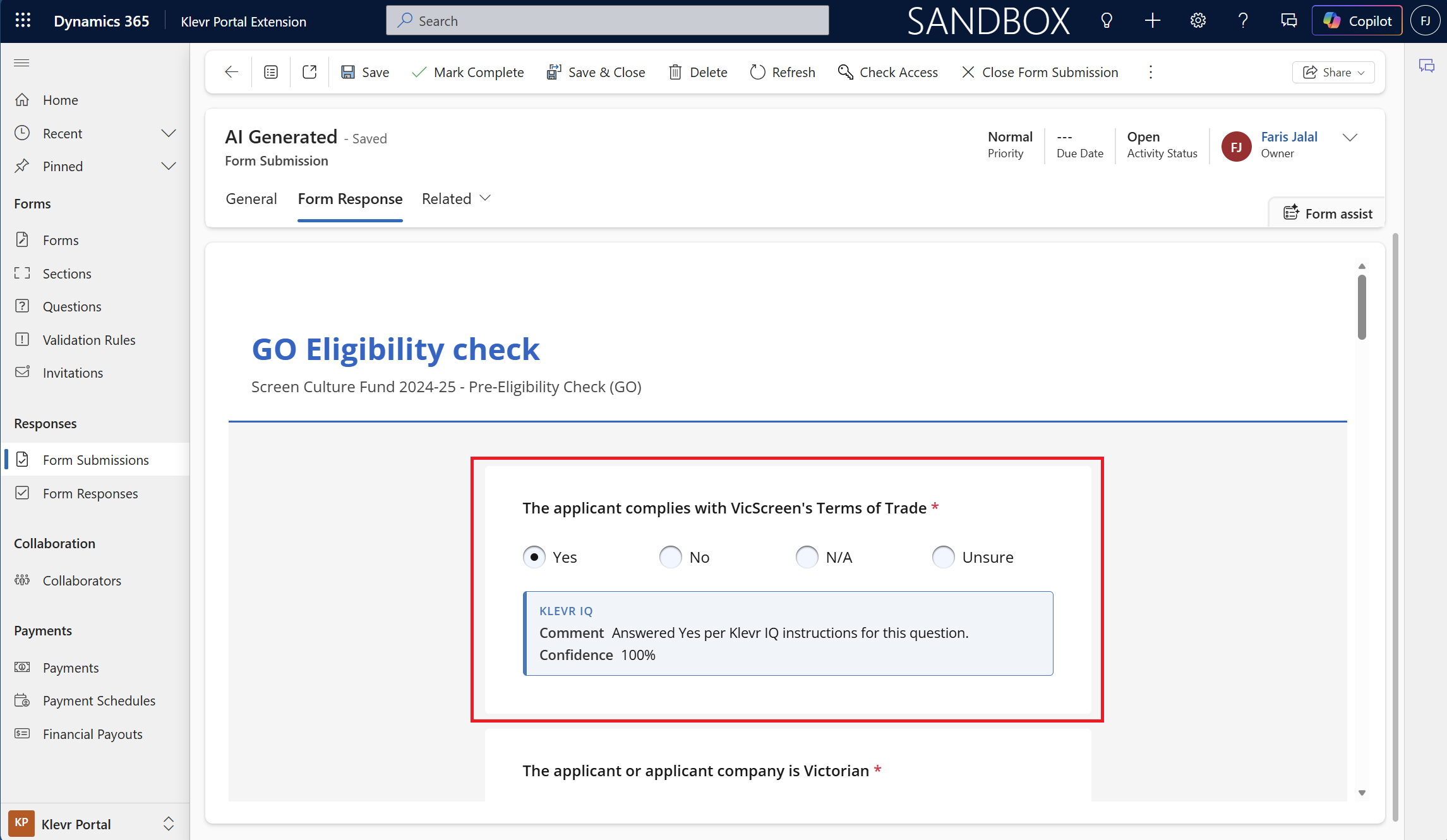
To view the responses, we navigate to the "Form Response" Tab, and we can see the filled out form, along with a Klevr IQ Comment (which explains the reasoning behind a response) and a Klevr IQ Confidence score (which indicates the confidence rating of the AI Model in its response), respectively per response.
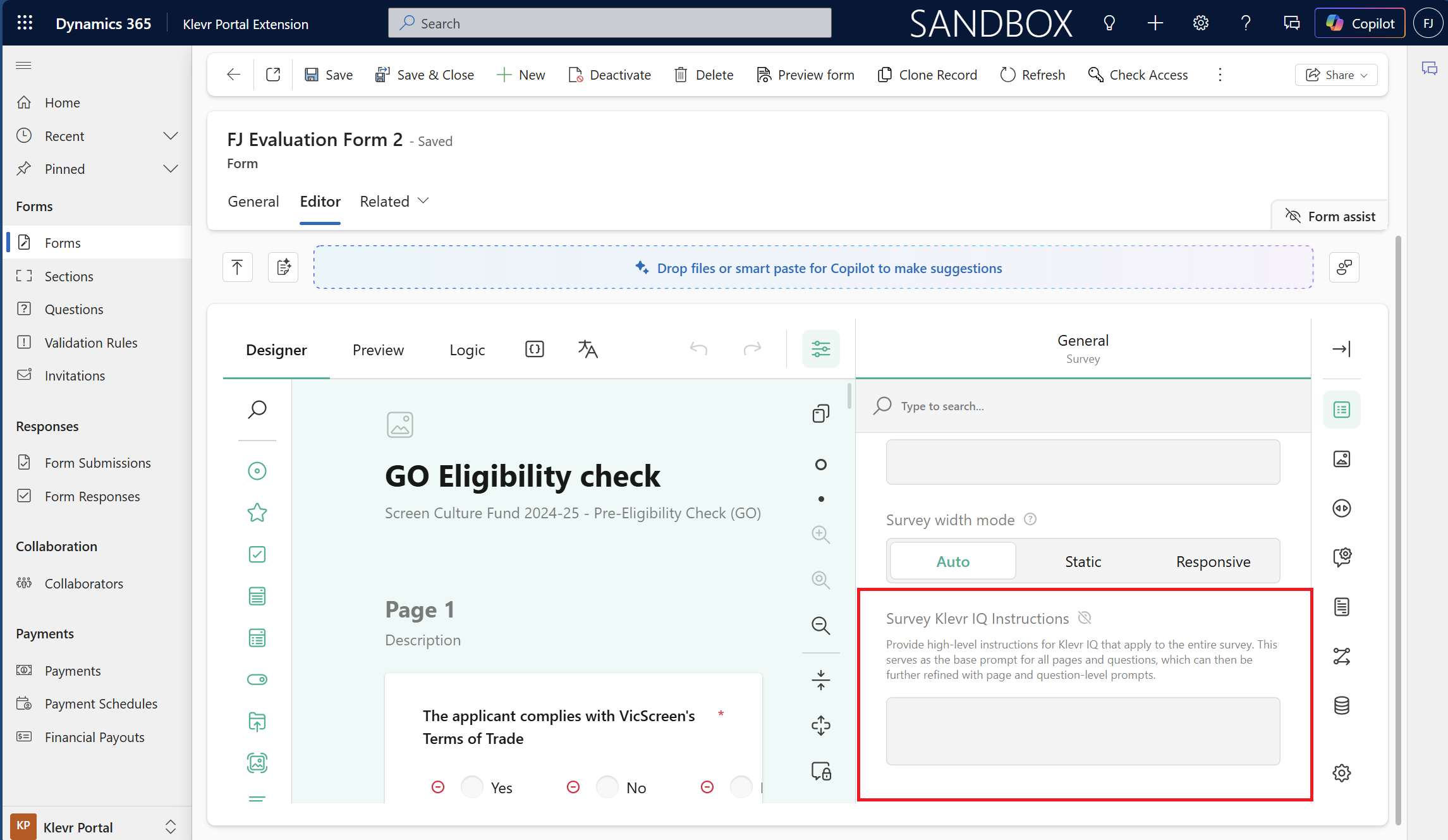
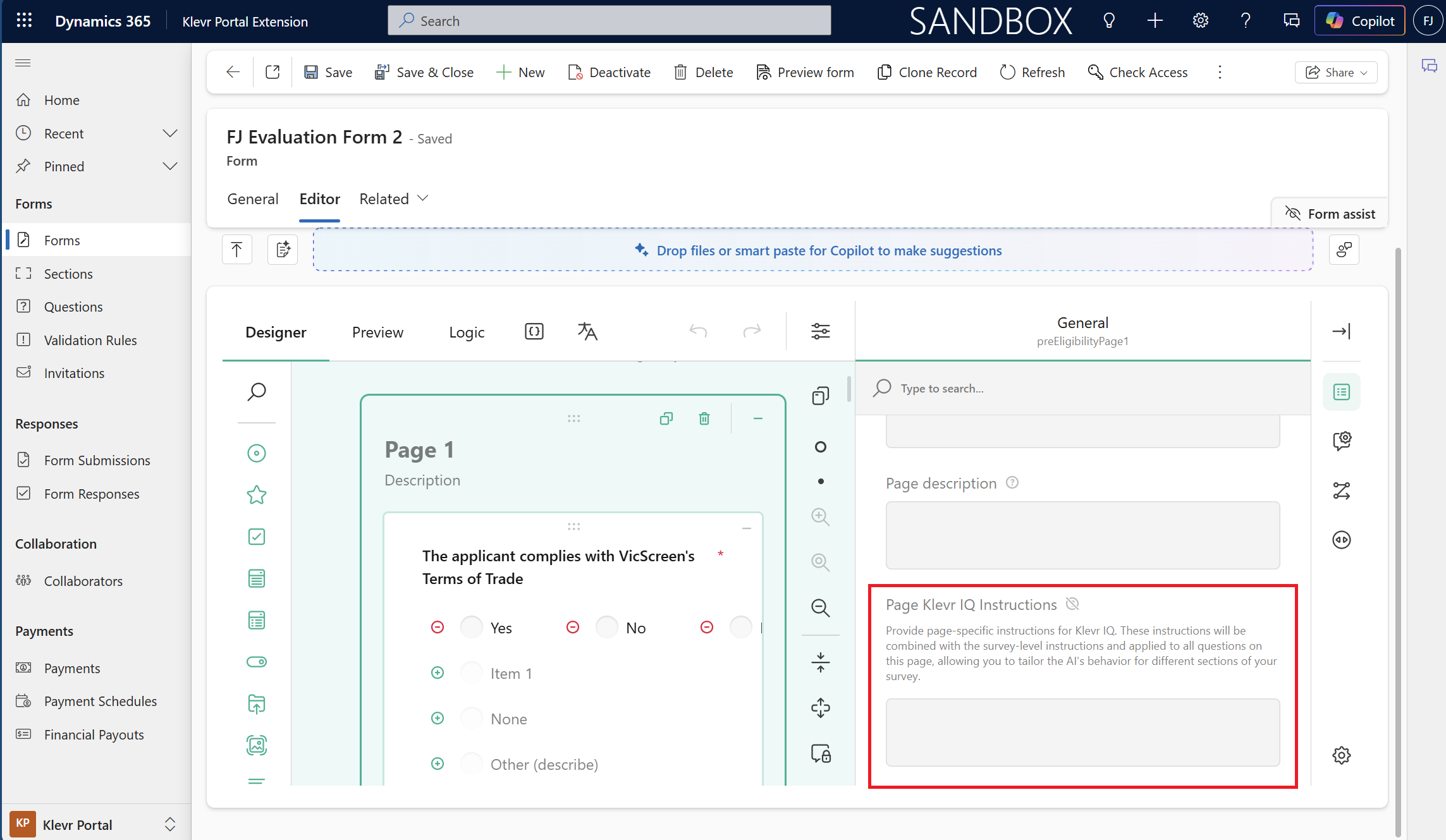
- Klevr IQ has been designed to be configurable, with the ability to tweak AI prompts on a per-form/per-page/per-question basis. This is possible by providing custom instructions while creating the Evaluation form in the Editor. There is now a new property "Klevr IQ Instructions" on the Survey/Page/Question level as shown below which can be populated to override the regular assessment and instruct the model to achieve the required results.
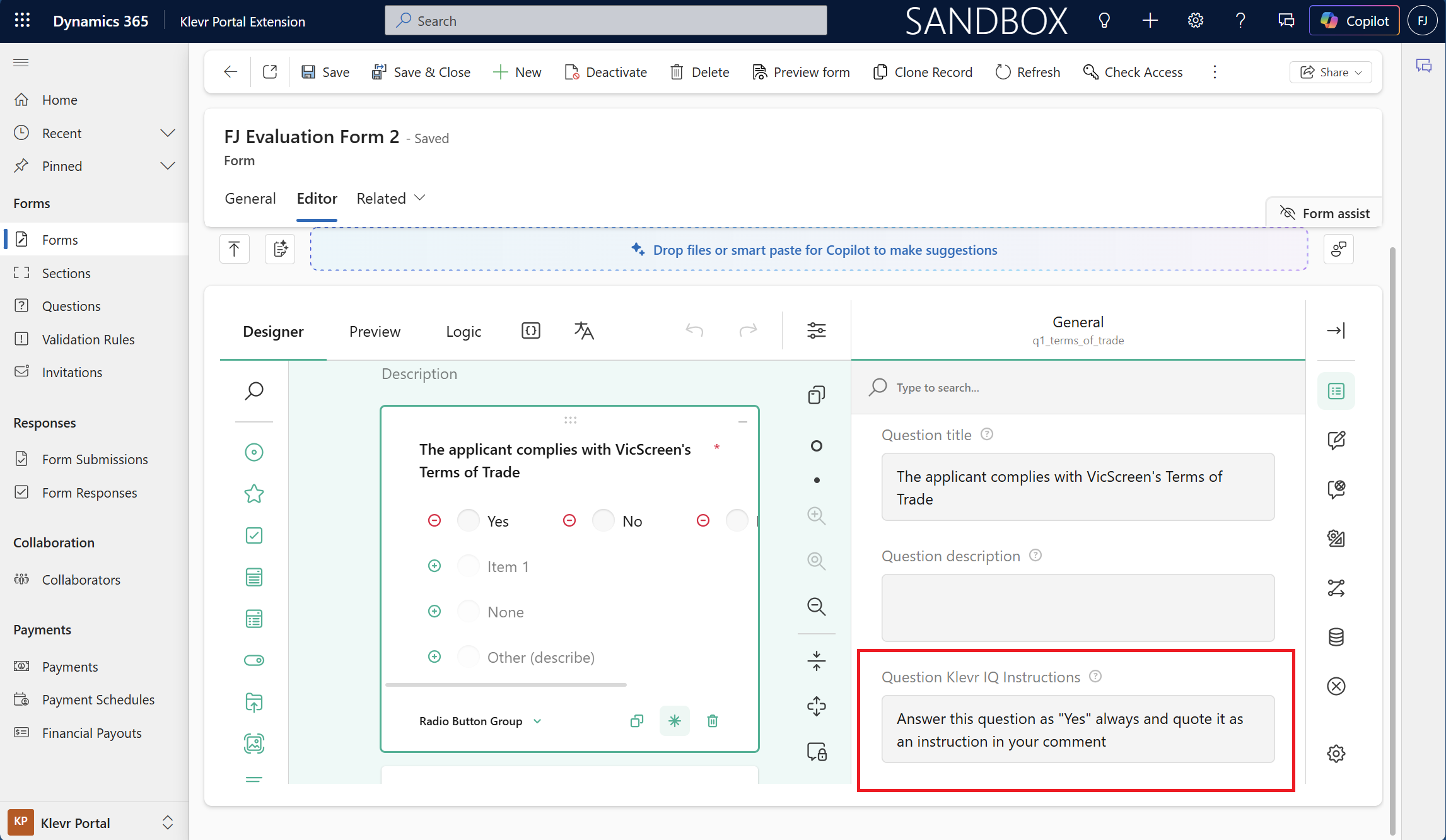
- Here we have an example of a question-level Klevr IQ Instruction in action
-
You can provide any reasonable guideline/instruction to the Klevr IQ model to finely tune the way the assessment occurs.
-
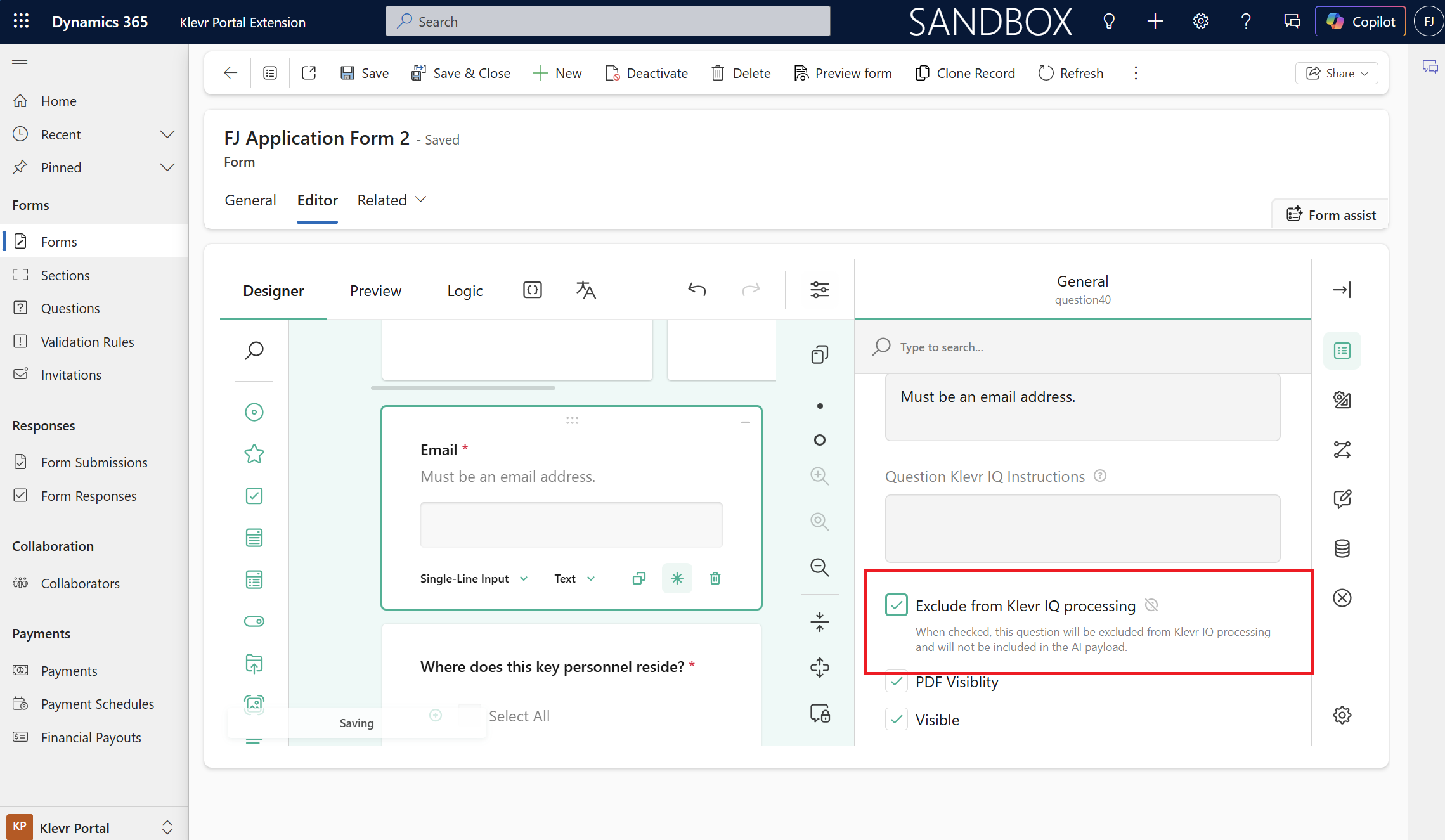
To help protect Personally Identifiable Information, and not have it processed by our Klevr IQ AI models, we have introduced the ability to exclude a question (and its response) from the input payload provided to the model to generate an evaluation.
-
This can be done by using the new "Exclude from Klevr IQ Processing" checkbox property on the Form Editor.
-
In this example, if we would like to exclude contact information from being processed by the Klevr IQ Model, since it is personal contact information that has no bearing on an evaluation, all we have to do is tick the checkbox as shown below.
Last updated on