
AddressFinder PCF Control
Instead of using third party controllers we have created our own.
Feature Overview
Instead of using third party controllers we have created our own. The AddressFinder PCF Control allows you to search for a Addresses with ease. We can also pull other information like the suburb, postcode, city, country, longitude, latitude and more.
Design Details
Basic Usage
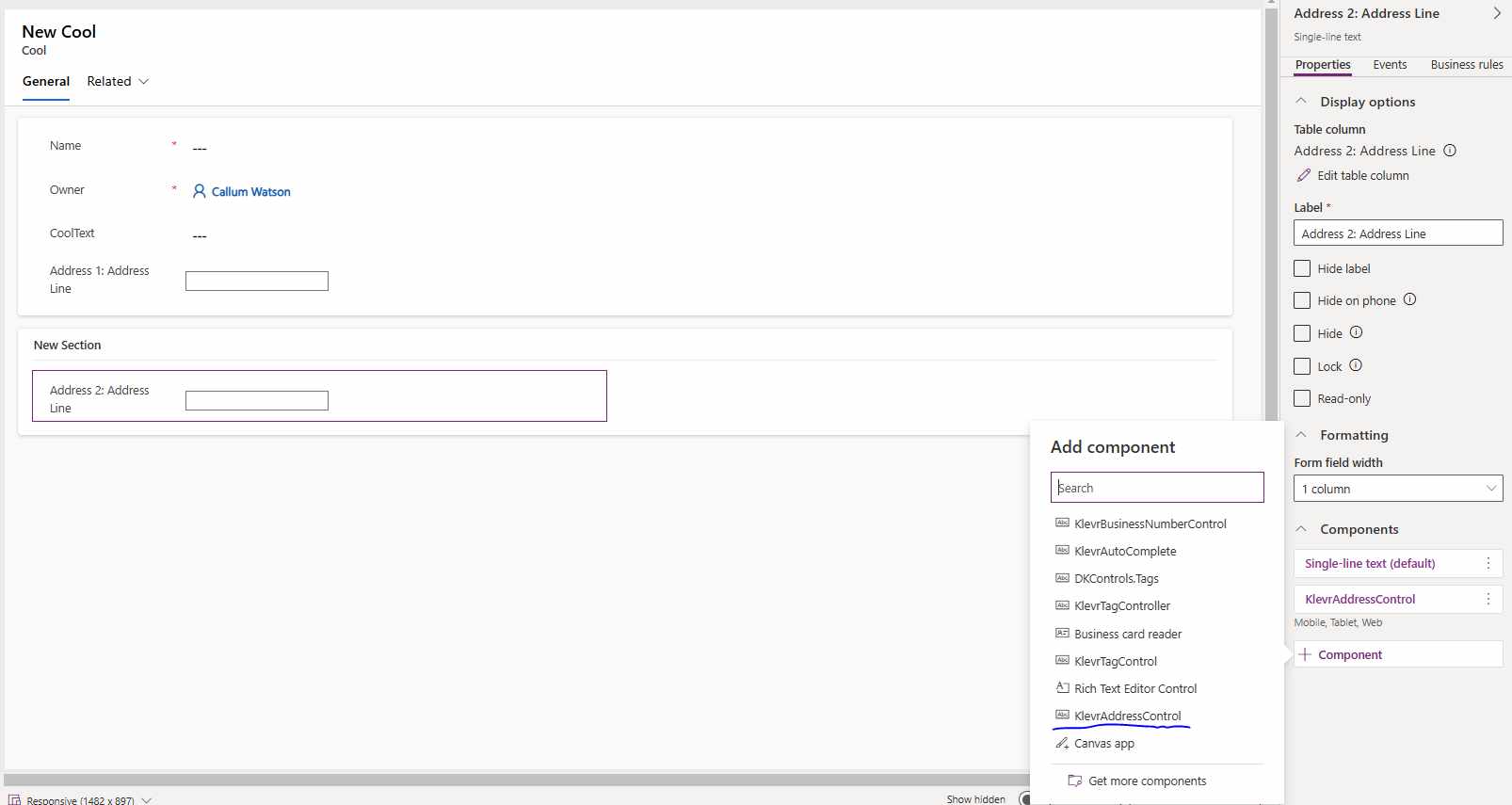
First off you will have to add the PCF Control to the Form. You can do so by selecting a field on the form then click the components dropdown on the right. Then press the + Component Button and Select the KlevrAddressControl. Note, if the KlevrAddressControl isn't appearing in the list
Once you've selected the control it will come up with all the parameters of the control (as shown below). Fill out the parameters as you please and map any fields you wish. Note. You will need to specify which country code you want to search on either fill the country code field with "NZ" or "AU". Further below will be a list of all the parameters and how they work. You will also need to fill in the API Key which you can get from AddressFinder.
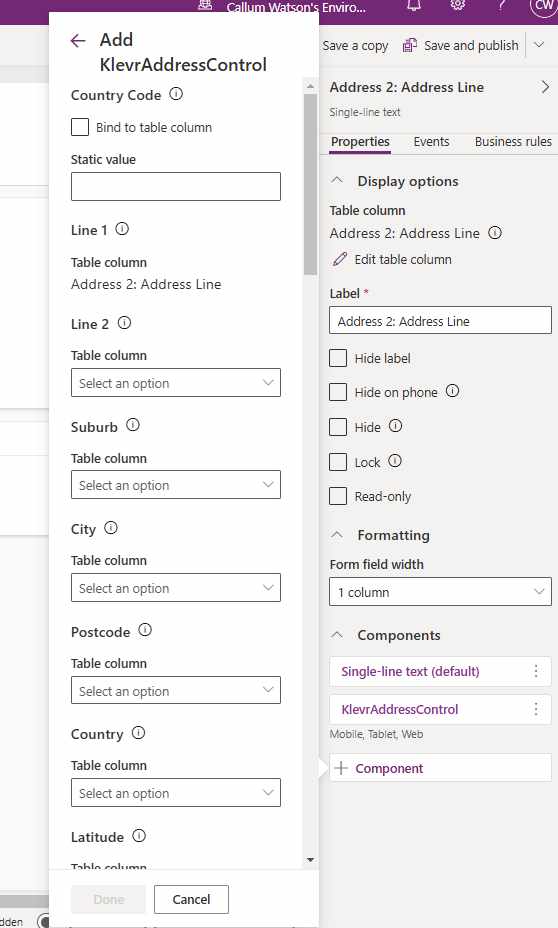
Then click done and the PCF control will be added to the field. Save and Publish the form.
Parameters
| Country Code | The country code you want to search in. (NZ/AU) | NZ/AU |
|---|---|---|
| Line 1 | Address of line 1 | Default attatched to the field. |
| Line 2 | Address of line 2 | Attatch to a field on the form. |
| Suburb | Suburb of Address (NZ Only) | Attatch to a field on the form. |
| City | City of Address (NZ Only) | Attatch to a field on the form. |
| Postcode | Postcode of Address | Attatch to a field on the form. |
| Country | Country of Address | Attatch to a field on the form. |
| Latitude | Latitude of Address | Attatch to a field on the form. |
| Longitude | Longitude of Address | Attatch to a field on the form. |
| Locality Name | The locality name. (AU only) | Attatch to a field on the form. |
| State Territory | The sate or territory. (AU only) | Attatch to a field on the form. |
| LGA Name | The name of the Local Government Area in which the address is located. These values are provided by the ABS and are an approximation of the gazetted local government boundaries. (AU only) | Attatch to a field on the form. |
| LGA Type Code | The code relating to the type (or status) of the Local Government Area. (AU only) | Attatch to a field on the form. |
| SA1 Id | The Statistical Area 1 ID. (AU only) | Attatch to a field on the form. |
| SA2 Id | The Statistical Area 2 ID. (AU only) | Attatch to a field on the form. |
| GNAF Id | The unique persistent identifier of the G-NAF address. (AU only) | Attatch to a field on the form. |
| DPID | Australia Post delivery point identifier. (Note: Not every address will include a DPID) | Attatch to a field on the form. |
options_empty_content | Message to display to users when there are no found addresses or locations. | true/false |
options_ignore_returns | Ignore the use of the enter key when no list item is selected. (Default: true) | true/false |
options_max_results | Maximum number of results to display. (Default: 10) | Number |
options_show_addresses | Set to false to hide address results. (Deafualt: true) | true/false |
options_show_locations | Set to true to return locationresults. (Deafult: false) | true/false |
options_show_nearby | Enable the nearby address helper. (Default: false) | true/false |
options_show_points_of_interest | Set to true to return points of interest results. (Default: false) | true/false |
options_address_params_source | Address Params Source, either gnaf or paf. Or both | gnaf/paf/gnaf,paf |
options_address_metadata_gps | Set to true to allow for GPS coordinates to show. (Default: false) | true/false |
AddressFinderAPIKey.Last updated on