
Playbook Template
Klevr Utilities has new functionality called Playbook Templates.
Klevr Utilities has new functionality called Playbook Templates. A Playbook Template allows any table in Dynamics 365 to trigger the creation of Activities (Tasks, Appointments, Phone calls, Emails) defined by the Playbook Template and associate them to that record.
For example, on an Assessment Round it can automatically have a follow up Task, a scheduled phone call, and a drafted email to help move the process or nurturing the Assessment Round all by associating the Playbook Template to the Assessment Round.
Setup:
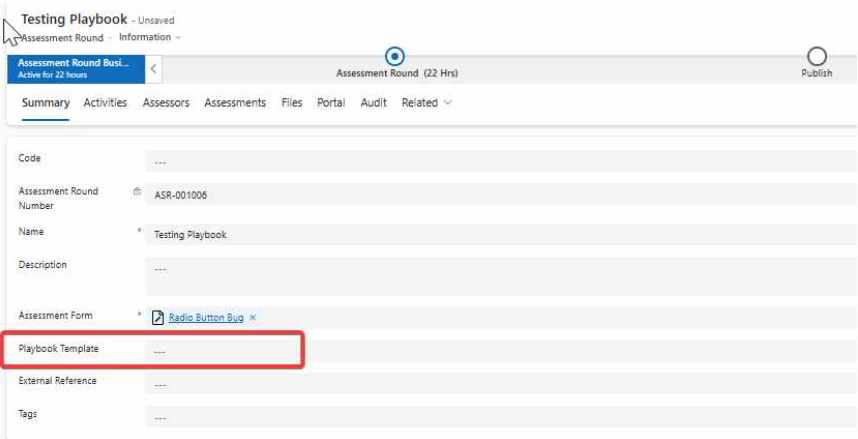
- A consultant puts a Playbook Template lookup field on the tables/forms the customer desire.
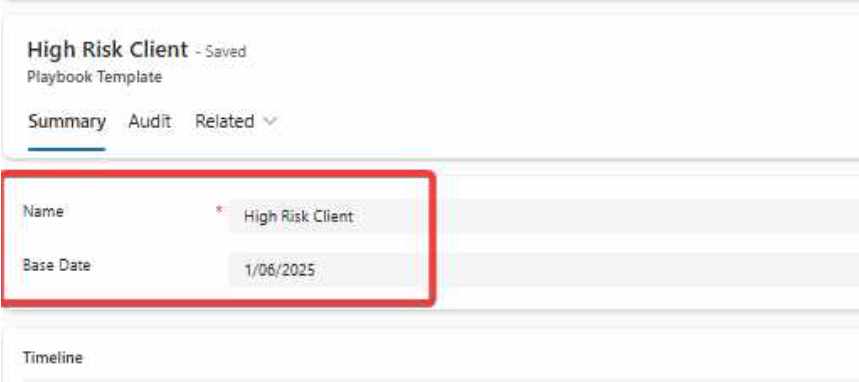
- The users can then create playbooks by setting a name and base date.
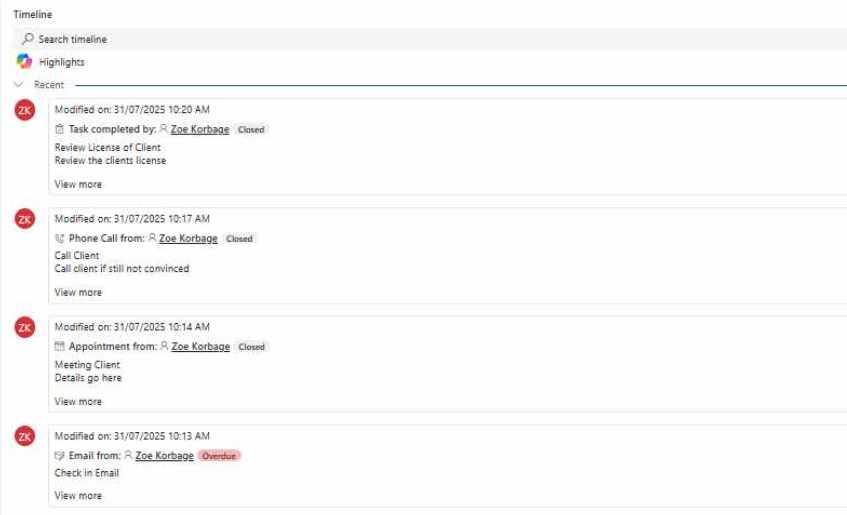
- On the timeline of the Playbook Template, users simply need to create the Activities (Tasks, Appointments, Phone Calls, Emails) that they would want this Playbook Template to trigger.
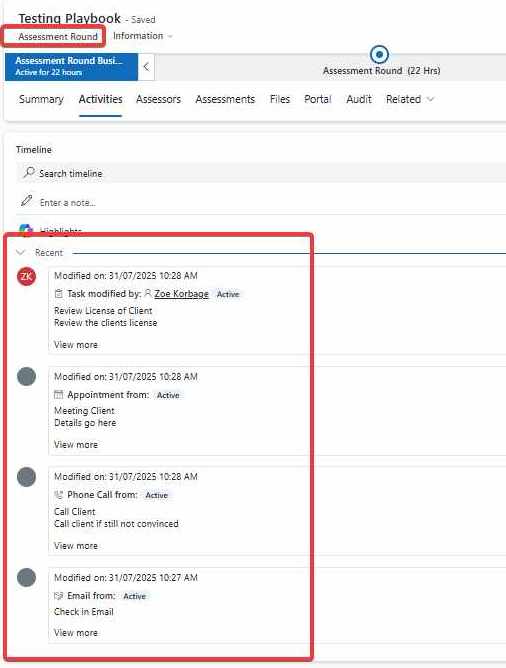
- When the new Playbook Template field on a form gets filled in with this Playbook Template a process will kick off, look at the Activities defined in the Playbook Template Timeline and create them for the record. The owner of these new Activities will be the same as the user who owns the record they are being created on.
We have developed a Custom API and a Plugin that allows you to add plugin steps to any entity that you'd like. This gives you the ability to apply this on your specific needs.
To register the plugin steps for the plugin, start by launching the Plugin Registration Tool (PRT) and connecting it to your D365 environment. Once connected, locate the plugin "Klevr.Feature.Plugins.ApplyPlaybookTemplateFromLookup" right click and register new step. Below is what you will need to fill out
| Field | Description |
|---|---|
| Message | Select the create Message . |
| Primary Entity | Set this to the parent entity that you are wanting the activities to be cloned on. |
| Primary Entity | Set this to the parent entity that you are wanting the activities to be cloned on. |
| Unsecure ConfigurationSet this to "klevr_playbooktemplateid" | Set this to "klevr_playbooktemplateid" |
Register the step. Then you will be on your way!
Notes:
- Dates: The difference between the Base Date and the Date of the Activity in the Timeline of the Playbook Template defines what the date of the Activity will look like on the record that triggers the Playbook Template.
- For example, if the Base date is 01/01/2026, and a Task on the Timeline of the Playbook Template is 06/01/2026, that is a difference of 5 days. So if this Playbook is triggered on an Opportunity then the Task that gets created will be due 5 days from the date that the Playbook Template was triggered (associated) to that Opportunity.
- Emails: Emails will always be created in a Draft state and not automatically send for safety reasons out of the box. This could be extended to trigger sending if needed by consultants.
- Timeline State: When a user creates an Activities to be used in a Playbook Template they can mark the item as Complete (apart from Email) so it does not show as outstanding for them. When the Playbook Template triggers against a record these Activities will be created in an Active state.
Last updated on