
Poly Lookup Editor
The Poly Lookup Editor provides a web resource that allows users to add, edit, and remove relationships within the polymorphic field.
Feature Overview
The Poly Lookup Editor provides a web resource that allows users to add, edit, and remove relationships within the polymorphic field.
Assumptions
- In order to use the Poly Editor tool, you must have the Klevr_Utilities Solution Imported into your environment.
Design Details
Once the Klevr_Utilities solution is installed, you will be able to navigate to
<Your CRM URL>/webResources/klevr_PolyEditor.html
On this page, you will first see the Select Table Dropdown. This dropdown will populate with the entities that exist in your environment. Select the entity that you would like to edit. Next Select the lookup field you want to edit. Please note that I cannot distinguish between a normal lookup and a poly lookup, but at this stage you cannot add relationships to a normal lookup. If you want a new poly lookup, first create one using the bottom section of the page. Once it is created you can select it here to add or remove additional relationships. Deleting a poly lookup also doesn't work well in make.powerapps.com , so if you created one in error, you can remove it here too.
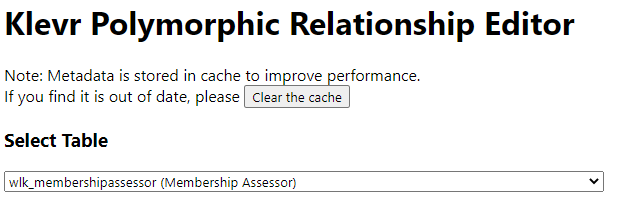
Once you have selected the Entity, you need to select the Lookup Column that you will edit as a polymorphic lookup. Select the column and then you will be able to add Poly Lookup Fields. You can add additional relationships one at a time. Once they are added, you can remove individual ones if they are created in error.

Even cooler - you can also add Cascade rules to each relationship added to the Polymorphic lookup. By default, these are all set to NoCascade except for Delete which is set to RemoveLink. Note that RemoveLink means that the record will be "orphaned" and remain in the system if the parent record is deleted. If you set delete to cascade, then the related record will be deleted when the parent is deleted.
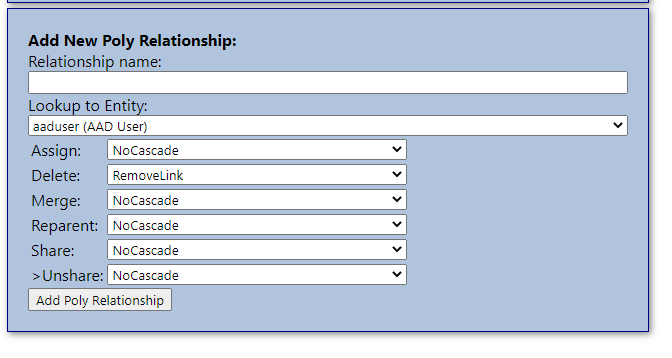
Adding a new Poly Lookup Field
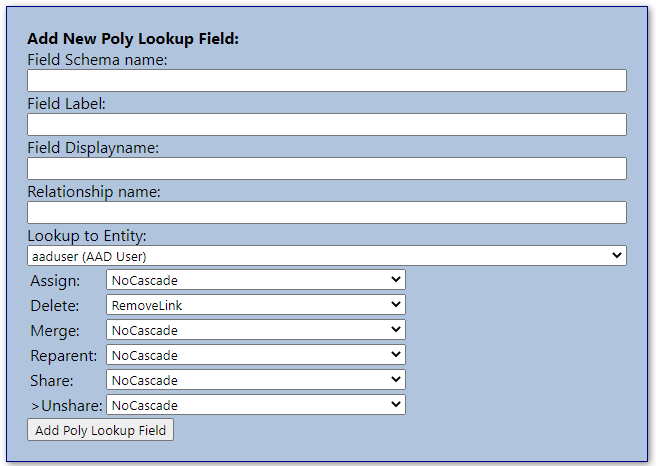
Enter the field schema name (including your solution prefix, e.g. ws_). Specify a label and display names for the field (you can edit this later in make.powerapps.com ). Select the initial entity you wish to look up to and its cascading rules. Once the field is created, you will use the add relationship functionality to add additional entities.
Deploying poly fields
When you add a poly field to your solution, you will note that all of the relationships to all of the lookup entities are also added to your solution. You need both the relationships and the field in your solution to successfully deploy the field across environments.
Last updated on