
Klevr FetchXML Filter Builder
The FetchXML Filter Builder is a web resource that provides a better interface for creating FetchXML queries.
Feature Overview
The FetchXML Filter Builder is a web resource that provides a better interface for creating FetchXML queries. It automatically loads entity metadata from your Dataverse environment and generates properly formatted FetchXML that can be copied, validated, and used in plugins, workflows, or other customizations.
Features
- Visual Query Building - Build queries without writing XML
- Entity Browser - Browse all entities with Advanced Find enabled
- Field Selection - Select specific columns to retrieve
- Multiple Operators - Support for 20+ filter operators
- Nested Groups - Create AND/OR filter groups
- Related Entities - Join up to 10 related entities
- Nested Joins - Support for multi-level relationship traversal
- Import FetchXML - Load and edit existing queries
- Validation - Test queries against Dataverse before use
- D365 Integration - Auto-save to form fields when embedded
Design Details
Getting Started
Standalone Usage
The utility will automatically load available entities from your environment.
Select an entity to begin building your query.
Embedded in a D365 Form
Add the web resource to a form with the following custom parameter to enable auto-save:
fieldname=your_fetchxml_fieldThis will automatically load existing FetchXML from the field and save changes back to it.
Data Source
The Data Source section is the first configuration area in the Filter Builder and controls the fundamental "what" of your query:

| Field | Description |
|---|---|
| Entity | The primary entity for your query. Use the search box to filter entities. Note: Changing the entity clears all filters, columns, and related entities |
| Columns to Retrieve | Select specific attributes to return. Leave empty for <all-attributes />. |
<!-- No columns selected -->
<fetch>
  <entity name="account">
    <all-attributes />
    ...
  </entity>
</fetch>

<!-- Specific columns selected -->
<fetch>
  <entity name="account">
    <attribute name="name" />
    <attribute name="accountnumber" />
    <attribute name="revenue" />
    ...
  </entity>
</fetch>
Filter Conditions
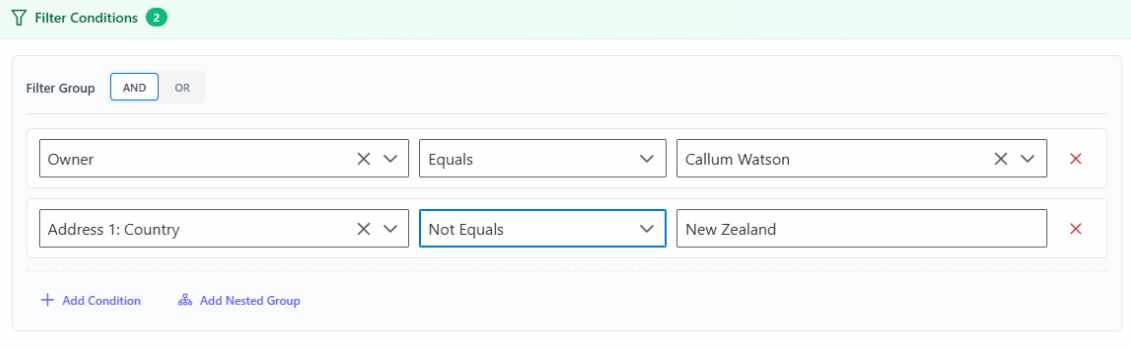
The Filter Conditions section is where you build the WHERE clause of your FetchXML query. It uses a visual rule-based interface where each condition consists of three parts: a Field (the attribute to filter on), an Operator (like Equals, Contains, Is Null, etc.), and a Value (the comparison value, which is hidden for null-check operators). The section supports AND/OR logic via toggle buttons at the group level, allowing you to specify whether all conditions must match (AND) or any condition can match (OR). You can create complex logic by adding nested groups — child filter groups that can have their own AND/OR operator, enabling queries like "(name contains 'test' AND revenue > 1000) OR statecode = Active". The value input adapts to the field type automatically: text fields show a text box, dates show a calendar picker, lookups show a searchable record dropdown (fetching up to 5,000 records), and booleans show a checkbox. If you have linked entities with aliases, an additional Entity dropdown appears allowing you to reference fields from joined tables using the entityname attribute in FetchXML. A badge in the header shows the total condition count across all groups and linked entities.
Usage
Click Add Condition to add a new rule.
Select a Field from the dropdown.
Choose an Operator (operators available depend on field type).
Enter a Value (if required by the operator).
Available Operators
| Operator | Label | Requires Value | Field Types |
|---|---|---|---|
| eq | Equals | Yes | All |
| ne | Not Equals | Yes | All |
| like | Contains | Yes | String |
| not-like | Does Not Contain | Yes | String |
| begins-with | Begins With | Yes | String |
| ends-with | Ends With | Yes | String |
| lt | Less Than | Yes | Number, DateTime |
| le | Less Than or Equal | Yes | Number, DateTime |
| gt | Greater Than | Yes | Number, DateTime |
| ge | Greater Than or Equal | Yes | Number, DateTime |
| in | In | Yes (multi) | String, Lookup, OptionSet |
| not-in | Not In | Yes (multi) | String, Lookup, OptionSet |
| null | Is Null | No | All |
| not-null | Is Not Null | No | All |
| today | Today | No | DateTime |
| yesterday | Yesterday | No | DateTime |
| tomorrow | Tomorrow | No | DateTime |
| this-fiscal-year | This Fiscal Year | No | DateTime |
| last-fiscal-year | Last Fiscal Year | No | DateTime |
| next-fiscal-year | Next Fiscal Year | No | DateTime |
AND/OR Logic
Use the toggle buttons to switch between:
- AND - All conditions must match
- OR - Any condition can match
Related Entities (Joins)
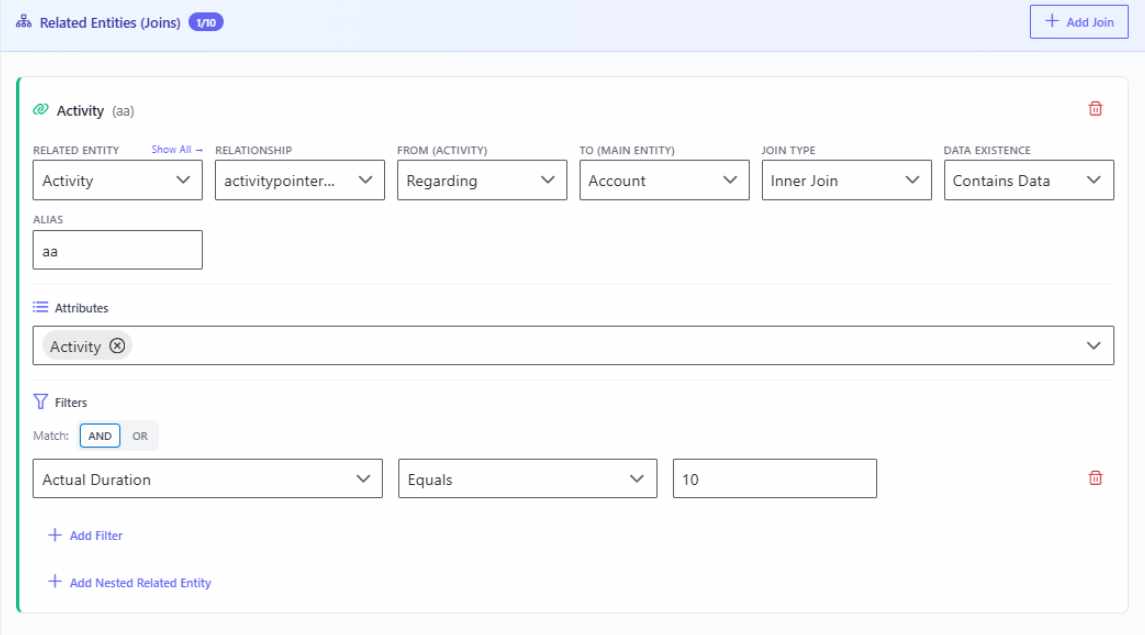
The Related Entities section allows you to join data from related tables using FetchXML's <link-entity> element. When you click Add Join, a card appears where you configure the relationship: select the Related Entity (defaulting to entities with known relationships, with a "Show All" toggle to see every entity), choose a Relationship from the auto-discovered OneToMany, ManyToOne, or ManyToMany relationships (or select "Custom" for manual configuration), and the From/To attributes auto-populate based on the selected relationship (From = the related entity's join field, To = the main entity's field). You can set the Join Type to Inner Join (only matching records) or Left Outer Join (all records), and the Data Existence dropdown provides a powerful "Does Not Contain Data" option that generates an outer join with a null-check filter to find records without related data (e.g., accounts with no contacts). Each linked entity automatically receives an Alias (aa, ab, ac...) which enables cross-entity filtering in the main Filter Conditions section. Within each join card, you can select Attributes to include from the related table and add Filters specific to that entity. The section supports nested joins up to 10 levels deep via the "Add Nested Related Entity" button, allowing multi-hop relationship traversal (e.g., Account → Contact → Email). A badge in the header shows the current count against the maximum limit of 10 total link entities.
| Setting | Description |
|---|---|
| Related Entity | The entity to join. Toggle "Show All →" to see all entities. Otherwise it will look at Related Entitys. |
| Relationship | Pre-defined relationship or "(Custom - Manual Selection)". |
| From | The attribute on the related entity (usually the primary key or lookup field). |
| To | The attribute on the parent entity to match against. |
| Join Type | Inner Join (only matching) or Left Outer Join (all records). |
| Data Existence | Contains Data or Does Not Contain Data (for exclusion queries). |
| Alias | Auto-generated alias (e.g., aa, ab). Used for cross-entity filtering. |
Adding Filters to Related Entities
Each related entity can have its own filter conditions:
Click Add a filter condition in the Filters section.
Configure conditions just like the main entity.
Generated FetchXML
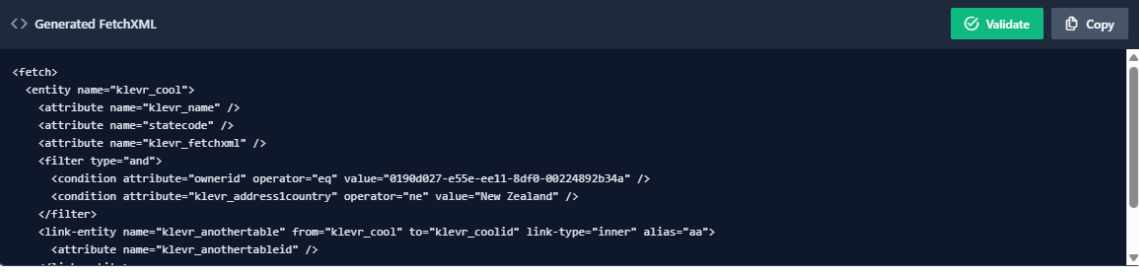
The bottom section displays the generated FetchXML in real-time:
- Validate - Test the query against Dataverse. Will popup a menu with the returned results of the fetchxml.
- Copy - Copy the FetchXML to clipboard.
Manually Importing FetchXML
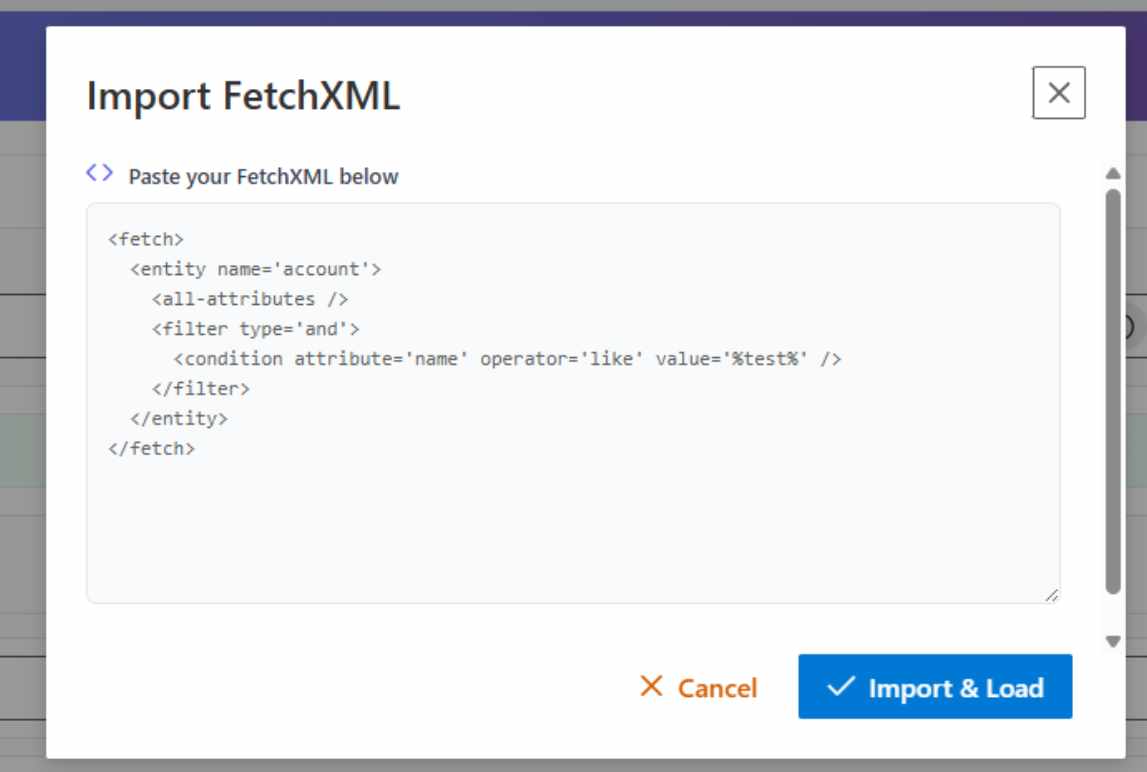
Click Import FetchXML in the header.
Paste your existing FetchXML into the text area.
Click Import & Load.
The utility will:
- Parse the XML and extract entity, attributes, filters, and joins
- Load metadata for all referenced entities
- Populate the UI with the parsed query
- Show a success message with counts
Last updated on