
How To: Add Title to a Subgrid in Dialog
This guide describes how to add a custom title to a dialog.
This guide describes how to add a custom title to a dialog. It is intended for users that manage CE and portal configuration.
- This guide assumes that you have sufficient knowledge and experience in configuring a form or list in the portal.
Purpose
Purpose of this document is to guide you on how to set a custom title for your dialog.
Detailed Instructions
You can add a custom title with the below options to a dialog.
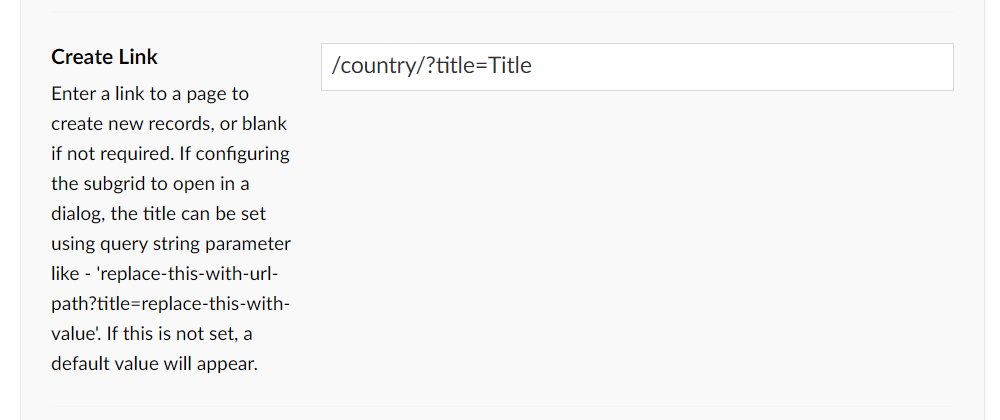
- Create Link - When adding a URL to Create Link field on a list or subgrid, you can configure the custom title by adding a query string parameter to your URL in the format - <path>/?title=<your title>. Example: /country/?title=Title
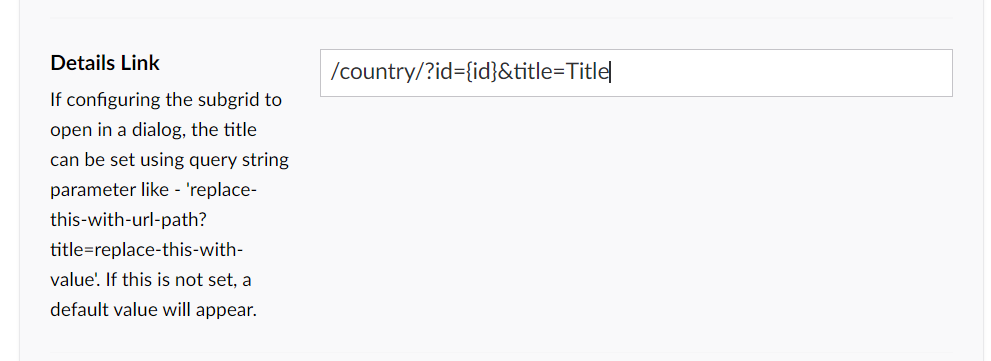
- Details Link - When adding a URL to Details Link field on a list or subgrid, you can configure the custom title by adding a query string parameter to your URL in the format - <path>/?title=<your title>. Example: /country/?id={id}&title=Title
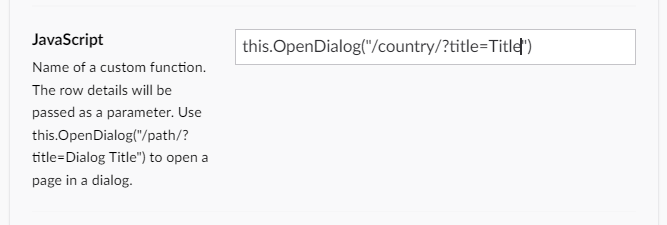
- Dynamics List Button - When opening a page in a dialog on click of a button, you can pass a title to OpenDialog method's path as a query string parameter when called in a 'JavaScript' field like - this.OpenDialog("<path>/?title=<your title>."). Example: this.OpenDialog("/country/?title=Title")
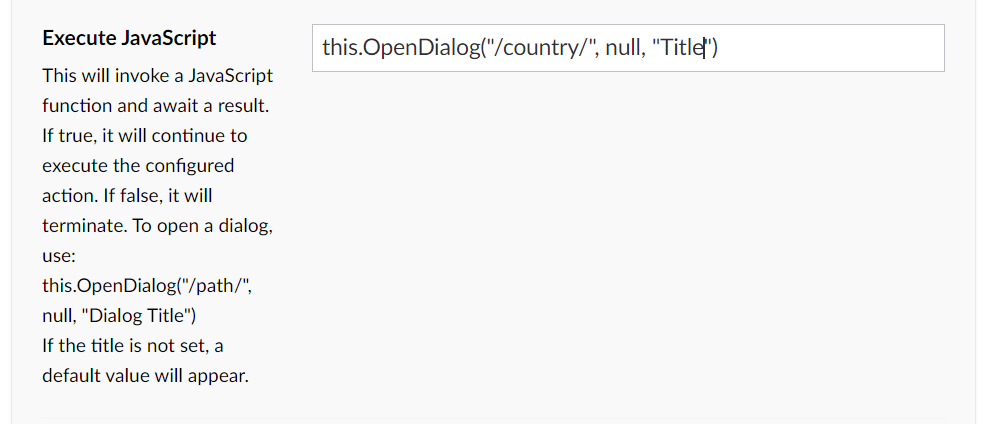
- Dynamics Form Button - When opening a page in a dialog on click of a button, you can pass a title to OpenDialog method as a parameter when called in a 'Execute JavaScript' field like - this.OpenDialog("<path>", null, "<you title>"). Example: this.OpenDialog("/country/", null, "Title")
Last updated on