
Generate a "Download As PDF" License Key for Klevr Forms
When using the Download As PDF feature on Surveys on the portal you will need to add a license key to remove the water mark at the top of the PDFs when...
Purpose
When using the Download As PDF feature on Surveys on the portal you will need to add a license key to remove the water mark at the top of the PDFs when downloading them.
Detailed Instructions
Steps to generating and adding your SurveyJS license key.
Head to surveyjs.io, you then will have to login. (login using bitwarden) Then top right of the screen click Account then a little menu should come up undearneath and select Settings. Keep in mind that we have 1 account for ALL Customers, so please be careful not to mess around with other domains that do not belong to you that will be defined here too.
You should now be on the License Manager Page. DO NOT USE this master licence key. There should be a Green box with a link on the instructions word, as shown below. Click on that link.

You should now be on a page where you can assign domains. You need to assign any domains that you want to use it on. I.e. prod domains, dev domains etc.. To add select the Add New Domains button. Then a popup should come up and you can enter the domains. Once done, you will be able to click on the dropdown and select which domain you want.
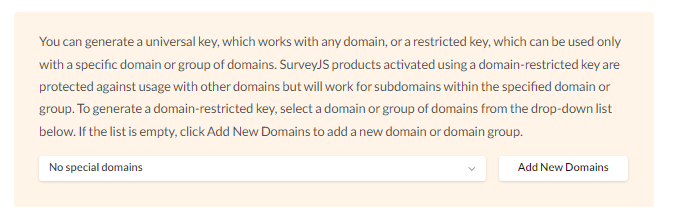
You then should see your license key in the text box below where you assigned the domains. Make sure to only copy the key inside the quotes, ignore the Survey.SetLicenseKey.

You will then need to go to your portal's Library Variables and set the a variable called Klevr:SurveyJSLicenceKey with a value of the license key itself.
To test, Download a PDF from a klevr form and verify that there isn't a watermark at the top of the PDF.
If you need to make a change to the domain or add an additional domain, I found that it may require deleting that domain and creating a new one, instead of just editing it. When you edit it, it doesn't actually regenerate the key properly, and the change does not get applied. This may be fixed on their side at some stage hopefully. Try editing and compare keys. If it did not change, do the delete and recreate. remember to apply the new key to all affected domains. Be careful not to change other customers domains.
Last updated on