
Rich Text Usage
This article describes using Rich Text on the portal.
Feature Overview
This article describes using Rich Text on the portal. It is important to understand how to apply it properly to ensure your site remains secure. Rich Text captured by portal end users pose a security risk when it is displayed to other users. As such we have guildelines in place for you to follow and have methods in place to sanitise rich text as far as possible when it is edited on the portal.
Rich Text can come from Dynamics, and displayed on the portal, it can be captured on the portal, stored and displayed in Dynamics, and it can be displayed on the portal in list views and on forms to one or more other users.
The rich text editor on the portal has been limited to a handful of styles and formats that we can safely accommodate. When rich text is submitted by a user, it will go through a sanitation process where we attempt to strip out tags and attributes that is not part of our whitelist. The whitelist is configured in the website's appsettings, and therefore can be overwritten using a pipeline variable, but care should be taken when you do this. We have excluded images and hyperlinks, as storage and access to referenced images is hard to control, and both these options make it easy to inject unwanted scripts and other hacking techniques that can compromise the security of your site, therefore it is strongly recommended not to enable these at all.
When you use Dynamics to allow internal users to capture rich text and only dislpay it on the portal, you could be a bit more lenient with the allowed items, as staff members should be more trustworthy. But if this text is also made editable on the portal, it is highly recommended that you apply restrictions to the CE rich text editor too. Please follow the instructions below to apply a pre-configured configuration to your editor in CE which will restrict it to a similar level we have on the portal.
Dependencies
The following are dependencies for this feature:
- You have V 2.11.2 or higher portal and v 2.4.8 CE product solutions.
Design Details
the following app settings in the klevr section are used:
| Name |
|---|
| Default |
| Explanation |
| AllowedViewHtmlTags |
| strong,em,u,b,i |
| HTML tags that are displayed in a list view when a rich text field is added. Any other tags are stripped and not displayed. |
| AllowedHtmlTags |
| h1,strong,h2,p,span,br,em,s,u,ol,li,blockquote,div |
| when Rich Text is entered by a user and saved, only this list of tags will be allowed. All other tags are removed. |
| AllowedHtmlAttributes |
| style,data-list,class,spellcheck,data-language |
| when Rich Text is entered by a user and saved, only this list of attributes on the tags will be allowed. All other attributes are removed. |
even innocent tags can contain script commands for instance an onclick event on a heading or span, and therefore we also strip any attributes on these tags. Keep in mind the portal will only process the rich text that is saved by a portal user. If you allow additional tags in Dynamics, they will be displayed to the user, bot in read only and read-write form, but if they are read-write and the user clicks save on the portal, it will then be stripped.
Security Considerations
Browsers evelove and new functionality becomes available all the time, and hackers find creative ways to use this to "inject" malicious code into web sites. Rich text editors are an easy target for this, so it is important to let your cusotmer understand the risk of enabling rich text editing on their site, and understand what the flow of that rich text would be.
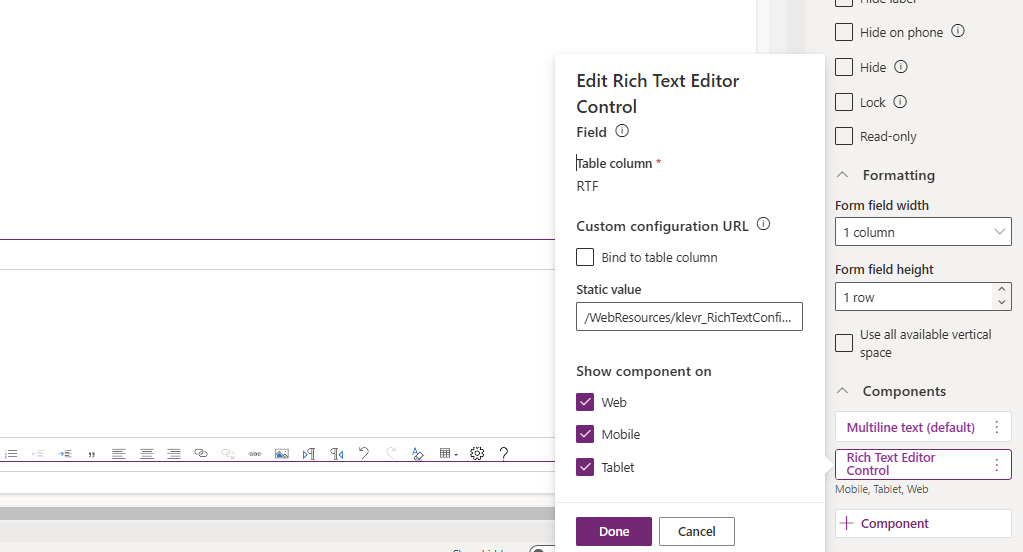
In order to apply the same restrictions to the rich text editor in Dynamics as what we have on the portal, you can follow these steps:
In the Dynamics form Editor for the entity with the rich text field, locate the rich text editor control on the form.
In the properties of the rich text editor, apply the Rich Text Editor Control, and in the settings for it, set the Custom Configuration URL to the following URL:
/WebResources/klevr_RichTextConfiguration.jsonScreenshot of how it should look like in the dynamics form editor:
Last updated on