
Survey Process
Surveys allow organisations to collect information using Forms and track responses against specific people, organisations or business records.
Surveys
Overview
Surveys allow organisations to collect information using Forms and track responses against specific people, organisations or business records.
A survey can be:
- Targeted at specific recipients
- Shared publicly through a general survey link
- Run as a one-off survey
- Scheduled to run automatically at recurring intervals
Survey responses are stored as Form Submissions and can be analysed using the built-in reporting framework. Survey data can also be grouped and reported on using Reporting Groups.
How Surveys Work
At a high level, the survey process consists of:
- Creating a Survey.
- Selecting the Form to be completed.
- Defining recipients manually by creating Survey Respondent records or using a Participant Query by using the Fetch builder.
- Activating the Survey.
- Distributing Survey Links.
- Collecting Form Submission responses.
- Reviewing responses through reporting and analytics.
Survey Types
Targeted Surveys
Targeted surveys are sent to known recipients.
Each recipient is represented by a Survey Respondent record and receives their own unique Survey Link. When a response is submitted, the Form Submission is linked back to the Survey Respondent, allowing response tracking and completion reporting.
Common examples include:
- Member satisfaction surveys
- Volunteer feedback surveys
- Application follow-up surveys
- Supplier assessment surveys
Open Surveys
Open surveys generate a Survey Link on the Survey record that can be shared publicly.
Open surveys do not require Survey Respondent records. However, respondents can still be generated through a Participant Query if individual respondent tracking and unique survey links are required.
This allows a Survey to support:
- A single public Survey Link for open participation.
- Individual Survey Respondent records with unique links.
- A combination of both approaches within the same Survey.
To support both public participation and respondent-specific links on the same Survey, the Survey Type must be set to Open.
Survey Components
Survey
The Survey record acts as the primary record for a survey campaign.
It stores:
- Survey Name
- Survey Type
- Form
- Participant Query
- Survey Link
- Reminder Date
- Status information
- Reporting information
The Survey also provides access to Respondents and Responses through related records and reporting.
Survey Respondents
Survey Respondents represent individual people or organisations receiving a survey.
Each respondent stores:
- Contact Person
- Target Record
- Survey Link
- Status information
Survey Respondents are only required for targeted surveys.
Participant Query
Participant Queries allow Survey Respondents to be generated automatically.
Rather than manually creating respondents, users can configure a FetchXML query that identifies the people who should receive the survey.
FetchXML Builder
The Participant Query field is maintained through a dedicated FetchXML Builder web resource.
Users configure the query using the builder, which then writes the generated FetchXML back into the Participant Query field. The field itself remains read-only to prevent accidental modification of the generated query.
Supported Entities
The FetchXML Builder is configured to only allow entities supported by the Survey Respondent Contact Person lookup.
This includes:
- Account
- Contact
Respondent Generation
When the Participant Query is executed:
- Matching records are identified.
- Survey Respondent records are created where required.
- Existing active respondents are not duplicated.
- Respondents are added rather than removed.
This allows organisations to maintain manually added respondents while still supporting dynamic recipient lists.
Survey Links
Surveys can provide two types of links:
Survey Link
- Stored on the Survey record.
- Generated when the Survey Type is Open.
- Intended for general sharing where responses are not restricted to specific recipients.
Respondent Survey Links
- Stored on Survey Respondent records.
- Generated for identified recipients.
- Allow submissions to be associated with a specific respondent.
This design allows organisations to support both anonymous and tracked response scenarios within the same Survey process.
Survey Scheduling
Survey Schedules automate recurring survey processes.
Schedules support:
- Start Date
- End Date
- Frequency
- Interval
- Day
- Pause From Date
- Pause To Date
- Next Run Date
When a schedule runs, a Power Automate process identifies due schedules and triggers the survey processing logic.
Create Mode
Clone to New Survey
In Clone to New Survey mode:
- The configured Survey acts as a template.
- A new Survey record is created for each run.
- Survey configuration is copied to the new Survey.
- Reporting is maintained separately for each survey instance.
This approach is ideal for annual, quarterly or monthly surveys where each survey cycle should have separate reporting.
Append to Existing Survey
In Append mode:
- Existing Survey records are reused.
- New respondents are added to the existing Survey.
- Reporting continues accumulating against the same Survey.
This approach is useful for ongoing feedback collection or long-running survey programs.
Responses and Form Submissions
When a respondent submits a survey, a Form Submission record is created.
How the Form Submission is associated depends on how the survey was accessed.
Open Surveys
When a person accesses an Open Survey using the Survey Link stored on the Survey record and submits their response:
- A Form Submission record is created.
- The Form Submission is associated with the Survey.
- The response can then be included in Survey reporting and analytics.
For example, an organisation may display a QR code at an event that links to an Open Survey. Each attendee who scans the QR code and submits a response creates a Form Submission linked to that Survey.
Survey Respondents
When a person accesses a Survey using a respondent-specific Survey Link and submits their response:
- A Form Submission record is created.
- The Form Submission is associated with the Survey Respondent.
- The Form Submission is also associated with the parent Survey for reporting purposes.
- The Survey Respondent can be used to track completion and response activity.
This allows organisations to identify who has and has not responded to a Survey.
Survey Completion
The Form Submission table contains a Validated field.
- Yes indicates the Survey was successfully completed.
- Any other value indicates the Survey has not yet been completed.
The Validated field can therefore be used when determining completion status and reporting outcomes.
Survey Distribution
The product prepares surveys and respondents but does not dictate how survey invitations are sent.
Distribution is intended to be implemented by delivery based on the customer's requirements. This may include:
- Power Automate
- Marketing journeys
- Portal notifications
- Custom integrations
A survey may also use the Reminder Date field to support reminder communications for respondents who have not completed the survey.
Reporting
Survey reporting is driven by Form Submissions and Reporting Groups
Analytics are generated by querying Form Submissions associated with the current Survey and passing those results to the reporting framework.
This allows organisations to:
- Measure response rates
- Review submitted responses
- Compare survey runs
- Analyse survey trends
Depending on the Schedule configuration, reporting can represent either:
- A single survey cycle, or
- Multiple cycles accumulated over time.
We have upgraded all form functionality to SurveyJS v3. and are using the newly released analytics suite. To utilise this, we have created a new web resource called klevr_surveydashboard.html. This web resource is added to the survey form by default, but is configurable to be added to other locations.
Dashboard Placement Options
By default, klevr_surveydashboard.html is added to the Survey form (Reporting tab). However, it is just a standard web resource, so it can be added to any entity form. This is useful for reporting on entities other than klevr_survey - for example, an Assessment Round that has its own set of form submissions.
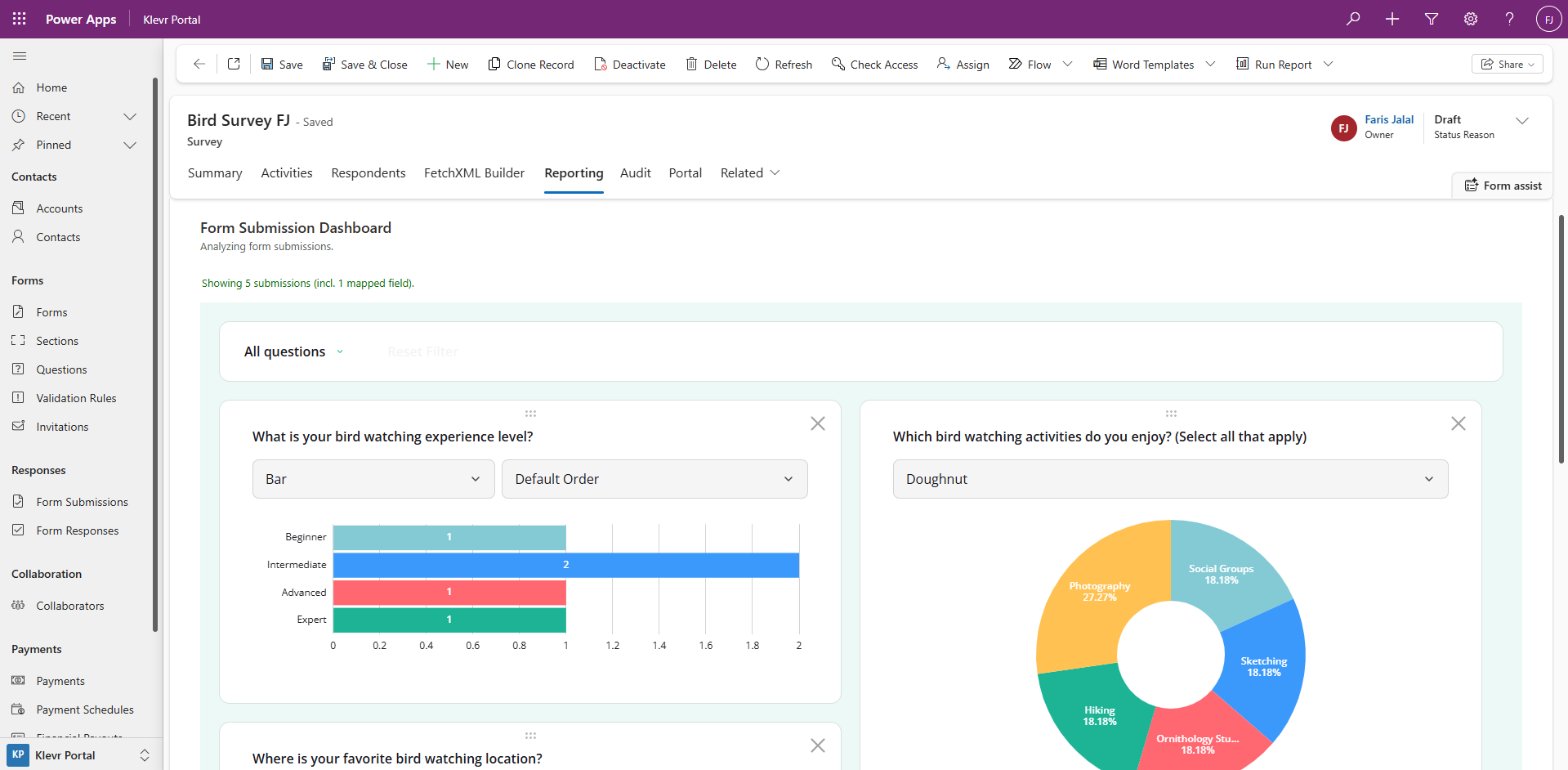
When placed on a form, Dynamics automatically supplies the id and etn parameters, and the dashboard uses the current record as the Reporting Group filter - no extra configuration needed.
Standalone Use
Because it's a standard web resource, the dashboard can also be opened directly - outside of any form - as long as reportingGroup or customQuery/fetchXml is supplied in the query string. Example : https://yourorg.crm.dynamics.com/WebResources/klevr_surveydashboard.html?reportingGroup=a1b2c3d4-e5f6-7890-abcd-1234567890ab
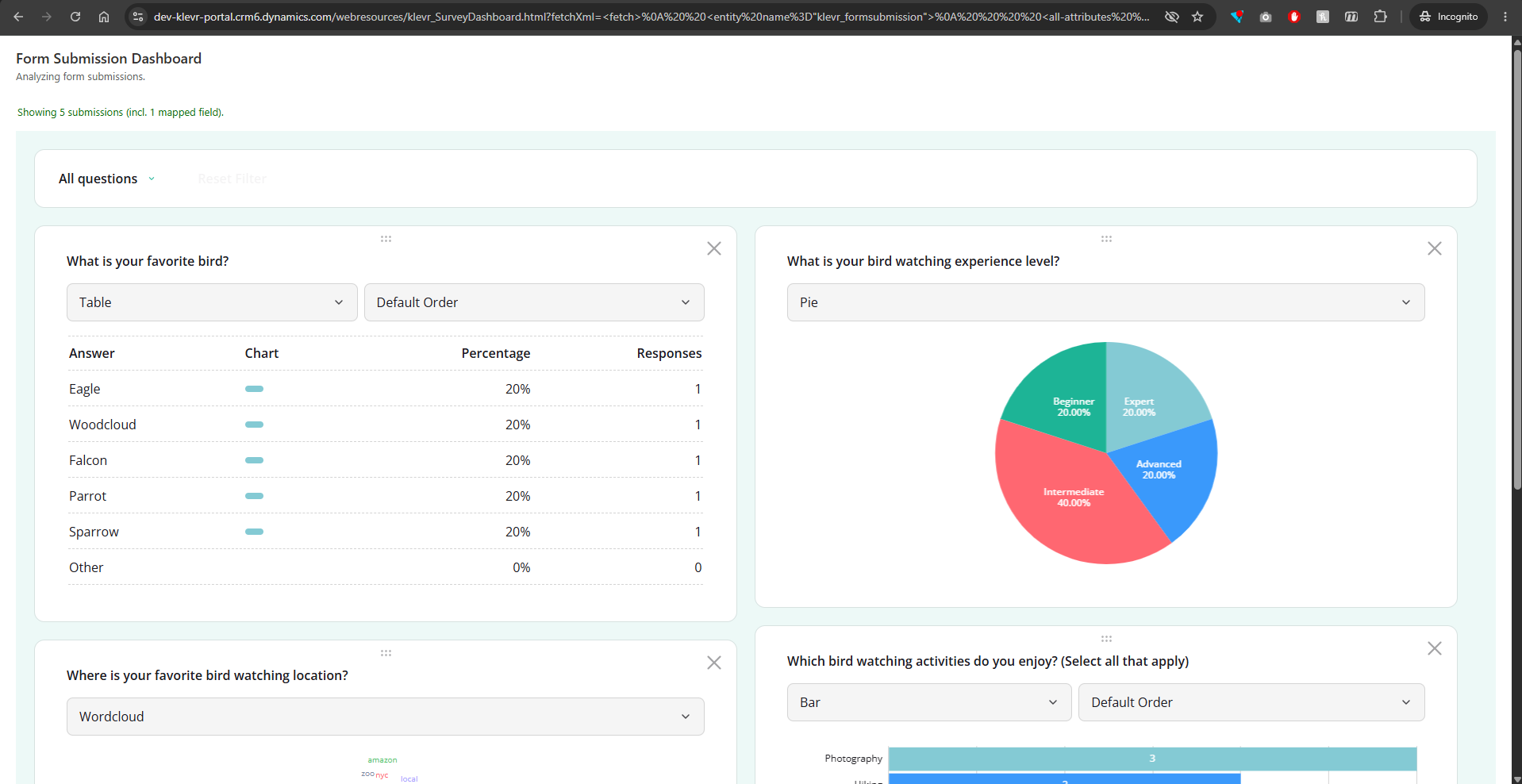
Configuring the Data Source
Reporting Group (default - no configuration needed)
- When placed directly on a form, the dashboard automatically uses the current record's ID as the Reporting Group filter.
- Example: Placed on the Survey form for record a1b2c3d4-..., the dashboard finds all Form Submissions where klevr_reportinggroupid = a1b2c3d4-....
Reporting Group (explicit)
- Pass the GUID directly via the query string - useful if the dashboard needs to report on a different record than the one it's placed on, or when using it standalone.
- Example: ?reportingGroup=a1b2c3d4-e5f6-7890-abcd-1234567890ab
Custom Query (FetchXML)
- Pass a URL-encoded FetchXML query to control exactly which form submissions are retrieved.
- Example: ?customQuery=%3Cfetch%3E%3Centity+name%3D%22klevr_formsubmissions%22%3E...%3C%2Fentity%3E%3C%2Ffetch%3E
- This is useful for cases like only including submissions from the last 30 days, or submissions across several Reporting Groups at once - something a single lookup filter can't do.
Multi-form Handling
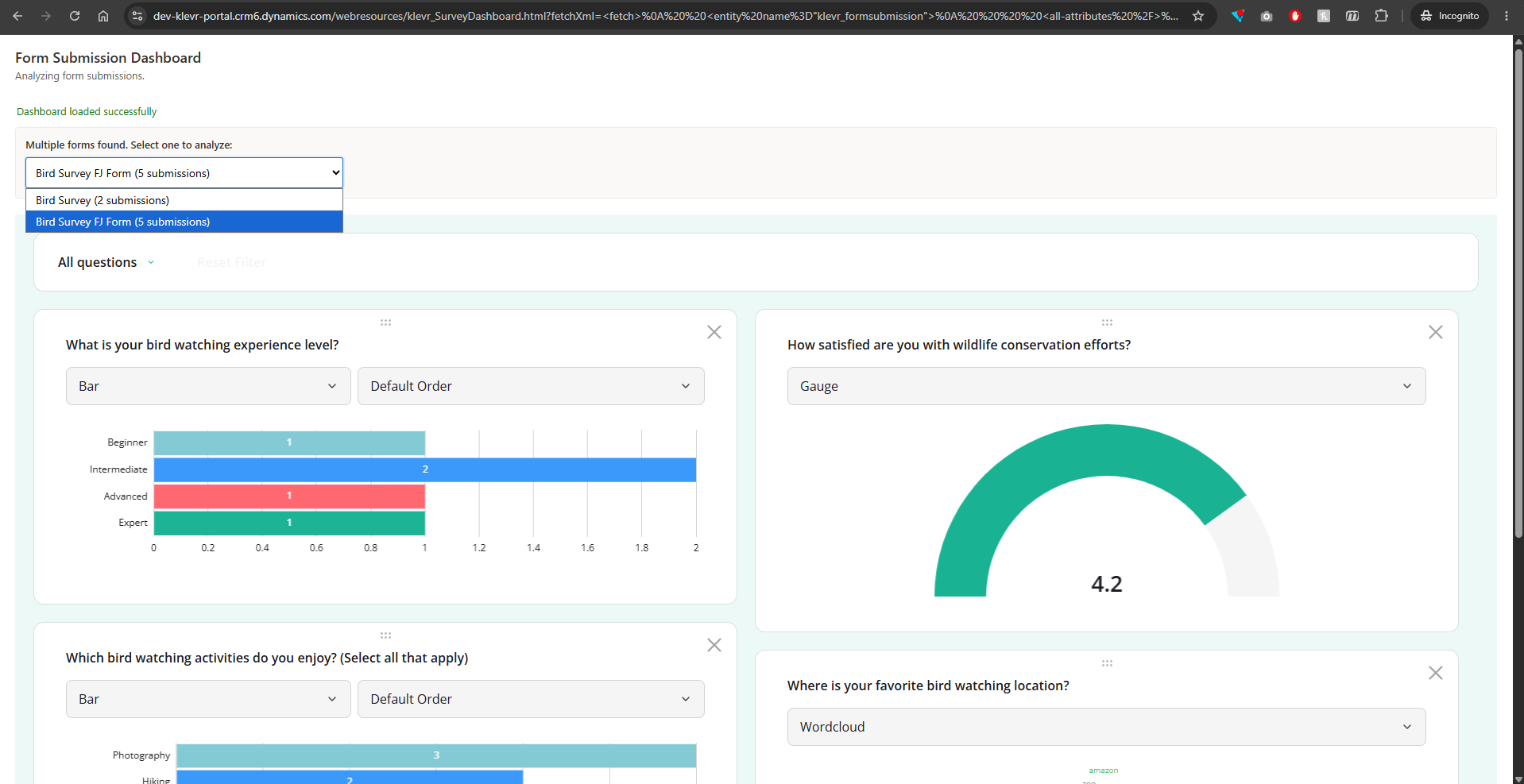
If the Form Submissions returned (by either mode) span more than one form, the dashboard displays a selector listing each form found, along with its submission count. Selecting a form filters the analytics to only that form's responses.
Technical
There's some custom API's and plugins to support the functionality
Custom API's
Klevr_PopulateSurveyRespondents
This is triggered by a plugin on status change from draft to active of the survey record, but can also be used in your own processes to populate the respondent table. It will run the defined fetch query on the survey, then filter out any respondents that have not started are are in progress to prevent duplicates, and then create new respondent records for the remaining records. It does not alter the existing statuses or remove responedents that do not match.
klevr_SetSurveyScheduleNextDueDate
Calculates the next date that the survey schedule should trigger on. This is called by the flow that processes the schedule.
Portal Page
A new portal page called survey has been added. If you have an existing portal, you can import this by running a usync report on content, finding the survey page in the list and applying the change. It also has a new template.
The template validates the querystring parameters and check if the survey is currently open for responses. It's a fairly basic template, so it is easy to copy it and add additional functionality, should you wish to.
The page itself can also be modified to your liking. There's a new property called "force borderless" that is enabled on the survey page, so it looks like it is a standalone page, and not part of the portal, but you can alter that if you wish to have the portal menu, etc displayed.
The page only renders the form, which is retrieved via slug that identifies the surveyid querystring's form.
The save button updates a raft of fields on the submission.
Note that the form will allow files to be uploaded, as long as the files are stored in blob. It does not suport CE or SP attachments, because for that to work, you need to have a saved record first, which we do not have.
Permissions
It also relies and you adding some permissions. At the minimum, you should have a read permission on klevr_survey for anonymous users, and a create permission on klevr_formsubmission for anonymous users.
If you intend to have people log in to complete surveys, you would need similar permissions for authenticated users too. You can further fine tune permissions as you see fit for your scenario.
Table articles found here
Last updated on