
Using PACMAN
This provides a guide for installing Klevr solutions using the pacman utility.
Installing Klevr solutions using the pacman
This provides a guide for installing Klevr solutions using the pacman utility.
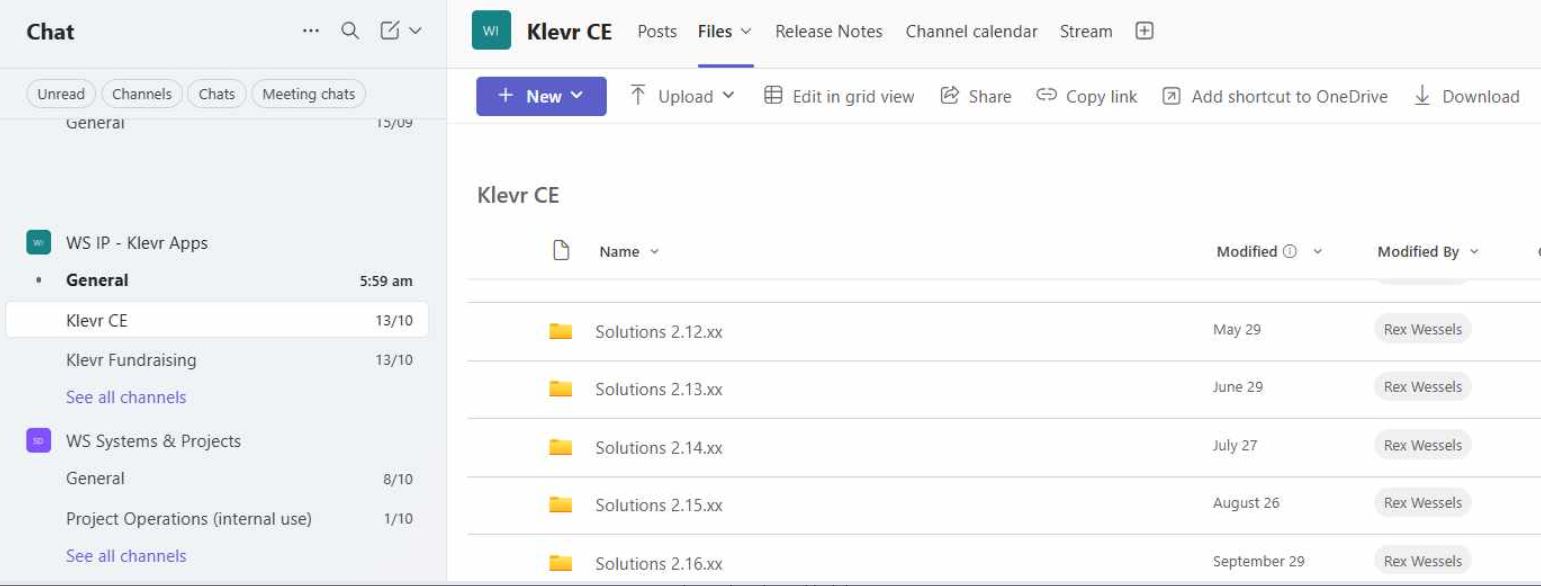
Begin by obtaining the latest solution files from the Teams and placing all necessary items in a designated folder
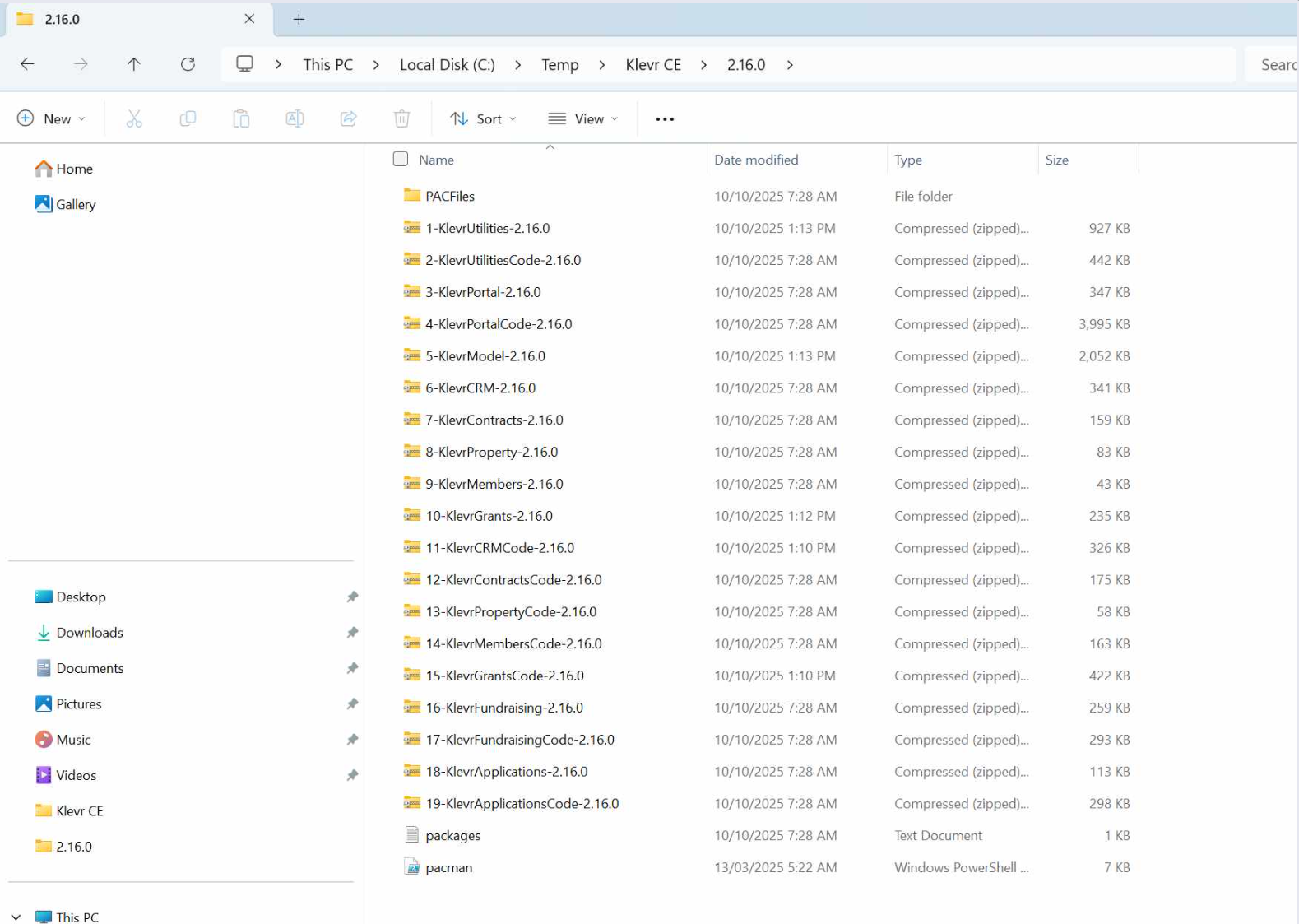
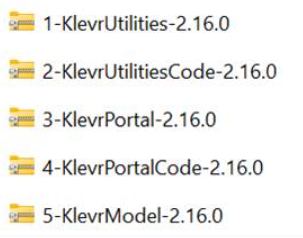
Each file is identified by a number, such as 14 or 18. Please be mindful of these numbers during subsequent steps.
Include the pacman.ps1 file in the same folder to access the required scripts.
To launch PowerShell in the correct directory, use the address bar in Windows Explorer to enter powershell.exe.
If you are utilizing pacman for a customer for the first time, authentication is required. Initiate this process by entering pac auth in PowerShell.
Windows will prompt an authentication window. Upon successful completion, you may proceed with solution installation.
Typically, most environments require both Klevr Utilities and Klever Utilities Code. The following example demonstrates how to install these components:
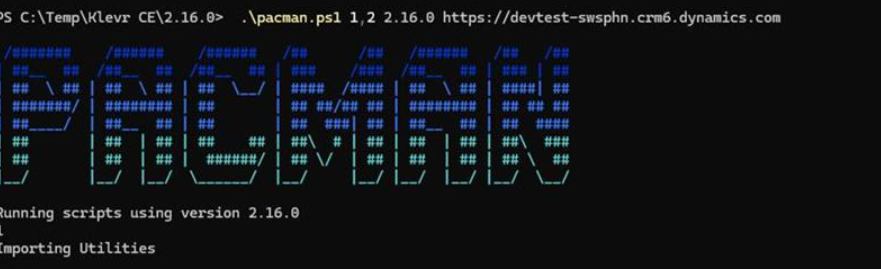
- In PowerShell, execute:.\pacman.ps1 1,2 2.16.0 https://org.crm6.dynamics.com/
- Here, "1" and "2" correspond to the solution numbers intended for installation.
- The version specified, such as "2.16.0," must match the files you downloaded.
- The provided URL refers to the destination environment, utilising your authenticated credentials.
- This action initiates the installation process.
For further guidance, Richard Gauntlett has produced a short video detailing these steps: (05) PACMAN Script connection and run.mkv
Last updated on