
Virus Scanning Blob Files
Microsoft Defender for Storage provides native malware scanning capabilities for Azure Blob Storage, making it a powerful and seamless solution without...
Microsoft Defender for Storage provides native malware scanning capabilities for Azure Blob Storage, making it a powerful and seamless solution without needing third-party tools. Here's a guide focused on enabling Microsoft Defender and setting up webhook notifications for failed scans:
🛡️ Enabling Microsoft Defender for Azure Blob Storage with Webhook Notifications
This guide explains how to enable Microsoft Defender for Storage to automatically scan blobs for malware and configure a webhook to receive alerts when a file fails the scan.
📦 What Is Microsoft Defender for Storage?
Microsoft Defender for Storage is a native threat protection service that detects malware and suspicious activity in Azure Blob Storage. It offers:
- Near real-time malware scanning on blob uploads
- Alerts for infected files
- Integration with Microsoft Sentinel and Event Grid
- No need for external antivirus engines
✅ Prerequisites
- Azure subscription with appropriate permissions
- Storage account with blob containers
- Microsoft Defender for Storage enabled
- Webhook endpoint, Logic App or powerautomate flow to receive alerts
🚀 Step-by-Step Setup
You can enable Defender via the Azure Portal or CLI.
- Go to your Storage Account.
- Navigate to Microsoft Defender for Cloud.
- Under Plans, enable Microsoft Defender for Storage.
az security pricing create \
  --name StorageAccounts \
--tier Standard- Defender scans blobs on upload (PUT or POST).
- Only supported for block blobs in general-purpose v2 storage accounts.
- If malware is detected, an alert is generated in Microsoft Defender for Cloud.
You can use Azure Event Grid to forward alerts to a webhook or Logic App.
az eventgrid event-subscription create \
  --name DefenderMalwareAlert \
  --source-resource-id "/subscriptions/<sub-id>/resourceGroups/<rg>/providers/Microsoft.Security/securityAlerts" \
  --endpoint-type WebHook \
  --endpoint "<your-webhook-url>" \
--included-event-types Microsoft.Security.AlertMicrosoft Defender sends alerts in a structured format. Here's a sample payload for a malware detection:
{
  "data": {
    "alertDisplayName": "Malware detected in uploaded blob",
    "resourceId": "/subscriptions/<sub-id>/resourceGroups/<rg>/providers/Microsoft.Storage/storageAccounts/<storage-account>",
    "properties": {
      "threatName": "EICAR-Test-File",
      "filePath": "container/malicious-file.pdf",
      "severity": "High",
      "remediationSteps": "Quarantine or delete the file."
    }
  }
}Your webhook, Logic App or paower automate flow can:
- Log the alert
- Notify administrators
- Move the file to a quarantine container
- Delete the file if policy allows
Create a mnually triggered flow, using the "When an HTTP request is received" trigger. Use the JSON above to generate the body payload, and set the trigger to allow anyone to trigger it.
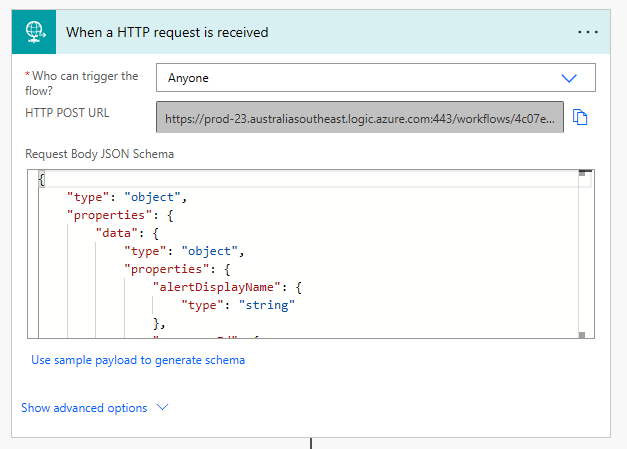
You can now configure the rest of the flow to update the CE record status, quarantine or delete the azure blob file, or send an alert to an administrator or group.
Once you have saved the flow, copy the HTTP Post URL that is generated and set it up in your event grid web hook url.
🧠 Best Practices
- Enable Defender across all storage accounts for full coverage.
- Use private containers and access policies to limit exposure.
- Monitor alerts via Microsoft Defender for Cloud or Sentinel.
- Automate remediation using Logic Apps or Azure Functions.
📚 References
Last updated on