
Config Builder
The Klevr JSON Payload Generator Config Builder is a Dynamics webresource used to create, edit, and test JSON Payload Generator configurations.
Overview
The Klevr JSON Payload Generator Config Builder is a Dynamics webresource used to create, edit, and test JSON Payload Generator configurations.
It is designed to make payload configuration easier to build by:
- letting you select entities and fields visually
- helping you add parent and related records
- generating the config JSON for you
- letting you edit the JSON directly when needed
- testing the payload output against a record
What This Tool Is For
Use this builder when you want to:
- create a new payload config from scratch
- visually inspect a payload structure
- test a payload config against a record
- paste an existing config and load it back into the builder
- troubleshoot the request being sent to the Payload Generator API
Main Concepts
Main Record
The Main Record is the root entity where payload generation begins.
Parent Record
A Parent Record is a single record reached through a lookup on the current record.
Example:
- Account -> Primary Contact
Related Records
Related Records are child records included by a filter.
Example:
- Account -> Opportunities
Config Editor
The Config Editor shows the payload config JSON. You can:
- edit it directly
- paste an existing config
- format it
- copy it
- apply it back into the visual builder
- reset it back to the builder-generated version
Page Layout
The webresource is split into these main sections:
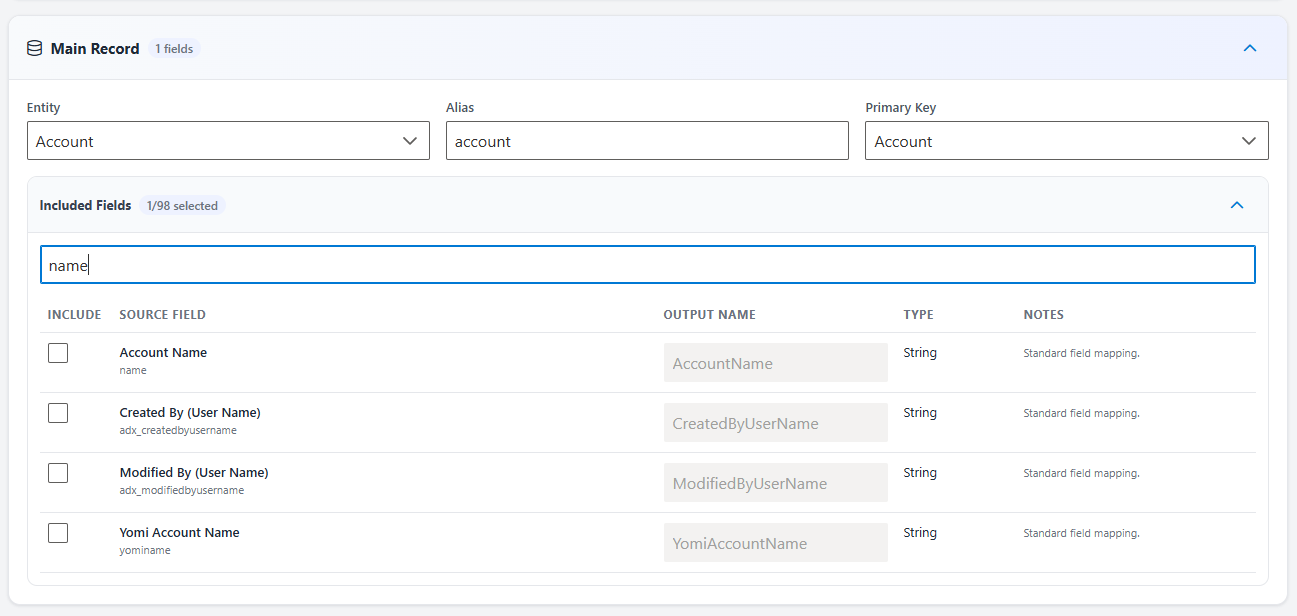
1. Main Record
Use this section to:
- choose the root entity
- confirm or change the alias
- confirm the primary key
- choose the fields to include
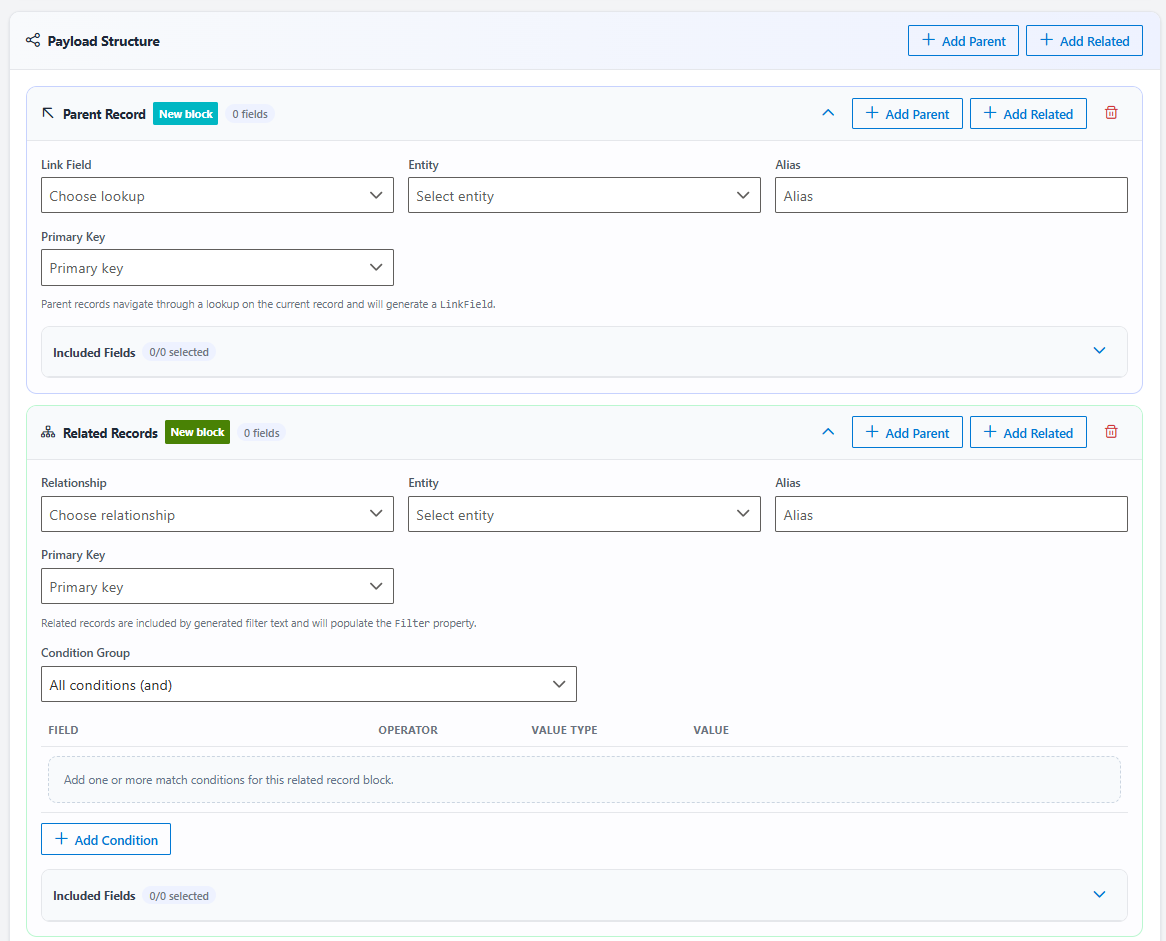
2. Payload Structure
Use this section to add:
- Parent records
- Related records
Each added entity appears as its own card and can be collapsed.
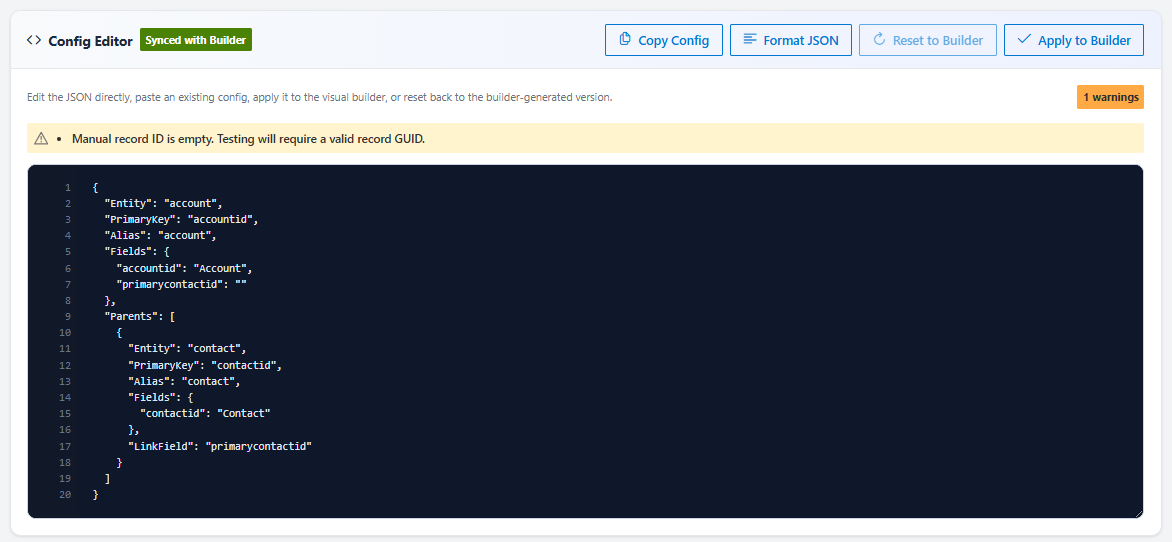
3. Config Editor
Use this section when you want to:
- inspect the generated JSON
- paste an existing config
- edit the JSON manually
- format JSON
- apply the JSON back into the visual builder
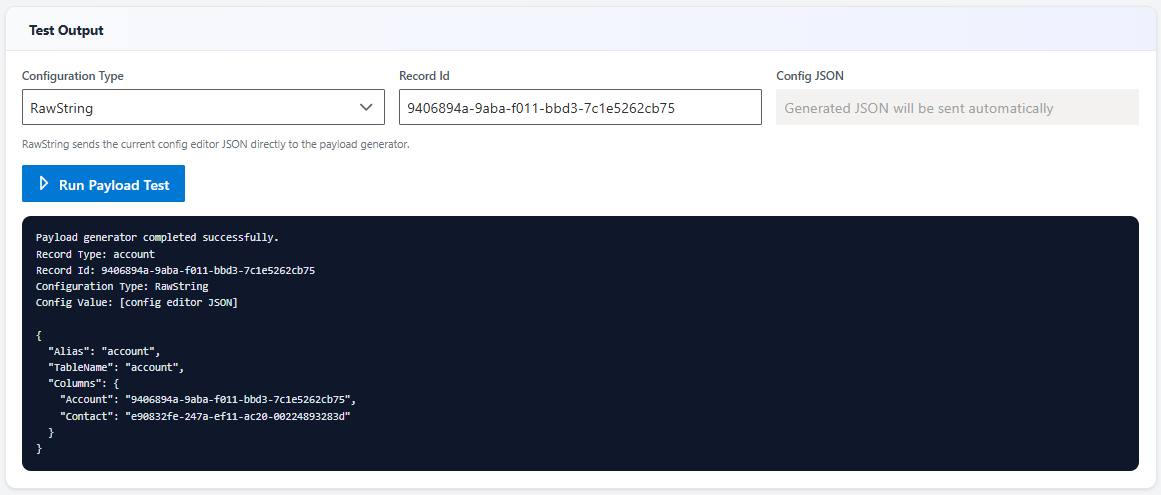
4. Test Output
Use this section to run the config against a record ID and inspect the generated payload or returned error.
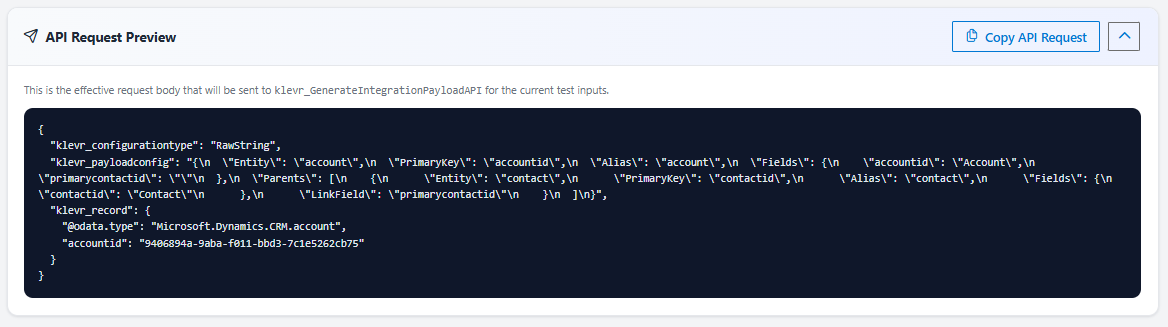
5. API Request Preview
Use this section to inspect the final request body that will be sent to the Payload Generator Custom API.
This section is collapsed by default.
Basic Workflow
Build a Config Visually
- Select the Main Record entity
- Choose the fields to include
- Add any Parent records you need
- Add any Related records you need
- Review the JSON in the Config Editor
- Enter a record ID in Test Output
- Run the payload test
Edit a Config Directly
- Paste a config into the Config Editor
- Click Format JSON if needed
- Click Apply to Builder
- If valid, the builder will populate from the config
- If invalid, the builder will show why the config could not be applied
Working With Fields
Field lists are collapsed by default to reduce scrolling.
Each field list also supports search, so you can filter by:
- display name
- logical name
- output name
Output Name
The Output Name is the property name used in the final payload.
Example:
name->Namefullname->ContactFullName
Blank Output Name
An output name of "" means the field is included for logic only and should not appear in the final payload.
This is useful for fields that are needed for:
- parent lookup linking
- related record filters
- placeholder replacement
Working With Parent Records
To add a parent:
- Click Add Parent
- Choose the parent relationship / link field
- Confirm the target entity
- Select the fields to include from the parent
The builder automatically includes required link fields where needed.
Working With Related Records
To add related records:
- Click Add Related
- Choose the relationship
- Confirm the related entity
- Review the generated filter condition
- Select the fields to include
The builder automatically creates a starting filter based on the selected relationship.
Config Editor Actions
Copy Config
Copies the current contents of the Config Editor.
Format JSON
Formats the current JSON in the editor.
Apply to Builder
Attempts to read the JSON and populate the visual builder from it.
Reset to Builder
Replaces the editor contents with the current builder-generated JSON.
Modified State
If the editor has been changed and no longer matches the visual builder, it shows as modified.
Testing a Config
The builder tests configurations by calling the Payload Generator Custom API.
You need:
- a root entity
- a record ID
- a configuration type
Configuration Types
RawString
Sends the JSON currently shown in the Config Editor directly to the API.
Use this when:
- building a config in the webresource
- testing a config before saving it elsewhere
WebResource
Sends the name of a webresource that contains the config JSON.
Use this when:
- the config is already stored in a Dynamics webresource
For this mode, enter:
- the record ID
- the webresource name
EnvironmentVariable
Sends the schema name of an environment variable that contains the config JSON.
Use this when:
- the config is stored in an environment variable
For this mode, enter:
- the record ID
- the environment variable schema name
Validation Behavior
Visual Builder Validation
The builder validates things like:
- missing entity
- missing primary key
- missing alias
- duplicate aliases
- missing parent link field
- missing related filter conditions
Config Editor Validation
The editor validates:
- JSON syntax
- expected config structure
- required properties
Test Behavior By Mode
RawString
Requires valid JSON in the Config Editor because the editor content is the config being sent.
WebResource / EnvironmentVariable
Do not require the local builder/editor config to be valid, because the real config is being resolved externally.
Auto
- blank source value -> behaves like RawString
- source value provided -> behaves like external resolution
API Request Preview
The API Request Preview section shows the effective request body that will be sent to the Payload Generator API.
Use this when:
- checking what
klevr_configurationtypeis being sent - checking what
klevr_payloadconfigvalue is being sent - checking the record reference being sent
You can also use Copy API Request to copy that request body.
Example: Simple Root Config
{
  "Entity": "account",
  "PrimaryKey": "accountid",
  "Alias": "account",
  "Fields": {
    "accountid": "AccountId",
    "name": "Name"
  }
}
Example: Root With Parent
{
  "Entity": "account",
  "PrimaryKey": "accountid",
  "Alias": "account",
  "Fields": {
    "accountid": "AccountId",
    "name": "Name",
    "primarycontactid": ""
  },
  "Parents": [
    {
      "Entity": "contact",
      "PrimaryKey": "contactid",
      "Alias": "contact",
      "LinkField": "primarycontactid",
      "Fields": {
        "contactid": "PrimaryContactId",
        "fullname": "ContactFullName",
        "emailaddress1": "ContactEmailAddress1"
      }
    }
  ]
}
Troubleshooting
The builder loads but entities do not appear
Check:
- the webresource was published
- the user can access Dataverse metadata
- the browser is not showing a stale cached copy
A parent or related record is returning null or empty results
Check:
- the relationship is correct
- any required link/filter fields are included
- the filter references the correct alias and field
- the record you are testing actually has related data
Apply to Builder fails
Check:
- the JSON is valid
Fieldsis an object- parent blocks contain
LinkField - related blocks contain
Filter - the config does not use unsupported complex filter structures
WebResource or EnvironmentVariable test fails
Check:
- the source name is exact
- the stored config JSON is valid
- the Payload Generator can resolve that source in the target environment
Best Practice Tips
- Start with a simple root-only config first
- Add one parent or related block at a time
- Use blank output names only for helper fields
- Use the Config Editor when you need fine control
- Use API Request Preview when testing different config source types
Last updated on